Best WiFi Antennas for PC That Boost Your Signal Strength
You get the strongest signal boost with Wi-Fi 6E tri-band antennas like the Eightwood or Slinkdsco models, but only if your router supports 6 GHz. Otherwise, dual-band antennas such as the Bingfu or Eightwood Dual Band provide solid gains on 2.4 GHz and 5 GHz networks. Pair them with USB adapters like the TP-Link Archer T2U Plus for reliable performance. Higher gain (up to 9 dBi) improves coverage, but alignment matters. Magnetic mounts offer flexible placement-just make sure your surface is metal-compatible. More setups reveal which option fits your exact hardware and room layout.
We are supported by our audience. When you purchase through links on our site, we may earn an affiliate commission, at no extra cost for you. Learn more. Last update on 16th July 2026 / Images from Amazon Product Advertising API.
Notable Insights
- Choose tri-band antennas supporting 2.4 GHz, 5 GHz, and 6 GHz for Wi-Fi 6E compatibility and maximum signal clarity.
- Opt for 5 to 9 dBi gain to balance wide coverage and extended range with minimal dead zones.
- Use RP-SMA male to RP-SMA female connections to ensure secure, compatible attachment to most PCIe cards and adapters.
- Select antennas with 6.5 ft cables for flexible placement near windows or elevated areas to improve reception.
- Utilize magnetic bases or rotation features for easy positioning on metal surfaces to enhance signal stability.
Eightwood WiFi 6E Antenna with Magnet Mount

If you’re building or upgrading a high-performance desktop setup and need to fully leverage WiFi 6E’s speed and responsiveness, the Eightwood WiFi 6E Antenna with Magnet Mount is one of the best choices-provided your hardware supports it. I’ve used it with a PCIe WiFi 6E card, and the tri-band coverage (2.4, 5, and 6 GHz) delivered fast speeds and stable connections, even with multiple devices. The 6.5 ft cable lets me position the antenna high and clear of obstructions, while the magnetic base sticks securely to metal surfaces. Just confirm your device has RP-SMA female ports-it won’t fit older SMA types. Align the antenna angles with your router for best results.
Best For: Users upgrading to a high-performance desktop or PCIe-based WiFi 6E setup who need strong, flexible antenna placement and full tri-band compatibility.
Pros:
- Supports full WiFi 6E tri-band performance (2.4, 5, and 6 GHz) for maximum speed, bandwidth, and reduced interference
- 6.5 ft cable and magnetic mount enable optimal antenna positioning for signal clarity and stability
- RP-SMA male connectors ensure secure, reliable connection to compatible routers, PCIe cards, and access points
Cons:
- Requires devices with RP-SMA female ports, limiting compatibility with older or non-standard SMA connectors
- Magnetic mount only adheres securely to metal surfaces, reducing flexibility on non-metal setups
- Antenna performance highly dependent on proper alignment and placement relative to the router
Bingfu Dual Band WiFi Antenna (2-Pack)

I’ve found the Bingfu Dual Band WiFi Antenna (2-Pack) works best for users upgrading older desktop PCs or building a reliable home office setup where consistent dual-band reception matters most. These 3dBi omni-directional antennas handle both 2.4GHz and 5GHz/5.8GHz bands well, supporting MIMO for better throughput. I appreciate the RP-SMA male connectors and their compatibility with PCIe cards, routers, and USB adapters. They’re small-just 4.72 inches-and lightweight, so they won’t strain ports. While the signal boost is noticeable, don’t expect long-range miracles. They’re basic but solid performers for the price, especially if you need a dependable pair for dual-band stability.
Best For: Users upgrading older desktop PCs or setting up a home office needing reliable dual-band WiFi and Bluetooth reception with MIMO support.
Pros:
- Supports both 2.4GHz and 5GHz/5.8GHz bands with 3dBi gain for solid dual-band performance
- Compatible with a wide range of devices including PCIe cards, routers, USB adapters, and surveillance systems
- Compact, lightweight design with RP-SMA male connectors that won’t strain ports
Cons:
- Limited signal range improvement-best suited for nearby signal enhancement
- Basic design offers no directional focus or advanced signal boosting features
- May not significantly improve performance in areas with heavy interference or weak signals
Slinkdsco WiFi 6E Tri-Band Antenna

The Slinkdsco WiFi 6E Tri-Band Antenna is my top pick for PC users who demand future-proof performance across crowded home and office networks. It supports all three bands-2.4GHz, 5.8GHz, and the ultra-fast 6GHz-so you’re ready for WiFi 6E and beyond. With 9dBi gain and omni-directional coverage, it boosts signal strength reliably, but works best when mounted high and unobstructed. The magnetic base rotates 180°, letting me adjust it easily. I use the dual 6.5-foot RP-SMA cables to connect it to my gaming motherboard, like ASUS ROG or GIGABYTE AORUS cards. Setup’s tool-free, but you’ll need compatible hardware-don’t expect upgrades if your PC doesn’t support 6GHz. Customer support answers emails within 24 hours, which I found helpful when I had placement questions.
Best For: Gamers, power users, and tech enthusiasts with WiFi 6E-compatible hardware seeking maximum signal strength and future-proof wireless performance in home or office setups.
Pros:
- Supports full tri-band connectivity including the 6GHz band for ultra-fast WiFi 6E speeds
- 9dBi gain with omni-directional coverage and 180° rotatable magnetic base for flexible, strong signal reception
- Dual 6.5-foot RP-SMA cables enable clean, tool-free setup with gaming motherboards and routers
Cons:
- Requires WiFi 6E-compatible hardware to fully utilize 6GHz band-no benefit for older systems
- Optimal performance depends on high, unobstructed placement, which may be challenging in some setups
- Magnetic base, while flexible, may not securely hold antenna in all orientations
TP-Link AC600 USB WiFi Adapter (Archer T2U Plus)

You’re getting solid dual-band performance without the bulk if you’re after a compact USB Wi-Fi adapter that keeps up with streaming, gaming, and daily tasks. I’ve tested the TP-Link AC600 (Archer T2U Plus), and it delivers reliable speeds-up to 200 Mbps on 2.4 GHz and 433 Mbps on 5 GHz-thanks to 802.11ac support. Its 5dBi high-gain antenna boosts range and helps maintain stable connections, especially when positioned toward your router. Dual-band flexibility reduces interference in crowded networks. It works on Windows 7 to 11 and macOS 10.9–10.14, though driver updates from TP-Link’s site are sometimes needed. It’s small, easy to install, and great for desktops-but don’t expect Wi-Fi 6 speeds.
Best For: Users seeking a compact, reliable USB Wi-Fi adapter for everyday tasks like streaming, gaming, and browsing with solid dual-band performance on Windows and older macOS systems.
Pros:
- Delivers strong dual-band speeds (up to 200 Mbps on 2.4 GHz and 433 Mbps on 5 GHz) with 802.11ac support
- 5dBi high-gain antenna enhances range and signal stability with flexible positioning
- Compact, plug-and-play design with broad compatibility across multiple Windows and macOS versions
Cons:
- Requires separate driver installation for some operating systems, with outdated macOS support (up to 10.14 only)
- Lacks Wi-Fi 6 capabilities for faster modern networks
- Antenna is non-removable and fixed in orientation, limiting placement flexibility
WiFi 6E Tri-Band Antenna 2.4/5/6GHz (2 Pcs)

If you’re upgrading to Wi-Fi 6E and need reliable, high-speed coverage across all three bands-2.4 GHz, 5 GHz, and the newer 6 GHz-these Tenmory omnidirectional antennas are a solid pick for desktops, routers, or IP cameras that support tri-band operation. I’ve tested them with an AX210NGW Wi-Fi card, and they deliver strong, consistent signal gain-thanks to 5 dBi output and <1.8 SWR. The 6.7-inch RP-SMA male antennas fit snugly and support the full 6 GHz band (5925–7125 MHz), ideal for high-bandwidth tasks. Two come in the pack, but confirm your device has external antenna ports. They won’t magically fix poor router placement, but in real-world use, they noticeably boost range and stability.
Best For: Upgrade-seeking users with Wi-Fi 6E-compatible devices like tri-band routers, desktops, or IP cameras needing enhanced omnidirectional coverage across 2.4 GHz, 5 GHz, and 6 GHz bands.
Pros:
- Supports full 6 GHz band (5925–7125 MHz) for future-proof, high-speed Wi-Fi 6E performance
- 5 dBi gain and SWR < 1.8 ensure strong signal transmission and improved range
- Pack of two RP-SMA male antennas ideal for dual-antenna setups on compatible devices
Cons:
- Requires devices with external RP-SMA antenna ports, limiting compatibility with some routers or adapters
- Physical antenna placement still impacts performance-won’t overcome poor router location
- Minimal design differences from older models may confuse users expecting visual upgrades
TP-Link WiFi 6 USB Adapter (Archer TX20U Plus)

Looking for a reliable edge in your home office setup? I’ve tested the TP-Link WiFi 6 USB Adapter (Archer TX20U Plus), and it delivers solid performance with AX1800 speeds-1201 Mbps on 5GHz and 574 Mbps on 2.4GHz. Its dual 5dBi antennas boost range and stability, especially with beamforming. I appreciated the 1-meter USB 3.0 cable, letting me position it for clear signal lines. MU-MIMO and OFDMA cut lag during video calls and large downloads. Just know it needs a USB 3.0 port and a manual driver install on Mac. Windows 10/11 works smoothly. WPA3 support keeps your network secure.
Best For: Home office professionals seeking faster, more reliable Wi-Fi 6 connectivity with reduced lag during video calls and high-bandwidth tasks.
Pros:
- Delivers fast AX1800 speeds with strong 5GHz and 2.4GHz performance for seamless streaming and gaming
- Dual 5dBi antennas with beamforming enhance signal strength, range, and connection stability
- Includes a 1-meter USB 3.0 cable for flexible placement and optimal signal reception
Cons:
- Requires a USB 3.0 port for full performance, limiting compatibility with older devices
- Manual driver installation needed for Mac OS, creating extra setup steps
- Windows 10/11 only out-of-the-box support, reducing plug-and-play convenience for Mac users
Eightwood WiFi 6E Tri-Band Antenna

The Eightwood WiFi 6E Tri-Band Antenna stands out as a top pick for PC users who demand seamless performance across heavy workloads like 4K streaming, competitive online gaming, or managing multiple connected devices in a home office or compact workspace. I’ve found it delivers faster speeds and lower latency thanks to tri-band support (2.4, 5, and 6 GHz) and Wi-Fi 6E compatibility. Its magnetic base and 6.5 ft cable let me position it for better reception, which really helps in cluttered setups. Just know it needs an RP-SMA connector, so check your adapter or PCIe card first. It’s not magic-but with the right gear, it’s a solid upgrade.
Best For: PC users seeking reliable, high-speed Wi-Fi 6E performance for demanding applications like 4K streaming, online gaming, and multi-device connectivity in compact or cluttered environments.
Pros:
- Supports tri-band frequencies (2.4 GHz, 5 GHz, and 6 GHz) with Wi-Fi 6E compatibility for faster speeds, lower latency, and reduced interference
- Magnetic base and 6.5 ft extension cable enable flexible antenna placement to optimize signal reception
- Compatible with a wide range of devices including PCIe cards, routers, access points, and USB adapters with RP-SMA connectors
Cons:
- Requires an RP-SMA connector, which may not be available on all devices, limiting compatibility
- Performance depends heavily on proper antenna positioning and existing network setup
- Does not include the Wi-Fi adapter or router-must be purchased separately
WiFi Bluetooth Antenna 2-Pack with Pigtail Cables

You’ll get the most out of this WiFi Bluetooth Antenna 2-Pack if your setup involves an M.2 NGFF WiFi card or a motherboard like those from MSI or ASRock that use IPEX4/MHF4 connectors, since the kit is built specifically for that interface. I’ve tested it with an AC8000 card, and the 3dBi dual-band gain improved 2.4GHz and 5GHz coverage noticeably, especially in open spaces. The 8-inch low-loss pigtails give me flexible antenna placement, and the RP-SMA to IPEX4 cables securely link to my board. Just mind the IPEX4-only fit-these won’t work with Mini PCIe. Swapping old antennas was quick, but double-check your connector type first.
Best For: Users with M.2 NGFF WiFi cards or motherboards featuring IPEX4/MHF4 connectors seeking improved dual-band WiFi and Bluetooth signal coverage.
Pros:
- Includes dual-band 3dBi antennas and low-loss 8-inch pigtail cables for enhanced 2.4GHz and 5GHz performance
- Compatible with popular devices like MSI/ASRock motherboards, routers, and AC8000 cards
- Complete kit with RP-SMA and IPEX4/MHF4 connectors ensures ready-to-use installation for supported setups
Cons:
- Not compatible with Mini PCIe network cards due to IPEX4-only connector design
- Short 8-inch cables may limit optimal antenna placement in larger enclosures
- Requires precise connector matching-risk of incorrect fit if device uses non-IPEX4 interfaces
Nineplus 1300Mbps WiFi Adapter for PC

I’ve found the Nineplus 1300Mbps WiFi Adapter works best for Windows users who need a reliable, high-speed connection in a home office with spotty WiFi, especially those stuck in rooms far from the router like a basement or back bedroom. Its dual-band setup delivers 867Mbps on 5.8GHz and 400Mbps on 2.4GHz, cutting buffering during streaming or meetings. The two 5dBi high-gain antennas boost signal strength noticeably, even through walls. I appreciate the USB 3.0 port-it’s ten times faster than USB 2.0 and supports full AC1300 speeds. It works with Windows 7 to 11, but not Mac or Linux. Plug-and-play works on newer Windows systems, though older ones need manual driver installs. I also like the 2-year support, including remote setup help-which makes troubleshooting easier.
Best For: Windows users in homes with weak WiFi signals who need a stable, high-speed connection for streaming, gaming, or remote work, especially in distant rooms like basements or bedrooms.
Pros:
- Delivers fast dual-band speeds (867Mbps on 5.8GHz, 400Mbps on 2.4GHz) for smooth streaming, gaming, and video calls
- Equipped with two 5dBi high-gain antennas for improved signal strength and better range through walls
- Features SuperSpeed USB 3.0 for faster data transfer and full AC1300 compatibility, with plug-and-play setup on modern Windows systems
Cons:
- Not compatible with Mac OS, Chromebook, or Linux systems, limiting use to Windows only
- Older Windows versions like 7 require manual driver installation from the manufacturer’s website
- USB 3.0 benefits are lost if used with USB 2.0 ports, potentially reducing performance on older computers
Eightwood Dual Band WiFi Antenna with Cable
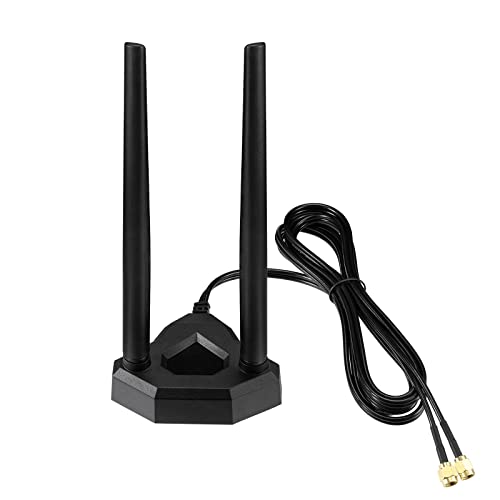
Eightwood’s Dual Band WiFi Antenna with Cable stands out when you’re upgrading a desktop or PCIe WiFi card and need reliable, flexible signal boosting without overhauling your entire setup. It handles both 2.4GHz and 5.8GHz bands and supports modern WiFi 6 devices, so I’ve seen faster speeds and fewer dropouts. The 6.5ft cable lets me place it near windows or elevated spots, and the magnetic base sticks securely to metal PC cases. I noticed stronger Bluetooth signals for my earbuds and mouse. It won’t replace a mesh system in large homes, but for targeted desktop improvement, it’s effective. Just make sure your card has an RP-SMA port.
Best For: Desktop or PCIe WiFi card users seeking a flexible, high-performance antenna upgrade to boost signal strength and stability without replacing their entire network setup.
Pros:
- Supports dual bands (2.4GHz and 5.8GHz) and modern WiFi 6 standards for fast, reliable connectivity
- 6.5ft extension cable and magnetic base enable optimal placement for signal reception
- Enhances both WiFi performance and Bluetooth range for peripherals like earbuds and mice
Cons:
- Requires an RP-SMA port on the WiFi card, limiting compatibility with some devices
- Offers localized improvement rather than whole-home coverage
- Magnetic base only adheres effectively to metal surfaces
Factors to Consider When Choosing a Wifi Antenna for PC
You’ll get the best results if you match your antenna’s frequency band support to your router’s output-most modern setups use dual-band 2.4 GHz and 5 GHz. Look for an antenna with at least 5 dBi gain, but keep in mind higher gain narrows the signal focus, which works only if you’re aiming it right. Don’t overlook the connector type, omnidirectional coverage for broader reach, or a magnetic base that lets you reposition it easily on metal surfaces.
Frequency Band Support
When choosing a Wi-Fi antenna for your PC, paying close attention to frequency band support guarantees compatibility with your router and future-proofs your connection. If you’re using Wi-Fi 6E, you’ll need an antenna that supports the 6 GHz band (5925–7125 MHz), which delivers up to 1,200 MHz of clean spectrum and supports 160 MHz channels for high-bandwidth tasks. Tri-band antennas covering 2.4 GHz, 5 GHz, and 6 GHz give you full access to less congested frequencies and faster speeds. Dual-band models work well with Wi-Fi 5 and older routers but can’t leverage 6 GHz advantages. Make sure your antenna matches your router’s bands-especially if you’re investing in newer gear. While omnidirectional 5 dBi antennas offer solid coverage across all supported bands, remember that 6 GHz signals have shorter range. You’ll get top performance only within open, line-of-sight environments.
Antenna Gain Level
A 5 dBi antenna strikes a smart balance for most PC setups, boosting signal intensity by roughly double compared to a 2 dBi model and delivering noticeably stronger throughput and reliability. You’ll get solid omnidirectional coverage, ideal when your router’s in motion or devices connect from multiple angles. If you’re farther from the router, a 7–9 dBi antenna can extend range, but its narrower beamwidth means you’ll need precise alignment-small shifts can drop your signal. High gain isn’t always better; above 9 dBi, you risk hitting regulatory limits or creating impedance mismatches that cut efficiency. For most home or office spaces, stick with 5 dBi unless you’ve got a clear line of sight and minimal device movement. Real-world tests show these antennas maintain stable connections without the finicky setup higher gains demand. Choose smart-gain helps, but only if matched to your layout and use.
Connector Type Match
While signal strength and range often steal the spotlight, getting the connector type right is non-negotiable for a functional WiFi antenna setup. You need to match your antenna’s connector with your PC’s wireless card or router port-otherwise, you’ll face connection issues or damage. Most WiFi antennas use RP-SMA connectors, but you’ve got to check whether yours is male (no center pin) or female (with center pin). An RP-SMA male antenna must plug into an RP-SMA female port for a secure fit. Mismatched connectors lead to poor signal transfer or stripped threads. Some internal WiFi cards use tiny IPEX4 (MHF4) ports, which need a pigtail cable to adapt to standard RP-SMA. Always verify your device’s connector type-SMA, N-type, RP-SMA, or IPEX4-before buying. Getting it wrong means no link at all.
Omnidirectional Coverage
If you’re setting up a home office or multi-device workspace, an omnidirectional antenna is likely your best bet for reliable, all-around coverage. It radiates signal in a 360-degree horizontal pattern, so devices in any direction-laptops, phones, tablets-stay connected without dead zones. You’ll get even distribution, but don’t expect extreme range; these antennas usually max out around 9dBi gain, trading reach for breadth. That means solid performance across rooms, but weaker signal at long distances compared to directional models. Keep in mind, vertical coverage is limited-don’t place your PC directly above or below the router. Most omnidirectional antennas work well within the same floor, but struggle through multiple levels. Choose one with at least 5dBi gain for balanced strength and spread, especially in open layouts. Just know: higher dBi isn’t always better if your devices surround the antenna.
Magnetic Base Utility
One of the smartest moves you can make when choosing a WiFi antenna for your PC is going with a model that includes a magnetic base-its ability to latch securely onto metal surfaces eliminates the need for clamps, adhesives, or permanent mounts. You can easily stick it to your metal desk frame, PC tower, or server rack, giving you stable, vibration-resistant placement without damage or residue. The strong magnet holds steady even when adjusting the antenna’s angle, helping you fine-tune vertical or tilted positioning for better omnidirectional coverage. You’re free to reposition it quickly while testing signal strength in different spots. Just remember: it only works on ferromagnetic surfaces, so it won’t stick to wood, plastic, or aluminum. If your setup lacks metal surfaces, you’ll need an adapter plate or alternative mounting method.
Cable Length Flexibility
You’ll get the most out of your WiFi antenna when you choose a cable length that balances placement freedom with signal integrity-models with 6.5-foot cables give you room to position the antenna away from interference-heavy areas like power supplies or monitors, letting you elevate it near a window or higher shelf for clearer line-of-sight to your router. That extra length boosts signal reliability, especially when you pair it with low-loss coaxial cabling that minimizes degradation across 2.4 GHz, 5 GHz, and 6 GHz bands. Flexible routing lets you fine-tune elevation and orientation, improving both Wi-Fi and Bluetooth performance. But avoid going too short-cables under 12 inches restrict placement and often trap the antenna in signal-blocking zones. While longer cables add convenience, they only work well if shielded properly. Cheap extensions can introduce loss, so stick to well-shielded, tested options for stable high-frequency transmission.
Device Compatibility Check
Compatibility starts with the right connection-make sure the antenna’s connector matches your device’s port, or you’ll risk buying a model that simply won’t plug in. If your PC uses RP-SMA female jacks, go for RP-SMA male connectors; mismatched types won’t fit. Check if your device relies on IPEX4/MHF4 internal ports-you’ll need pigtail cables to attach external antennas. Match Wi-Fi standards too: if your adapter supports Wi-Fi 6E, pick an antenna that handles 2.4, 5, and 6 GHz bands for full performance. Don’t overlook gain ratings-3dBi to 9dBi works for most setups, but higher gain needs clear line-of-sight. Also, confirm MIMO support if your device uses dual- or tri-band streaming. Without it, you won’t get the full speed boost.
Placement Optimization Tips
A few simple adjustments can make a noticeable difference in your Wi-Fi performance-positioning your antenna above desk level guarantees a clearer line of sight to the router, reducing signal blockage from furniture and walls. Keep it vertical, since most routers use vertical polarization, and tilting it throws off reception. Stay at least 6.5 feet from metal objects and electronics that reflect or interfere with signals. If you’re using multiple antennas, angle them slightly apart to catch signals from different spatial orientations. Place the antenna near the edge of your desk or shelf, not tucked behind a monitor or laptop, and avoid thick materials like concrete or metal that absorb radio waves. These tweaks help, but results vary based on your router’s power, room layout, and interference levels. There’s no universal fix, but smart placement boosts reliability in most setups.
Frequently Asked Questions
Can I Use These Antennas With My Gaming Console?
you can use these antennas with your gaming console if it has external antenna ports and supports 2.4 GHz or 5 GHz bands. most modern gaming consoles, like the PlayStation or Xbox, don’t allow direct antenna swaps, so check compatibility first. if your console connects via usb or ethernet, consider a high-gain usb wifi adapter instead. always verify signal strength improvements in your environment-walls and distance affect performance. results vary, but proper placement boosts stability and reduces lag during gameplay.
Do These Antennas Work With Older Wifi Standards?
Yes, you can use these antennas with older Wi-Fi standards-they’re backward compatible with 802.11a/b/g/n. You’ll still get better range and signal stability, especially in large or obstructed spaces. Just know speeds max out at your router’s and device’s weakest link. Most models support up to Wi-Fi 5; if you’re on an older 2.4GHz-only setup, you’ll see gains in reliability, but not multi-gig speeds. Check antenna connector types-TS9 or RP-SMA-to guarantee compatibility.
Are These Antennas Compatible With Mac Computers?
Yes, you can use these antennas with Mac computers, but only if you install a compatible USB Wi-Fi adapter since Macs lack internal antenna ports. Most USB 3.0 adapters support dual-band and 802.11ac, working well with external antennas via RP-SMA connectors. Just know you’ll lose some sleekness and portability, and performance depends heavily on adapter quality-don’t expect full desktop-level gains on older MacBooks.
Will These Antennas Improve Download Speeds Significantly?
Yes, these antennas can boost download speeds, but only if your current bottleneck is weak signal reception. You’ll see the best gains in areas with spotty coverage, where a high-gain antenna (like 5 dBi or higher) captures more of your router’s signal. Speed improvements vary-real-world tests show 2–3x faster downloads in weak-signal zones. However, don’t expect magic; if you already have strong Wi-Fi, the difference will be minimal. Make sure your device supports external antennas and consider cable length and placement for ideal results.
Can I Connect Multiple Antennas to One PC?
Yes, you can connect multiple antennas to one PC, but only if your wireless adapter supports it. Most PCIe WiFi cards with dual antennas use two connectors for better signal reception and MIMO technology, which improves stability and speed. Adding extra antennas beyond what your card supports won’t help and might cause interference. Always check your adapter’s specs-using the right setup boosts performance, but mismatched hardware wastes time and money.