Matching Monitor Diagonal Size to Typical Viewing Distance in Compact Home Offices
For compact home offices, a 24-inch monitor at 2 feet or a 27-inch at 3 feet gives the best balance of screen space and eye comfort. You’ll get sharp 1080p on the smaller display, while the larger one needs at least 1440p to avoid pixel strain. Keep the top at eye level, use an adjustable arm, and mind your desk depth-bigger isn’t better if you’re squinting or craning your neck. Proper setup makes all the difference.
Notable Insights
- A 24-inch monitor is ideal for 2-foot viewing distances in compact home offices.
- Ensure top of screen aligns at or below eye level to reduce neck strain.
- Use 1080p resolution on 24-inch monitors for sharp visuals at close range.
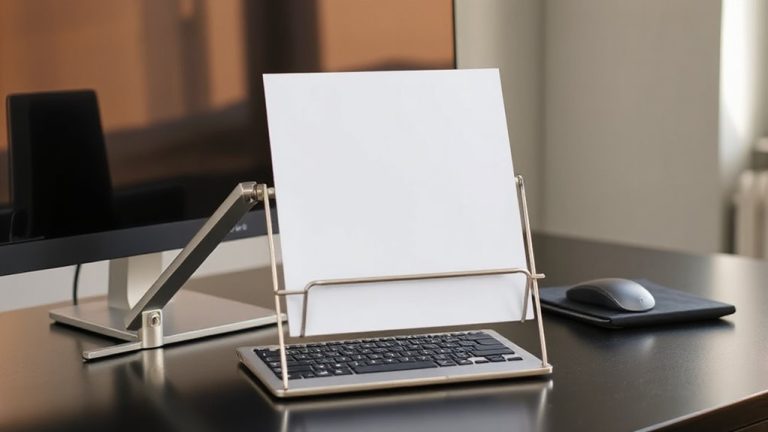
- Choose monitors with adjustable stands or VESA mounts for optimal positioning.
- Avoid oversized screens under 3 feet to minimize eye fatigue and glare.
How Size and Distance Affect Small Office Comfort
Ever wonder why your eyes feel strained after a few hours at your desk? Your monitor’s size and viewing distance likely play a bigger role than you think. At typical distances under 3 feet, oversized screens force constant eye movement, increasing fatigue. A 24-inch monitor usually fits best at around 2 feet, reducing glare and improving focus. Pair it with ergonomic lighting-positioned to avoid screen reflections-and you’ll cut visual stress considerably. Good cable management isn’t just tidy; it reduces distractions and supports better airflow to your devices. Remember, bigger isn’t always better: oversized displays in tight spaces cause neck strain and pixel peeping. Always test setup proportions in your actual workspace. Some monitors include adjustable stands or VESA mounts, which help fine-tune positioning. But don’t ignore room constraints-comfort hinges on balance, not specs.
What Monitor Size Is Ideal at 2 Feet?
While there’s no universal rule, a 24-inch monitor is generally the sweet spot for a 2-foot viewing distance, offering a balance between screen real estate and visual comfort. At this size and distance, you’ll get sharp images with adequate pixel density-especially on 1080p panels-without eye strain. Going larger, like 27 inches, can feel immersive, but text may appear larger than necessary unless you adjust scaling. For productivity, stick to IPS or VA panels, which provide better viewing angles. Don’t ignore refresh rate-60Hz is fine for office work, but if you switch between tasks quickly or do light media editing, a 75Hz or higher panel feels smoother. Just don’t prioritize high refresh rates over pixel density, as clarity matters more up close. Calibration matters too: a well-adjusted brightness and color temp reduces fatigue. Always check return policies-what looks good on paper might feel off in practice. Among the top options for this use case are models highlighted in the Best 24-Inch Monitors roundup, which balance performance and value for compact setups.
What Size Monitor Works at 3 Feet?
How far you sit from your screen changes what size works best, and at 3 feet, a 27- to 32-inch monitor typically delivers the right blend of visibility and comfort. At this distance, larger screens fill your field of view without requiring excessive eye or neck movement, supporting better ergonomic alignment. You’ll want at least a 1440p resolution to maintain sharp pixel density-otherwise, text and images may appear fuzzy. While 4K boosts clarity, it’s only beneficial if your eyes can resolve the extra detail at that range. Make sure your desk depth and chair adjustability support this setup, since poor positioning undermines even the best hardware. Also, consider ambient lighting; glare can offset gains in screen real estate. Not everyone needs this size, especially if you multitask across apps or have limited desk space. Know your workflow before upgrading.
Best 24-Inch Monitor Sizes for Close Work
If you’re working within 2 to 3 feet of your screen, a 24-inch monitor is usually the sweet spot for clear visuals and comfortable productivity-especially when paired with 1080p resolution and an IPS panel for consistent colors across wide angles. You’ll get sharp text, solid color accuracy for basic creative work, and a footprint that fits snugly on smaller desks. Good cable management options-like built-in routing and clean rear covers-help reduce clutter, making your space feel more focused. While not ideal for heavy multitasking, these monitors balance size and usability well.
| Feature | Emotional Benefit |
|---|---|
| Crisp 1080p | You feel confident in every detail |
| Reliable color accuracy | Your eyes trust what they see |
| Slim bezels | Your space feels open and modern |
| Simple cable management | You enjoy a calm, tidy desk |
| Compact depth | You gain room without sacrifice |
Is a 27-Inch Monitor Too Big for a Small Desk?
So, is a 27-inch monitor too big for a small desk? Not necessarily-but it depends on your setup. If your desk is under 48 inches wide, a 27-inch screen can still fit, provided you maintain at least 24 inches of viewing distance for comfortable focus. You’ll need to prioritize ergonomic posture: tilt the monitor slightly and align the top at or just below eye level to avoid neck strain. A monitor arm helps here, freeing desk space and improving cable management with built-in channels or wraps. Without one, clutter can build fast, especially if you’re using multiple devices. Keep in mind that larger screens demand more room for peripherals, so measure your space carefully. While 27 inches offers extra screen real estate, poor layout can undercut the benefits fast. For optimal performance and visual comfort, consider one of the top 27-inch monitors based on expert reviews and user feedback.
Balance Screen Size and Eye Comfort
While pixel density and screen size both play key roles, you’ll find a 27-inch monitor at 1440p resolution strikes the sweet spot for most desktop setups when viewed from 24 to 36 inches. At this distance, text remains sharp without eye strain, and the screen’s real estate boosts productivity without demanding excessive head movement. Pair it with ergonomic lighting-position lamps to reduce glare and avoid overhead fluorescents-to maintain visual comfort during long sessions. Tidy cable management isn’t just about looks; routing power and data cables neatly reduces distractions and supports a clutter-free zone, which indirectly aids focus and posture. Just make sure your desk depth fits the viewing distance-some compact spaces may require a slight lean forward, which over time can cause fatigue. Adjust tilt and height so the top of the screen is at or slightly below eye level. It’s effective for most, but not all-individual vision and space limits matter.
On a final note
You’ll get the best balance with a 24-inch monitor at two feet-sharp text and full visibility without eye strain. At three feet, a 27-inch fits well, but only if your desk allows 30+ inches of depth. Bigger screens demand higher resolution (at least 1440p) to stay crisp. Adjust brightness and tilt to reduce glare, and guarantee your chair supports proper posture. Warranties with panel replacement, like Dell’s three-year, add peace of mind.