Optimizing Ubuntu Workspaces for Productivity With Keyboard-Driven Virtual Desktops
You’ll boost productivity by mastering Ctrl+Alt+arrow keys to navigate Ubuntu workspaces quickly and reliably. Enable multiple workspaces in Settings > Multitasking, then organize them by task-like coding or web browsing-to minimize distractions. Keep setups simple with 3–4 static workspaces and consistent shortcuts to avoid confusion, especially on shared systems. Watch for shortcut conflicts and adjust keyboard settings if needed. Tweak backgrounds and animations sparingly to maintain focus and performance. Customization pays off-but only when it stays under control. You’ll find even smarter setups as you go further.
Notable Insights
- Use Ctrl+Alt+arrow keys to navigate workspaces quickly and efficiently with keyboard-driven controls.
- Enable static workspace grids in Settings > Multitasking for consistent and predictable workspace management.
- Assign dedicated tasks to each workspace to minimize distractions and reduce application-switching overhead.
- Customize keyboard shortcuts in Settings > Keyboard to avoid conflicts and enhance navigation reliability.
- Keep workspace count to 3–4 for optimal focus, balancing organization and simplicity.
Use Keyboard Shortcuts to Switch Ubuntu Workspaces
While you can navigate workspaces using the mouse, mastering keyboard shortcuts will save you time and reduce strain during long work sessions. Shortcut efficiency becomes clear when switching rapidly between tasks-Ctrl+Alt+arrow keys move you seamlessly across desktops without breaking focus. You’ll gain seconds per switch, which adds up during daily use. Ubuntu lets you create Custom shortcuts, so if the defaults don’t fit your flow, remap them in Settings > Keyboard. This flexibility helps tailor navigation to your habits. But be cautious: over-customizing can cause confusion on shared or new systems where shortcuts differ. Stick to common combinations unless you’re certain. Also, some keyboards, especially compact ones, may lack dedicated function keys, limiting reliability. Test shortcuts on your actual hardware. With consistent use, the gains in speed and comfort are measurable, especially in high-task environments.
Enable and Configure Multiple Workspaces in Ubuntu
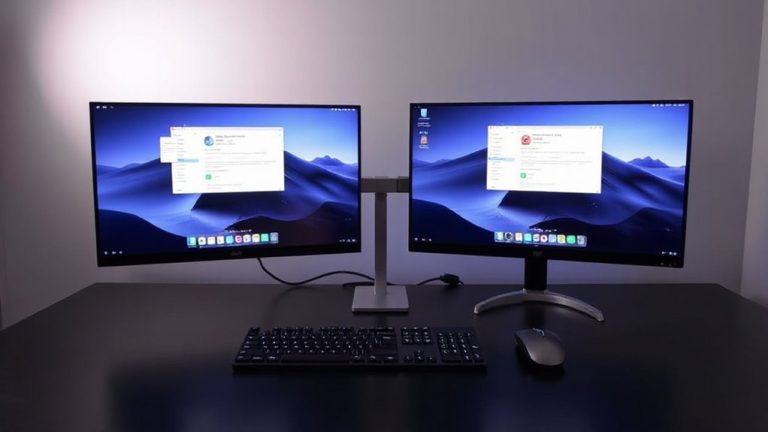
You’ve already set up keyboard shortcuts to glide between workspaces, but if you haven’t enabled multiple workspaces yet, you’re missing the foundation that makes that speed possible. Open Settings, go to Multitasking, and toggle on “Workspaces” to activate them across all monitors or just the current one-your call. By default, Ubuntu uses dynamic workspaces, but you can switch to a static grid of 2×2 or 3×2 for more predictability. Adjusting workspace appearance is limited in GNOME, but you can customize desktop backgrounds per workspace using extensions like “Desktop Grid” or “Multiwall.” Keep in mind, not all tools support individual wallpaper assignments without performance hiccups. While cleaner visuals help mental mapping, mismatched desktop backgrounds might distract if overdone. Test configurations for a day before locking in-balance function and familiarity.
Organize Workspaces by Task
Think of your workspaces as dedicated rooms in a digital office-each one tailored to a specific role or workflow. You’ll boost focus through task grouping and maintain clarity with application isolation. Assign each workspace a distinct purpose, reducing mental clutter and minimizing distractions. Here’s how it could look:
| Workspace | Task Grouping | Application Isolation |
|---|---|---|
| 1 | Web Browsing | Firefox, Chromium |
| 2 | Coding & Terminal | VS Code, GNOME Terminal |
| 3 | Communication | Thunderbird, Discord |
This setup supports efficient keyboard-driven switching, reinforcing productivity through structure. You’ll spend less time alt-tabbing and more time getting work done. Just remember: too many workspaces can backfire. Stick to 3–4 for best results. Overcomplicating it leads to confusion, not clarity. Start simple, refine as needed.
Tweak Workspace Settings for Your Needs
Once you’ve assigned tasks to each workspace, fine-tuning the system settings guarantees they work smoothly with your habits. You can adjust the number of workspaces in Settings > Multitasking to match your workflow-fewer for simplicity, more for complex setups. Tweaking workspace aesthetics, like background dimming or animation speed, reduces visual clutter and helps you stay focused without slowing down performance. Custom layout schemes let you define fixed arrangements, such as a terminal-only workspace or a full-screen browser setup, making navigation predictable. These tweaks sync well with keyboard shortcuts, though over-customization might complicate shifts if you switch machines. While polished workspace aesthetics improve comfort during long sessions, they don’t boost productivity on their own-clarity and consistency do. Test changes over a few workdays to see what actually sticks. Balance visual appeal with function, and remember: simplicity often wins.
Fix Shortcut Conflicts and Missing Workspaces
Why does pressing Ctrl+Alt+Left suddenly do nothing-or worse, launch a browser instead of switching workspaces? You’re likely hitting workspace conflicts caused by overlapping system or app shortcuts. These conflicts sabotage efficiency, especially when relying on muscle memory. The fix lies in deliberate shortcut customization. Open Settings > Keyboard and review your custom shortcuts. Disable or reassign keys that clash with common navigation commands like workspace switching. Replace defaults if needed-try Super+Ctrl+Arrow instead. Test changes immediately across different apps to guarantee reliability. While tweaking, confirm that “Enable Workspaces” is active under Privacy settings, or the options won’t appear. Some systems hide workspace functionality by default, making them seem broken. Resolving this boosts consistency. Just remember: every customization demands testing. A smooth workflow today can break tomorrow with updates, so document your changes. Stay proactive, not just efficient.
On a final note
You’ll boost productivity by using keyboard-driven workspaces in Ubuntu, but only if you set them up right. Assign clear tasks per desktop and stick to shortcuts like Ctrl+Alt+arrow keys for fast switching. Enable four workspaces in Settings for balance. Tweak spacing and animations to reduce lag. Watch for shortcut conflicts with apps, and disable conflicting keys. It’s free, efficient, and fast-just test changes daily to avoid clutter.