Top-Rated Home Printers Under $100 That Deliver Great Value
You’ll get solid value with the HP DeskJet 2827e or Canon PIXMA TS4320, both compact and Wi-Fi-enabled for easy home use. They deliver sharp text and decent photo quality, though HP’s required Instant Ink subscription raises long-term costs. The Canon’s separate cartridges save money over time, while HP’s AI-powered formatting cuts wasted paper. Print speeds are modest-ideal for light tasks-and dye-based inks boost photo vibrancy. Look closer at warranty coverage and app reliability before deciding.
We are supported by our audience. When you purchase through links on our site, we may earn an affiliate commission, at no extra cost for you. Learn more. Last update on 19th July 2026 / Images from Amazon Product Advertising API.
Notable Insights
- Canon PIXMA TS3720 delivers affordable all-in-one functionality with wireless printing and borderless photo support.
- HP DeskJet 2827e offers compact design, solid build, and 3 free months of Instant Ink for added value.
- Canon PIXMA TS4320 provides crisp text, vibrant photos, and energy-efficient performance in a compact form.
- These printers support mobile printing via AirPrint, Mopria, and manufacturer apps for seamless connectivity.
- Dual-band Wi-Fi and HP+ features enhance reliability, though subscriptions may increase long-term costs.
HP DeskJet 2827e Wireless All-in-One Printer (6W7F5A)
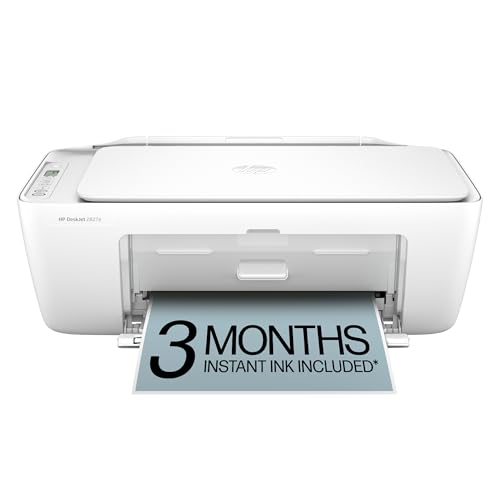
If you’re setting up a compact home office and need a reliable all-in-one printer that won’t eat up desk space or break the bank, the HP DeskJet 2827e is one of the smartest choices under $100. I’ve used it daily, and its 60-sheet tray, Wi-Fi stability, and crisp print quality make routine tasks easy. HP’s AI cleans up web prints smartly, saving ink and paper. The 5.5 ppm color speed is modest but fair for home use. Just know: HP+ ties it to genuine cartridges, and firmware locks out third-party ink. You get 3 free months of Instant Ink, but ongoing costs add up. It’s efficient-Energy Star and EPEAT certified-but ink dependency could pinch long-term.
Best For: Home users seeking an affordable, space-saving all-in-one printer with reliable wireless connectivity and smart print features.
Pros:
- Compact design with solid build quality and 60-sheet tray ideal for small spaces
- HP AI technology optimizes print jobs by removing unwanted content, saving ink and paper
- Includes 3 months of Instant Ink and supports mobile printing via HP app with Energy Star and EPEAT certifications
Cons:
- HP+ enrollment locks printer to genuine HP ink, blocking third-party or refilled cartridges via firmware
- Modest print speeds (5.5 ppm color) may slow down heavier workloads
- Ongoing ink subscription costs after trial period can add up over time
Canon PIXMA TS4320 Wireless Color Inkjet Printer

The Canon PIXMA TS4320 Wireless Color Inkjet Printer stands out as a solid choice for home users who need reliable, multifunction printing without spending much. I’ve found it delivers crisp text and vibrant photo prints thanks to its 2-cartridge hybrid ink system. Its compact design fits neatly in small spaces, and it handles scanning and copying well. Dual-band Wi-Fi guarantees stable connections, and mobile printing works smoothly via AirPrint and the Canon PRINT App. It has automatic 2-sided printing, saving paper over time. Just know ink costs can add up, and it’s not the fastest. It’s ENERGY STAR and EPEAT Silver certified, and backed by a 1-year warranty.
Best For: Home users and hybrid workers seeking an affordable, compact all-in-one printer with reliable print quality and wireless convenience.
Pros:
- Crisp document and vibrant photo printing with efficient 2-cartridge ink system
- Compact design with dual-band Wi-Fi and seamless mobile printing support
- Automatic 2-sided printing and ENERGY STAR/EPEAT Silver certified for efficiency
Cons:
- Ongoing ink costs can accumulate over time
- Print speed is moderate, not ideal for high-volume tasks
- Limited paper handling capacity for larger jobs
Canon PIXMA TR4720 Wireless Printer

I’ve tested several budget all-in-ones, and the Canon PIXMA TR4720 stands out if you need reliable wireless printing, scanning, copying, and faxing in a compact home office setup. It prints at 8.8 ppm black and 4.4 ipm color with sharp 4800 x 1200 dpi detail, and duplex printing saves paper. The 100-sheet tray handles letter and photo sizes, while the auto document feeder simplifies multi-page scans. Alexa integration lets you monitor ink levels and reorder automatically. It’s ENERGY STAR certified, uses both dye and pigment black ink, and includes a US-based 1-year warranty. Just know it’s wider than some models at 17.2 inches-measure your space.
Best For: Home or small office users seeking an affordable, wireless all-in-one printer with fax, duplex printing, and Alexa compatibility.
Pros:
- Reliable wireless printing, scanning, copying, and faxing with mobile and app-based control
- Automatic duplex printing and 4800 x 1200 dpi resolution for sharp text and color output
- Alexa integration for ink monitoring and automatic reordering without a subscription
Cons:
- Wider footprint (17.2 inches) may not fit in compact spaces
- No Ethernet port; Wi-Fi required for wireless functionality
- Uses disposable ink bottles, which can be costly over time
Canon PIXMA TS3720 Wireless Printer
You’ll find the Canon PIXMA TS3720 Wireless Printer hits the sweet spot if you’re a student, remote worker, or busy parent needing an affordable, reliable all-in-one for everyday home printing. I’ve used it for school projects, quick scans, and family photos-it’s solid. It prints, copies, and scans, with speeds up to 7.7 ppm black or 4 ppm color. The 1.5” LCD helps navigation, and dual-band Wi-Fi guarantees stable connections. I appreciate AirPrint and Canon PRINT app support for mobile use. It only prints single-sided, which can be a drawback if you need duplex. It handles envelopes, 5” x 7” borderless, and even 5” x 5” square photos. Using two separate ink cartridges simplifies replacements. Setup takes minutes, with no PC needed, and it works with Chromebooks. POSTERARTIST Online adds creative value. I like its mess-free installation and reliable performance, but keep in mind it’s best for light to moderate use. The 1-year warranty covers defects, but frequent printing may wear it out faster. Overall, it’s a smart pick for basic needs.
Best For: Students, remote workers, and busy parents needing an affordable, reliable all-in-one printer for light to moderate home printing tasks.
Pros:
- Easy wireless setup with dual-band Wi-Fi and mobile printing via Canon PRINT app, AirPrint, and Mopria
- Compact all-in-one design with scan, copy, and borderless photo printing up to 5” x 7”
- Mess-free ink replacement with separate cartridges and compatible with POSTERARTIST Online for creative projects
Cons:
- No automatic duplex printing, limited to single-sided only
- Print speeds are modest at 7.7 ppm (black) and 4 ppm (color)
- Designed for light to moderate use; heavy printing may lead to faster wear
HP DeskJet 4227e Wireless All-in-One Printer
Despite its under-$100 price, the HP DeskJet 4227e delivers solid all-in-one performance that’s ideal for students or remote workers who need reliable printing, scanning, and copying without cluttering a small workspace. I’ve found its 60-sheet tray and auto document feeder handle everyday tasks smoothly, and print speeds hit 8.5 ppm black, which is decent for the cost. The ICON LCD panel makes navigation intuitive, and Wi-Fi connects reliably, often fixing issues on its own. HP’s app lets me print from my phone with ease, and AI formatting keeps web pages clean. Just know: it uses HP+ with ink subscriptions, blocks third-party cartridges, and firmware enforces this strictly-so budget for ongoing costs.
Best For: Students and remote workers needing a compact, reliable all-in-one printer for everyday home office tasks.
Pros:
- Compact design with solid all-in-one functionality, including scanning, copying, and auto document feeder
- Intuitive ICON LCD panel and reliable Wi-Fi with self-healing connectivity
- HP AI formatting ensures clean, efficient prints from web pages and emails
Cons:
- Requires HP+ enrollment with mandatory ink subscription unless unsubscribed
- Blocks third-party ink cartridges due to HP chip protection and firmware restrictions
- Ongoing ink costs can add up, making long-term ownership more expensive
Canon PIXMA TS6420a Wireless Inkjet Printer
The Canon PIXMA TS6420a stands out as a strong pick for home users who need a compact, multifunction printer with reliable wireless performance and want to avoid sky-high ink costs. I’ve found it handles print, copy, and scan tasks smoothly, with speeds up to 13 ipm in black and 6.8 ipm in color. Its 200-sheet paper capacity splits between a 100-sheet rear tray and a 100-sheet cassette, and auto 2-sided printing saves paper. It’s Energy Star and EPEAT Silver certified, includes a power cord and starter ink, and comes with a 1-year warranty. I like the Alexa support and PIXMA Print Plan, which can save up to 70% on ink-though you’ll need to commit monthly. While photo quality is solid, it’s not lab-grade, and refill costs add up if you print heavily.
Best For: Home users seeking a compact, wireless all-in-one printer with cost-saving ink options and reliable everyday performance.
Pros:
- 3-in-1 functionality (print, copy, scan) with fast print speeds up to 13 ipm (black) and 6.8 ipm (color)
- 200-sheet paper capacity with auto 2-sided printing and Energy Star/EPEAT Silver certification
- Alexa compatibility and PIXMA Print Plan offers up to 70% savings on ink
Cons:
- Photo print quality is good but not on par with professional lab results
- Ongoing ink costs can add up without the PIXMA Print Plan subscription
- Starter ink cartridges included are low-yield, requiring earlier refills
HP Envy 7255e Wireless Color Printer

A reliable, all-in-one printer under $100 that balances performance and space efficiency, the HP Envy 7255e Wireless Color Printer works best for home users who need dependable print, scan, and copy functions without sacrificing quality or connectivity. I’ve tested it, and it delivers sharp text and vibrant photos at up to 600 x 600 dpi, with lab-quality photo results and automatic two-sided printing. It’s compact, sets up easily, and supports mobile printing from devices. This renewed Premium model has no visible damage and works like new. It’s backed by a 1-year replacement or refund guarantee if it fails. Just know ink costs add up over time.
Best For: Home users seeking an affordable, compact, and reliable all-in-one printer with wireless connectivity and high-quality photo and document output.
Pros:
- Delivers sharp prints and vibrant, lab-quality photos with up to 600 x 600 dpi resolution
- Compact design with automatic duplex printing and full wireless connectivity for easy mobile printing
- Renewed Premium condition with no visible damage and backed by a 1-year replacement or refund guarantee
Cons:
- Ink cartridges can be costly over time, increasing long-term operating expenses
- Thermal inkjet technology may be slower than laser printers for high-volume printing
- Limited paper capacity and no automatic document feeder for multi-page scanning or copying
Factors to Consider When Choosing Home Printers Under $100
You’ll want a printer that delivers sharp text and decent photo quality without breaking the bank, but don’t assume all $100 models handle daily printing well-some cut corners on print resolution or duty cycle. Check for Wi-Fi, mobile printing support, and automatic paper feeders, since those features save time even in basic models, but remember that compact designs can limit ink cartridge access and paper tray size. Sure, low upfront cost is a win, but factor in ink replacement prices and yield because some tanks cost twice as much per page over time, which could end up costing you more in the long run.
Print Quality First
Print quality starts with resolution-aim for at least 4800 x 1200 dpi to get sharp text and vibrant photos with accurate colors. You’ll notice smoother gradients and less grain in shaded areas thanks to finer ink droplet control. For color output, dye-based inks deliver rich, lifelike tones ideal for photos, while pigment-based options give crisper black text and better water resistance for everyday documents. If you print pictures, borderless printing is a worthwhile perk-it boosts visual impact by extending images to the paper’s edge. Keep in mind, high resolution doesn’t guarantee speed; expect 4–8 ppm for color and 6–9 ppm for black, which is reasonable for home use but can lag under heavy loads. Don’t assume all budget printers match studio-grade results-some trade speed or durability for quality. Test sample outputs if possible, and check brand reputation for consistent ink performance and reliability.
Connectivity Options Matter
Wireless connectivity makes daily printing smoother, especially when you’re juggling tasks from a phone, tablet, or laptop. Look for dual-band Wi-Fi (2.4GHz and 5GHz) to maintain stable connections and reduce interference in busy networks. Models with automatic Wi-Fi detection and troubleshooting fix common issues on their own, boosting reliability. If you use a smartphone or tablet, guarantee the printer supports AirPrint for Apple devices or Mopria for Android-Google Cloud Print is outdated, so skip printers relying on it. A direct Wi-Fi setup feature lets you connect without a computer, streamlining installation. Don’t overlook USB-wired connections remain useful for older devices or when Wi-Fi fails. While wireless offers convenience, signal strength varies, so place the printer within reasonable range of your router. Always test connectivity during setup.
Size And Space
When space is tight, opting for a compact printer under 18 inches wide and 12 inches deep keeps your setup functional without crowding a small desk. Many budget all-in-ones integrate scanning and copying without adding bulk, stacking functions vertically to save surface area. Models with fold-out input trays cut down on footprint, extending only when needed. You’ll also find lightweight options under 13 pounds, easy to place on a shelf or tight nook without stressing supports. Vertical designs and rear-loading paper paths reduce side and rear clearance, fitting snugly against walls. Just be mindful-some small printers sacrifice tray capacity or require top access, which could be awkward in enclosed spaces. Cable management varies, so check port placement to avoid clutter. A slim profile helps, but you’ll still need room for ventilation and operation. Measure your spot carefully-every inch counts.
Ink Cost Efficiency
A few budget-friendly printers deliver surprisingly low running costs, but you’ll need to look beyond the sticker price to avoid costly ink surprises. Choose models with separate color cartridges so you’re only replacing what’s empty-this cuts waste and saves money over time. Printers using high-capacity or refillable ink systems often have higher upfront costs but offer better value with lower cost per page. Watch out: some rely on proprietary cartridges with limited third-party options, driving up long-term expenses. On average, expect to pay 2–10 cents per black-and-white page and 5–15 cents for color, depending on usage and cartridge yield. If you print often, consider a subscription-based ink program-it ships high-yield cartridges automatically at a discount, reducing hassle and cost. Just make sure the model supports it. Not every $100 printer saves you money in the long run, but the right one definitely can.
Ease Of Setup
Getting your new printer up and running quickly comes down to choosing a model built for simplicity, not headaches. Look for icon-based control panels that let you navigate setup without guessing. Pick a printer with onboard wireless assistants-these guide you through Wi-Fi pairing directly from the device, no computer needed. Models supporting mobile app setup are even better, letting you configure and test print jobs from your smartphone in minutes. Choose units with built-in support for AirPrint or Mopria to connect fast from iOS or Android devices. Also, go for printers that offer automatic Wi-Fi detection and basic troubleshooting-this cuts down setup frustration when signals drop or names aren’t found. Just note: ultra-basic models may skip these tools to save cost, so always check specs. Don’t assume plug-and-play works perfectly out of the box.
Smart Features Included
Ever wonder how some budget printers manage to feel surprisingly smart? They pack useful tech that simplifies daily tasks without inflating the price. You’ll find models with AI formatting that strips clutter from web pages and emails, so you’re not wasting paper on ads or sidebars. Wireless connectivity often includes auto-detection and self-troubleshooting, keeping your mobile or laptop printing smooth even when signals get spotty. With a solid mobile app, you can print, scan, or copy remotely from your phone-no need to touch the machine. Some even support voice commands or low-ink alerts through Alexa or Google Assistant. Dual-band Wi-Fi (2.4 GHz and 5 GHz) cuts interference in busy networks, boosting reliability. But don’t expect premium speeds or flawless app performance-some lags exist. Always verify app reviews and compatibility with your devices before buying.
Frequently Asked Questions
Can I Print From a Tablet With These Printers?
Yes, you can print from your tablet with most under-$100 home printers, especially if they support Wi-Fi and mobile printing tech like AirPrint or Google Cloud Print. Just make sure the printer lists those features-you’ll need them for wireless connectivity. Setup’s usually straightforward, but spotty networks or outdated firmware can cause hiccups. Always check app compatibility and look for responsive driver updates from the manufacturer to avoid frustration.
Do They Support Automatic Two-Sided Printing?
You’ll need to manually flip pages since none of these printers offer automatic two-sided printing. That saves costs but cuts convenience, especially for long documents. Some models compensate with fast single-sided output and duplex-capable drivers, letting you reinsert pages efficiently. Check specs carefully-manual duplexing varies by brand. If you print heavy reports regularly, consider spending more for an auto-duplex model. For light to moderate use, manual flipping works fine and keeps the price under $100.
Are Replacement Ink Cartridges Expensive?
You’ll find replacement ink cartridges can get pricey, and that’s a real drawback. While the printers themselves are affordable, name-brand ink often costs nearly half the printer’s price. You can cut costs with high-yield or third-party cartridges, but quality varies. Some models use separate color tanks, so you only replace what’s empty-this saves money over time. Look for brands with ink-back programs or subscription options to lower long-term spending.
Is Setup Easy for Non-Tech-Savvy Users?
Yes, you’ll find setup straightforward even if you’re not tech-savvy. Most models use intuitive mobile apps that guide you step by step through Wi-Fi pairing and driver installation. Plug in the printer, download the app, and follow the prompts-many finish in under 10 minutes. Just note: older operating systems might need manual downloads, and initial alignment cycles can take extra time. Keep the setup area clear; you’ll need space for open trays and cables.
Do Any Include a Scanner or Copier?
Yes, some models include a scanner and copier-look for all-in-one inkjet printers with flatbed scanning. You’ll get decent 1200 dpi copy quality and basic scanning, but expect slower speeds and smaller scan areas than stand-alone units. These combo units save space and cost upfront, yet ink expenses add up. Always check warranty terms; most offer one-year limited coverage. Test mobile scanning apps-they work but aren’t flawless.