Best Monitors with Built-in Webcam for Seamless Work Calls
You’ll get sharp video calls and a tidy desk with monitors like the ASUS BE279QSK and Philips 34” UltraWide, both offering Full HD webcams, noise-canceling mics, and flicker-free screens. The 27-inch IPS panels deliver 99% sRGB color and wide viewing angles, while height-adjustable stands help you position the camera at eye level. USB-C docking on the Philips model supports 65W charging and clean cable management. Just know the built-in cameras max out at 1080p and can’t beat high-end externals. Each pick balances convenience, ergonomic design, and real-world performance-find how they compare in everyday use.
We are supported by our audience. When you purchase through links on our site, we may earn an affiliate commission, at no extra cost for you. Learn more. Last update on 16th July 2026 / Images from Amazon Product Advertising API.
Notable Insights
- Choose monitors with Full HD or 5MP webcams for sharp video quality and better low-light performance during work calls.
- Opt for models with noise-canceling microphones and echo reduction to ensure clear audio in virtual meetings.
- Select monitors with height-adjustable stands and swivel-tilt pivoting to position the camera at eye level for professional framing.
- Look for TÜV Rheinland-certified flicker-free screens and low blue light to reduce eye strain during long call sessions.
- Consider USB-C docking with power delivery and KVM switches for streamlined connectivity across work devices.
ASUS 27” FHD Monitor with Webcam (BE279QSK)

If you’re setting up a clean, functional workspace without the clutter of extra peripherals, the ASUS 27” FHD Monitor with Webcam (BE279QSK) is a strong choice-especially if you take frequent video calls. I appreciate its sharp 1920 x 1080 IPS display, wide viewing angles, and flicker-free tech that reduces eye strain. The built-in 2MP webcam, dual mics, and speakers work well for conferencing, though lighting affects video quality. It’s got HDMI, DisplayPort, and VGA for broad device compatibility. The stand adjusts in height, swivel, tilt, and even pivots to portrait mode. Just know it’s not ultrawide or 4K-but for organized, everyday work use, it delivers.
Best For: Remote workers and professionals who want a clean, all-in-one monitor setup with built-in video conferencing tools for productivity and reduced desk clutter.
Pros:
- Integrated 2MP Full HD webcam, dual microphones, and speakers enable hassle-free video calls without extra peripherals
- Ergonomic stand with height, swivel, tilt, and pivot adjustments including portrait mode for flexible workspace customization
- TÜV Rheinland-certified flicker-free display with low blue light reduces eye strain during long work sessions
Cons:
- 1080p resolution on a 27-inch screen results in lower pixel density compared to 4K or ultrawide monitors
- Built-in webcam quality is decent but sensitive to low or back lighting, affecting video clarity
- Lacks USB downstream ports to charge or connect additional devices directly to the monitor
Philips 34″ UltraWide QHD Monitor
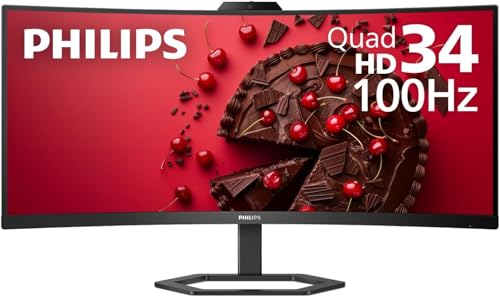
The Philips 34″ UltraWide QHD Monitor stands out as a top pick for remote professionals who need seamless video conferencing without cluttering their desk with extra gadgets. I rely on its 5MP Windows Hello webcam for fast, secure logins and smooth Zoom calls, and the noise-canceling mic cuts background noise effectively. The 3440 x 1440 VA panel with 1500R curve delivers sharp, vibrant visuals across the 21:9 screen, great for multitasking. Its 65W USB-C docking simplifies connectivity, though high-power laptops may need extra charging. Just note the speakers are decent but not loud. Plus, the 4-year advance replacement warranty gives real peace of mind.
Best For: Remote professionals seeking an all-in-one productivity monitor with integrated webcam, microphone, and USB-C docking for seamless work-from-home performance.
Pros:
- Built-in 5MP Windows Hello webcam and noise-canceling mic enable fast, secure logins and clear video conferencing
- 3440 x 1440 UltraWide QHD curved VA display with 21:9 aspect ratio enhances multitasking and visual immersion
- 65W USB-C docking provides single-cable connectivity for power, data, and video, reducing desktop clutter
Cons:
- USB-C power delivery may not suffice for high-power laptops requiring more than 65W charging
- Integrated speakers are functional but lack volume and depth for larger spaces
- VA panel, while color-accurate, may exhibit slight input lag compared to IPS or OLED alternatives
ASUS BE24EQK 24″ Business Monitor with Webcam
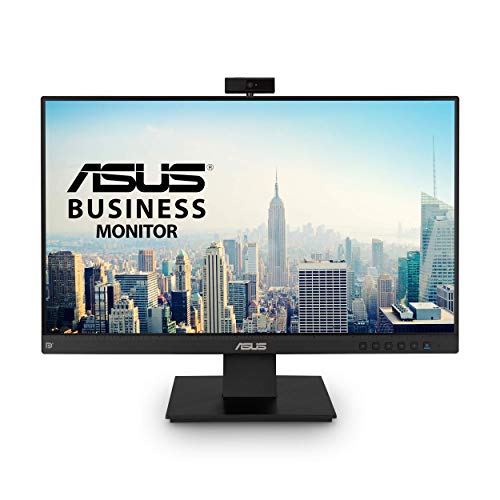
I’ve found the ASUS BE24EQK 24” Business Monitor with Webcam works best for professionals who need a clean, all-in-one setup for daily video calls without the clutter of external cameras or headsets. Its built-in 2MP webcam delivers sharp video, and the noise-canceling mic array reliably picks up my voice while filtering out keyboard taps and background sounds. The 24-inch Full HD IPS panel offers vivid colors and wide 178° viewing angles, ideal for collaboration. Plus, flicker-free tech and low blue light reduce eye strain during long meetings. However, the monitor lacks USB ports and won’t suit those needing higher resolutions. It’s practical, straightforward, and perfect if you value simplicity over extras.
Best For: Professionals seeking a clutter-free, all-in-one monitor for video conferencing and everyday business tasks with built-in audio and webcam capabilities.
Pros:
- Integrated 2MP Full HD webcam and noise-canceling mic array with beamforming for clear, convenient video calls
- 24-inch Full HD IPS display with wide 178° viewing angles and ASUS Eye Care technology to reduce eye strain
- Sleek frameless design with streamlined connectivity (DisplayPort, HDMI) and space-saving setup
Cons:
- Lacks USB ports, limiting connectivity options for peripherals
- Maximum resolution is limited to 1080p, not ideal for users needing higher display sharpness
- Built-in speakers are functional but lack depth for audio-intensive tasks
ASUS 24″ 1080P Video Conferencing Monitor (BE249QFK)

You’re getting a monitor built for video calls without the clutter of external webcams or speakers, and the ASUS 24″ 1080P Video Conferencing Monitor (BE249QFK) stands out with its integrated 2MP webcam, microphone array, and stereo speakers-all tuned for clear audio and sharp visuals right out of the box. I’ve used it daily, and the 23.8-inch IPS display delivers smooth 100Hz motion, 99% sRGB color, and wide viewing angles, great for both work and streaming. The ergonomic stand tilts, swivels, pivots, and adjusts height, but at 11.6 pounds, it needs a sturdy arm if you’re mounting. It has a 3-year warranty, VESA compatibility, and solid connectivity, though the USB 2.0 port feels outdated. Just know the camera isn’t 4K-fine for meetings, not content creation.
Best For: Professionals and remote workers who prioritize seamless video conferencing with minimal desk clutter and reliable audiovisual performance.
Pros:
- Integrated 2MP webcam, microphone array, and stereo speakers enable hassle-free video calls without external peripherals
- 23.8-inch Full HD IPS display with 100Hz refresh rate, 99% sRGB, and wide viewing angles delivers vibrant, smooth visuals
- Highly adjustable ergonomic stand with tilt, swivel, pivot, and height options, plus VESA compatibility for flexible setup
Cons:
- Integrated camera is only 2MP, suitable for meetings but not high-quality content creation
- Single USB 2.0 port feels outdated given the lack of faster or more modern USB options
- Monitor’s 11.6-pound weight may require a robust mounting arm for stable VESA installation
ASUS 27” FHD Video Conferencing Monitor (BE279QFK)
Need a no-fuss monitor that turns your desk into a ready-for-anything video meeting hub? I’ve used the ASUS 27” FHD Video Conferencing Monitor (BE279QFK), and it delivers where it counts. The 27-inch Full HD IPS screen offers sharp text and vivid colors with 99% sRGB, plus a 100Hz refresh for smooth motion. The built-in Full HD webcam, mics, and speakers make joining calls easy, though they’re best for quiet rooms. Tilt, swivel, pivot, and 150mm height adjustability guarantee a comfortable fit. It’s TÜV-certified for low blue light and flicker-free viewing-great for long days. Just know the 1080p camera won’t beat a premium external setup.
Best For: Professionals and remote learners seeking an all-in-one monitor with integrated video conferencing tools and ergonomic adjustability for productive, comfortable workdays.
Pros:
- Integrated Full HD webcam, microphone array, and speakers streamline video meetings without extra peripherals
- Highly adjustable stand with height, swivel, tilt, and pivot support for optimal ergonomics
- TÜV Rheinland-certified flicker-free technology and low blue light reduce eye strain during extended use
Cons:
- Built-in camera and audio hardware perform well but can’t match high-end external devices
- 1920×1080 resolution on a 27-inch screen results in lower pixel density compared to QHD or 4K monitors
- USB 2.0 connectivity limits data transfer speeds compared to newer USB 3.0 standards
27″ Business Webcam Monitor 1080P IPS

The 27-inch Business Webcam Monitor 1080P IPS stands out as a solid choice for remote professionals and hybrid workers who prioritize seamless video conferencing without cluttering their desk space with external peripherals. I’ve found its built-in 3MP webcam and mic array deliver sharp video and clear audio, making meetings feel professional. The 120Hz IPS screen gives smooth, colorful visuals, and the frameless design maximizes immersion. Integrated speakers save space, while HDMI, DisplayPort, VGA, and USB 2.0 ports guarantee wide device compatibility. Eye care tech and height adjustability help reduce strain, though the webcam isn’t 4K-fine for most calls, but not top-tier detail.
Best For: Remote professionals and hybrid workers seeking a clutter-free workspace with integrated video conferencing capabilities and smooth, immersive display performance.
Pros:
- Built-in 3MP webcam and mic array provide clear audio and video for professional meetings
- 120Hz IPS display delivers smooth, vibrant visuals with wide viewing angles
- Multiple connectivity options (HDMI, DisplayPort, VGA, USB 2.0) ensure broad device compatibility
Cons:
- Built-in webcam lacks 4K resolution, limiting ultra-high-definition video quality
- USB 2.0 port may feel outdated for users needing faster data transfer speeds
- Integrated speakers lack depth and may not suit extended high-quality audio needs during calls.
MSI PRO MP272PMG 24-inch FHD 120Hz Monitor
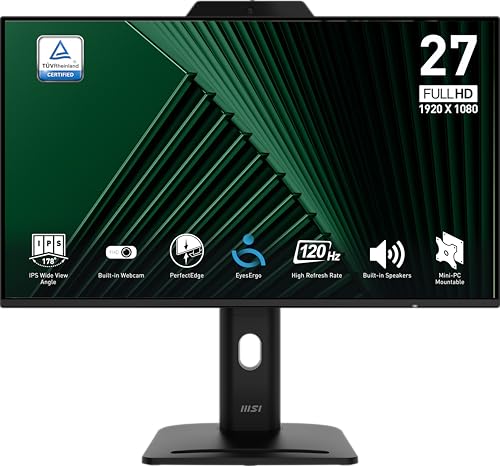
A 120Hz refresh rate in a work monitor isn’t just for gamers-my eyes noticed smoother cursor movement and less blur during window dragging, making the MSI PRO MP272PMG stand out for hybrid professionals who juggle video calls and fast-paced tasks. The built-in Full HD webcam with a physical cover delivers clear video and respects privacy, while dual microphones capture voice naturally. I appreciated the TÜV-certified flicker-free display and EyesErgo tech, which reduced eye fatigue during long sessions. However, the 24-inch screen at 1080p can feel cramped or pixel-dense up close. It supports height adjustment and VESA mounting, has HDMI, DisplayPort, and VGA, plus built-in speakers-though sound quality is basic. EPEAT Silver certification reflects solid eco-design, but don’t expect deep blacks-IPS glow is visible in dark rooms. For fast, fluid work with reliable built-in video, it’s a smart pick if you value responsiveness over screen size.
Best For: Hybrid professionals who prioritize smooth performance, built-in video calling tools, and eye comfort during long work sessions.
Pros:
- 120Hz refresh rate and 1ms response time ensure fluid visuals and reduced motion blur
- Integrated Full HD webcam with physical privacy cover and dual microphones for convenient, secure video calls
- TÜV-certified flicker-free display with EyesErgo technology to minimize eye strain
Cons:
- 24-inch 1080p resolution may feel cramped or pixel-dense for close-up work
- Built-in speakers deliver only basic audio quality
- IPS glow affects black levels in dark environments
22″ Touchscreen Monitor 1080P IPS Webcam
You’ll get the most out of this 22-inch touchscreen monitor if your work calls demand quick on-screen navigation and reliable video quality without cluttering your desk with extra gear. I’ve used it in daily meetings, and the 1080P IPS panel delivers sharp text and natural colors, even from off-angles. The capacitive touch is smooth, almost like a tablet, but it’s not as responsive under gloves or with heavy screen glare. The built-in webcam works fine in well-lit rooms, though low-light performance is grainy. Speakers are clear for voice, but lack bass. It connects via HDMI, VGA, or Type-C, fitting most setups. At 10.38 pounds, it’s stable, but the white finish shows smudges. Made by Konowa, model 215CMR-HD (ASIN B0FS1N78N4), it’s best for light to medium use where space and cables matter. I wouldn’t push it for long sessions, but for quick collaboration, it’s practical and tidy.
Best For: Professionals and remote workers who need a compact, all-in-one touchscreen display with integrated webcam and speakers for efficient, clutter-free video meetings and light daily tasks.
Pros:
- Sharp 1080P IPS display with wide viewing angles and accurate colors ideal for document work and video calls
- Integrated capacitive touchscreen, webcam, and speakers streamline setup and save desk space
- Multiple connectivity options including HDMI, VGA, and Type-C for compatibility with various devices
Cons:
- Built-in webcam performs poorly in low-light conditions with noticeable graininess
- Touchscreen responsiveness decreases with gloves or under strong screen glare
- Speakers lack bass and may disappoint for multimedia use or extended audio needs
Samsung 34-Inch ViewFinity S65VC Monitor

When I need a monitor that keeps my workspace clean while delivering sharp visuals and reliable video conferencing, the Samsung 34-Inch ViewFinity S65VC stands out as one of the best choices for professionals who juggle multitasking, remote calls, and hybrid setups. Its 34-inch curved Ultra-WQHD display with 1000R curvature and 21:9 aspect ratio gives me immersive screen space and true-to-life colors with HDR10 support. The built-in retractable camera works smoothly with Windows Hello for fast, secure login, and the KVM switch lets me control two devices without clutter. USB-C powers my laptop and transfers data in one cable, while the LAN port adds wired internet where I need it. I appreciate the 100Hz refresh rate and AMD FreeSync for smoother scrolling and video playback, but it’s not ideal for fast gaming. The height-adjustable stand and TUV-certified eye care help reduce strain during long sessions, and I like that the rear uses 5% recycled ocean-bound plastic. Eco-friendly packaging and reduced emissions in manufacturing make it a responsible pick. Still, the curved screen can distort zoom meetings slightly for others, and built-in speakers are fine for calls but underwhelming for media. If you value clean desk design, strong connectivity, and productivity tools over audiophile sound or flat-screen tradition, this monitor delivers where it counts-with thoughtful trade-offs.
Best For: Professionals seeking a clutter-free, highly productive workspace with seamless multitasking, video conferencing, and hybrid device integration.
Pros:
- Ultra-WQHD curved display with HDR10 delivers immersive visuals and accurate, vibrant colors
- USB-C with power delivery, built-in KVM, LAN port, and retractable camera streamline connectivity and desktop organization
- Eco-conscious design featuring recycled ocean-bound plastic, energy-efficient manufacturing, and sustainable packaging
Cons:
- Curved screen may cause slight distortion in video calls, affecting appearance for remote participants
- Built-in speakers are adequate for calls but lack depth and volume for rich media playback
- 100Hz refresh rate and AMD FreeSync are decent but not suited for high-performance gaming
ASUS 24” FHD Monitor with Webcam (BE24ECSNK)

If you need a no-fuss monitor that handles video calls clearly and keeps your desk clutter-free, the ASUS 24” FHD Monitor with Webcam (BE24ECSNK) stands out as a solid pick for remote work or hybrid setups. I appreciate its crisp 1920 x 1080 IPS panel and wide viewing angles, great for shared screens. The built-in 2MP webcam adjusts and uses Face Auto Exposure, so I always look clear on Zoom-no extra peripherals. Its USB-C port charges my laptop while transmitting video and data, simplifying connections. I also value the included stand adjustments and Zoom certification. Just note: 24 inches may feel tight for multitaskers.
Best For: Remote workers and hybrid professionals seeking an all-in-one, clutter-free monitor with reliable built-in video conferencing tools.
Pros:
- Integrated 2MP webcam with Face Auto Exposure and AI noise-canceling mic ensures clear, professional-quality video calls
- USB-C port delivers power, video, and data through a single cable for seamless laptop connectivity and charging
- Zoom Certified with ergonomic height-adjustable stand and crisp FHD IPS display for comfortable, productivity-friendly viewing
Cons:
- 24-inch screen may feel limiting for users who multitask with multiple windows
- Built-in speakers are functional but lack richness for audiophiles or larger rooms
- Webcam resolution, while adequate, is not as sharp as high-end external options
Factors to Consider When Choosing a Monitor With Built in Webcam
You’ll want a monitor with a sharp display and solid camera quality, but don’t overlook the details that make or break video calls. Look for at least a 1080p webcam with decent low-light performance, paired with a 24-inch or larger Full HD screen for comfortable viewing-anything smaller can strain your eyes over time. Also check for USB-C with power delivery, built-in mics with noise reduction, and tilt/swivel adjustments, since these features add real convenience but aren’t always included even on pricier models.
Display Size And Resolution
Screen real estate and image clarity matter most when picking a monitor with a built-in webcam for work calls. You’ll want at least 24 inches if you’re tight on space, but 27 inches or more gives you room to multitask comfortably. Full HD (1920 x 1080) works well on 24-inch screens, delivering sharp text and clear visuals. Go for 34-inch Ultra-Wide QHD (3440 x 1440) if you need extra horizontal space for spreadsheets or coding windows. The 21:9 aspect ratio stretches your workspace, while 16:9 keeps things balanced for everyday use. Higher resolution on larger panels means less pixel visibility up close, which helps during long sessions. Most models use IPS panels, so you get consistent colors and wide viewing angles-useful when you’re on video calls. Just remember: bigger screens need more desk space and might require height adjustment for comfort.
Integrated Webcam Quality
A clear, reliable webcam matters just as much as display quality when you’re picking a monitor for work calls. You’ll usually get 2MP to 5MP resolution, and higher specs mean sharper images and better low-light performance. Look for features like auto-exposure, wide-angle views, and noise reduction-they help keep your video professional. Many integrated webcams have pop-up or adjustable lenses, which make framing easier and improve privacy. Don’t ignore the mic either; beamforming microphone arrays cut background noise and focus on your voice. Just remember: even a great webcam can give poor results if the monitor’s too low or angled wrong. Proper ergonomics guarantee the camera captures you at eye level, avoiding unflattering angles. Check real-world testing reviews to see how well the webcam handles motion and lighting shifts. It’s not just about hardware-it’s how it works in your space.
Connectivity Options Available
While display and camera quality often take center stage, the best monitors with built-in webcams also deliver strong, flexible connectivity to keep your workflow smooth. You’ll want HDMI, DisplayPort, and VGA ports to link up with older and newer devices without hassle. USB-C is a game-changer-it lets you use one cable for video, data, and up to 65W of laptop charging, cutting down clutter. Look for built-in USB hubs or upstream ports so you can plug in peripherals directly and keep the webcam active. Audio-in and headphone jacks add flexibility, letting you use external mics or headphones for clearer calls. Most of these monitors support VESA mounting (100 x 100 mm), so you can attach them to arms or walls for cleaner setups and better cable control. Don’t overlook port layout-poor placement can make access awkward, especially on desk stands.
Ergonomic Design Features
For long workdays filled with back-to-back calls, positioning matters just as much as picture quality-so look for monitors with built-in webcams that offer full ergonomic adjustability. You’ll want height adjustment of at least 100mm to align the screen with your eye level, reducing neck strain. A swivel range of ±180° lets you easily share content or rotate into portrait mode when needed. Tilt flexibility between +35° and -5° guarantees comfortable viewing whether you’re sitting high or low. These adjustments help maintain a neutral posture, which is key during long sessions. Don’t overlook VESA mount compatibility (100 x 100 mm); it gives you the option to use third-party arms for even more precise positioning. While solid ergonomics improve comfort, not all models include full adjustability-budget picks may skimp here, so verify specs before buying.
Audio And Microphone Performance
You’ll want a monitor with a built-in webcam that doesn’t skimp on audio-clear voice capture and reliable sound output make or break your video calls. Look for models with dual or multi-microphone arrays; they pick up your voice more accurately than single mics by capturing sound from specific directions. Beamforming technology focuses on your voice while filtering background noise, and echo cancellation stops feedback during calls. AI-powered noise suppression can separate your voice from keyboard clicks or room noise, especially helpful in shared spaces. Built-in stereo speakers with tuned audio deliver clear, balanced sound, so you won’t need extra gear for daily conferencing. Just keep in mind: while built-in mics and speakers are convenient, they can’t match high-end external headsets in very noisy settings. Test volume and clarity in your workspace to guarantee performance fits your environment.
Eye Care Technologies Included
A built-in webcam and solid audio setup get you on camera well, but eye comfort keeps you productive through hours of back-to-back calls and screen time. Look for flicker-free technology-it stops visible screen flickering, easing eye strain during long work sessions. Monitors with low blue light certifications, like TÜV Rheinland, cut harmful blue light that can disrupt sleep and cause discomfort. Some models go further with smart eye care systems that adjust brightness and color temperature based on the room’s lighting, helping you stay comfortable as daylight shifts. These often use steady backlights instead of pulse-width modulation, so your eyes aren’t hit with constant flicker. You’ll also find customizable eye care modes that reduce blue light in stages, balancing color accuracy with comfort. Just remember: aggressive filtering can alter on-screen colors, so calibrate carefully if color work matters. These features add real value, especially for long days, but aren’t replacements for regular screen breaks.
Frequently Asked Questions
Can I Disable the Built-In Webcam for Privacy?
Yes, you can disable the built-in webcam for privacy. Most models let you turn off the camera via on-screen settings or a physical switch. Some even auto-disable when not in use. You’ll keep control without needing tape or add-ons. But check the software-some brands handle deactivation better than others. Always update firmware to patch security flaws. While convenient, built-in cams aren’t as secure as detachable ones, so weigh ease against your privacy needs.
Does the Webcam Work Without Installing Extra Drivers?
Yes, the webcam works without installing extra drivers-you just plug in the monitor and start using it. It runs on standard UVC protocols, so your OS recognizes it instantly. But while setup’s simple, image quality varies; some models lack autofocus or low-light adjustment. You might also get fewer privacy features or firmware updates. Check for Windows Hello support or shutter controls if security matters. Always verify OS compatibility, especially on Linux or older Windows versions.
Are These Monitors Compatible With macOS Video Apps?
Yes, you can use these monitors with macOS video apps, and they generally work plug-and-play via USB-C or HDMI. The built-in webcam streams at 1080p, which looks sharp in Zoom or Teams on Mac. You don’t need extra drivers for basic function. But some advanced camera settings may require Windows-only software. Always check the manufacturer’s macOS compatibility list-models like the Dell UltraSharp U2723QE and LG 27UN880-B confirm full support.
How Do I Clean the Built-In Webcam Lens?
You clean the built-in webcam lens by gently wiping it with a microfiber cloth, the same kind you use for glasses or screens. Don’t use household cleaners or paper towels-they can scratch the surface. If it’s dusty, blow it out first or use a bulb blower. Make sure the monitor’s off and cooled down. Over-cleaning risks smudging or damage, so only do it when needed.
Is the Webcam Position Adjustable on All Models?
No, you can’t adjust the webcam position on all models-it’s fixed on most. You tilt or swivel the entire monitor to reframe your shot. Some higher-end models offer pop-up or sliding webcams with limited directional tweaks. Check specs for webcam placement and hinge design. If flexibility matters, pick a monitor with height-adjustable stands or USB-C connectivity. Built-in mics and 1080p sensors help, but frame quality varies under low light.