Choosing a Wide-Angle Lens That Doesn’t Distort Facial Features in Meetings
Choose a wide-angle lens between 24mm and 35mm (full-frame equivalent) to capture more of your space without distorting your face. Models like the Logitech Brio 500 or Anker PowerConf use quality optics and moderate fields of view (85°–90°) to reduce edge warping. Keep your camera 3–5 feet away and at eye level to avoid unflattering perspective distortion. Built-in corrections help, but real-world testing shows performance varies-check samples first. You’ll want to know how small changes in position or lighting can make a bigger difference than the lens alone.
Notable Insights
- Choose a moderate wide-angle lens between 24mm and 35mm to maintain natural facial proportions.
- Position the camera 3 to 5 feet away to minimize perspective distortion and avoid facial stretching.
- Mount the camera at eye level or slightly above to prevent unflattering foreshortening and angles.
- Use high-quality webcams like the Logitech Brio 500 or Anker PowerConf for built-in distortion control.
- Test your setup with recording software to check framing, lighting, and audio before meetings.
Choose a Wide-Angle Lens That Flatters Your Face
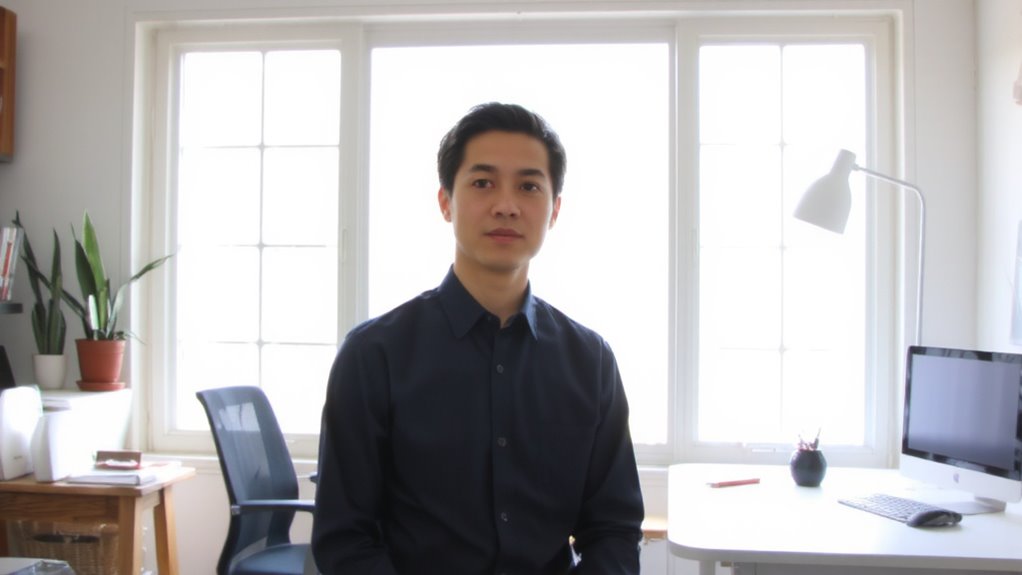
While any wide-angle lens can capture more of the room, not all of them flatter your face-so pick one designed to minimize distortion around facial features. You want balanced proportions, not a stretched nose or pinched cheeks. Lenses with moderate wide-angle ranges, like 24mm to 35mm on full-frame sensors, offer the best focal sweet spot for video calls-wide enough to include your space but controlled enough to manage lens compression. At shorter focal lengths (below 20mm), distortion spikes, especially at the frame edges where your face might land. Stick to prime lenses or high-quality zooms with distortion correction built into the optics. Even with a good lens, lighting and angle still matter-there’s no optical fix for poor positioning. Test samples before buying, and check return policies; real-world performance varies more than specs suggest.
Position Your Camera to Avoid Facial Distortion
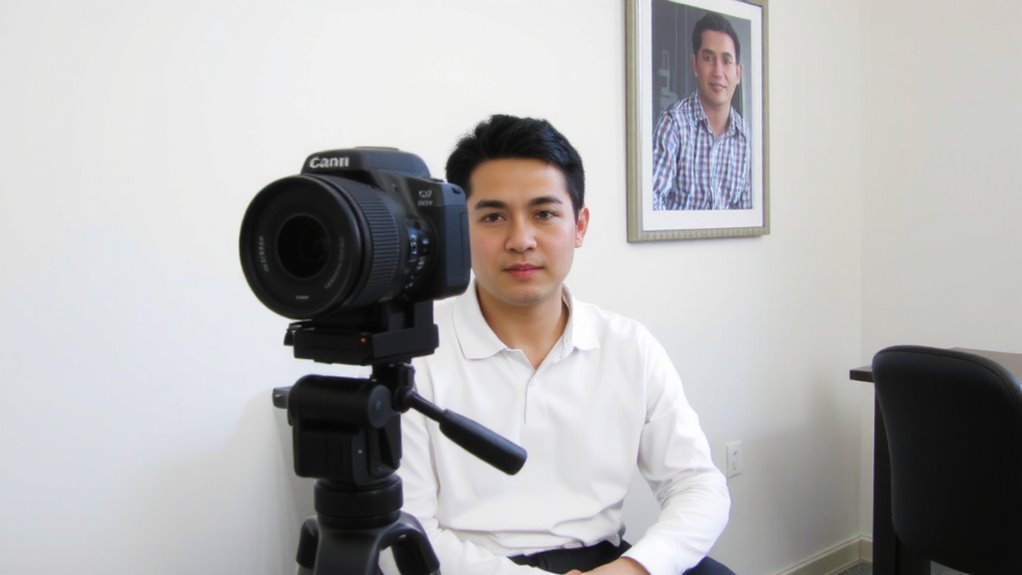
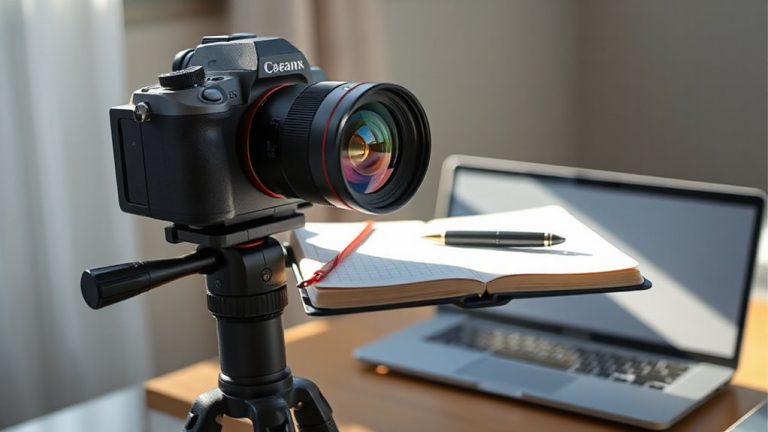
If you’re serious about looking your best on camera, get the lens position right-because even the most flattering wide-angle lens can’t fix poor placement. Set your camera at eye level to guarantee proper camera alignment; a tripod or stack of books works fine. Tilting the lens up or down distorts facial proportions, making features look uneven. Sit at the ideal distance-about 3 to 5 feet from the lens-so your face fills the frame naturally without exaggerating your nose or forehead. Too close, and even 90-degree field-of-view lenses stretch your features. Mounting the camera higher than eye level adds harsh angles. While built-in laptop webcams are convenient, their low position often forces unflattering upward angles. External webcams or DSLR rigs offer better flexibility but require stable mounts. Test your setup with a friend’s feedback-small adjustments make a noticeable difference.
Best Wide-Angle Lenses for Natural-Looking Video Calls
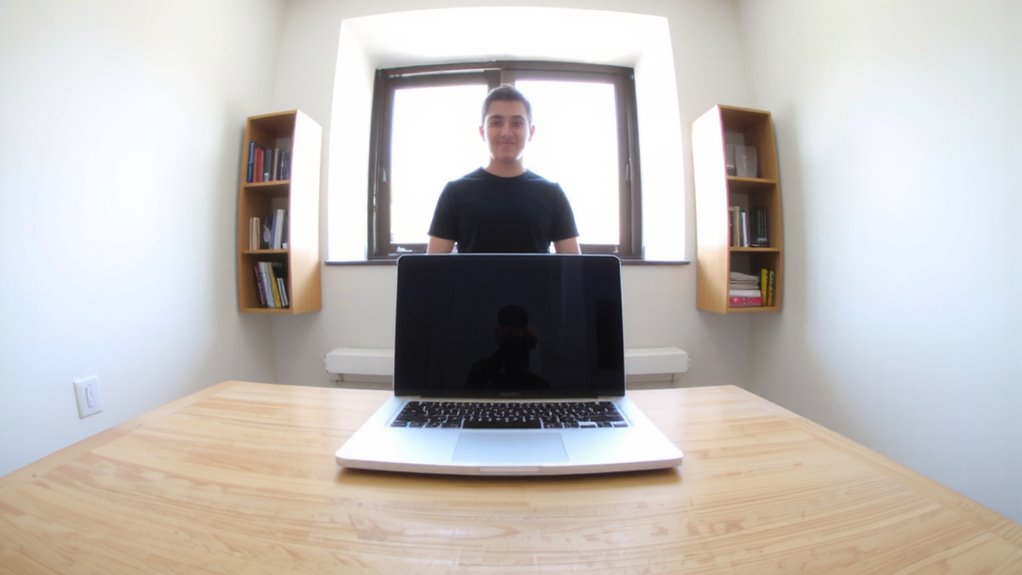
The Logitech Brio 500 stands out as a smart choice for natural-looking video calls, delivering a 90-degree field of view that fits more of your space without warping your face. Its high-quality lens materials minimize distortion, while advanced optical coatings reduce glare and boost image clarity in mixed lighting. You’ll get sharp, balanced visuals even in challenging conditions.
| Model | Field of View | Key Feature |
|---|---|---|
| Logitech Brio 500 | 90° | Clear autofocus, 4K resolution |
| Anker PowerConf | 87° | Dual mics, lens materials reduce edge blur |
| NexiGo U3 | 85° | Optical coatings for color accuracy |
| Razer Kiyo Pro | 81.6° | Adaptive light sensing |
| Microsoft LifeCam | 78° | Reliable plug-and-play |
It’s not the widest option, but it strikes the best balance. Built-in privacy shutter and solid firmware support add practicality. Warrantied for one year, it’s tested for 10,000 plug cycles-ideal for daily use.
Fix Your Frame and Lighting for a Professional Look
You’ve picked a solid wide-angle lens like the Logitech Brio 500-great move for clear, natural-looking video-now it’s time to make sure how you’re framed and lit matches that quality. Get camera angles right by positioning the lens at eye level or slightly above; this avoids unflattering foreshortening and keeps your face centered and neutral. Avoid shooting upward-it exaggerates features. For lighting placement, use a soft, front-facing light source, ideally a daylight-balanced panel or natural light from a window in front of you. Avoid backlights or overhead lamps, which cast harsh shadows. A ring light or dual-LED setup can help, but don’t overbrighten-aim for even exposure. Remember, even the best gear won’t fix poor lighting or skewed camera angles. Positioning takes effort, but consistency pays off in professionalism. A well-lit workspace can make a significant difference, and choosing one of the best desk lamps for Zoom calls ensures balanced, flattering illumination.
Understand Why Wide Angles Distort Your Face
Perspective distortion-often mistaken for lens flaws-explains why wide-angle lenses can warp your face during calls. It’s not the lens bending light incorrectly; it’s optical physics in action. When you’re close to the camera, wide angles exaggerate depth, stretching facial proportions near the edges. The closer parts-like your nose-appear larger, while ears or jawlines recede, creating an unflattering look.
| Distance from Lens | Effect on Face | Recommended? |
|---|---|---|
| 0–2 feet | Severe stretch | No |
| 2–3 feet | Moderate warp | Caution |
| 3+ feet | Natural look | Yes |
You can minimize distortion by sitting farther back, even with wide fields of view. Don’t assume bigger FOV means better; it often sacrifices realism. Understand these trade-offs so you don’t misattribute distortion to camera quality when it’s really about positioning and optical physics.
Test Your Video Setup Before Going Live
Don’t wait until the meeting starts to find out your wide-angle lens distorts your face or cuts off part of your background. Test your video setup ahead of time. Position your camera at eye level and use a mirror or recording app to check framing and distortion. Make sure your face isn’t stretched or compressed, especially at the edges. While you’re at it, verify audio quality-listen for echo, low volume, or background noise. Test your internet stability by running a speed check and ensuring upload speeds meet your conferencing app’s minimum requirements, usually 2–3 Mbps for HD. A wired connection improves stability over Wi-Fi. Remember, even the best wide-angle lens can fail if lighting or placement is off. Trade-offs exist: wider views increase distortion risks; tighter angles may limit background visibility. Test early, adjust patiently, and confirm everything works minutes before going live.
On a final note
You’ll get the most natural face on camera with a 35mm equivalent lens, not ultra-wide angles below 24mm that stretch features. Mount your webcam at eye level and three to four feet away to reduce distortion. Lenses like the Logitech Brio or Fujifilm XF 35mm f/1.8 work well in tight spaces. Test lighting and framing first-soft front light helps, but avoid backlighting. No lens fixes poor posture or dim rooms, so optimize your whole setup.