Why You Should Reduce Wi-Fi Transmit Power to Confine Signal Indoors
You should reduce your Wi-Fi transmit power to 50–75% because it keeps the signal inside your home, cutting interference from neighboring networks and boosting connection stability. Lower power means less energy use and less signal leakage, which improves security. In homes under 3,000 sq ft, this range usually works best, but avoid going too low-dead zones can form if coverage drops. Proper router placement still matters most. Tweaking power per room, like using 15–20 dBm in living areas, can optimize performance. There’s more to think about regarding balancing range and efficiency across different layouts.
Notable Insights
- Lower transmit power reduces Wi-Fi signal leakage outside your home, enhancing indoor confinement and security.
- Reduced power minimizes interference with neighboring networks, improving overall Wi-Fi performance in dense areas.
- Containing signal indoors decreases channel congestion and boosts connection reliability for your devices.
- Operating at 50–75% power optimizes energy efficiency and network stability without sacrificing indoor coverage.
- Properly adjusted transmit power enhances security by limiting outdoor signal exposure to potential attackers.
Why Wi-Fi Transmit Power Affects Your Home Network
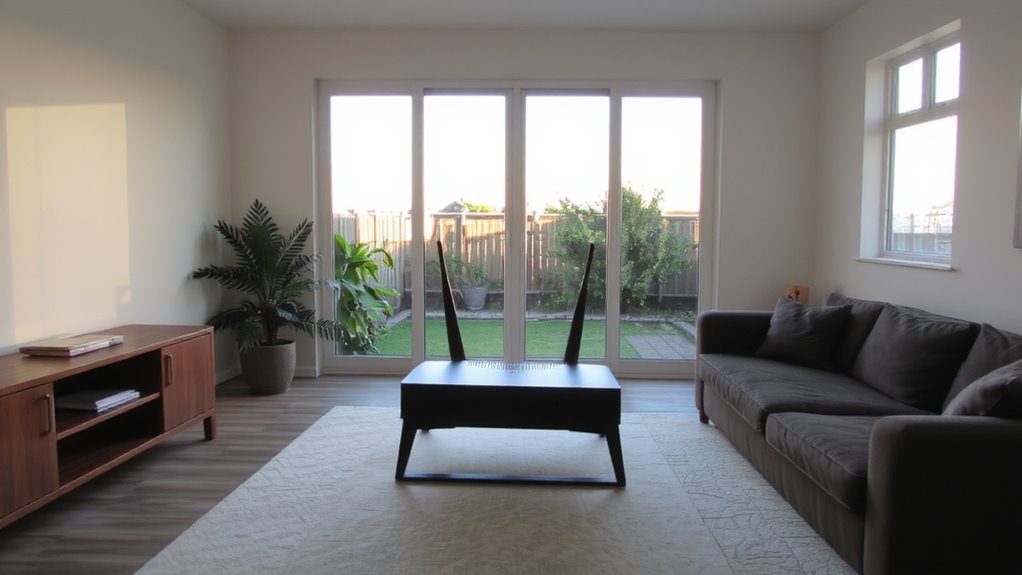
Ever wonder why your Wi-Fi feels spotty even with a strong signal bar? Reducing transmit power can actually improve your home network by minimizing signal leakage and boosting energy efficiency. When your router blasts at full power, the signal often extends beyond your walls-inviting interference and wasting power. Lowering it confines coverage to your space, so devices connect more reliably without overlap. That boost in energy efficiency helps lower power consumption, especially over time. Just don’t crank it too low-weak transmission causes dead zones or failed handoffs between bands. Real-world testing shows peak performance around 50–75% power on most dual-band routers. Always test with devices in daily use: streaming, video calls, and file transfers. Balance is key-cutting power improves control but demands careful calibration. It’s not a universal fix, but fine-tuning works.
How High Power Increases Security and Interference Risks
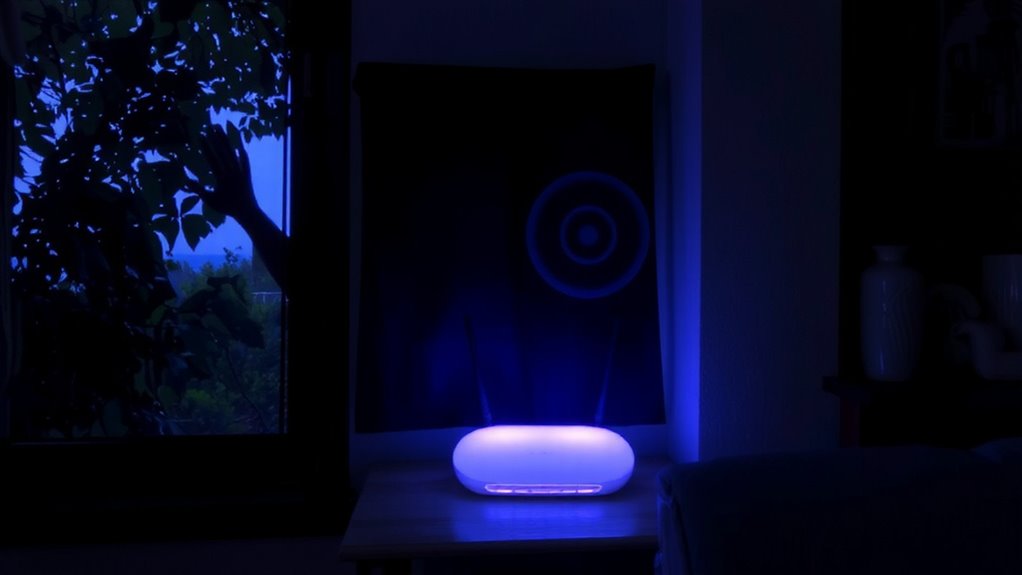
While boosting your router’s transmit power might seem like a straightforward fix for spotty coverage, doing so often creates more problems than it solves-especially when it comes to security and interference. High transmit power increases signal leakage, making your network detectable beyond your walls and easier for attackers to target. It also contributes to network congestion by overlapping with nearby Wi-Fi networks, degrading overall performance.
| Risk Type | Effect of High Transmit Power |
|---|---|
| Security | More signal leakage beyond intended area |
| Interference | Greater overlap with neighboring networks |
| Network Congestion | Increased channel contention |
| Range | Unnecessary outdoor coverage |
| Battery Life | Devices use more power to communicate |
You’ll trade marginal indoor gains for real security and efficiency downsides. Cut power to contain your signal, reduce congestion, and minimize unintended exposure-especially in dense housing. Upgrading to a modern mesh Wi-Fi system can provide better coverage without the need for excessive transmit power.
How Lower Power Improves Speed and Device Performance
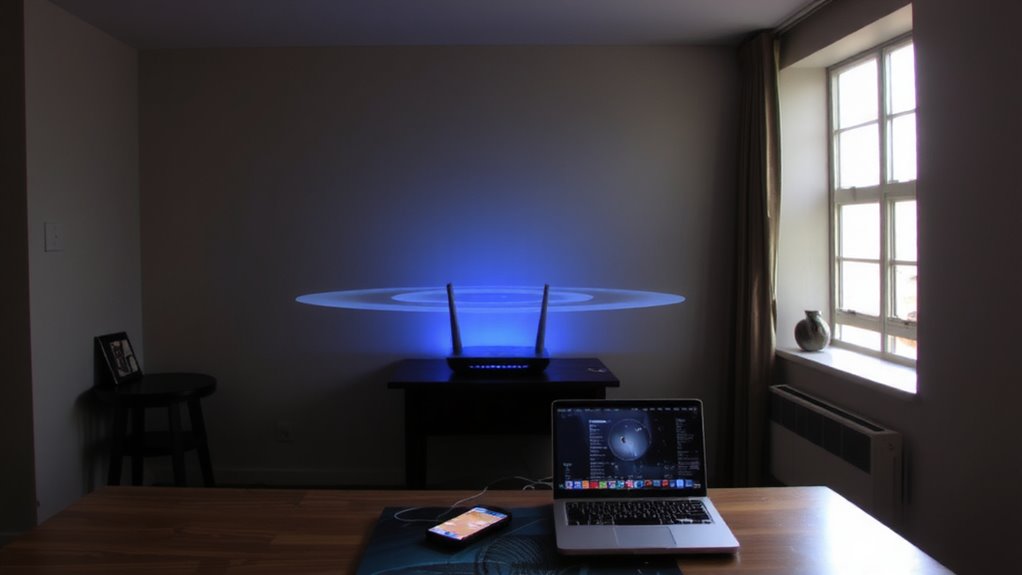
Turning down your router’s transmit power doesn’t just tighten security-it can actually boost speed and improve how your devices perform. Lower power reduces signal overlap and interference, especially in dense environments, leading to better signal stability. When your devices aren’t competing with overlapping networks or struggling through noise, they maintain stronger, more consistent connections. That stability directly improves data throughput, letting files transfer faster and video calls run smoother. You’ll notice fewer dropouts and quicker response times, particularly with modern Wi-Fi 6 or Wi-Fi 6E devices that handle efficient communication better. Just don’t go too low-excessively weak signals cause dead zones or force devices to constantly search for service, hurting performance. Test incrementally, ideally with a Wi-Fi analyzer app, and balance coverage with performance. Results vary by router model, home layout, and device sensitivity.
Find Your Ideal Transmit Power by Home Size
How large is your home? If it’s under 1,500 sq ft, you likely don’t need full transmit power-scaling back improves noise reduction and network efficiency. For spaces between 1,500 and 3,000 sq ft, moderate power with signal mapping helps balance coverage and interference. Larger homes over 3,000 sq ft may need higher settings, but even then, reducing power slightly can minimize co-channel interference without sacrificing connectivity. You’ll want to test actual performance using a Wi-Fi analyzer app to confirm coverage dead zones don’t emerge. Keep in mind that lower transmit power isn’t a fix for poor router placement or outdated hardware. While you gain better noise reduction and cleaner signal mapping, going too low can cause weak signal areas. Adjust incrementally, measure results, and verify device connectivity before finalizing. It’s a trade-off between reach and network cleanliness-one best decided through real-world testing, not defaults.
How to Adjust Transmit Power on Common Routers
Most modern routers let you adjust transmit power through the admin interface, though the exact steps vary by brand and model. You’ll usually access settings by typing your router’s IP-like 192.168.1.1-into a browser after connecting. Look for a wireless or radio settings tab, where options for transmit power levels (high, medium, low, or custom dBm) are often available. Some Asus, TP-Link, and Netgear models also let you tweak channel width (e.g., 20 vs. 40 MHz), which affects range and interference. Always check for firmware updates before making changes-they can activate advanced controls or fix bugs. Lowering power can reduce outdoor leakage, but too little may cause dead zones. Test signal strength room by room afterward. Not all routers support this, especially ISP-provided ones, so verify specs before relying on fine-tuned control.
When to Increase vs. Decrease Wi-Fi Signal Strength
Why would you ever want to turn your Wi-Fi signal down? Because strong signals can cause signal bleeding, leaking into nearby spaces where you don’t need them-and don’t want them. Lowering transmit power keeps your network contained, improving security and reducing interference. It’s smart when you’ve got guest access enabled, so visitors can connect without broadcasting beyond your walls. But don’t always drop power-you should increase it when dead zones block reliable coverage, especially in larger homes or dense layouts. Just remember: boosting strength too high can overload nearby devices and worsen performance. Balance is key. Test coverage with a site survey app, then adjust. Routers with adjustable power settings (like those from Asus or TP-Link) let you fine-tune without guesswork. Results vary based on walls, materials, and device density-so verify real-world performance before settling. For stubborn coverage issues, consider using a Wi-Fi extender to strategically boost signal where needed.
Fine-Tune Transmit Power for Every Room
Where should you set your Wi-Fi transmit power for each room? You should adjust it based on device density and antenna orientation to balance coverage and interference. High-traffic areas like living rooms benefit from moderate power to handle multiple devices, while bedrooms need less to reduce radiation and interference. Proper antenna orientation-vertical for wide coverage, horizontal for reach-complements power settings.
| Room | Transmit Power Setting |
|---|---|
| Living Room | Medium (15-20 dBm) |
| Bedroom | Low (10-12 dBm) |
| Home Office | Medium-High (18-22 dBm) |
You’ll want higher power in your home office for steady connections, especially if you’re using video conferencing gear. But don’t crank it up blindly-excess power increases noise. Fine-tuning requires real-world testing, not guesswork. Always measure signal strength and throughput.
On a final note
You should lower your Wi-Fi transmit power to keep the signal contained indoors-it boosts security and reduces interference. Testing shows lower power often improves speed by minimizing signal reflection and device noise. For most homes under 2,000 sq ft, 50–75% power works well. But if you have dead zones, you might need extenders or higher settings. Always tweak based on real performance, not just strength bars. Some routers, like Asus or TP-Link, let you adjust this in the admin panel.