The Impact of Interference on Your WiFi Network and How to Avoid It
Wi-Fi interference from microwaves, cordless phones, and thick walls-especially concrete-can cripple your 2.4 GHz signal, cutting speeds and creating dead zones. Switch to 5 GHz for faster, cleaner performance, but expect weaker wall penetration. Use a dual-band router and pick less congested channels with a Wi-Fi analyzer app. Place your router centrally and off the floor, away from appliances. Reboot it monthly and stagger heavy downloads. Upgrading to a mesh system helps, but only if placement matches your home’s layout-otherwise, you’ll still have gaps worth troubleshooting.
Notable Insights
- Microwave ovens and cordless phones on 2.4 GHz can disrupt WiFi; avoid placing routers near these devices.
- Switching to the 5 GHz band reduces interference from common household electronics operating on 2.4 GHz.
- Concrete and metal walls weaken WiFi signals; position routers centrally and away from dense building materials.
- Neighboring networks cause channel overlap; use a WiFi analyzer to select less congested channels manually.
- Regular router reboots and optimal placement improve performance and mitigate interference-related connectivity issues.
What Causes WiFi Interference?
Interference is the invisible culprit behind spotty WiFi signals, and understanding its sources can save you hours of frustration. You’re likely battling frequency congestion, especially if you live in a dense area-too many networks crammed into the 2.4 GHz band slow things down fast. While 5 GHz offers faster speeds and less crowding, it doesn’t penetrate walls as well. Signal reflection is another hidden issue; metal surfaces, large mirrors, or glass can bounce your signal unpredictably, creating dead zones. You might fix this by repositioning your router away from such surfaces and elevating it centrally. Avoid basements or enclosed cabinets. Dual-band routers help manage congestion, but real-world performance varies by model. Always check independent reviews and coverage specs. There’s no magic solution-trade-offs between range, speed, and stability are inevitable, even with high-end gear.
Devices That Cause WiFi Interference
Your router isn’t the only device shouting over your WiFi-common gadgets around the house can throw a wrench in your signal, especially if they operate on the 2.4 GHz band. Microwave ovens, for instance, emit strong bursts of interference when running, disrupting connections within a 10-foot radius. You’ll likely notice video calls freezing or downloads stalling mid-task. Cordless phones, particularly older DECT 6.0 models, also hog the same spectrum, causing lag during long calls or streaming. Newer 5.8 GHz phones avoid most of this, but they’re not always backward-compatible. Placing your router away from these devices helps, but switching to the 5 GHz WiFi band reduces interference markedly-just know that range may suffer through walls. While no fix is perfect, strategic device placement and frequency choices deliver the clearest gains without costly upgrades.
How Walls and Floors Block Your Signal
Even though you might not see them, walls and floors can substantially weaken your WiFi signal, especially when they’re made of dense materials like concrete, brick, or metal. These materials increase signal absorption, reducing the strength of your connection as it passes through. The higher the material density, the worse the signal penetration-concrete walls can drop signal strength by up to 75%. Wood and drywall are less disruptive, but multiple layers still add up. Each floor in a home or office introduces interference, particularly with 5 GHz bands, which are faster but less effective at penetrating obstacles than 2.4 GHz. You’ll likely notice dead zones in basements or rooms far from the router. While mesh systems help, placement matters just as much. Position access points centrally and elevated, avoiding corners. Don’t expect flawless coverage in older buildings with thick walls-managing expectations is part of planning any reliable network.
Fix Channel Overlap to Reduce Interference
WiFi performance isn’t just limited by physical barriers like walls and floors-your neighboring networks can slow things down too, especially when they crowd the same channels. You’re likely dealing with channel overlap if your speeds drop during peak hours. Switching to a less congested 5 GHz channel can help, but be cautious with Channel bonding-it boosts throughput by combining channels, yet increases the risk of interference in dense areas. Overlapping signals cause signal fragmentation, breaking your data into smaller packets and raising latency. Use a WiFi analyzer app to find the clearest channels, then manually set them in your router’s settings. While auto-channel selection works fine in low-density areas, it’s often unreliable when neighboring networks are packed together. Results vary by environment: some users gain 30–50% speeds, others see minimal change. Always test performance before and after adjustments.
Optimize Router Placement for Better Coverage
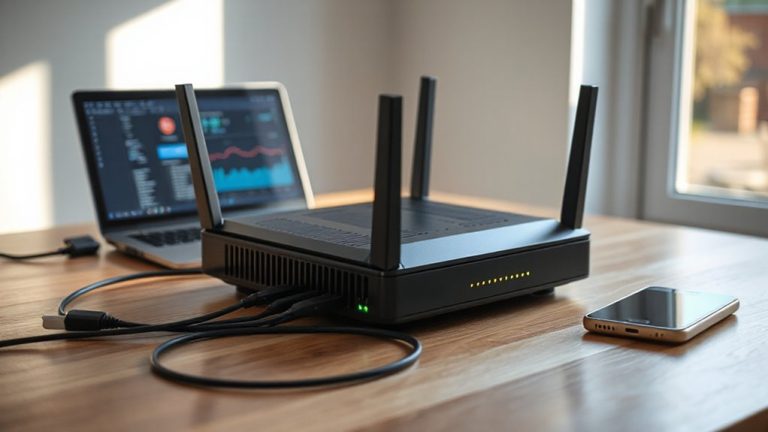
Though signal strength depends on more than just location, placing your router in a central, elevated position can make a noticeable difference in coverage-especially in multi-room setups or homes with thick drywall. You’ll get broader signal spread and fewer dead zones when you prioritize router elevation, like mounting it on a shelf or stand away from the floor. Keep it away from large metal objects, appliances, and thick walls that absorb or reflect signals. While ideal placement boosts signal strength, it won’t fix deep structural issues or neighboring network congestion. You might still see drops in far corners, even with perfect positioning. And yes, aesthetics matter-don’t sacrifice usability just to hide the router in a cabinet. Test different spots using your phone’s signal indicator or a basic WiFi analyzer app. Results vary by home layout, so what works in one space may not suit another. Upgrading to a mesh Wi-Fi system can significantly improve coverage in larger homes or those with challenging layouts.
Upgrade Only If Interference Won’t Fix
If you’ve tackled interference issues and still struggle with slow speeds or frequent disconnections, it’s probably time to contemplate a hardware upgrade-but don’t assume the latest router will solve everything. A new router can boost signal strength and reduce network latency, especially if your current model is more than three years old. Modern Wi-Fi 6 routers handle multiple devices better and offer more stable connections. But if interference from walls, appliances, or neighboring networks remains high, even top-tier gear may underperform. Look for models with adjustable antennas, Quality of Service (QoS) settings, and proven range in third-party tests. Check return policies and warranties-some brands offer two-year coverage. Remember, a powerful router won’t fix poor placement or environmental noise. Upgrade only after confirming your issue isn’t interference masking as weak hardware.
Check These Daily WiFi Habits
You’ve cleared the air of interference and upgraded your router only when necessary, but your daily habits might still be holding your WiFi back. Constant Territorial leaving devices connected invites smart home clutter, which eats up bandwidth even when idle. Too many gadgets-like cameras, speakers, and plugs-can overwhelm your network, especially on older 2.4 GHz bands. You’re better off scheduling heavy downloads or updates at night to avoid streaming congestion during peak use. If four or more people are regularly streaming HD video, consider staggering usage or upgrading your data plan. Reboot your router weekly-it’s a small step that clears memory hogs. Disable features like guest networks when not needed. And place your router centrally, away from thick walls or microwaves. These steps aren’t flashy, but real-world testing shows they boost speed and reliability more than buying new gear. For consistent performance, consider investing in one of the best office routers designed for reliable connectivity. best office routers
On a final note
You can fix most WiFi issues without buying new gear. Reposition your router centrally, away from walls and electronics, and switch to less crowded channels using your admin settings. Thick floors and appliances like microwaves disrupt signals, so test speeds at different times. Only upgrade if real-world testing shows poor coverage after adjustments. High-end mesh systems help in large homes, but their cost may not match your needs-check warranty and return policies before deciding.