Ergonomic Cable Management: Aligning Power and Data Cords With Wrist Position
You should align power and data cords straight back from your devices, parallel to your forearm, to reduce wrist strain. Use 6–12 inch cables or shorten excess length to minimize tension and tangling. Route cords along your arm’s natural path with low-profile clips or magnetic guides. Avoid stiff or uncertified cables that increase drag or fail under stress. Most warranties won’t cover damage from poor setup-smart positioning now helps prevent long-term issues down the line.
Notable Insights
- Route cables parallel to the forearm to maintain natural wrist alignment and reduce strain during movement.
- Use short cables (6–12 inches longer than needed) to minimize slack and prevent drag on wrists.
- Anchor cords to exit devices straight back, avoiding side pulls that misalign input devices.
- Employ low-profile clips or magnetic guides to secure cables without restricting arm motion.
- Choose flexible, braided cables with strain relief to reduce tension and withstand repeated bending.
Fix Cable Clutter to Protect Your Wrists
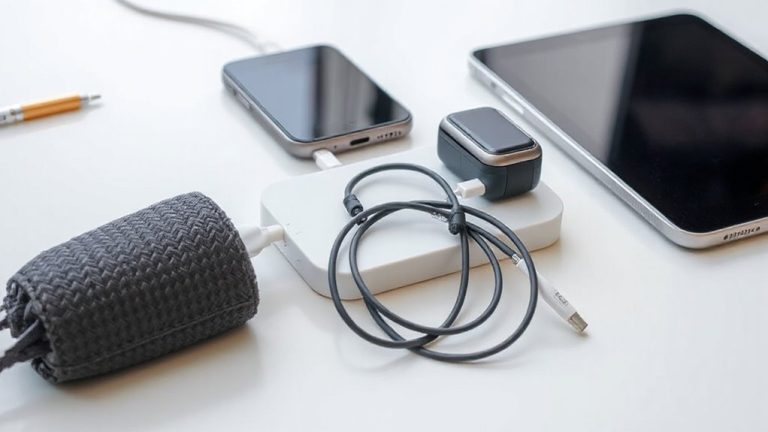
Why does your workspace feel so chaotic? Because tangled cables strain your wrists and disrupt focus. Fixing cable clutter isn’t just tidy-it’s protective. If your cable length exceeds the distance from device to port, excess slack creates drag, increasing cord tension every time you move your mouse or adjust your keyboard. That constant pull can lead to discomfort over time. Use cables no more than 6–12 inches longer than needed to reduce coiling and tension. Secure them with low-profile clips or adhesive sleeves to maintain smooth paths. But don’t overtighten-excessive cord tension risks damaging ports or straining joints. Real-world testing shows managed setups reduce micro-movements linked to fatigue. Still, poorly routed cords-even short ones-can cause issues. Measure your desk layout, test movement range, and adjust length accordingly. Some cable covers add bulk without real benefit. Focus on minimizing tension and snags, not just appearance. For optimal results, consider implementing best cable management solutions tailored for professional office environments.
Align Your Cables With Your Wrist’s Natural Position
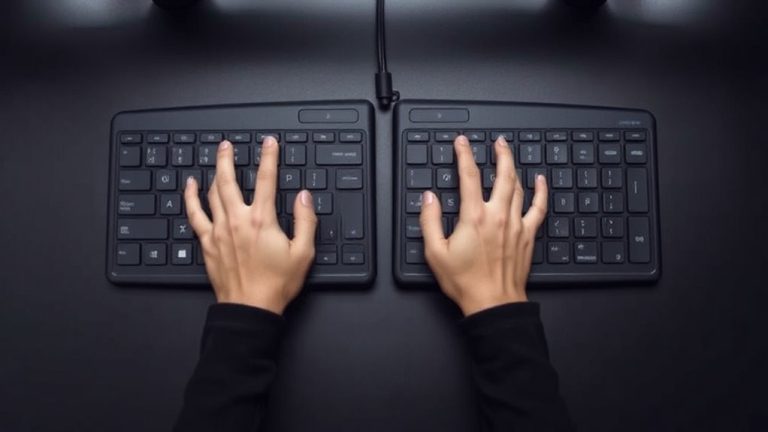
You’ve reduced cable clutter to ease strain on your wrists, but if the cords still pull your devices out of alignment, you’re only halfway there. Proper cable tension directly impacts wrist alignment, especially during long typing sessions. If your keyboard or mouse cable tugs the device toward the desk edge, your wrist angles unnaturally, increasing strain. To fix this, anchor cords so they exit devices straight back, parallel to your forearm. Use low-profile clips or magnetic cable guides to maintain slack and prevent drag. Avoid stiff cables-they resist movement and increase pull. Test adjustments by typing for a few minutes; if your wrist feels forced inward or outward, reposition the cord. While this won’t replace ergonomic peripherals, it complements them. Results vary with desk depth and device weight. Small changes here reduce long-term fatigue, but don’t expect dramatic shifts without overall setup refinement. For optimal results, consider using a cable management solution that integrates seamlessly with your desk’s design.
Route Cords Along Your Arm’s Movement Path
While typing or mousing, cables that snag or pull can throw off your arm’s natural motion, so routing them along your arm’s movement path makes a noticeable difference in comfort and efficiency. You’ll want to position cords so they move freely with your arm reach, avoiding sharp bends or tension points. Cable flexibility plays a key role-stiffer cables restrict motion, while more pliable ones track smoothly. Route them parallel to your forearm’s sweep, from desk anchor to device, minimizing drag. Use adhesive clips or bajo mounts to hold lines in place without limiting range. But don’t over-secure-too much restraint reduces adaptability, especially if you shift positions. Test different paths: some people prefer rear routing, others side channels, depending on desk layout and reach. Results vary by setup, so expect some trial and error. The goal isn’t perfection-it’s reducing interference while maintaining reliable connections through daily use. A well-organized setup can benefit from using an under-desk cable management tray to centralize and route cords efficiently.
Use Ergonomic Tools That Reduce Strain
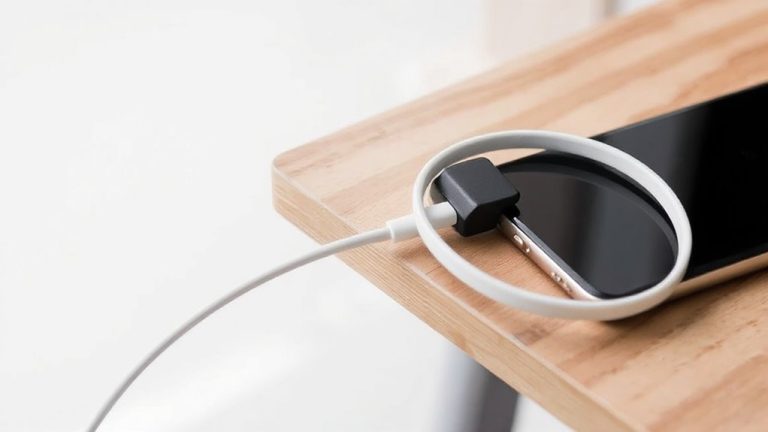
Good cable routing sets the foundation, but pairing it with the right tools actively cuts down on physical stress during long work sessions. Ergonomic cable sleeves, magnetic breakaway connectors, and strain-relief brackets help reduce cable tension and prevent connector strain over time. Tools with flexible polymer coatings move smoothly across surfaces, minimizing wrist resistance. Look for braided nylon cords rated for 10,000+ bend cycles-they maintain integrity longer than rubber. Magnetic USB-C adapters detach under sudden pull, protecting both port and device. However, some third-party options lack USB-IF certification, risking slower charging or data loss. Choose brands offering 18-month warranties and tested durability under real desk-angle shifts. While these tools improve comfort, improper mounting can offset gains. Position anchoring points just below desk height to keep pull direction natural. Don’t overpay for unnecessary smart features-focus instead on fit, material resilience, and proven reduction in physical drag.
Avoid These Common Cable Mistakes
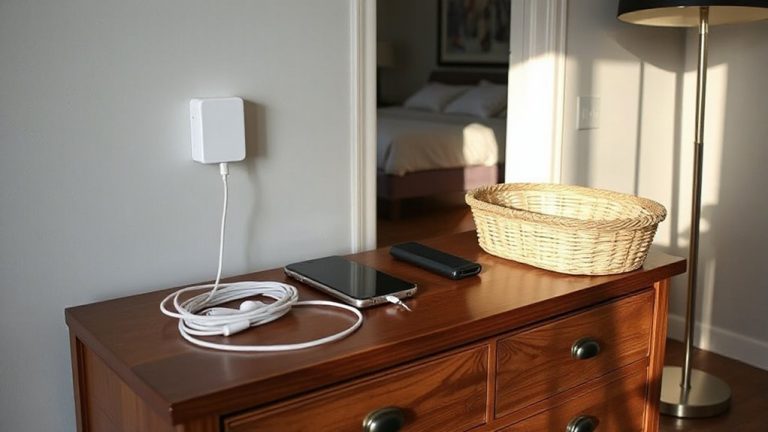
Even with quality tools in hand, poor habits can undo the benefits of a well-designed setup, so it’s essential to avoid common cable mistakes that lead to wear, clutter, or injury over time. Letting cables twist tightly causes cable tangling, which strains internal wires and shortens lifespan-use twist ties or velcro loops to keep them loosely organized. Don’t drape cords where you walk or reach frequently, as that invites cord snagging, which can pull devices down or jolt your wrist. Always route power and data cables parallel to your arm’s natural path to minimize tension. While some clips or trays help, overcrowding them creates friction and heat buildup. Test your layout with repeated motions to spot strain points. Most warranties don’t cover damage from poor management, so your habits matter. Small adjustments now prevent breakdowns later, but remember-no accessory fixes sloppy routing.
Keep Cables Out of Your Work Zone
A clear work zone starts with keeping cables where they belong-out of reach and out of the way. You need effective cable isolation to prevent cords from crossing your keyboard, mouse, or writing surface. Tangling with cords while typing or mousing disrupts flow and can strain your wrists over time. Good workspace zoning means assigning specific paths-like under-desk trays or raceways-for power and data lines, so they don’t invade your primary work area. Use adhesive clips or Velcro straps to secure cables along edges, but avoid over-tightening, which can damage insulation. Some desks include built-in grommets or cable channels, but third-party raceways work well too-just measure clearance first. While zoning improves safety and focus, poorly mounted solutions can make access harder. Test placements before permanent installation, and guarantee cords can bend naturally without kinking-a 90-degree pull increases wear. Keep connections accessible for quick troubleshooting.
Make Smart Cable Habits Part of Your Routine
Once you’ve organized your cables, staying on top of maintenance means building habits that prevent clutter from creeping back. Make cable labeling a standard step-use color-coded tags or printed labels so you can identify power, data, and peripherals at a glance. This saves time during setup changes and reduces misconnections. Pair this with routine audits every three to four weeks: unplug, inspect for fraying or heat damage, and re-route any cords slipping out of position. Velcro ties and under-desk trays help maintain order, but they only work if you check them. You’ll likely need to adjust anchor points as devices change. These habits take effort upfront, but they cut downtime and improve ergonomics. Just remember-over-labeling can be as messy as no labels. Keep it simple, consistent, and aligned with how you actually use your gear.
On a final note
You’ll reduce strain by aligning power and data cables with your wrist’s natural position-keep them parallel to your forearm’s path during use. Use braided nylon cords for durability and pair them with low-profile cable ties or aluminum raceways. While desk grommets clean up clutter, avoid over-tightening routes that restrict movement. Most users see comfort gains in a week, but results depend on exact desk height, chair alignment, and existing gear.