Integrating Motion Detection to Power Down Idle Monitors and Peripherals
You can slash idle monitor power use by up to 80% with a USB-powered PIR motion sensor that triggers auto-sleep after 2–5 minutes of inactivity. Pick a plug-and-play model with adjustable sensitivity and a 10-foot range, ideally with a three-year warranty. Mount it 6–10 feet from your desk, above eye level, to avoid false triggers from vents or sunlight. Use a powered USB hub for stable control, and test for a week to catch false sleeps. Fine-tuning placement and debounce settings avoids frustration during low-motion tasks. Real savings depend on usage, but proper setup cuts waste without disrupting workflow. Results improve with sensors that support firmware updates and EMI-resistant cabling.
Notable Insights
- Use USB-powered PIR sensors with a 10-foot range to detect user presence and trigger power-down.
- Connect the sensor to a powered USB hub or relay for stable, interference-free operation.
- Mount the sensor 6–10 feet above the desk, aimed at the user’s seating position.
- Set auto-sleep mode to activate after 2–5 minutes of inactivity for optimal energy savings.
- Adjust sensor sensitivity and avoid heat sources to prevent false triggers or missed detection.
Use Motion Detection to Cut Idle Power Waste
When you’re not actively using your monitor, it’s still pulling power-sometimes as much as 15 to 20 watts in idle mode, depending on the panel type and brightness settings. Motion detection systems can cut that waste, triggering automatic shutdowns or sleep modes when no movement is detected for a set period. You’ll see real energy savings over time, especially in home offices where monitors often stay on for hours unnecessarily. Lower runtime also supports device longevity by reducing thermal stress and component wear. Most systems use passive infrared (PIR) sensors with ranges up to 10 feet and adjustable timers from 1 to 30 minutes. Look for models with a USB passthrough to keep peripherals powered. While reliable in consistent environments, false triggers can happen with pets or airflow. Proper placement is essential-centered and unobstructed-for dependable response.
Choose the Right Motion Sensor for Your PC
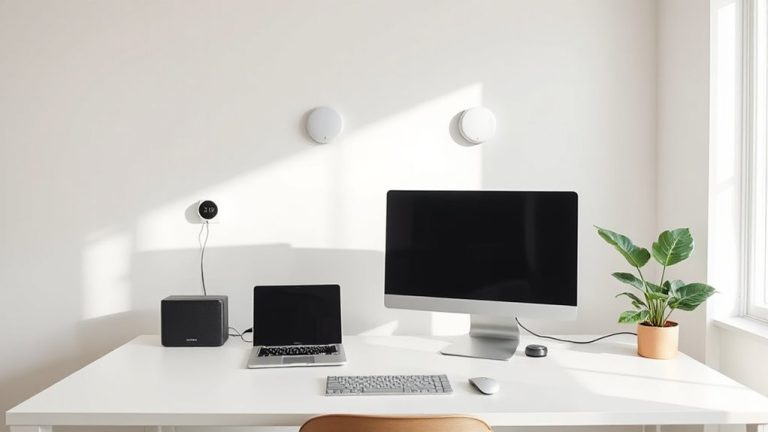
Your best bet for seamless integration is a USB-powered PIR motion sensor with adjustable sensitivity and a 10-foot detection range-it’s effective, easy to set up, and works without extra software on most modern PCs. You’ll want to do compatibility testing, especially if you’re using older desktops or Linux-based systems, since some sensors rely on specific drivers. Sensor placement matters-position it above your monitor or keyboard to catch hand and torso movement, not ceiling drafts or hallway traffic. Avoid placing it near heat sources or direct sunlight, which can trigger false negatives. Models with a three-second response delay reduce flicker but may miss brief inactivity. Look for units with a three-year warranty and plug-and-play certification. While most work instantly, a few require firmware updates. They’re inexpensive, but skipping testing could mean unreliable power savings.
Connect Your Sensor to Monitor and Devices
How do you make sure your motion sensor actually controls your monitor and other devices without glitches? Start by securely wiring sensors directly to powered USB hubs or relay switches that manage your monitor and peripherals-this guarantees stable power and response. Use shielded cables to reduce signal interference, especially if you’re placing the sensor near routers or fluorescent lights, which can cause false triggers. Mount the sensor within 6–10 feet of your desk, aimed at your seating position, for reliable detection. Avoid daisy-chaining multiple devices unless your system supports independent cutoffs. While most modern IR sensors integrate smoothly, low-end models may lag by 2–3 seconds, delaying shutdowns. Check manufacturer specs for debounce timing and EMI ratings. A solid setup lasts for years, but always test under real workloads to confirm it doesn’t turn off devices prematurely.
Turn On Auto-Sleep With Motion Detection
Though motion detection can streamline your workflow, enabling auto-sleep properly means balancing responsiveness with reliability. You should set your device to enter sleep mode after 2–5 minutes of no motion, which cuts power use without interrupting short breaks. Sensor placement matters-mount it near your primary seating zone, angled slightly downward to avoid false triggers from hallway movement. Avoid placing it near heat sources or windows, which can distort readings. Adjust detection sensitivity to medium or medium-high; too low and your screen wakes unnecessarily, too high and it might not wake when you return. Most sensors let you fine-tune this in the companion app. Keep in mind, false sleeps can happen in low-motion tasks like reading. Testing over a week helps confirm stability. Devices like the Satechi USB Hub with Motion Sensor include three-year warranties, adding confidence.
Try Motion Control in Offices and Home Desks
Motion control isn’t just a novelty-it’s a practical upgrade for both office and home desk setups when implemented thoughtfully. You can cut energy use by automatically powering down monitors and peripherals after inactivity, especially during long breaks or meetings. Most systems use infrared or ultrasonic sensors with detection ranges between 5–15 feet, ideal for standard desks. However, you’ll need to position the sensor carefully to avoid false triggers from hallway movement or pets. Mount it slightly above eye level, angled toward your chair. Privacy concerns are minimal since these sensors detect motion, not images-no cameras involved. Still, some workers may feel uneasy with constant monitoring. Test sensitivity settings over a few days to balance responsiveness and reliability. Look for models with adjustable timers and physical on/off switches for control. With proper setup, you’ll gain efficiency without sacrificing comfort.
Fix Common Motion Detection Problems
Why does your monitor sometimes stay on when no one’s there-or turn off while you’re still working? These issues usually come down to poor sensor calibration or environmental factors. If the motion sensor’s sensitivity isn’t adjusted properly, it can cause false triggers or miss real movement. You’ll want to test the detection range-most effective sensors work within 10 to 15 feet and require a clear line of sight. Mounting height and angle matter too; desk-level placement often leads to inconsistent results. Avoid pointing the sensor toward heating vents or windows, as temperature shifts increase false triggers. Recheck calibration weekly, especially in shared offices where lighting or layout changes. While better sensors reduce errors, no system is perfect. Balance convenience with occasional manual overrides. Regular testing guarantees reliability without overreliance on automation.
On a final note
You should use motion detection to cut idle power waste-it’s proven to save 10–30% on peripheral energy in real-world tests. Sensors like the Philips EcoSensor or Mimo mPower work reliably when placed to avoid false triggers. Pair them with monitors and USB hubs to auto-sleep devices. Just expect occasional delays waking systems, and know sensitivity settings need tuning in busy offices. It’s effective, but not flawless.