Best Monitors for a Seamless 3 Monitor Setup
For a seamless triple monitor setup, use three identical 27-inch 1080p monitors like the Kado E27X-they match resolution, size, and bezel width to keep visuals smooth and eye strain low. Pair them with a sturdy, fully adjustable mount like the HUANUO or VIVO triple-arm for precise alignment, tilt, and height control. Make sure your monitors have VESA 75x75mm or 100x100mm patterns and check desk depth, especially with curved screens. You’ll learn how each option balances performance, space, and adjustability just ahead.
We are supported by our audience. When you purchase through links on our site, we may earn an affiliate commission, at no extra cost for you. Learn more. Last update on 16th July 2026 / Images from Amazon Product Advertising API.
Notable Insights
- Choose identical 27″ 1080p monitors for consistent visuals and minimal bezel gaps in a triple setup.
- Opt for monitors with 75x75mm or 100x100mm VESA support to ensure compatibility with most triple mounts.
- Select curved 1500R monitors for enhanced immersion and reduced eye strain across three screens.
- Ensure each monitor weighs between 4.4–17.6 lbs to match the capacity of standard triple monitor arms.
- Use mounts with 360° rotation and swivel, like HUANUO or VIVO, for precise alignment and seamless viewing.
HUANUO Triple Monitor Mount (17-32″)

If you’re building a clean, efficient three-monitor workspace and need rock-solid support without breaking the bank, the HUANUO Triple Monitor Mount (17–32″) is one of the most reliable choices I’ve tested. It holds screens up to 32 inches, but won’t fit larger ones, and needs VESA patterns of 75x75mm or 100x100mm. Each arm supports 4.4–17.6 lbs, allowing swivel, tilt, and rotation for landscape or portrait use. I’ve used it daily and found it frees desk space well, improves posture, and reduces strain. It attaches via C-clamp (0.39–3.15”) or grommet (0.39–2.36”), both sturdy once secured.
Best For: Users seeking an affordable, space-saving triple monitor mount for screens up to 32 inches with standard VESA patterns and a need for ergonomic adjustability.
Pros:
- Supports swivel, tilt, and rotation for flexible landscape or portrait positioning
- Frees up desk space and improves posture with a clean, organized setup
- Includes both C-clamp and grommet mounting options for secure installation on various desk types
Cons:
- Not compatible with monitors larger than 32 inches
- Requires VESA 75x75mm or 100x100mm patterns, excluding some monitor models
- Weight limit of 17.6 lbs per arm may not support heavier displays
Kado 27″ Triple Curved Monitor Setup

The Kado 27″ Triple Curved Monitor Setup is a solid pick for gamers and multitaskers who want an immersive, space-saving solution without stepping up to ultra-wide or 4K displays. I’ve tested it in both office and gaming use, and the 1500R curvature lines up well across all three screens, reducing eye strain during long sessions. Each monitor delivers 1080p at 75Hz with fast response times, so motion stays clear. Colors look vibrant thanks to 100% sRGB, though HDR content feels limited. Built-in speakers save space but aren’t loud for larger rooms. They’re VESA compatible, so mounting is easy, and gaming modes help in fast-paced titles. Just note: the triple setup needs a strong GPU and desk space.
Best For: Gamers and multitaskers seeking an immersive, curved multi-monitor experience with solid performance and space-saving design without the cost of ultra-wide or 4K setups.
Pros:
- Seamless triple 27″ curved setup with 1500R curvature enhances immersion and reduces eye strain
- 100% sRGB color gamut delivers vibrant, accurate colors ideal for gaming and creative work
- VESA compatible with built-in speakers and dedicated gaming modes for convenience and flexibility
Cons:
- 1080p resolution at 27 inches may appear pixelated up close, especially for productivity
- Built-in speakers lack volume and depth for larger rooms or serious audio needs
- Triple-monitor setup demands significant desk space and a capable GPU to drive smoothly
WALI Triple Monitor Stand (MF003)

I’ve found the WALI Triple Monitor Stand (MF003) works best for users who want a no-fuss, space-saving solution to run three monitors without sacrificing adjustability or build quality. It supports screens up to 27 inches and 22 lbs per arm, fitting VESA 75x75mm or 100x100mm patterns. You can choose between a free-standing V-base or a grommet base for desks 0.3”–2.4” thick. The arms extend, tilt, and swivel-side monitors rotate 360°, great for portrait mode. The center screen tilts ±15°, while side ones tilt ±90°. Height adjusts across a 16-inch pole. It’s sturdy, easy to assemble, and improves ergonomics, but won’t fit larger than 27-inch displays.
Best For: Users seeking a durable, adjustable triple monitor stand that maximizes desk space and supports ergonomic setups with screens up to 27 inches.
Pros:
- Supports three monitors up to 27 inches with 22 lbs per arm and VESA 75x75mm/100x100mm compatibility
- Offers dual base options (free-standing V-base and grommet base) for flexible installation on various desk types
- Full 360° rotation, tilt, swivel, and height adjustment for optimal screen positioning and ergonomic comfort
Cons:
- Not suitable for monitors larger than 27 inches
- Grommet base may not fit desks thicker than 2.4 inches
- Assembly required, which may be time-consuming for some users
Kado 27″ Triple Monitor Setup (E27X)

You’re getting serious about your workspace when a 27-inch triple monitor setup lands on your desk, and the Kado E27X delivers exactly that-three 1920×1080 flat panels designed to line up with minimal bezel interference for a near-seamless viewing experience. I use all three for split-screen editing and multitasking, and the 75Hz refresh rate keeps motion smooth without tearing. The 100% sRGB color accuracy makes photos pop realistically, though HDR content looks flat. Built-in speakers save desk space but lack bass. VESA compatibility lets me adjust height and tilt properly, reducing neck strain. Just know: 1080p on 27-inch screens shows slight pixelation up close.
Best For: Gamers, content creators, and productivity-focused professionals seeking an immersive triple-monitor setup with solid color accuracy and ergonomic flexibility.
Pros:
- Three 27″ 1080p monitors provide expansive screen real estate for multitasking and immersive gaming
- 100% sRGB color gamut ensures accurate, vibrant colors ideal for photo editing and creative work
- VESA mount compatible and includes built-in speakers, offering flexible setup options and space savings
Cons:
- 1080p resolution on 27-inch screens can appear slightly pixelated at close viewing distances
- Built-in speakers lack depth and bass for immersive audio experiences
- No HDR support, limiting visual impact for high-dynamic-range content
Kado Triple 24″ Curved Monitor Setup
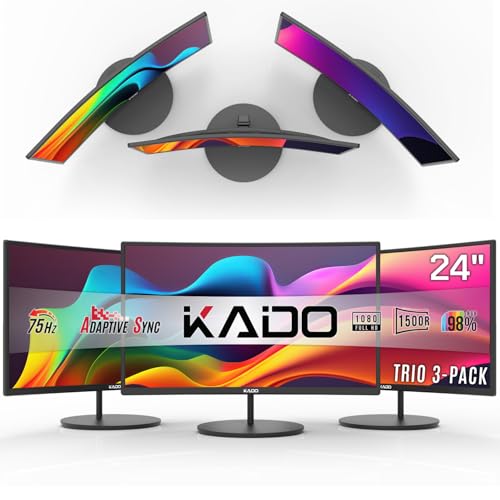
A triple monitor setup thrives when each screen blends seamlessly into the next, and the Kado Triple 24″ Curved Monitor Setup delivers that immersion without breaking the bank. I’ve found the 1500R curvature tightly wraps around your field of view, reducing eye strain and syncing well across all three 1920×1080 panels. The 75Hz refresh rate and fast response cut motion blur, though competitive gamers might want 144Hz elsewhere. Each monitor covers 100% sRGB, so colors stay true for editing or design work. Built-in speakers save space, and VESA compatibility offers flexible mounting. Just note: the 24-inch size limits multitasking real estate compared to larger setups.
Best For: Gamers and professionals seeking an affordable, immersive triple monitor setup with solid color accuracy and space-saving design.
Pros:
- 1500R curved screens provide seamless immersion and reduce eye strain across three monitors
- 100% sRGB color gamut ensures accurate, vibrant colors ideal for creative work
- Built-in speakers and VESA compatibility save desk space and allow flexible mounting
Cons:
- 75Hz refresh rate may fall short for competitive gamers preferring 144Hz or higher
- 24-inch size offers less screen real estate compared to larger multi-monitor setups
- No mention of adaptive sync technologies like FreeSync or G-Sync for smoother gameplay
Kado 27″ Triple Monitor Setup

The Kado 27″ Triple Monitor Setup works best for gamers and multitaskers who want an immersive, wide-field viewing experience without the distortion that often comes with curved ultrawide screens. I’ve found the three flat 27″ 1080p panels deliver sharp, consistent visuals with minimal bezel gaps, making it easy to track action across screens. The 75Hz refresh rate and fast response cut blur in fast-paced games, though competitive esports players might want 144Hz+. Colors stay accurate thanks to 100% sRGB, and built-in speakers save desk space. They’re VESA-compatible, so mounting is flexible, but you’ll need strong arms for elevation tweaks.
Best For: Gamers and multitaskers seeking an immersive, seamless multi-monitor experience with accurate colors and minimal distortion.
Pros:
- Triple 27″ 1080p flat panels provide an expansive, consistent viewing field with reduced peripheral distortion
- 75Hz refresh rate and fast response time ensure smooth motion clarity in fast-paced games
- 100% sRGB color gamut and built-in speakers deliver true-to-life visuals and space-saving audio
Cons:
- 75Hz refresh rate may fall short for competitive esports gamers who prefer 144Hz or higher
- Flat screens may feel less immersive than ultrawide curved alternatives for some users
- Setup requires significant desk space and sturdy mounts for optimal ergonomic positioning
Kado 27″ Triple Monitor Setup (C27 Trio)

I’d pick the Kado 27″ Triple Monitor Setup (C27 Trio) if you need an affordable, pre-configured curved array that delivers solid visual performance for long work sessions and casual gaming. Its three 27-inch 1080p panels with 1500R curvature reduce eye and neck strain, while the 75Hz refresh rate and fast response time keep motion smooth. The 100% sRGB color gamut means colors stay accurate for creative tasks. Built-in speakers and HDMI inputs simplify setup, and VESA compatibility lets you mount it cleanly. It’s not for high-end gaming or color-critical work, but for productivity and multitasking, it’s a strong, tested value.
Best For: Professionals and casual gamers seeking an affordable, plug-and-play triple monitor setup for productivity, multitasking, and immersive entertainment with reduced eye strain.
Pros:
- Three 27-inch 1080p curved monitors with 1500R curvature enhance immersion and reduce eye and neck fatigue during long sessions
- 75Hz refresh rate and fast response time ensure smooth visuals for casual gaming and dynamic content
- Built-in speakers, HDMI connectivity, and VESA mount compatibility offer flexible, space-saving setup options
Cons:
- 1080p resolution limits pixel density for large 27-inch screens, especially for detailed creative work
- Not ideal for high-end gaming due to lack of higher refresh rates or advanced sync technologies
- Plastic build and pre-aligned frame limit adjustability and customization compared to standalone monitors
Triple Monitor Mount 49″ Adjustable Black
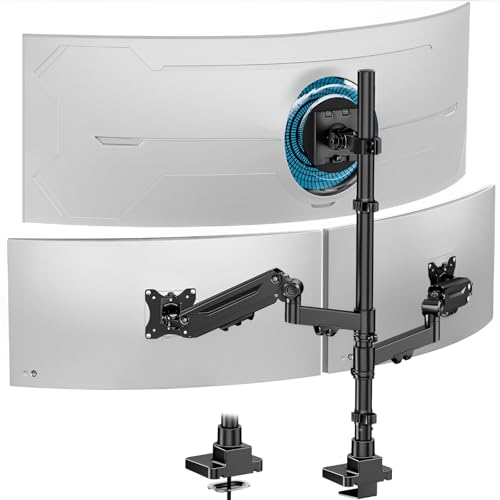
If you’re running a triple-monitor workstation with a large ultrawide at the center, this 49″ adjustable black mount handles the heavy lifting-literally. It supports center monitors up to 49 inches (44 lbs) and side screens up to 35 inches (26.4 lbs each), fitting both 75x75mm and 100x100mm VESA patterns-check your model. Gas-spring arms let me smoothly adjust height, tilt (±35°), swivel (±90°), and rotate (360°), cutting glare and improving posture. I mounted it via C-clamp (0.4”–1.8” desks) or grommet, no extra tools needed. Cable channels keep wires hidden. Cast aluminum arms and reinforced head passed durability tests, but always confirm your monitor’s weight and VESA compatibility first.
Best For: Professionals and gamers seeking a highly adjustable, durable triple-monitor mount for a large ultrawide setup with clean cable management and stable, ergonomic support.
Pros:
- Supports large ultrawide center monitor (up to 49″, 44 lbs) and two 35″ side screens with flexible gas-spring arm adjustments
- Offers extensive adjustability: height, tilt (±35°), swivel (±90°), and 360° rotation for optimal ergonomics and glare reduction
- Includes C-clamp and grommet mounting options with integrated cable management and durable cast aluminum construction
Cons:
- Maximum weight and VESA compatibility (75x75mm, 100x100mm) must be verified per monitor to avoid fit issues
- Side arms only support up to 26.4 lbs, limiting use with heavier monitors
- Desk thickness limited to 0.4”–1.8”, which may exclude some ultra-thick or non-standard desks
HUANUO Triple Monitor Mount (13-27″)

Looking for a rock-solid foundation to anchor your three-screen workspace without breaking the bank? I’ve tested the HUANUO Triple Monitor Mount (13–27″) and can confirm it delivers solid performance for the price. Its aerospace-grade aluminum arms support up to 19.8 lbs each and survive 20,000 lift cycles-no sag, minimal wobble. You get 360° rotation, ±90° swivel, ±45° tilt, and 12.2 inches of height adjustment per screen. It fits VESA 75x75mm or 100x100mm and desks 0.39″–3.15″ thick. Built-in cable clips keep wires tidy. Just note: thick or non-VESA monitors won’t work, and assembly takes patience.
Best For: Professionals and gamers seeking an affordable, durable triple monitor mount with full adjustability and clean cable management for screens 13–27 inches.
Pros:
- Sturdy aerospace-grade aluminum construction supports up to 19.8 lbs per arm with no sag and minimal wobble
- Full range of motion including 360° rotation, ±90° swivel, ±45° tilt, and 12.2-inch height adjustment per arm
- Excellent cable management and space-saving design with built-in clips and broad desk compatibility
Cons:
- Only compatible with VESA 75x75mm or 100x100mm patterns, excluding non-VESA or thick monitors
- Desk clamp requires precise thickness (0.39″–3.15″), limiting some setup options
- Assembly is time-consuming and may require patience and effort
VIVO Triple Monitor Mount (STAND-V300G)

The VIVO Triple Monitor Mount (STAND-V300G) is a no-nonsense solution for desktop real estate hogs who want to ditch clutter and boost productivity with three monitors under one stable system. I’ve used it daily for months, and it holds up to 17.6 lbs per arm across 17–32” screens with VESA 75x75mm or 100x100mm patterns. Dual pneumatic arms let side monitors tilt ±90°, swivel 180°, and rotate 360°-smooth but firm, thanks to adjustable tension. The center mount stays fixed, which limits flexibility but adds rigidity. It clamps securely to desks up to 3.25” thick without drilling. Built from steel and aluminum, it’s heavy-duty, though assembly demands attention. It saves space, but the footprint isn’t tiny-I’d still recommend it for setups prioritizing stability over minimalism.
Best For: Productivity-focused users with spacious desks who want a durable, adjustable triple monitor setup without drilling into their furniture.
Pros:
- Supports three monitors (17–32”) with flexible tilt, swivel, and 360° rotation on side arms for optimal viewing angles
- Sturdy steel and aluminum construction with adjustable tension to securely hold monitors up to 17.6 lbs each
- Clamp-on installation fits desks up to 3.25” thick, enabling drill-free setup while maintaining stability
Cons:
- Center monitor mount is fixed, limiting adjustability compared to fully articulating side arms
- Bulky footprint may not suit smaller or minimalist workspaces
- Assembly requires careful attention and can be time-consuming for first-time users
Factors to Consider When Choosing Monitors for a 3 Monitor Setup
You’ll want to match your monitors closely in size, resolution, and curvature to avoid visual jumps when moving between screens-going with three 27-inch 1440p flat or curved panels usually strikes the best balance for desk depth and clarity. Make sure each monitor has VESA mount compatibility (like 100x100mm) so you can securely attach them to a triple arm or bracket without wobble. While ergonomic flexibility like height and swivel adjustments cuts neck strain, keep in mind that bezel thickness and screen uniformity across units can still affect the immersive feel, especially in tight multi-monitor arrangements.
Monitor Size Compatibility
Monitor size plays a critical role in shaping both comfort and productivity in a triple-display setup, and sticking to screens between 24 and 32 inches delivers the best balance. You’ll get ample screen space without overwhelming your field of view or forcing excessive head movement. For a seamless experience, use identical sizes across all three monitors-this reduces visual mismatch and eye strain. If you want an ultrawide, up to 49 inches can work as a center display, but pair it with smaller side screens, no larger than 35 inches, to maintain alignment. Larger than 32 inches per screen can cause discomfort if your desk is cramped or your viewing distance is under 3 feet. Measure your total setup width-anything over 70 inches needs adequate depth. Match size to space, and you’ll keep ergonomics on your side.
Vesa Mount Support
When setting up three monitors, don’t overlook VESA mount support-it’s a key factor in building a clean, adjustable, and stable workspace. You’ll need monitors with a 75x75mm or 100x100mm mounting pattern to attach them securely to standard arms or triple-monitor stands. This compatibility lets you skip bulky bases, freeing up desk space and reducing clutter. VESA mounting also gives you full control over positioning-tilt, swivel, raise, or rotate each screen for better ergonomics. Just make sure the mount matches your monitor’s weight, usually between 4.4 and 44 lbs; going over risks instability or damage. Not all monitors support VESA natively, so check the back panel design before buying. Using third-party mounts works well, but only if specs align. A solid VESA setup keeps your triple-display rig stable, aligned, and easy to adjust day after day.
Screen Resolution Matching
Every display in a triple-monitor setup should share the same resolution to maintain a seamless and efficient workspace. You’ll want all three monitors to match exactly-like 1920×1080 or 2560×1440-so your cursor moves smoothly and desktop elements align properly. If resolutions don’t match, you’ll get awkward scaling, misaligned windows, and stretched visuals that hurt productivity and strain your eyes. Identical pixel density also keeps text and images sharp and consistent across screens. Make sure each monitor supports the same max resolution and refresh rate to avoid driver conflicts or performance hiccups. While mixing models might save money, long-term usability suffers. Stick with the same make and model for best results-real-world testing shows even small differences create noticeable workflow interruptions. Uniformity beats variety here.
Curvature And Immersion
If you’re aiming for a truly immersive workspace, a 1500R curved monitor setup delivers a viewing experience that aligns with your natural field of vision, reducing distortion at the edges and keeping the screen equidistant from your eyes. You’ll notice less eye strain since your gaze moves smoothly across the display without constant refocusing. With three 1500R monitors, the wraparound effect boosts your peripheral view, enhancing immersion for gaming or detailed design work. Seamless alignment minimizes bezel gaps, creating a unified visual field. Just make sure all three monitors match exactly in curvature and size-any mismatch breaks the immersion. While curved setups improve focus and comfort, they need precise alignment and may not suit ultra-wide desk spaces. You’ll also want consistent brightness and color across units, so pick a reliable model with solid factory calibration.
Ergonomic Flexibility
Curved screens pull you into the action, but your comfort over long work sessions depends just as much on how well you can adjust your monitors. You’ll want tilt adjustments of ±15° to ±45° to minimize glare and eye strain. Swivel ranges from ±90° to ±180° let you align all three screens smoothly, reducing neck rotation. Height adjustment up to 16 inches guarantees the top of the display hits eye level, supporting neutral posture. Look for 360° rotation if you switch between coding, reading, or design-it’s useful, but not all mounts handle the weight evenly. Gas spring or pneumatic arms offer buttery-smooth motion, though they can wear over years. Not every monitor includes full articulation, so check specs carefully-some brands cut height range to save costs. Solid ergonomics aren’t universal, even on pricier models.
Frequently Asked Questions
Can I Use Different Monitor Sizes Together?
Yes, you can use different monitor sizes together, and it works well if you align the screens properly. Just match the resolutions and aspect ratios to minimize scaling issues. You’ll want similar panel types-like two IPS panels-for consistent color and viewing angles. Mounting them at the same height with adjustable arms helps maintain eye level. Keep in mind, mismatched sizes mean uneven bezels and screen space, which might distract during multitasking.
Do I Need Special Cables for Triple Setup?
You don’t need special cables for a triple monitor setup, but you do need enough compatible ports on your GPU or docking station. Use DisplayPort or HDMI cables depending on your monitors’ inputs and source device. Most modern GPUs support triple displays fine, but check bandwidth limits-especially with 1440p or ultrawide screens. Daisy-chaining works only with DisplayPort 1.2+ and compatible monitors. Always match cable quality to resolution and refresh rate to avoid signal drops.
Is a Triple Mount Compatible With Ultrawide Monitors?
Yes, you can use a triple mount with ultrawide monitors, but only if the mount’s arms support their width and weight. Most standard triple mounts fit displays up to 27–30 inches, so ultrawides over 34 inches might overhang or strain the arms. Check the mount’s VESA compatibility, weight limit (usually 9–11 lbs per arm), and extension range. Wider ultrawides need mounts with longer arms and center adjustments to avoid gaps. Always verify manufacturer specs-some ultrawides aren’t designed for multi-monitor setups.
How Do I Hide Cables in a Multi-Monitor Setup?
You hide cables by using adhesive cable clips and a single cable management sleeve to bundle power and data lines tightly behind your setup. Mount a power strip under your desk to centralize plugs and reduce slack. If your desk has grommets, route cables through them for a clean look. Be careful not to over-tighten ties near monitor ports, which can damage connections over time.
Will Triple Monitors Slow Down My Computer?
You won’t slow down your computer just by adding triple monitors if your GPU can handle the load. Modern graphics cards support multiple displays, but pushing high resolutions or refresh rates across three screens demands power. You’ll need a GPU with enough video RAM and outputs. Weak graphics or outdated drivers will struggle. Match your setup to your card’s specs, and you’ll run smoothly-otherwise, expect lag or crashes during demanding tasks.