Aligning Top of Screen With Horizontal Eye Level to Prevent Down-Gaze Stress
You should align the top of your screen with your horizontal eye level to reduce down-gaze stress on your neck and eyes. Looking down for long periods strains your cervical spine and causes muscle fatigue, even if your vision is 20-20. Set your monitor so your eyes land naturally on the top third of the screen, about 20–30 inches from your face. Use a monitor arm or books as a riser, but make certain the base is stable and the setup allows 90-degree elbows. Phones should be held at eye level when possible, using stands or mounts. A sit-stand desk with a solid warranty and tested stability can help, but review weight limits and VESA compatibility before upgrading-choices depend on your desk space, device weight, and daily usage patterns. There’s more to reflect on about fine-tuning your posture over time.
Notable Insights
- Position the top of your screen at or slightly below horizontal eye level to minimize neck flexion.
- Maintain a downward gaze of no more than 10–20 degrees to reduce cervical spine strain.
- Use a monitor stand, books, or an adjustable arm to elevate screens that are too low.
- Ensure your seated eye-to-screen distance remains between 20–30 inches for optimal posture.
- Align the screen directly in front of you to prevent neck twisting and promote spinal alignment.
Why Looking Down Hurts Your Neck and Eyes
Poor posture isn’t just a minor discomfort-it’s a predictable outcome when your screen sits too low. You’re forcing your neck into constant flexion, disrupting natural spinal alignment and increasing muscle fatigue over hours. That downward gaze may seem harmless, but it places sustained pressure on cervical vertebrae, accelerating wear. It also creates visual strain, as your eyes must work harder to stay focused, especially if the screen isn’t tilted slightly back. Prolonged use under these conditions often leads to headaches and blurred vision, even with 20-20 eyesight. While monitor arms or adjustable stands can correct height, they require stable desks and proper setup-clamping depth, weight limits, VESA compatibility. Some budget models wobble, undermining benefits. Even with ideal positioning, taking breaks remains essential. No gear eliminates risk entirely, but aligning your screen properly reduces strain measurably. A reliable standing desk ensures consistent ergonomic alignment throughout the day.
Find Your Ideal Screen Height
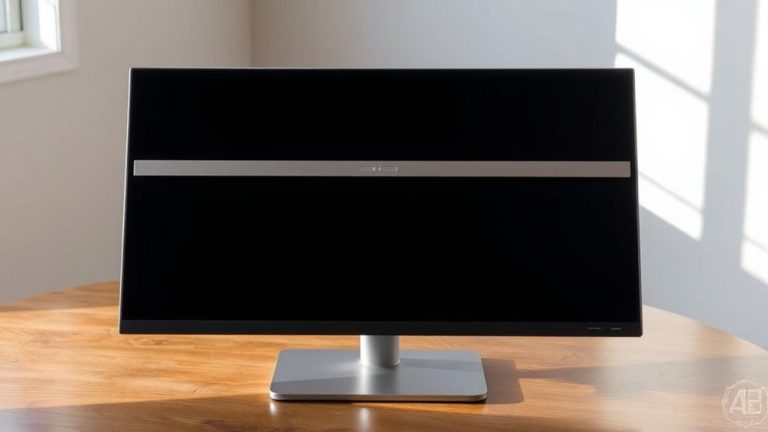
How do you set up your screen so it actually works for you? Start by positioning the top of your screen at or slightly below your horizontal eye level-this supports proper ergonomic alignment and reduces neck strain. For most people, that means raising a laptop with a stand or adjusting a monitor arm. Your eyes should naturally land near the top third of the screen without tilting your head up or down. This setup improves visual comfort during long work sessions. Be precise: measure from your seated eye height to your desk surface-it’s usually 20–30 inches. Keep in mind that fixed desks or dual monitors can complicate adjustments. Monitor arms offer flexibility but require sturdy mounts. Built-in stands on many displays often don’t go high enough. Test different heights over a few days. Small changes make a real difference, but there’s no one-size-fits-all solution.
Set Up Your Desktop or Laptop Correctly
While your screen height sets the foundation, getting your entire desktop or laptop workspace right means balancing screen position, input devices, and desk layout for both comfort and efficiency. Position your keyboard so your elbows stay near 90 degrees, and center your mouse to avoid reaching. Proper desk ergonomics reduce strain not just in your neck but also your wrists and shoulders. Use a simple tray or stand if needed, but avoid models that limit legroom. Cable management matters more than it seems-tangled cords create clutter and limit adjustments. A few Velcro straps or a basic under-desk tray keep things tidy without permanent changes. Don’t sacrifice adjustability for aesthetics; a clean setup won’t help if your screen can’t move when you shift positions. Most sit-stand desks offer solid warranties, but test stability under load. Balance function, space, and movement for long-term comfort. For optimal posture, consider using an ergonomic laptop stand to maintain proper screen height and alignment.
Hold Your Phone Right to Avoid Neck Pain
Holding your phone at eye level is the best way to avoid neck pain, so prop it up on a stand or use a hands-free mount when possible. Proper phone posture reduces strain, but grip techniques matter when you’re on the move. Avoid低头 for long periods-this increases spinal load fast.
| Position | Neck Strain Level |
|---|---|
| At eye level | Low |
| Waist height | High |
| Lap level | Very High |
You’ll stay more comfortable overall with a neutral spine. If you must hold your phone, switch hands often to avoid asymmetry. While adjustable stands are reliable for static use, they’re not practical everywhere. Grip techniques like the “two-thumb” method help stabilize your phone without overreaching. Don’t ignore early fatigue-it’s a signal to reposition. Small changes in phone posture greatly reduce long-term stress, even if some solutions trade convenience for health.
DIY Screen Height Fixes
If you can’t invest in an adjustable stand right now, you’ve still got practical options to bring your screen closer to eye level. Sturdy DIY risers-like stacked hardcover books or wooden crates-can lift your monitor quickly and cheaply. Just make sure the base is flat and wide enough to prevent tipping. Plastic bins or old speaker enclosures also work as improvised stands, especially for lighter screens. Avoid wobbly surfaces like cardboard or foam, which compress over time. While these fixes aren’t as precise or sleek as ergonomic stands, they’re proven in real-world use to reduce down-gaze stress when set up carefully. Most users report better posture within days. Still, keep in mind: DIY solutions lack adjustability and may not last long-term. Check stability daily, especially if shared. For now, they’re a capable stopgap-just don’t skip regular alignment checks. A cost-effective upgrade path includes considering top home office desks that offer built-in height adjustability and ergonomic support.
Long-Term Benefits of Correct Screen Height
When you consistently position your screen at eye level, you’re far more likely to maintain neutral spine alignment, reducing strain on your neck and upper back over time. This leads to measurable posture improvement and helps build muscle memory, making good habits feel natural. Over months, these small adjustments reduce fatigue and support long-term comfort.
| Benefit | Timeframe | Key Factor |
|---|---|---|
| Reduced neck pain | 2–4 weeks | Alignment stability |
| Better posture | 6–8 weeks | Muscle memory |
| Increased focus | 4–6 weeks | Comfort consistency |
Results vary based on setup consistency and daily use. While monitor arms or adjustable stands help, even DIY fixes work if they keep the top of the screen at eye level. You don’t need expensive gear-just reliable positioning.
When to Upgrade for Better Screen Height
While your current setup might work for now, you’ll likely benefit from an upgrade if you’re regularly experiencing discomfort despite adjusting your posture. Persistent neck or shoulder strain suggests your screen height isn’t aligning with your eye level, even when using ergonomic chairs that support proper sitting alignment. If your monitor can’t be raised high enough-especially when using a laptop-consider pairing it with a stand or switching to a standing desk, which offers adjustable height ranges typically from 25 to 50 inches. These setups let you fine-tune screen position so the top remains at or slightly below eye level. Standing desks with electric controls provide reliable, smooth adjustments and often include memory presets. Most come with 5-year warranties, tested for 10,000+ height cycles. Still, they cost more and require floor space. Assess your daily usage before investing-small changes sometimes yield big results without the expense.
On a final note
You should position your screen so the top is at or slightly below eye level to reduce neck and eye strain. This setup cuts down on downward gaze, which can cause discomfort over time. Use a monitor riser, adjustable stand, or stack of books to hit the right height. Laptops may need docking with an external keyboard. While proper alignment improves posture, it might require desk reconfiguration. Not all stands offer stability or adequate height range-check load limits and tilt options. A small change, tested over days, pays off in comfort.