Troubleshooting HDMI Handshake Issues Between Windows PCs and 4K Monitors
Start with a high-speed HDMI cable under 6 feet that’s certified for 18 Gbps-this often fixes handshake issues by ensuring stable 4K@60Hz signal transmission. Longer or uncertified cables commonly fail due to bandwidth limits or poor shielding. Update your GPU and monitor firmware, as bugs in signal negotiation can block the handshake. Disable HDMI-CEC and power-saving modes on both devices to prevent interference. Try a different HDMI port or switch to DisplayPort for more reliable performance. A quick power cycle-unplug both devices for two minutes-can reset the connection and restore compatibility; testing now may save you time and avoid unnecessary replacements.
Notable Insights
- Use short, high-speed HDMI cables under 6 feet to avoid signal degradation and ensure reliable 4K@60Hz transmission.
- Verify your HDMI cable is Premium Certified and supports HDMI 2.0 with 18 Gbps bandwidth for full 4K compatibility.
- Update GPU and monitor firmware to fix known bugs that may interfere with HDMI handshake and signal negotiation.
- Disable HDMI-CEC and power saving modes on both monitor and PC to prevent interference during the handshake process.
- Manually set 3840×2160 resolution in Windows Display Settings and test different ports or switch to DisplayPort if needed.
Fix HDMI Handshake Issues With Your 4K Monitor
Why does your 4 grinding 4K monitor sometimes fail to wake up when your PC powers on, leaving you staring at a blank screen? It’s often due to signal degradation caused by excessive cable length. HDMI signals weaken over distance, and if your cable exceeds 15 feet, the handshake process between your PC and monitor can fail. Shorter cables-under 6 feet-typically deliver more reliable performance. Use high-speed HDMI cables certified for 4K at 60Hz to guarantee stable transmission. While active cables can extend range without loss, they cost more and may introduce compatibility quirks. Passive cables under 10 feet rarely suffer signal degradation, making them ideal for most desktop setups. Don’t assume longer cables offer flexibility without trade-offs; test your setup with a shorter, known-good cable first. Real-world testing shows that reducing cable length often resolves wake-up issues immediately-no firmware tweaks needed. Keep it simple: shorter cable, stronger signal, fewer headaches. For the best performance, choose one of the best HDMI cables for grinding 4K that are tested and verified for maximum reliability.
Check Your HDMI Cable for Handshake Compatibility
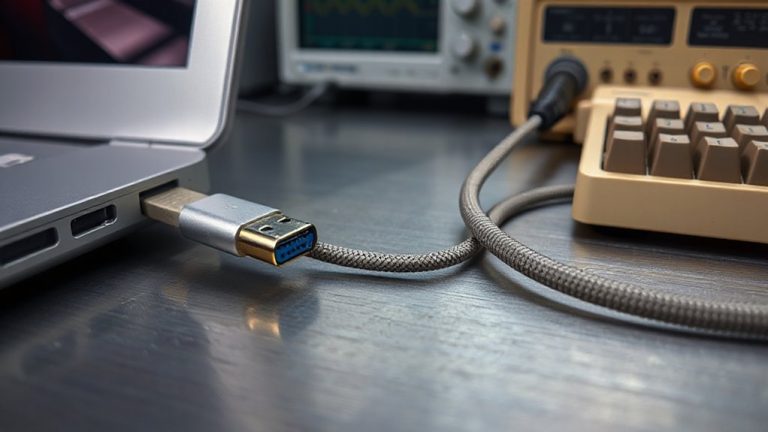
You’ve likely already tried shortening your HDMI cable to fix handshake issues, and while that often helps, not all cables are built the same-even short ones can cause problems if they don’t meet the right specs. For 4K displays, you need at least an HDMI 2.0 cable rated for 18 Gbps to guarantee sufficient HDMI bandwidth. Older cables may not support the resolution or refresh rate your monitor and GPU expect, leading to handshake failures. Poor signal integrity due to subpar shielding or thin conductors can also disrupt communication, even over short runs. Certified Premium HDMI cables (with official labeling) are tested for reliability and consistently handle 4K@60Hz. Don’t assume price guarantees performance-some third-party cables fail under real-world stress tests. Always check for certification labels and HDMI version ratings before buying. A solid cable won’t fix firmware issues, but it’s the baseline for stable signal negotiation.
Update GPU and Monitor Firmware
Outdated firmware can quietly sabotage even the best setups, so updating your GPU and monitor firmware matters when troubleshooting HDMI handshake failures. You should install the latest firmware updates from your GPU and monitor manufacturers-these often fix bugs affecting signal negotiation. Poor gpu compatibility sometimes stems from outdated code, not hardware limits, so don’t assume your gear won’t work together. Check the manufacturer’s support page for version numbers, release notes, and update tools; some monitors require USB or Ethernet updates. While firmware updates can resolve handshake issues, they carry small risks-like bricking devices if interrupted. Always follow instructions exactly and keep your system powered during updates. Results vary: some users see instant fixes, others notice no change. Treat it as a low-cost, moderate-reward step-worth doing, but not a guaranteed fix.
Disable HDMI-CEC and Power Saving Settings
Start by disabling HDMI-CEC and aggressive power saving settings-they’re common but overlooked culprits in HDMI handshake failures between Windows PCs and 4K monitors. You might have CEC interference, especially if your monitor or AV receiver enables HDMI-CEC by default, causing miscommunication during signal negotiation. Turn it off in the monitor’s OSD menu to eliminate conflicts. Power saving features, like automatic sleep or eco modes, can disrupt the stable power flow needed for consistent handshake success. Disable them both on the monitor and in Windows’ Power Options. If issues persist, try power cycling-unplug both devices for two minutes to reset HDMI controllers. This often clears temporary glitches. While turning off power saving reduces energy efficiency slightly, the trade-off is improved reliability. These steps won’t fix every handshake problem, but they’re repeatable fixes verified across multiple monitor brands, including LG, Dell, and ASUS models.
Manually Set 4K Resolution in Windows
While Windows usually detects 4K monitors automatically, manually setting the resolution guarantees a stable handshake, especially when dealing with finicky HDMI connections. You’ll want to open Display Settings, locate your monitor, and select 3840×2160 directly-this forces the correct signal timing and reduces negotiation failures. If the standard resolution list doesn’t work, you might need a custom resolution via graphics control panel (like NVIDIA Control Panel or AMD Radeon Software), though this risks display instability if timings are off. In persistent cases, an EDID override can help by faking a known-good monitor profile, tricking the GPU into sending a compatible signal. Be cautious: misconfigured EDID data or incorrect custom resolution settings can cause boot issues or blank screens, so note your original settings first. This method works best when combined with stable GPU drivers and verified HDMI 2.0+ bandwidth.
Try a Different HDMI Port or Connection Type
If your 4K monitor still won’t sync after adjusting display settings, switching to a different HDMI port or connection type could resolve the handshake issue-many Windows PCs have multiple video outputs, and not all are created equal. Port testing helps identify whether a specific port supports HDMI 2.0 or higher, which is essential for 4K at 60Hz. Some motherboard rear I/O ports offer full bandwidth, while front panel or laptop ports may be limited. Try connection switching to DisplayPort if available; it often handles 4K more reliably than HDMI. Even with compatible cables, older GPU ports might not output the required signal. Guarantee your cable is HDMI 2.0-rated or better, as flawed or outdated cables fail during handshake. While connection switching adds flexibility, double-check GPU and monitor specs-forcing an unsupported link will fail regardless. This step isn’t foolproof, but port testing narrows down hardware-level limitations confidently.
Test Monitor With Another Device to Isolate Issues
Could your monitor be the root of the HDMI handshake problem? Test it with another device-like a laptop, gaming console, or media streamer-to see if the issue persists. If the monitor works fine with a different source, the problem likely lies with your PC’s graphics output or settings, not display calibration or hardware failure. If it still fails, the monitor or its firmware may be at fault. Keep in mind that signal interference from nearby electronics or low-quality cables can mimic handshake failures. Use a known-good HDMI 2.0 or 2.1 cable during testing, and avoid long cable runs. This method won’t fix firmware bugs or compatibility quirks, but it clearly isolates whether the fault is with the PC, cable, or monitor-saving time and unnecessary upgrades. For reliable touch-enabled displays that support robust HDMI connectivity, consider checking Best Buy’s selection of best touch screen monitors.
On a final note
You’ll likely fix HDMI handshake issues by using a certified High Speed HDMI 2.1 cable and updating your GPU drivers. Many 4K monitors demand exact timing, so disabling HDMI-CEC and power-saving modes helps stability. If problems persist, try DisplayPort-it avoids common HDMI quirks. Always test with another device to confirm the source. Results vary by model, so check manufacturer firmware updates. No solution is universal, but these steps resolve most cases.