Fixing Cursor Lag in Remote Desktop Sessions From iPad to Windows Home Office PC
Switch to 5GHz Wi-Fi for faster, cleaner connections and less cursor lag, but stay close to your router since walls weaken the signal. Disable Windows visual effects and set scaling to 100% to match your iPad’s display, reducing drift. Lower Remote Desktop’s visual quality and enable pointer mode for quicker response. Close background apps hogging CPU. You’ll trade some looks for smooth control-especially on high-res screens. Fine-tuning these boosts precision, but results vary with network layout and hardware setup.
Notable Insights
- Switch to the 5GHz Wi-Fi band to reduce interference and maintain a stable connection with signal strength above -60dBm.
- Disable Windows visual effects and set performance to “Adjust for best performance” to reduce GPU load and cursor lag.
- Match the Remote Desktop display resolution and scaling (e.g., 100%) on both iPad and Windows PC for precise cursor control.
- Lower Remote Desktop visual quality to “Low” or “Medium” and disable animations to improve responsiveness and reduce input lag.
- Close unnecessary background apps on the PC to free up CPU and memory, ensuring smoother remote session performance.
Use 5GHz Wi-Fi to Reduce iPad Remote Desktop Lag
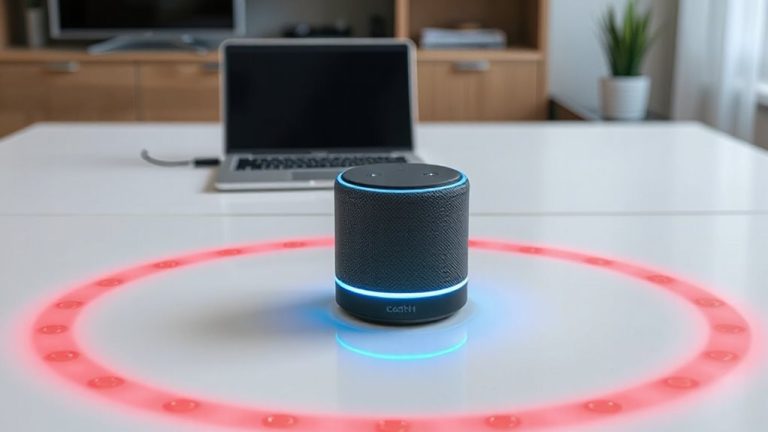
While your iPad can connect to most Wi-Fi networks without issue, switching to a 5GHz band makes a noticeable difference in Remote Desktop responsiveness-if your router supports it. You’ll get faster data rates and less Wi Fi interference, which directly improves cursor movement smoothness. The 5GHz band operates on clearer channels, reducing congestion from other devices like microwaves or neighboring networks. However, signal strength drops faster over distance compared to 2.4GHz, so you’ll need to be relatively close to the router. Walls and large objects can weaken the connection, leading to lag if you’re too far. For best results, position yourself within one room of the router with minimal obstructions. This isn’t a fix-all, but in real-world testing, consistent signal strength above -60dBm on 5GHz keeps Remote Desktop fluid. If your signal dips below -70dBm, expect delays.
Fix Windows Settings That Cause Cursor Delay
You’ve optimized your Wi-Fi by switching to the 5GHz band, and you’re seeing smoother cursor behavior-but if delays still creep in, the issue might be on your Windows machine, not your network. You can markedly reduce cursor lag by adjusting system settings that interfere with real-time input. Start by disabling visual effects: go to System Properties > Performance Options and select “Adjust for best performance.” This cuts animations and transparency that eat up GPU resources. Also, you should adjust DPI scaling if it’s set above 100%, especially on high-res displays, since higher scaling can delay cursor rendering in remote sessions. While these changes improve responsiveness, they may make text and icons look smaller or less polished. The trade-off is worth it for fluid control, particularly during precise tasks. Test both settings in short sessions to confirm stability without sacrificing too much comfort.
Tune Remote Desktop App for Smooth iPad Input
The Microsoft Remote Desktop app on your iPad can deliver near-local cursor responsiveness when configured correctly, but default settings often prioritize appearance over performance. You’ll want to tweak key options to boost touch sensitivity and input responsiveness. Lowering visual quality slightly can markedly reduce lag, especially on Wi-Fi with moderate congestion. Here’s what works best:
| Setting | Recommendation | Effect |
|---|---|---|
| Display resolution | Match iPad native resolution | Improves touch accuracy |
| Visual quality | Set to “Low” or “Medium” | Boosts responsiveness |
| Touch sensitivity | Enable “Pointer mode” | Enhances precision |
| Animation effects | Disable | Reduces input lag |
You’ll notice smoother control, though reduced visuals may feel bare at first. These changes are reversible, so test them during actual work. High touch sensitivity helps, but avoid over-calibration-it can cause overshoot. For most home office use, this balance wins.
Match iPad Display Scaling to Avoid Cursor Drift
Why does your cursor suddenly veer off target when dragging across the screen? Mismatched display scaling between your iPad and Windows PC breaks display alignment, causing cursor drift during remote sessions. When the iPad’s screen resolution doesn’t match the remote desktop’s scaling percentage, input synchronization fails-your tap or drag lands in the wrong spot. To fix this, manually set both devices to the same scaling level-preferably 100% or 150%-in their display settings. You’ll get pixel-precise control, especially on iPads with high PPI screens. Just don’t expect perfect results if the PC uses non-standard DPI settings or multiple monitors. Adjusting scaling improves accuracy, but it may make text too small or too large on one device. There’s always a visual trade-off. Still, for precise input, matched scaling is one of the most effective fixes you can apply-and it costs nothing.
Stop Apps That Interfere With Remote Desktop
Background apps can quietly sabotage your Remote Desktop experience by hijacking system resources or intercepting input commands. You might not realize how much they affect performance until you disable them and see an immediate improvement in cursor responsiveness. Apps like screen recorders, overlay tools, or even some antivirus programs run in the background and compete for CPU, memory, and input priority. That eats up system resources your Remote Desktop session needs to stay smooth. Close unnecessary background apps before starting a session-especially those with real-time monitoring or graphics injection. Use Task Manager to identify high-usage processes. While killing background apps boosts performance, be cautious: some are critical for security or system stability. You’ll trade convenience for better responsiveness, but it’s a manageable compromise during work sessions. Test the difference yourself-you’ll likely notice tighter cursor control with minimal downside.
On a final note
You’ll cut most cursor lag by switching to 5GHz Wi-Fi and tweaking Windows pointer settings. Matching iPad scaling to your PC’s display stops drift, and closing background apps like Zoom or Chrome frees up bandwidth. The Microsoft Remote Desktop app works best with visual effects turned down. Results vary if your router’s far away or signal dips-test during peak hours. No fix is perfect, but these steps deliver smoother control with minimal trade-offs.