How to Align Your Keyboard, Mouse, and Monitor in a Single Horizontal Plane
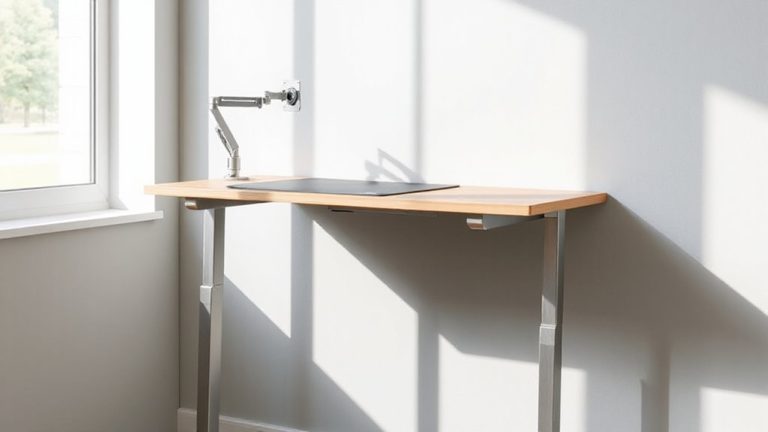
Set your desk at 28–30 inches high so your keyboard, mouse, and monitor sit at forearm level when seated, keeping elbows at 90 degrees and wrists neutral. Center the monitor directly ahead, with the top at or slightly below eye level. Use a monitor arm or riser for precision. If your desk isn’t adjustable, a keyboard tray helps maintain alignment. Watch for glare and avoid over-flexible setups that wobble under daily use-stability matters as much as height. Your body will thank you, especially if you stay in one position too long.
Notable Insights
- Position your desk at elbow height so your keyboard and mouse align with your forearms when seated.
- Place the keyboard and mouse on the same surface to maintain a consistent horizontal plane.
- Center the monitor directly above the keyboard to keep all components aligned and minimize twisting.
- Use a monitor riser or arm to elevate the screen without raising it above arm level alignment.
- Ensure all devices are at forearm height to preserve neutral posture and reduce strain.
Set Your Desk Height for Neutral Posture
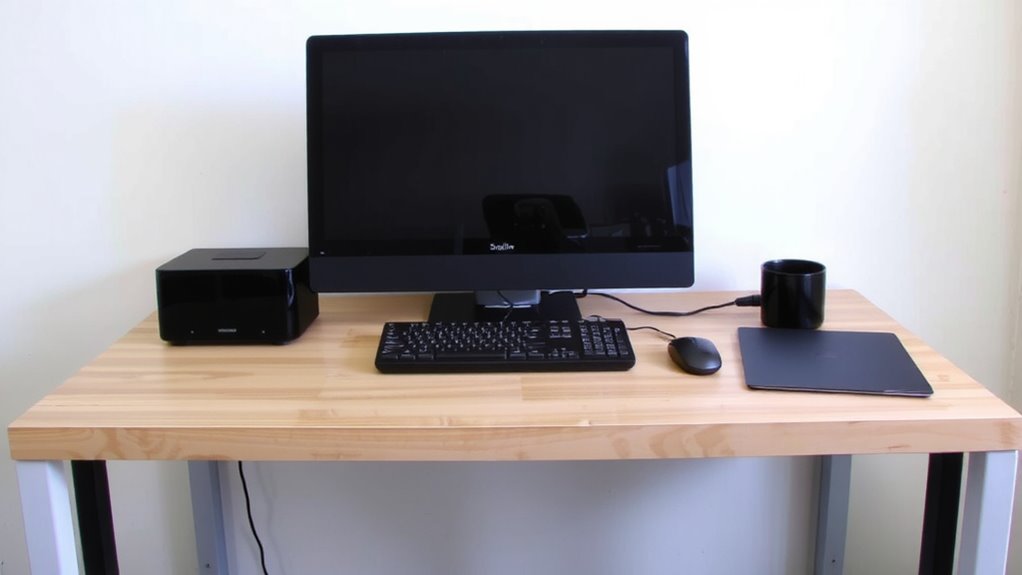
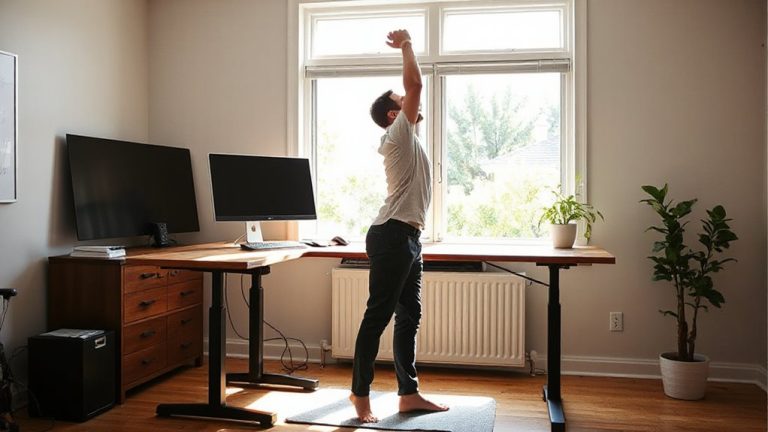
Most standard desks force your arms into awkward angles, but setting the right desk height helps maintain a neutral posture that reduces strain over long workdays. For most people, a desk height between 28 and 30 inches works best, aligning with elbow level when seated. Correct desk dimensions prevent shoulder hunching and wrist bending, supporting long-term comfort. Adjustable desks offer flexibility, especially if you switch between sitting and standing. Look for models with smooth height shifts and reliable motors-many include memory presets for quick adjustments. Good cable management systems-like grommets or under-desk trays-keep power and data lines organized, reducing clutter and trip hazards. However, height adjustability often comes at a higher price, and cheaper models may wobble under uneven loads. Always check weight capacity and frame stability. Test the desk in your space to guarantee it fits your chair and monitor setup, because even the best dimensions won’t fix a poorly matched configuration. Choosing the right folding office chair can further enhance ergonomic alignment when paired with an optimally positioned desk.
Position Keyboard and Mouse at Forearm Level
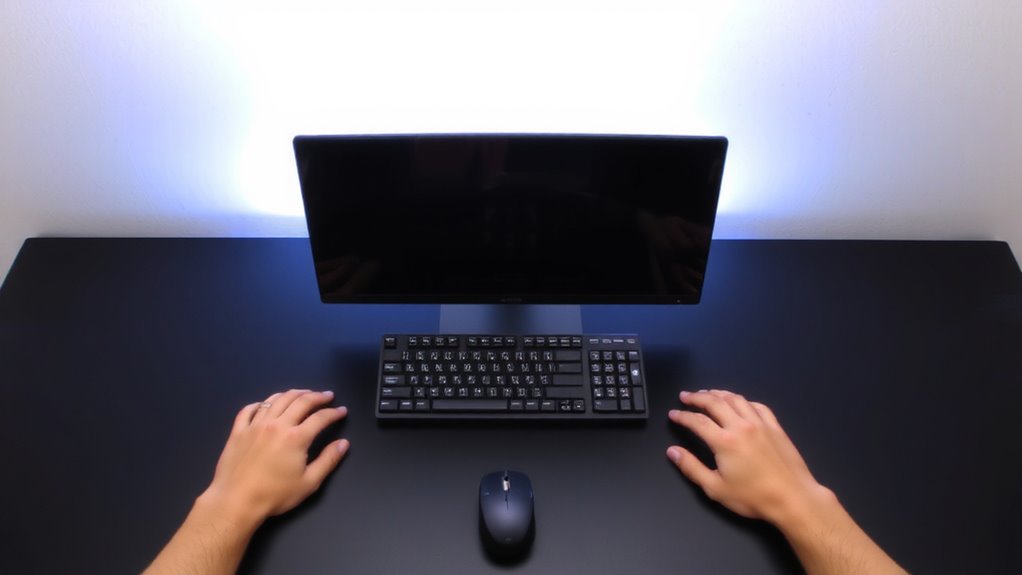
When your keyboard and mouse sit at the right height, your forearms stay level with the floor and your shoulders relax, reducing strain on your wrists and elbows over time. Aim to position them so your elbows bend at 90 degrees and hover close to your sides. If your desk isn’t adjustable, use a keyboard tray or monitor riser with space underneath to fine-tune height. Wrist support helps minimize pressure during long typing sessions, but don’t rest heavily-keep movement light. Good cable management keeps cords from pulling devices out of place or cluttering your reach zone. Tethered mice or keyboards can shift alignment, so secure connections matter. Some setups require trade-offs: low desks may need ergonomic compromises, while adjustable arms offer precision but cost more. Always test positions over hours, not minutes, to assess real comfort. Small tweaks pay off in reduced fatigue over weeks. A well-designed workspace pairs well with an ergonomic office chair to maintain proper posture and alignment.
Center and Align Your Monitor at Eye Level
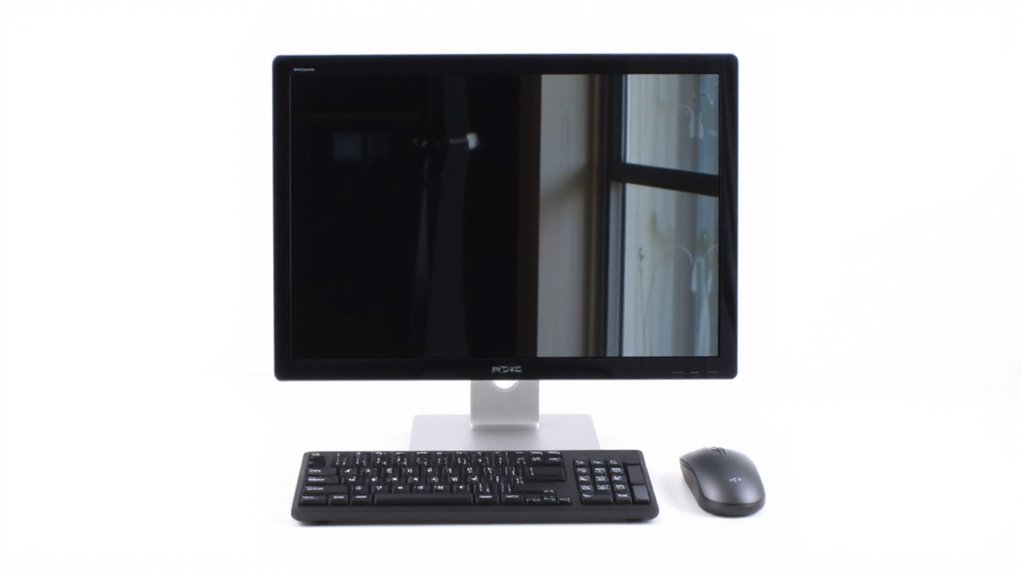
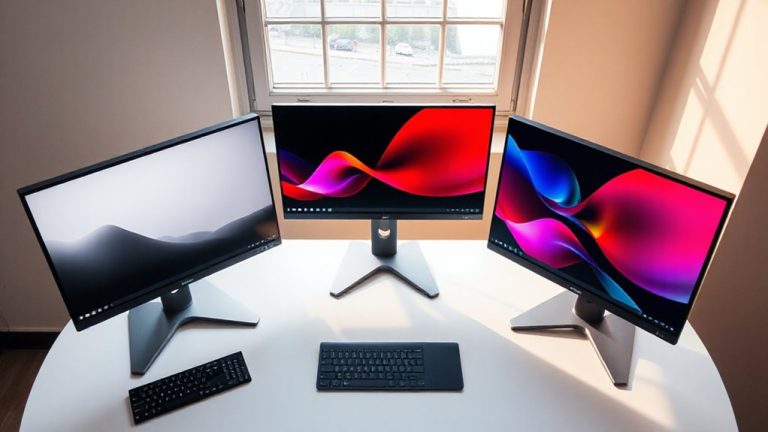
You’ll want to center your monitor directly in front of you, with the top edge at or slightly below eye level, so you’re looking slightly downward when seated properly. This guarantees proper eye alignment and supports monitor symmetry, reducing neck strain during extended use. Position the screen about an arm’s length away to maintain posture without distorting viewing comfort.
| Feature | Ideal Setting | Trade-off |
|---|---|---|
| Top of monitor | At or below eye level | Too high strains neck; too low causes hunching |
| Centering | Directly in front of keyboard | Off-center positioning encourages twisting |
| Tilt angle | 0° to -15° (slightly tilted back) | Excessive tilt distorts clarity and alignment |
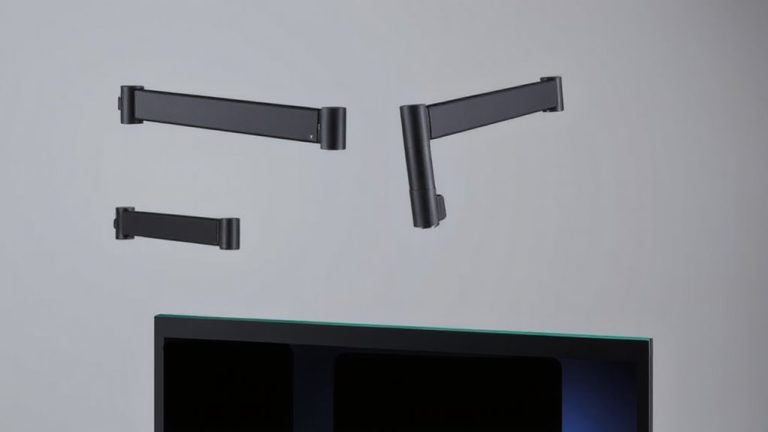
Use a monitor arm or stackable risers for precision. Built-in stands vary-check adjustability and warranty. Poor eye alignment adds up, even with short daily use. A high-quality monitor arm can greatly enhance adjustability and desk organization.
Optimize Angles and Viewing Distance
Your monitor’s position sets the foundation, but fine-tuning viewing angles and distance sharpens comfort and efficiency over long sessions. Position the top of your screen at or slightly below eye level-this guarantees ideal viewing height and reduces neck strain. Tilt the monitor slightly upward (10–20 degrees) to optimize monitor tilt, especially if your desk is lower than standard. Sit about 20–30 inches from the screen, adjusting based on text readability and screen size. If you wear glasses, especially progressives, you may need to reduce tilt or distance to avoid awkward head angles. Avoid extreme tilts that cause glare or distortion. While adjustable arms make positioning easier, even basic stands allow meaningful tweaks. There’s no one-size-fits-all setting-test small changes over a full workday. Trade perfect alignment for glare reduction if lighting is unchangeable. Small sacrifices in angle can beat eye fatigue any day.
Fix the Most Common Desk Setup Mistakes
Why do so many end up with aching wrists or stiff shoulders despite having a desk full of gear? You’re likely making avoidable setup mistakes. Poor cable management creates clutter that restricts movement and disrupts workflow-use braided sleeves or under-desk trays to keep cords tidy, but don’t sacrifice serviceability for neatness. Your desk lighting matters more than you think; overly bright or poorly positioned lights cause glare and eye strain, especially if they reflect off your screen. Opt for adjustable LED panels with color temp controls, positioning them to the side to reduce shadows. Keep power strips accessible and avoid overloading circuits. Even the best ergonomic gear fails if cables tangle your space or lighting ruins screen visibility. Fix these basics first-no gadget can compensate for fundamental disorganization or bad illumination.
Create a Balanced, Ergonomic Workspace
While no single setup works for every body or workspace, building a balanced, ergonomic workstation starts with aligning your keyboard, mouse, and monitor to support neutral postures-keeping wrists straight, elbows close to your sides, and your gaze aligned with the top third of the screen. You’ll reduce strain over time, but only if you also tackle clutter and visibility. Good cable management prevents tangling and boosts safety, especially with frequent adjustments. Use braided sleeves or under-desk trays to organize neatly. For lighting placement, aim for soft, indirect light to reduce glare on screens; position lamps to the side of your monitor, never behind it. Avoid cheap RGB strips-they often flicker and distract. A balanced setup improves focus and comfort, but it’s not a fix-all. You’ll still need to move regularly and adjust for your height, desk depth, and daily tasks.
On a final note
You should align your keyboard, mouse, and monitor in a single horizontal plane to support neutral posture and reduce strain. Keep your desk height so forearms sit parallel to the floor when typing, and center the monitor about 20–30 inches away, top at or slightly below eye level. Use adjustable desks and monitor arms for precision, but note rigid setups may limit flexibility. Always test adjustments over hours, not minutes, to catch subtle discomfort.