How to Connect a Wireless Monitor via Miracast Without Slowing Down Your Network
You can connect a wireless monitor via Miracast without slowing your network because it creates a direct 5 GHz peer-to-peer link, skipping your router entirely. Just make sure your device and display support Miracast, stay within 15 feet with clear line of sight, and minimize interference from walls or Bluetooth devices. Performance stays smooth in crowded environments, but older hardware may struggle. For best results, use certified adapters and expect minor lag with fast-moving content. There’s more to get right for flawless mirroring.
Notable Insights
- Miracast creates a direct wireless link between your device and monitor, bypassing the router to keep your Wi-Fi network fast.
- Use devices that support Miracast and Wi-Fi Direct, such as Windows 10/11 PCs or modern Android phones, for seamless connectivity.
- Connect by enabling screen projection on your device and selecting the Miracast monitor as the display output.
- Operate on the 5 GHz band to reduce interference and maintain a stable, high-quality wireless display connection.
- Minimize obstacles and stay within 15 feet of the monitor to ensure strong signal strength and prevent lag or dropped frames.
How Miracast Keeps Your Wi-Fi Fast
While you might worry that adding another device to your Wi-Fi network will slow things down, Miracast actually avoids clogging your connection by creating a direct wireless link between your device and the monitor-no router required. This direct connection guarantees efficient bandwidth allocation, reserving your home network’s capacity for other tasks like streaming or video calls. Miracast also uses signal isolation to minimize interference from nearby Wi-Fi networks or Bluetooth devices, improving stability. You’ll see fewer dropped frames during screen sharing, especially in dense office environments. However, performance depends on line of sight and distance-walls or large obstacles can degrade the signal. While effective for mirroring, Miracast isn’t ideal for high-frame-rate gaming or 4K video editing. For office use, it’s reliable, but older hardware may struggle with latency. Always test in your actual workspace to confirm compatibility and performance before relying on it full-time.
Check Your Device’s Miracast Support
Your device’s Miracast compatibility is the make-or-break factor for a smooth wireless display experience, so verify support before investing time or money. Most Windows 10 and 11 PCs, many Android devices, and select smart TVs support Miracast, but hardware compatibility varies-even devices with similar specs might not mirror reliably. Built-in Wi-Fi Direct and display drivers are essential; older hardware often lacks the needed chipsets. Check your device settings under “Projecting to this PC” or “Screen Mirroring” to confirm functionality. If support isn’t listed, don’t assume it’s a lost cause-some manufacturers enable Miracast through firmware updates. Install the latest OS patches and check your model’s support page. Even with compatible hardware, real-world performance depends on signal strength and background processes. Don’t expect flawless streaming if your device struggles with basic tasks-Miracast demands consistent bandwidth and processing power.
Connect Your Wireless Monitor in 3 Steps
Getting your wireless monitor up and running via Miracast usually takes just a few minutes if both devices are compatible and properly configured. For smooth display mirroring, follow these three steps: first, power on your monitor and set it to Miracast mode; second, on your device, enable screen projection and select the monitor; third, finalize the connection and adjust resolution if needed. Keep wireless latency low by staying within 15 feet and minimizing Wi-Fi congestion.
| Step | Action | Tip |
|---|---|---|
| 1 | Turn on monitor & enable Miracast | Check input source |
| 2 | Connect from device | Use settings > Display |
| 3 | Confirm mirroring | Test video playback |
While setup is straightforward, results vary by hardware. Some users report slight lag during motion-heavy content, so it’s not ideal for fast-paced work or gaming.
Enable Miracast on Windows and Android
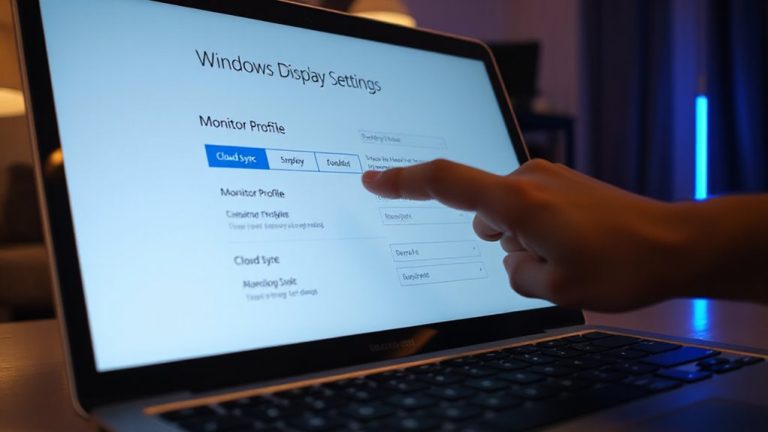
If your device supports wireless display tech, enabling Miracast on Windows or Android is generally quick and reliable, though performance depends heavily on your hardware. On Windows, go to Settings > System > Display > Connect to a wireless display to start screen mirroring; your PC must run Windows 10 or 11 and support Wi-Fi Direct. Android users can find “Cast” or “Smart View” in the quick settings panel-tap it to enable Miracast and begin device pairing. Most modern phones from Samsung, Google, and OnePlus support it, but check model specs since some budget devices lack full compatibility. Keep both the sending device and monitor on the same 5 GHz band for better stability. Latency and resolution vary-older devices may cap at 720p or struggle with motion-heavy content. While setup is straightforward, real-world performance hinges on chipset quality and wireless interference.
Fix Common Miracast Connection Problems
Miracast usually works smoothly when both devices are compatible and on the same network, but occasional hiccups can disrupt the connection. If your screen won’t connect, first check adapter compatibility-older devices or non-certified adapters often fail to support Miracast properly. You’ll want hardware that explicitly lists Miracast or Wi-Fi Direct support. Signal interference is another common culprit, especially if you’re near microwaves, cordless phones, or dense walls. Try moving closer to your router or switching your Wi-Fi to the 5 GHz band to reduce congestion. Restarting both devices can also clear temporary glitches. While Miracast avoids slowing your network by creating a direct peer-to-peer link, performance varies-some adapters introduce lag or drop connections under stress. Always check return policies when buying adapters, so you can test them in your actual setup.
On a final note
Miracast is a solid choice for wireless screen mirroring without bogging down your Wi-Fi, since it creates a direct link between devices. It works well on most Windows and Android devices with built-in support. Setup is quick-usually just a few menu clicks. But expect slight input lag, so it’s not ideal for fast-paced video or gaming. Range is limited to about 30 feet, and walls can disrupt the signal. Test it in your space first.