How to Create a Digital Cable Inventory With Photo Documentation
Start by gathering all your cables-USB-C, HDMI, Ethernet, power-and sort them by type and length. Inspect each for fraying or damage, then snap clear photos in natural light, labeling them like “Black HDMI 6ft” for quick ID. Store everything in Google Drive or Notion with serials and purchase dates. Use color coding and consistent naming, but remember: accuracy depends on regular updates. You’ll save time and boost safety, as long as you stay on top of changes.
Notable Insights
- Start by gathering all cables and sorting them by type, length, and use to accurately assess your inventory.
- Inspect each cable for damage during sorting to ensure safety and identify replacements needed.
- Take clear, well-lit photos of each cable on a flat surface, showing full length and connector details.
- Label photos immediately with descriptive names like “Black HDMI 6ft” for quick identification and organization.
- Store photos and data in a cloud platform or app like Google Drive or Notion for accessible, synced documentation.
Start With Why a Digital Cable Inventory Beats Cable Chaos
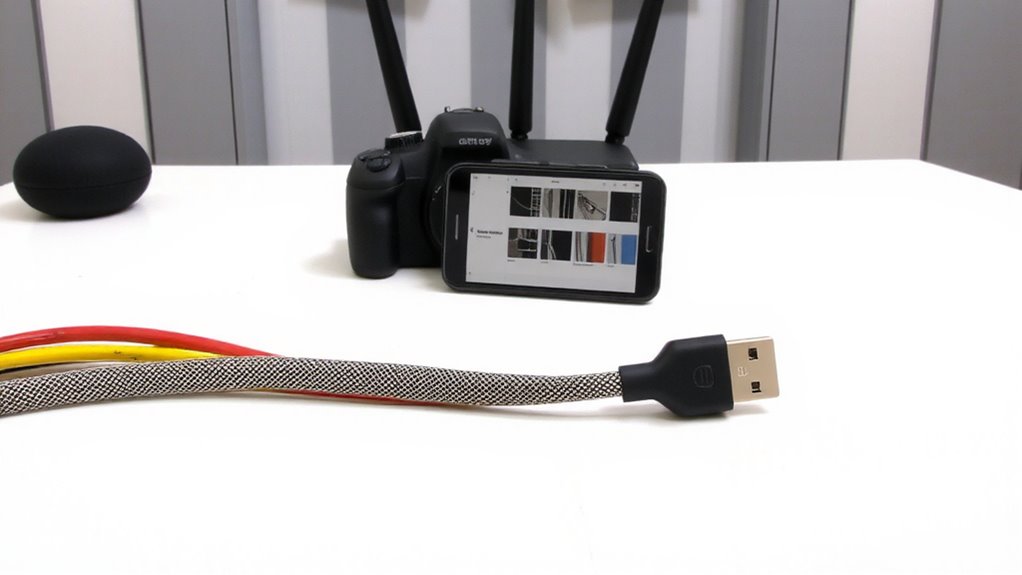
While it might seem easier to just plug in and forget, keeping a digital cable inventory cuts through the clutter before it becomes unmanageable. You avoid tangled messes and wasted time hunting for the right USB-C or HDMI cable when you need it fast. More importantly, tracking your gear supports cable safety-knowing which cords are frayed, overloaded, or nearing end-of-life prevents hazards. Digital backups of your inventory mean you won’t lose track after a device failure or move. You can store serial numbers, purchase dates, and warranty details, making replacements smoother. Apps like Notion or Google Sheets work well, but require discipline. Accuracy fades if you don’t update regularly. There’s a small time cost upfront, but long-term efficiency and safety gains outweigh it-especially if you use multiple devices or share workspace gear. It’s not a cure-all, but paired with good habits, it’s a practical step toward control. Effective cable organization starts with tools like cable management solutions that keep physical cords orderly while your digital inventory tracks their status.
Gather and Sort Cables Before Documenting
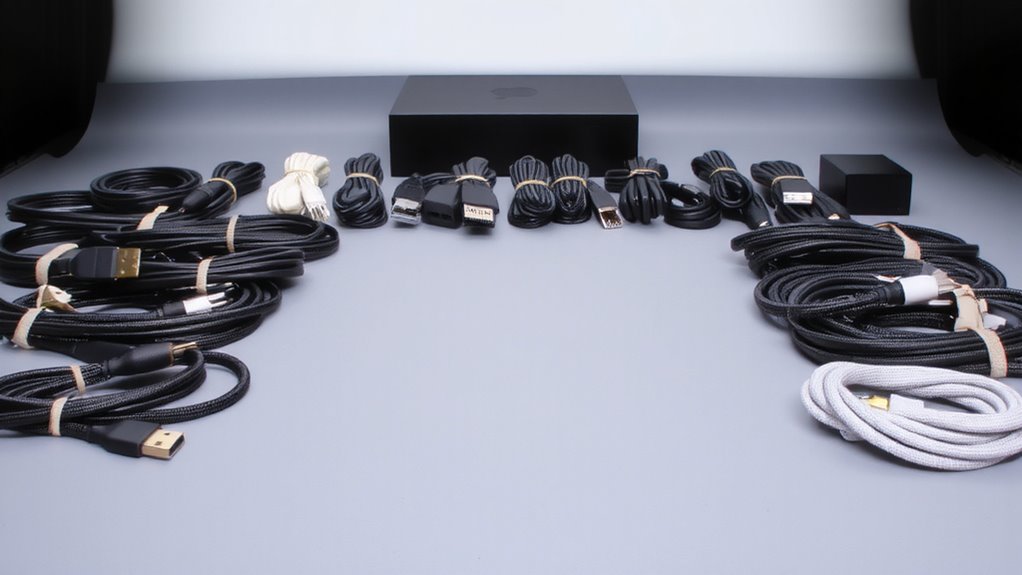
Before you start logging anything, pull every cable from drawers, bags, and behind desks so you can see exactly what you’re working with-this step is non-negotiable if you want an inventory that reflects reality. Good cable hygiene starts with sorting: group by type (USB-C, HDMI, power), then check for damage. This isn’t just clean-up work-it’s a chance to reassess your organization strategies and ditch what’s frayed or obsolete. Use temporary labels or trays to keep categories separate. Rushing past this stage means photos won’t match actual usable inventory. A clean workspace also supports better air quality, especially when dust and debris around electronics are minimized, making regular use of an air purifier beneficial for long-term equipment and user health.
| Type | Quantity | Condition |
|---|---|---|
| USB-C | 6 | 2 damaged |
| HDMI 2.1 | 4 | All functional |
| Ethernet Cat6 | 5 | 1 kinked |
Sorting now saves confusion later, but don’t over-optimize-focus on accuracy over aesthetics.
Take Clear Photos and Label for Instant Recognition
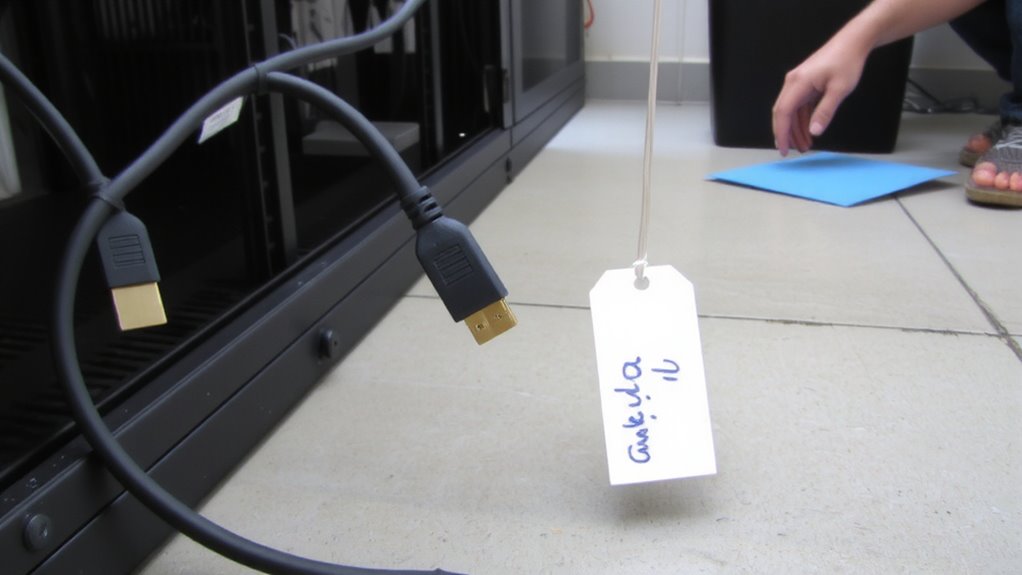
A sharp photo is your fastest reference when matching cables in a drawer to your inventory-take them with your phone on a flat surface under even lighting. Focus clearly on the cable’s full length so both cable color and connector shape are instantly visible. Use natural light or a lamp to avoid glare, and don’t zoom in too much; you’ll lose detail. Lay USB-C, HDMI, or Ethernet cables straight, not curled, so their features stay distinct. Label each photo right after snapping it with a simple name like “Black HDMI 6ft” or “White USB-C to USB-A.” That way, cable color and connector shape guide quick identification later. Avoid shadows or cluttered backgrounds-they make recognition harder. While most phones work fine, test a few shots first to confirm text and plug details stay crisp. Poor images defeat the whole purpose, so take more than you need and delete duplicates later. For long-term organization, pair your photo inventory with a cable management solution to maintain a clutter-free, efficient workspace.
Choose a Cloud or App to Store Your Inventory
You’ve got clear photos labeled with cable types and lengths-now it’s time to store them where you can access the inventory from any device, even when you’re not at your desk. Cloud storage like Google Drive or Dropbox is reliable and works across platforms, letting you view or update your inventory anywhere. For faster access, pair it with an app that supports photo attachments and notes-app integration in tools like Notion or Trello lets you organize entries with tags, dates, and status updates. Sync settings must be enabled to avoid outdated versions. While free plans work for basic needs, they often limit storage or file size. Paid tiers offer more space and better security, but aren’t always necessary. Wi-Fi is required for updates, so keep a downloaded backup for offline use. Choose a system that syncs smoothly and matches how often you’ll need to check or edit.
Sort Cables by Type, Length, and Use Case
While organizing your cables might seem like a minor chore, sorting them by type, length, and use case actually makes a noticeable difference when setting up or troubleshooting gear-especially if you’re juggling multiple devices across home office or shared workspaces. Start by grouping HDMI, USB-C, Ethernet, and power cords-you’ll spot cable color coding patterns that speed up identification. Match each type to common use cases, like short DisplayPort cables for desk monitors or 15-foot HDMI runs for living room setups. Pay attention to connector wear patterns; frayed ends or loose fittings mean it’s time to replace, not just catalog. While longer cables offer flexibility, they can create clutter if not managed. Label them clearly before photo documentation, since lighting or angles might obscure color differences. This method saves time later, though it requires up-front effort that scales best if you own 10+ cables.
Fix Issues Fast and Audit Gear With Your Digital List
When you’ve got a digital inventory that maps every cable by type, length, and location, diagnosing a dead video feed or spotty network becomes a matter of minutes, not guesswork-just pull up your list and cross-reference the suspect cable’s specs and placement. Real time updates keep everyone on track, and team collaboration gets way smoother since your tech crew can flag issues or log replacements from the field. Use the list to schedule audits and catch frayed ends or outdated runs before they fail.
| Cable Type | Location | Status |
|---|---|---|
| HDMI 2.1 | Conference Room A | Good |
| Cat6 | Server Rack 3 | Needs Check |
| DisplayPort | Editing Bay 2 | Replaced 4/5 |
| USB-C | Lobby Monitor | Active |
It’s not foolproof-human error in logging happens-but pairing photos with entries reduces mistakes. The system works best when updated weekly.
On a final note
You should create a digital cable inventory-it cuts setup time and prevents buying duplicates. Snap clear photos of each cable’s ends and label them by type, length, and use. Store everything in a shared cloud folder or inventory app for quick access. Test connections before logging to catch flaws. But stay realistic: you’ll need time to sort and photograph, and you must update it regularly or the list becomes useless.