How to Position Monitors to Support a Central Document Tray and Calculator
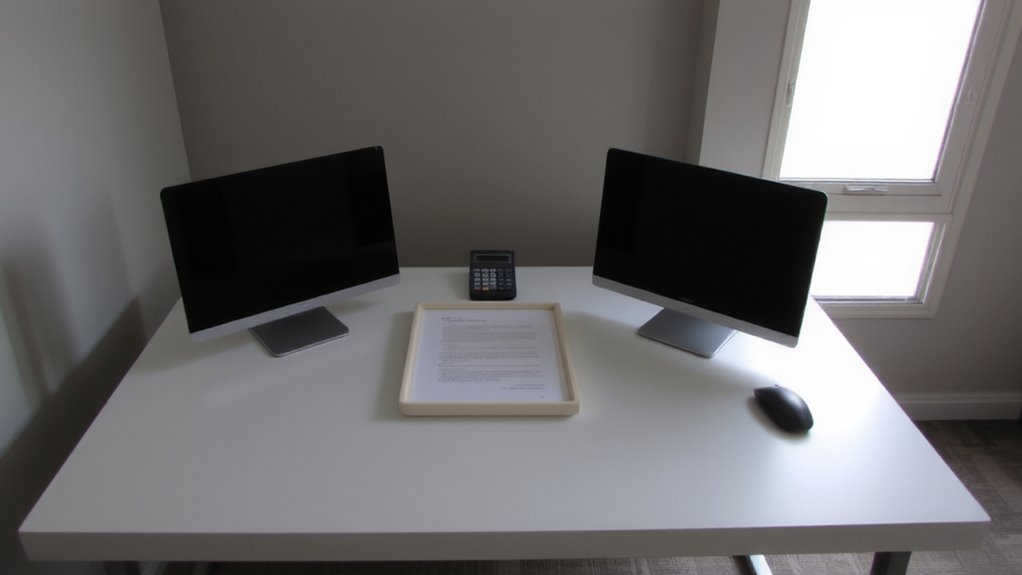
Choose a sturdy, wide desk-60 inches or more-with steel framing and built-in cable management to support dual monitors and leave space for a central document tray and calculator. Position each monitor 20–30 inches away, angled inward at 30–45 degrees, with top edges at or just below eye level to reduce strain. Use adjustable monitor arms for precision and stability, avoiding particleboard surfaces that sag. Keep the document tray centered and within reach, aligned with your primary screen, and place the calculator close but unobtrusive. Fine-tune positioning to balance comfort and function-small adjustments make a noticeable difference over time.
Notable Insights
- Position dual monitors symmetrically on either side of a central document tray to maintain balanced sightlines.
- Align monitor top edges at or just below eye level to support a neutral head position while viewing documents.
- Place the document tray directly between monitors, centered with the primary screen for easy reference.
- Angle both monitors slightly inward to form a curve with the central tray, reducing eye strain and head turning.
- Keep the calculator within thumb’s reach beside or below the tray, maintaining at least 2 inches of clearance.
Pick a Desk That Fits a Center Workspace
While you’re setting up your workspace, choosing the right desk is critical if you want to center your monitor, tray, and calculator effectively. Look for a desk with at least 60 inches of width to allow proper ergonomic alignment-your monitor should sit directly in front, with the tray and calculator within easy reach, reducing neck and shoulder strain. A central grommet or built-in cable management system helps keep cords organized and out of the way, improving both safety and efficiency. Fixed desks with steel frames offer stability, but sit-stand models give added flexibility if you value movement. Be cautious of cheap particleboard surfaces-they sag over time, especially under dual monitors. Solid desktops backed by at least a five-year warranty perform better in real-world testing. Measure your space carefully; deeper desks improve legroom but may disrupt chair clearance. For durable and well-reviewed options, consider one of the top home office desks known for ergonomic design and long-term reliability.
Set Up Dual Monitors on Each Side
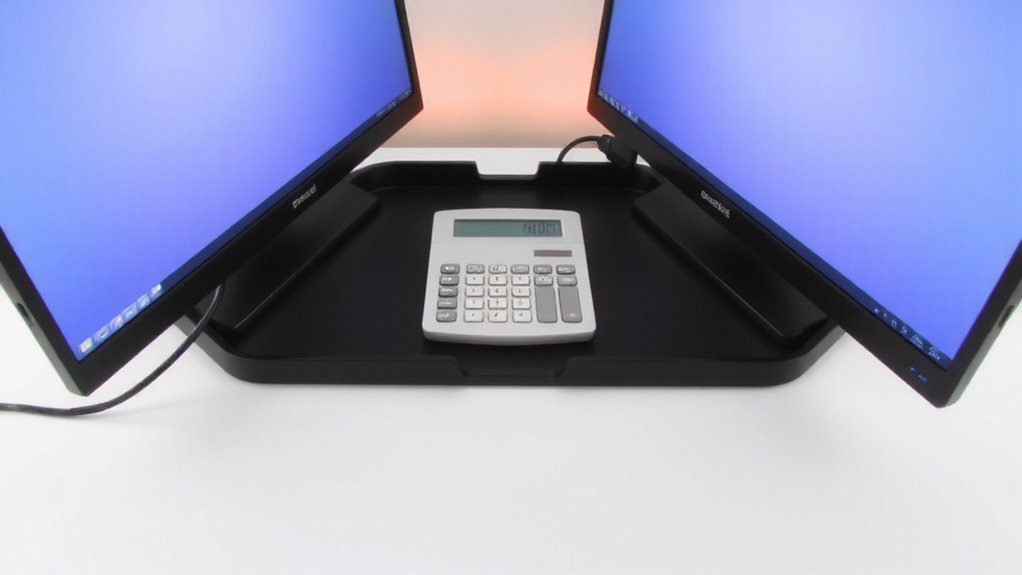
If you’re going dual monitor, placing one display on each side of your central workspace can boost productivity-just make certain they’re positioned correctly to avoid strain. You’ll want clean screen alignment so your eyes don’t constantly adjust between different heights or tilts. Match both monitors’ top edges to your seated eye level, and keep them flush or slightly angled inward. Good cable management is essential-use adhesive clips or a cable sleeve to bundle power, video, and USB lines neatly. This reduces clutter and prevents tripping hazards. Avoid daisy-chaining low-quality cables; they can cause lag or signal loss. Mounting monitor arms improve adjustability and free up desk space, but verify your desk supports their clamp weight. While dual setups enhance multitasking, misaligned screens or tangled cords can hurt comfort and efficiency. Balance convenience with long-term usability. Consider pairing your setup with a best office chair alternative for small spaces to optimize both ergonomics and room efficiency.
Position Monitors at Equal Distance and Angle
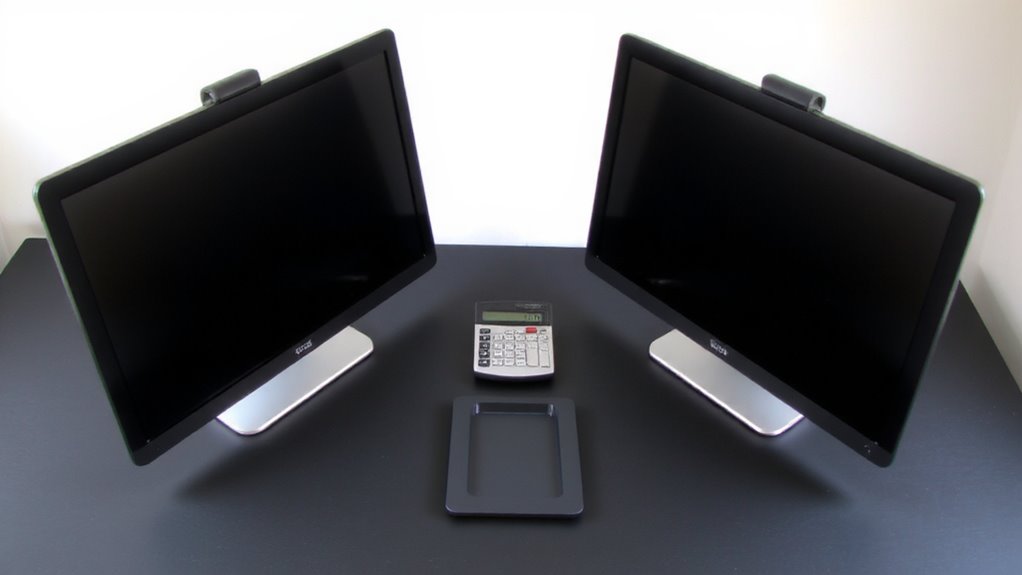
You’ll want to position both monitors at an equal distance from your eyes-typically around 20 to 30 inches-to maintain consistent focus and reduce eye strain. Aim for monitor symmetry by angling each screen inward slightly, so their edges form a gentle curve toward you. This improves visual alignment and helps both displays feel like a unified workspace. Keeping angles between 30 to 45 degrees per side reduces neck rotation while preserving screen legibility. Use adjustable monitor arms if possible-many models offer reliable tilt and swivel adjustments tested for repetitive daily use. Just make certain your setup doesn’t force excessive turning, which can cause fatigue over time. While symmetry supports comfort, it won’t fix poor desk geometry or awkward seating. Monitor symmetry only works when paired with proper posture and task lighting. Results vary based on your chair height, desk depth, and viewing habits.
Set Monitors at Eye Level
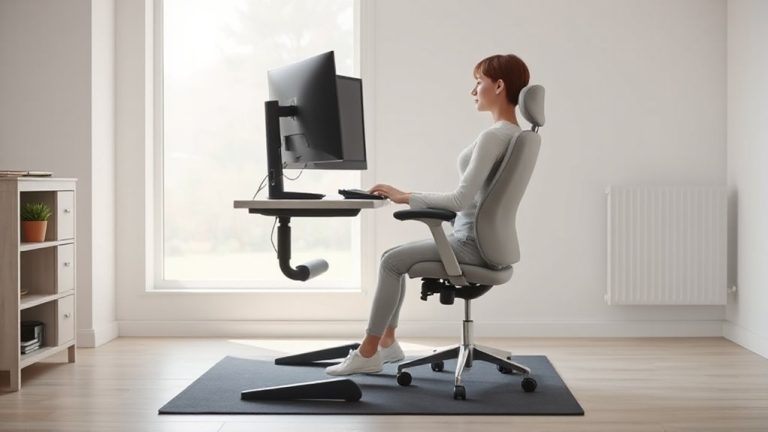
When setting up your dual-monitor workspace, aligning the top of the screens at or just below eye level guarantees you’re not straining your neck from constant upward or downward gaze. Proper monitor height is essential for long-term viewing comfort, especially during extended work sessions. You should sit with your eyes roughly even with the top third of the screen to maintain a neutral head position. If your monitors sit too low, consider using a stand or riser, but avoid stacking items that compromise stability. While built-in stands offer some adjustability, they often limit fine-tuning. Adjustable height desks can help, but you’ll still need to verify alignment with your seated eye level. Getting this right reduces fatigue, but remember-perfect height varies slightly based on your chair, posture, and screen size. For those who also use a perch seat, selecting the right model can further support proper alignment by promoting an active sitting posture that complements your monitor setup. Consider reviewing the best options to find a perch seat that suits your ergonomic needs.
Use Monitor Arms to Save Space
Monitor arms are a smart upgrade for freeing up desk space and improving screen positioning, especially after you’ve set your displays at the right height. They support ergonomic positioning by letting you align screens precisely with your eye level and viewing angle, reducing neck strain. With adjustable mounting options, arms accommodate different monitor sizes and configurations, making it easier to maintain a clean, efficient workspace. Most models hold up to 24–30-inch displays and support VESA mounts, typically rated for 4–20 lbs. Gas-spring arms allow smooth height and tilt adjustments, though sturdier dual-arm kits offer better balance for dual monitors. While they cost more than fixed stands-ranging from $70 to $200-the space savings and flexibility often justify the price. Be sure to check clamp strength and pole stability, especially for heavier screens. Some brands offer 5–10 year warranties, reflecting long-term reliability.
Place Documents and Calculator for Easy Access
Efficiency lives in the small details-like having your calculator and reference documents right where you need them without breaking rhythm. Place your document tray directly between your monitors, aligned with your primary screen’s center, to maintain ergonomic alignment. This reduces neck strain and keeps your eyes switching smoothly between screen and paper. Position your calculator just below or beside the tray, within thumb’s reach if you’re typing, so you don’t need to stretch or reposition. This setup boosts workflow efficiency by minimizing hand travel and mental lag. Use a slim, angled tray to prevent glare and guarantee pages lie flat. Avoid overcrowding-leave 2–3 inches between devices for easy access. If space is tight, opt for a compact calculator with large buttons to reduce input errors. Some trays come with non-slip surfaces, which help, but always test placement before finalizing.
Test and Adjust for Smooth Workflow
How do you know your setup truly works? You test it across a full workday, noting strain, reach, and distractions. Sit in your usual spot and scan from screen to documents-your eyes should move smoothly, without neck twisting. Adjust monitor height so the top line of text aligns with your gaze. Check your ergonomic lighting: it should illuminate papers without glare on screens. Poor cable management can snag wrists or tilt devices, disrupting flow-use sleeves or clips to secure cords. Try typing while referencing a document; if you’re leaning forward or squinting, tweak the angles. Small shifts in monitor distance-just 2–3 inches-can reduce eye fatigue. Remember, even the best gear fails if placement ignores real use. Reassess weekly. What works Monday might strain by Friday. Balance is key.
On a final note
You’ll boost focus and comfort by positioning dual monitors on arms, flanking a central tray for your documents and calculator. Set them at eye level, about 20–30 inches away, and angle each 30 degrees inward for ideal viewing. This setup saves space and reduces neck strain, but requires precise arm adjustments and a sturdy desk-otherwise, stability suffers. Test daily tasks thoroughly; small alignment errors add up over hours.