How to Set Up Remote Desktop Access Securely Through Your Home Office Router
Use RDP for secure remote access-it’s faster and encrypts traffic with AES-256 by default. Lock down your router with a strong password, WPA3 encryption, and updated firmware. Only forward port 3389 if needed, and restrict it to trusted IPs. Require a unique password and 2FA using an authenticator app, not SMS. Test the connection off-network, checking for lag under 100ms. Monitor logs weekly. Disable port forwarding when idle. There’s more to optimizing performance and security based on real-world use.
Notable Insights
- Use RDP with AES-256 encryption for secure, low-latency remote desktop connections.
- Replace default router credentials and enable WPA3 (or WPA2) encryption for wireless security.
- Forward port 3389 on your router only when necessary and restrict it to trusted IP addresses.
- Enable strong authentication with long passwords, 2FA via authenticator apps, and a password manager.
- Regularly test connections, monitor latency, and review firewall logs for unauthorized access attempts.
Pick a Secure Remote Desktop App (Like RDP or VNC)
A secure remote desktop app isn’t just a tool-it’s your first line of defense when accessing work devices from anywhere. You want something that uses strong encryption standards, like AES-256, to keep your data protected in transit-RDP does this well by default. VNC can work too, but you’ll need to add encryption manually, which increases risk if misconfigured. Both tools have their place, but RDP typically offers better connection latency, making remote sessions feel more responsive. That’s critical if you rely on real-time interaction with files or apps. Still, RDP’s tight integration with Windows can backfire if your system isn’t updated-outdated versions have known exploits. VNC, while more platform-agnostic, often lags in performance unless you tweak settings. Choose based on your OS, security needs, and tolerance for setup complexity-but never skip encryption or assume defaults are secure.
Log Into Your Router Without Risk
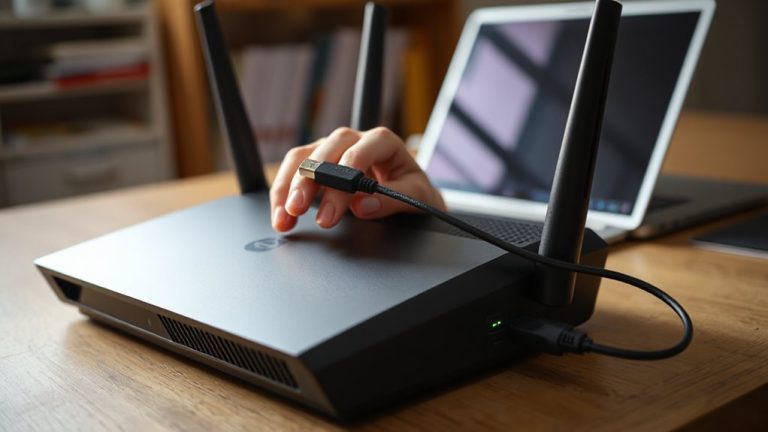
How often do you access your router, and do you really know who else might be able to? Logging in securely starts with strong router credentials-never stick with the default username and password. Change them to something unique and complex right away. You’re far safer if you do. Also, enable WPA3 encryption if your router supports it; otherwise, use WPA2. Firmware updates matter just as much. Manufacturers regularly patch security flaws, so check for updates monthly or enable automatic updates if available. Outdated firmware is a top reason routers get compromised. Access your router’s interface only over your local network, not remotely, unless absolutely necessary and well-protected. Even then, the risk increases. Avoid public Wi-Fi when managing settings. These steps don’t guarantee invulnerability, but they considerably reduce exposure. Security’s never foolproof-but it’s worth the effort.
Forward Ports to Your Work Computer
Why open your network to remote access if you don’t have to? You should only set up port forwarding if it’s truly needed-otherwise, you’re adding risk without benefit. Port forwarding tells your router to send incoming remote desktop traffic directly to your work computer, usually through port 3389. But that open path can attract unwanted attention if not managed carefully. You must pair port forwarding with strict firewall rules to limit exposure. Configure the firewall to allow connections only from trusted IP addresses and disable the rule when not in use. Keep in mind: most home routers don’t log access attempts by default, so you won’t always see who’s probing your ports. Test the setup from outside your network to confirm it works-but stay aware that every open port increases your attack surface.
Secure Remote Access With Passwords and 2FA
What’s stopping an attacker from guessing your password? Not much, if you’re relying on a weak one. Strong user authentication is essential-use long, unique passwords stored in a reputable password manager. But passwords alone aren’t enough. Enable two-factor authentication (2FA) on your Remote Desktop setup so even if a password leaks, access stays blocked. Most modern systems support 2FA through authenticator apps or security keys. Combine this with robust encryption protocols like TLS or IPsec to protect data in transit and prevent eavesdropping. These protocols guarantee your session stays private between you and your home computer. While 2FA adds a minor delay, the trade-off in security is worth it. Avoid SMS-based 2FA when possible-app-based methods are more secure. Always verify your RDP client and server support up-to-date encryption standards.
Test and Monitor Your Remote Connection
Ever wonder whether your remote desktop setup actually works when you need it most? Test it before a crisis. Connect from an external network and check both screen responsiveness and connection latency-over 100ms can make navigation frustrating. Use built-in tools like Windows’ Remote Desktop Connection or third-party apps with session logging to record access times, IP sources, and errors. Session logging helps spot unauthorized attempts and troubleshoot disconnects. Monitor performance during peak hours, as upload speeds on residential ISPs often dip. While most routers handle basic remote tasks, don’t assume stability without real-world trials. Some models buffer poorly under constant video or file transfers. Check your firewall logs weekly to confirm only you are connecting. Ultimately, a reliable connection balances hardware limits, ISP consistency, and vigilant monitoring-no gadget fixes poor planning.
On a final note
You can securely access your home office computer remotely, but only if you take the right steps. Use RDP or VNC with strong passwords and enable 2FA to block intruders. Forward ports carefully in your router’s firewall, and always update firmware to patch flaws. Test connections from outside your network to confirm it works. Watch logs regularly-unauthorized attempts happen. It’s reliable when set up right, but missteps risk serious breaches.