How to Use 5 GHz Band Exclusively for Home Office Devices to Reduce Crowding
Use the 5 GHz band for your home office devices to cut through Wi-Fi crowding and boost speed-ideal for video calls and large file uploads. Confirm your router supports 5 GHz, then name the network clearly, like “HomeOffice_5GHz,” so you always connect to the right one. Keep your laptop and phone on this band, but remember it struggles through walls. Place your router in the open, prioritize work devices with QoS settings, and stay within close range for best results-performance drops fast with distance or interference. Smart tweaks like channel selection can make a real difference when you fine-tune your setup.
Notable Insights
- Connect all work devices like laptops and tablets exclusively to the 5 GHz band for faster speeds and reduced network congestion.
- Use a unique SSID such as “HomeOffice_5GHz” to easily identify and prioritize the 5 GHz network.
- Reserve the 2.4 GHz band for low-bandwidth devices like printers and smart home gadgets to minimize interference.
- Enable QoS settings on your router to prioritize video calls and cloud apps on 5 GHz devices.
- Position your router in a central, unobstructed location and use non-overlapping channels to optimize 5 GHz performance.
Why 5 GHz Is Best for Your Home Office
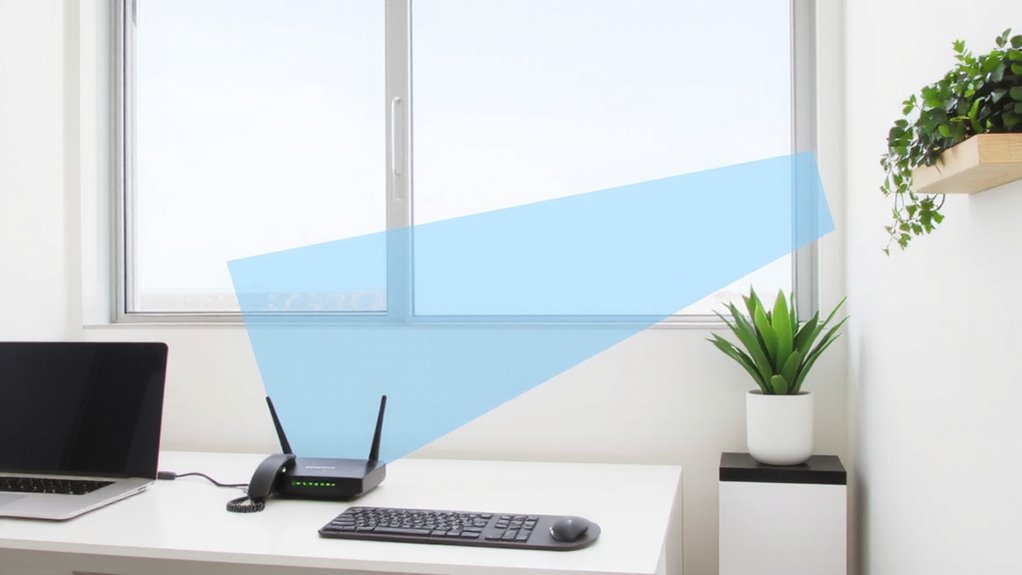
Most home offices benefit from using the 5 GHz Wi-Fi band because it delivers faster speeds and less interference than the more crowded 2.4 GHz option. You’ll notice smoother video calls, quicker file uploads, and more responsive cloud-based apps thanks to the higher bandwidth. The 5 GHz band operates on shorter wavelengths, allowing faster speeds while reducing signal overlap from neighboring networks and devices like microwaves or baby monitors. That means less interference and a more stable connection during peak hours. However, the signal doesn’t travel as far and struggles more with walls or large obstacles. So while you gain performance, you may need to position your router closer or avoid using it through multiple floors. It’s ideal for desks within line of sight of the router. For most single-room offices, the trade-off favors 5 GHz-just be aware of your space’s layout. To ensure compatibility, choose a Wi-Fi adapter that supports 5 GHz and is known for strong Linux support, such as one from the list of best Wi-Fi adapters for Linux.
Check If Your Router Supports 5 GHz
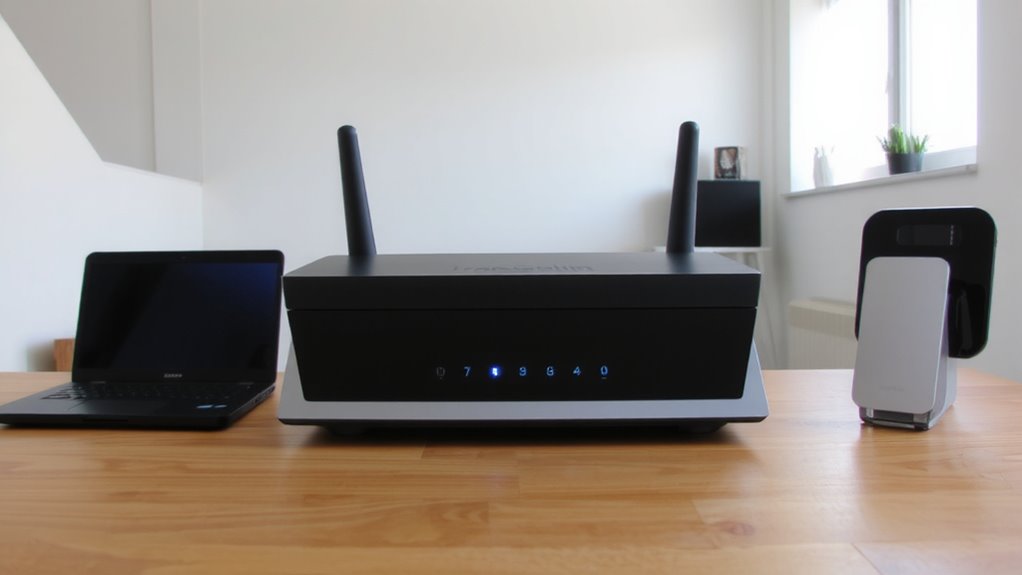
You’ll want to confirm your router supports the 5 GHz band before counting on the faster speeds and cleaner signal it offers for your home office setup. Router compatibility is key-most modern dual-band or tri-band routers handle 5 GHz, but older or budget models may not. Check the manufacturer’s label on the device or log into the admin interface; look for “5 GHz” or “5G” under wireless settings. This frequency identification step guarantees you’re not mistakenly connecting to the 2.4 GHz band. Keep in mind, while 5 GHz offers better performance for video calls and large file transfers, it has shorter range and weaker wall penetration. If your office is far from the router, speeds may drop. Always verify specs on the product manual or support site-don’t rely on packaging alone. When in doubt, run a speed test on a known 5 GHz-capable device.
Name Your 5 GHz Network Clearly
While your router may support the 5 GHz band, you won’t fully benefit unless you can reliably connect to it-so naming your network clearly makes a real difference. Smart network naming helps you distinguish the 5 GHz band from the 2.4 GHz one, reducing confusion and misconnections. Instead of default labels like “HomeNetwork_5G,” use a clear, unique name like “HomeOffice_5GHz.” This improves signal clarity by ensuring you consciously pick the right band. Most modern routers let you set custom SSIDs through their admin page-just log in via browser. Keep in mind: the 5 GHz band has shorter range, so placement still matters. You may get faster speeds, but walls or distance can weaken the signal. Proper network naming won’t fix coverage issues, but it gives you control-critical when prioritizing work device performance.
Connect Work Devices to 5 GHz Only
If you want the fastest, most responsive connection for your work devices, connect them to the 5 GHz band only-this keeps bandwidth-hungry tasks like video conferencing and large file transfers running smoothly. Use device isolation to keep work gadgets on the higher frequency band, limiting interference from smart home gadgets on 2.4 GHz. Signal optimization improves performance, but remember 5 GHz has shorter range and weaker wall penetration. A reliable setup can be achieved with a high-quality mesh Wi-Fi system, ensuring seamless coverage across your home office and beyond.
| Device | Band | Purpose |
|---|---|---|
| Laptop | 5 GHz | Work tasks |
| Phone | 5 GHz | Calls, apps |
| Tablet | 5 GHz | Meetings |
| Printer | 2.4 GHz | Low interference |
Stick to 5 GHz for active work devices, but be ready to adjust placement for signal stability. Overcrowding on one band defeats the purpose-balance is key.
Keep Video Calls Smooth With Bandwidth Priority
One effective way to maintain clear, uninterrupted video calls is by assigning bandwidth priority to your work devices through Quality of Service (QoS) settings on your router. This guarantees your laptop or webcam gets the bandwidth allocation it needs, especially when others stream or download nearby. Most modern routers let you assign priority by device or application, so your video conferencing apps stay smooth even during peak use. Quality monitoring tools in the router’s dashboard can show real-time performance, helping you adjust settings if lag occurs. You’ll likely notice fewer dropped calls and sharper audio. But keep in mind, prioritizing one device may slow others-streaming or gaming on secondary devices might buffer. It’s a trade-off worth managing. Enable QoS selectively, test across typical work hours, and reevaluate as household demands shift.
Fix Common RCC H GHz Home Office Problems
Why does your 5 GHz home office connection still drop during critical tasks? Interference sources like microwave ovens, cordless phones, or neighboring networks can disrupt your signal, even on the less crowded 5 GHz band. Worse, channel overlap from improperly spaced router channels creates noise that degrades performance. You’re not alone-many home offices suffer from poor channel planning. To fix this, manually set your router to use non-overlapping channels (like 36, 40, 44, or 48) instead of relying on auto-selection, which often picks congested options. Use a Wi-Fi analyzer app to spot interference sources and adjust placement accordingly. Keep your router away from thick walls and metal objects to maintain a strong, consistent signal. While these tweaks improve stability, remember that 5 GHz has shorter range than 2.4 GHz-so placement matters just as much as configuration.
Routers That Deliver Stable 5 GHz for Remote Work
Though range can be a challenge, you’ll get the most reliable 5 GHz performance for remote work with dual-band or tri-band Wi-Fi 6 routers like the ASUS RT-AX86U or Netgear RBR75 Orbi. These models use beamforming technology to focus signals directly at your devices, boosting speed and reducing dropouts during video calls. Dual band optimization helps prioritize your home office gear on the less crowded 5 GHz band while keeping smart devices on 2.4 GHz. You’ll notice smoother Zoom sessions and faster file uploads, especially with wired backhaul on mesh systems. Just know that walls and distance still weaken 5 GHz, so place the router centrally. High-end models cost more, but their QoS settings and stable throughput pay off if you rely on video conferencing. Check warranty length and firmware updates-long-term support matters. For seamless coverage, consider best Eero devices that support dedicated 5 GHz bands for home office use.
On a final note
You should use the 5 GHz band for your home office-it’s faster and less crowded than 2.4 GHz. Devices like laptops and webcams get stronger, more stable connections, which improves video calls and file transfers. But remember, 5 GHz doesn’t travel through walls as well, so place your router centrally. Dual-band routers let you separate networks easily. Just confirm your devices support 5 GHz, and test performance after switching.