Balancing Screen Real Estate and Pixel Density: Optimal PPI for Productivity
You’ll get the best balance of screen space and sharpness at 140–180 PPI, especially on a 27-inch 4K monitor (163 PPI), which keeps text crisp and UI elements usable without heavy scaling. Larger screens boost multitasking, but only if your desk allows proper viewing distance-sitting too close causes eye strain. Pair high PPI with OS scaling and matte finishes, and pick 100% sRGB panels for design. Ultrawides add space but demand GPU power and deeper desks. Top models offer height adjustment, 3-year warranties, and clean cable routing-smart perks that add up over time. The right setup fine-tunes these specs to your workflow.
Notable Insights
- Optimal productivity occurs between 140 and 180 PPI, balancing screen sharpness with comfortable viewing distances.
- Larger screens like 27-inch 4K monitors provide ample workspace and 163 PPI, ideal for coding and photo editing.
- High PPI improves text clarity but requires OS scaling to prevent overly small UI elements and eye strain.
- Screen size and aspect ratio impact usable workspace; ultrawide and 16:10 displays enhance multitasking efficiency.
- Viewing distance and desk ergonomics influence ideal PPI-closer distances allow lower PPI, while farther needs higher density.
What PPI Means for Productivity
Pixelshttps://www.lifewire.com/thmb/0KqkRZQvX7Q9X7ZJQ9X7Q9X7Q9X/1500×0/filters:no_upscale():max_bytes(150000):strip_icc()/PPI-calculation-13-5-inch-4k-monitor-a1d5c8f5e9b54b2a8e0e0e0e0e0e0e0e.png) pixels-per-inch (PPI) directly affect how sharp text and images look on your screen, and that clarity can influence your daily work speed and comfort. You’ll notice better text clarity at higher PPI-especially above 150-making reading and editing faster and less taxing. But there’s a trade-off: if PPI exceeds 200 without proper scaling, UI elements shrink, forcing you to lean in or zoom more, which increases eye strain over time. Productivity peaks when PPI balances detail with usability, typically between 140 and 180 depending on screen size and viewing distance. Always pair high PPI with OS-level scaling and matte finishes to reduce glare. Real-world testing shows users report fewer headaches and better focus when text is crisp but not cramped-so don’t assume higher is better. Your visual comfort hinges on this balance, not just specs.
How Screen Size Changes Usable Workspace
Screen size shapes your usable workspace in ways that go beyond simple dimensions. Larger screens give you more room to arrange windows, especially with wider screen aspect ratios like 16:10 or 21:9, which add vertical or horizontal space ideal for multitasking. But size alone won’t help if viewing distance effects aren’t considered-you might stretch too far visually on a 32-inch monitor at 24 inches away, causing eye strain. A 27-inch screen often hits the sweet spot, offering ample space without overwhelming your desk or sightlines. Keep in mind, usable workspace isn’t just about inches or pixels-it’s how comfortably you can interact with content. Ultrawide displays boost productivity but may require app adjustments. Always balance physical size with your seating setup and task needs, since too much space can be as tiring as too little when poorly managed. Your desk layout plays a crucial role in supporting optimal screen positioning, so choosing the right home office desk can enhance both comfort and efficiency.
Match PPI to Your Task: Coding, Writing, and Design
What if your ideal monitor sharpness depended on what you actually do all day? If you’re coding or writing, high PPI with crisp font scaling keeps text sharp over long stretches, reducing eye strain and boosting focus. A 1440p to 4K monitor at 27 inches strikes a sweet spot-sharp without demanding aggressive OS-level scaling. But for design work, pixel density isn’t the only priority-color accuracy matters just as much. Designers benefit from 4K screens paired with factory-calibrated panels (Delta E <2) and wide gamut coverage (100% sRGB or more). Just be cautious: high PPI without proper font scaling can make UI elements too small. And remember, ultra-high density means your GPU must keep up. Match the monitor’s strengths to your workflow-don’t overpay for specs your tasks won’t use. Balance clarity, usability, and performance where they count. You can find top-performing models that meet these criteria among the best Acer monitors at Best Buy.
Why Your Desk Setup Changes the Ideal PPI
How often do you lean back in your chair and notice text blurring at the edges of your screen? Your desk setup directly affects the ideal PPI because ergonomic positioning and viewing distance change how pixels appear. If you sit 24 inches from your monitor, higher PPI (like 110–140) keeps text sharp without needing magnification. But if you’re closer-say 18 inches-you might over-scrutinize pixels, making lower PPI acceptable. Ergonomic positioning matters: a screen too high or far forces eye strain, exaggerating pixel visibility. A well-aligned desk lets you maintain a comfortable viewing distance, maximizing clarity. Still, pushing PPI too high on small screens can shrink UI elements, hurting readability. There’s no universal sweet spot-your setup dictates the balance. Adjust PPI based on how far you sit and how well your desk supports neutral posture, not just specs. A well-designed ergonomic office setup enhances both comfort and visual clarity across all screen types.
Best Monitors for Productivity by PPI and Use Case
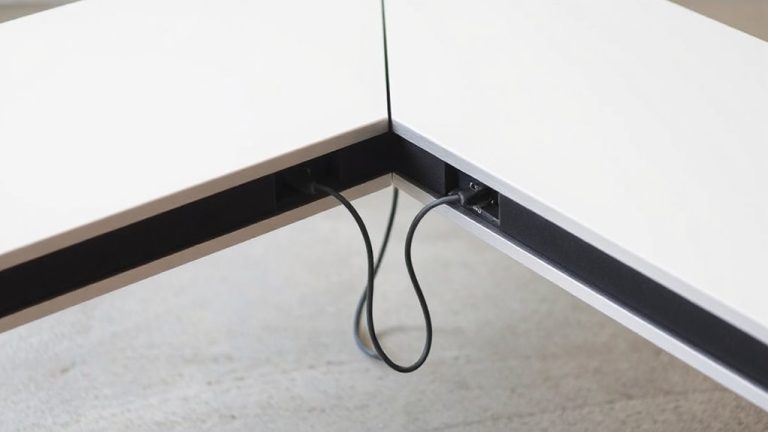
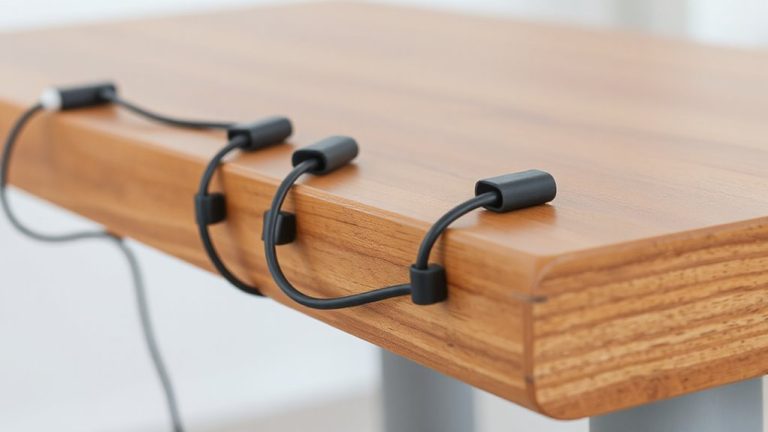
While pixel density matters, the right monitor for productivity depends on matching PPI to your specific tasks and workspace. If you’re editing photos or coding, go for 27-inch 4K monitors-they deliver sharp 163 PPI, reducing eye strain during long sessions. For general office work, a 24-inch 1080p screen with 92 PPI offers ample clarity without overscaling issues. Designers might prefer curved displays; monitor curvature at 1800R enhances focus and reduces glare, especially in multi-monitor setups. Just don’t sacrifice ergonomics-integrate cable management sleeves to minimize clutter and maintain clean sightlines. Ultrawide screens boost multitasking but demand strong GPU support and desk depth. Most top models include 3-year warranties and height-adjustable stands. Remember, higher PPI isn’t always better if your software doesn’t scale well or your desk is too small. Test brightness, viewing angles, and cable routing before deciding.
On a final note
You’ll get the most from your screen by choosing a PPI that balances sharp text and usable space-typically 100–130 PPI for most desks. Higher PPIs like 140+ improve clarity but shrink interface elements, demanding scaling that can cause blurriness. Match it to your work: designers benefit from 140+ PPI on 27-inch 4K monitors, while coders and writers often prefer 108–118 PPI on 24- to 27-inch 1440p displays. Test scaling settings and view angles in real use.