Step-by-Step Guide to Encrypting External Hard Drives Used for Work Files
You should encrypt your external drive using BitLocker on Windows Pro or FileVault via Disk Utility on Mac to protect work files. BitLocker requires NTFS and a recovery key saved to your Microsoft account or USB; FileVault needs APFS or Mac OS Extended formatting with no password recovery option. Both use strong AES encryption with little speed loss, but BitLocker isn’t natively readable on Macs. Losing an unencrypted drive risks data breaches and compliance violations. Keep backups and recovery keys secure-because losing access means data is gone for good. More details follow on exactly how each step works.
Notable Insights
- Use BitLocker on Windows Pro/Enterprise by right-clicking the drive and selecting “Turn on BitLocker” for AES encryption.
- On Mac, encrypt external drives using Disk Utility with APFS or Mac OS Extended (Journaled) for FileVault-level security.
- Always back up the recovery key to a Microsoft account, USB drive, or secure location-loss means permanent data lock.
- NTFS is required for BitLocker; APFS or Mac OS Extended is needed for macOS encryption compatibility.
- Unencrypted drives risk data breaches, regulatory fines, and legal liability if sensitive work files are exposed.
Encrypt Your External Drive on Windows (BitLocker)
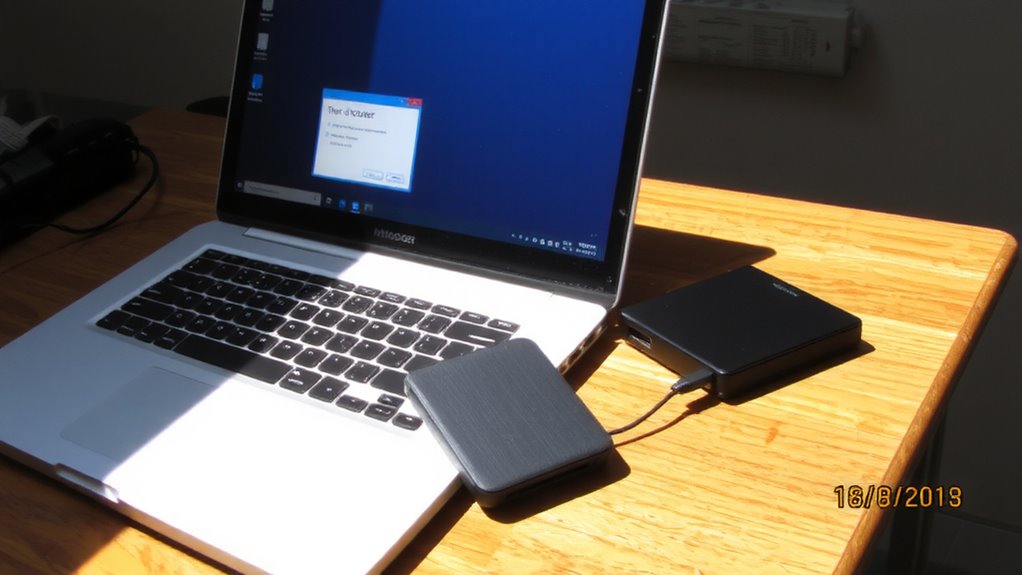
If you’re using a Windows PC, BitLocker is your best bet for encrypting an external hard drive, and it’s built right into most modern versions of Windows Pro and Enterprise. Once you connect your drive, you’ll go through drive initialization-choose NTFS for full compatibility and security. Right-click the drive in File Explorer and select “Turn on BitLocker” to begin. You’ll set a strong password and save a recovery key; this password recovery option is critical if you forget access. Store it in your Microsoft account or on a USB drive. BitLocker uses AES 128- or 256-bit encryption, offering strong protection without slowing transfer speeds noticeably. Keep in mind, encrypted drives may have minor formatting delays. Always back up data before starting-errors during initialization can cause data loss. BitLocker works seamlessly with Windows, but non-Windows systems won’t read the drive without extra software. For those needing reliable best 5TB external hard drive options, consider models optimized for large-scale storage and encryption support.
Encrypt Your External Drive on Mac (FileVault)
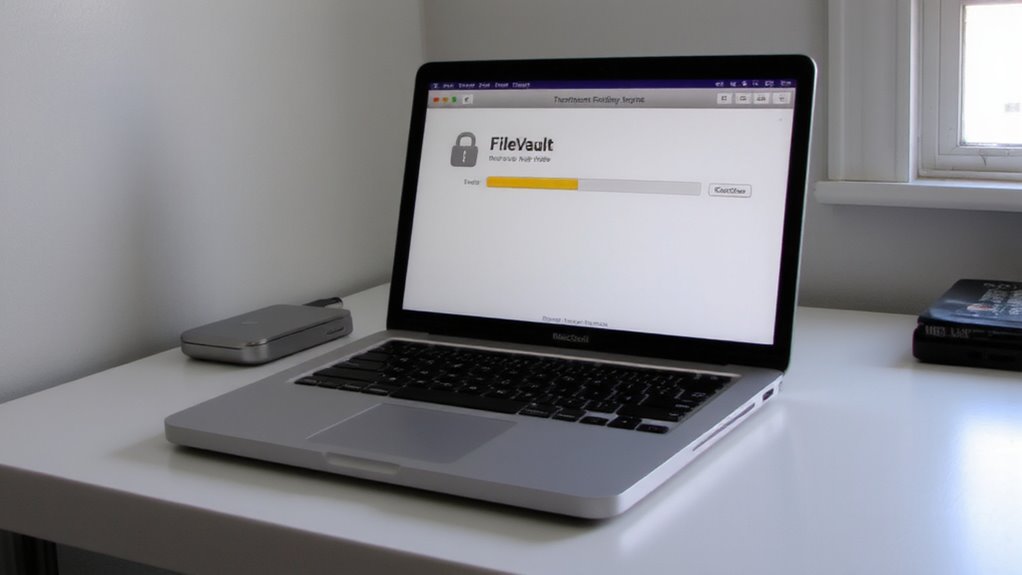
While FileVault is the go-to encryption tool for Mac users, it’s important to know it only secures your startup disk by default-so for external drives, you’ll need to use Disk Utility with APFS or Mac OS Extended (Journaled) formatting to get full encryption. Open Disk Utility, select your drive, and choose “Erase.” Then pick an encrypted format variant-like APFS (Encrypted)-to enable hardware-level backup encryption. It’s fast, reliable, and integrates seamlessly with your login, but remember: losing your password means losing access, since recovery isn’t guaranteed. Performance impact is minimal on newer Macs with Apple Silicon, but older drives may slow slightly. Always verify the encryption status in Disk Utility post-setup. This method won’t auto-encrypt future files, so encrypt each drive manually. Not all third-party tools recognize encrypted volumes, so test compatibility early. It’s solid security-if you keep your credentials safe.
What Happens If Your Unencrypted Drive Is Stolen?
How much is your data really worth-especially when it’s sitting on a stolen external drive with no encryption? A lot more than you think. Without encryption, it’s an open door to a full data breach. All your work files, client info, financial records-gone in seconds. You’re not just risking privacy; you’re on the hook for legal liability if sensitive data gets exposed. Regulations like HIPAA or GDPR don’t care how it happened-they hold you responsible.
| Risk | Outcome |
|---|---|
| No password protection | Full data access |
| Unencrypted files | Immediate data breach |
| Sensitive client data | Legal liability |
| Lost or stolen drive | Reputational damage |
Recovery costs soar fast, and trust takes years to rebuild. Encryption isn’t foolproof, but it slashes risk dramatically. Skipping it? That’s a gamble with real consequences.
Windows vs. Mac: Which Encryption Tool You’ll Use
You’ll pick different tools based on your OS, and that affects how you manage the file system and cross-platform access. If you’re on Windows, BitLocker is built in and works seamlessly with NTFS, giving strong 256-bit encryption with minimal setup. It’s reliable, well-tested, and integrates directly into File Explorer. Mac users should use FileVault, which pairs perfectly with APFS or Mac OS Extended. It’s equally strong but tied to macOS. The catch? BitLocker drives aren’t readable on stock Macs, and FileVault doesn’t work on external drives by default-use APFS encrypted when formatting instead. For true cross-platform use, consider third-party tools like VeraCrypt. It’s free, works on both systems, supports multiple file systems, and gives you full control-though setup’s a bit steeper.
What to Do If You Lose Your Encrypted Drive
What happens when your encrypted drive vanishes-left on a train, dropped in a coffee shop, or simply misplaced at home? First, don’t panic. If you used strong encryption like BitLocker or FileVault, your data is likely safe from unauthorized access. Still, you’ll need to act fast. Report the loss to your IT department or employer immediately. Relying on data recovery from the physical device is nearly impossible once it’s gone-especially with full-disk encryption. There’s no such thing as remote password retrieval, so if you forgot your recovery key or passphrase, the data is permanently inaccessible. That’s why you should’ve backed up both the data *and* the recovery key in a secure, separate location. Without it, even pros can’t help. Prevention beats reaction: treat encryption and backup as a pair, not alternatives. Losing the drive doesn’t mean losing everything-if you planned ahead.
On a final note
You should encrypt your external drive-it’s a simple step that seriously boosts security. Both BitLocker and FileVault offer reliable, built-in protection for Windows and Mac users. Encrypted drives keep your work files safe if lost or stolen. But remember: losing the password means losing access, no recovery. Always back up files separately and verify encryption settings monthly. It’s not foolproof, but it’s the smart baseline for any serious home office setup.