Optimizing Monitor Distance for 27-Inch Screens to Prevent Peripheral Distraction
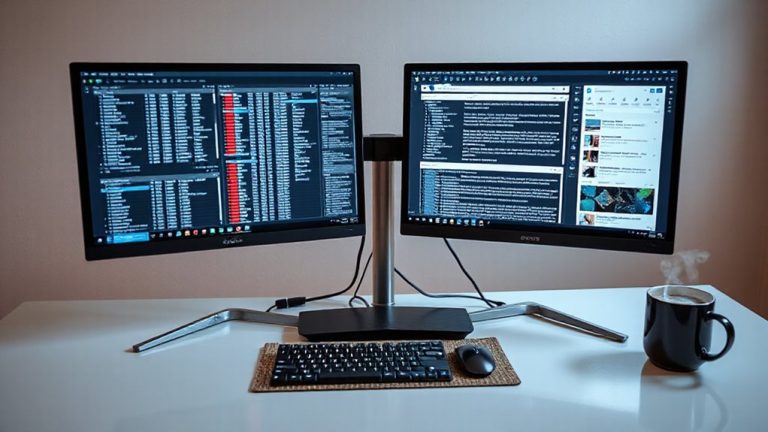
Set your 27-inch monitor 80 to 100 cm away to reduce eye strain and keep screen edges from pulling your focus. A QHD resolution (2560×1440) sharpens image clarity, so your eyes won’t drift toward distractions at the periphery. Adjust distance based on your vision and desk space, and test over a few work sessions. Pair this with proper lighting and height settings to stay comfortable. Get these basics right, and you’ll see noticeable improvements in focus and endurance. There’s more to fine-tuning your setup than just distance.
Notable Insights
- Position the 27-inch monitor 80–100 cm away to balance visibility and reduce eye strain.
- Use QHD resolution (2560×1440) to minimize pixelation and prevent peripheral eye drift.
- Set the monitor to its native resolution to avoid distortion and maintain visual focus.
- Place the screen perpendicular to windows to reduce glare and peripheral visual distractions.
- Keep the top of the screen at or slightly below eye level to limit head movement and distractions.
Find the Best Distance for Your 27-Inch Monitor
How far should you really sit from your 27-inch monitor? For most people, 80 to 100 cm (31 to 39 inches) offers the best balance between screen visibility and viewing comfort. Your monitor size plays a key role-27 inches is large enough to display details clearly but demands enough distance to reduce eye strain. Sitting too close forces your eyes to work harder, especially if you’re viewing edges at sharp angles. At the right distance, you can see the whole screen without excessive head movement. Adjust based on your eyesight and desk space, but don’t compromise consistent focus for immersion. Some claim closer distances improve engagement, but that often sacrifices long-term comfort. Always test positioning over several work sessions. Real-world feedback shows most users feel more alert and less fatigued when they follow this range, especially during extended use. When selecting your monitor, consider one of the top 27-inch monitors for optimal performance and comfort.
Use Resolution to Reduce Peripheral Distraction
Every 27-inch monitor user should seriously consider running at least QHD (2560×1440) resolution to minimize peripheral distraction and improve focus. Higher screen resolution increases pixel density, making text and images sharper at typical viewing distances. This boost in visual clarity helps your eyes stay locked on the central workspace instead of drifting toward edge distortions or pixelation. While 1080p on a 27-inch screen can appear fuzzy, especially up close, QHD eliminates that issue for most users. However, you’ll need a compatible GPU and scaled UI elements to avoid tiny, hard-to-read text. Running at lower resolutions on a high-res display also reduces clarity, so match your settings to the panel’s native output. Always test resolution changes in real workloads-reading, coding, or spreadsheets-to judge comfort over time. Don’t assume higher is always better; balance performance needs with eye strain.
Optimize Desk and Lighting for Eye Comfort
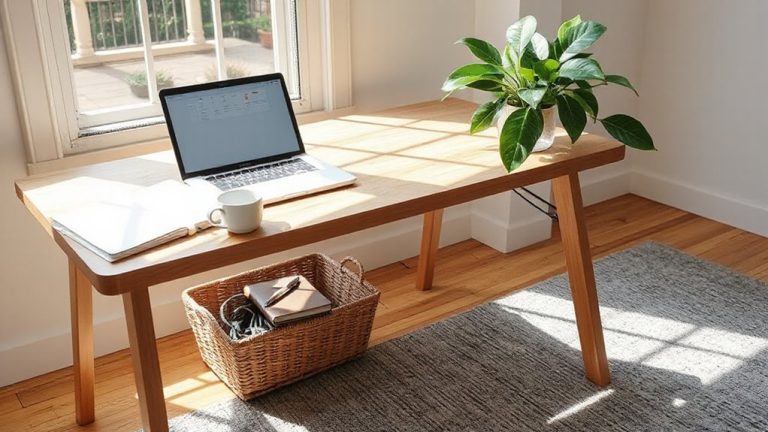
While screen specs matter, your desk setup and lighting play just as big a role in reducing eye strain during long sessions. Good ambient lighting and glare reduction are key-you want balanced, indirect light that won’t create screen reflections. Avoid harsh overhead lights or direct sunlight hitting your monitor. Position your desk perpendicular to windows and use adjustable LED task lights with dimmable output for flexibility. For consistent eye comfort, consider investing in one of the best desk lamps for computer work.
Here’s a quick guide to optimize your workspace:
| Feature | Ideal Setup | Trade-offs |
|---|---|---|
| Room lighting | Soft, diffused ambient lighting | Too dim causes strain; too bright causes glare |
| Desk surface | Matte finish for glare reduction | Glossy finishes reflect light, increasing eye fatigue |
| Lamp placement | To the side, not behind or in front | Direct shine causes screen reflections |
Choose function over style, and test adjustments over days, not minutes.
Test Your Monitor Height and Angle
Your monitor’s height and angle can make or break your comfort during long work sessions, so get this right from the start. Position the top of your 27-inch screen at or slightly below eye level-this reduces neck strain and supports proper monitor alignment. Sitting too high or too low forces your head forward or up, which increases spinal load over time. Tilt the monitor 10–20 degrees back for ideal viewing, especially if you’re sitting farther than 30 inches away. Use a monitor arm or risers for fine-tuned adjustments, but avoid stacking unstable objects. Desk thickness and chair height will affect your setup, so test adjustments while seated normally. While ideal angles improve comfort, over-adjusting can cause glare or limit desk space. Get the alignment close, then refine based on daily use-small changes make a measurable difference in long-term comfort and focus. Upgrading to an ergonomic best monitor arms can further enhance adjustability and workspace efficiency.
Avoid These 27-Inch Monitor Setup Mistakes
If you’re mounting your 27-inch monitor too close or too far, you’re likely sacrificing both visual clarity and physical comfort. Position it 80–100 cm away, aligned with your natural eye level, to reduce strain. Neglecting cable management creates clutter and can pull components loose over time-use clips or sleeves to keep connections secure and organized. Skipping color calibration leads to inaccurate tones, which matters if you edit photos or design graphics; spend 10 minutes with a hardware calibrator to fix white balance and gamma. Don’t assume built-in monitor stands offer ideal adjustability-many limit tilt or height precision. Consider a VESA arm for better positioning, but verify weight compatibility first. Ambient lighting matters, too: glare or uneven brightness distorts perception. Finally, avoid placing the screen directly beside windows or bright lights. Small fixes make a noticeable difference in daily use.
On a final note
You’ll get the best results placing your 27-inch monitor 50–70 cm (20–28 inches) from your eyes, depending on resolution. At 1440p, that range cuts glare and minimizes peripheral distraction without straining focus. Pair it with a matte screen to reduce reflections and tilt the display 10–20 degrees down for comfort. Just remember: tighter distances help productivity but may increase eye fatigue over time-take breaks to offset the trade-off.