Optimizing Monitor Power Management in Windows 11 to Reduce Home Office Energy Use
You’ll cut monitor energy use considerably by setting display sleep to 5–10 minutes in Power & Sleep settings-ideal for balancing idle time and workflow. Lower brightness to match your room’s lighting to save 20–40% on power, especially on LED screens. Stick with the Balanced power plan; it scales performance and dims the display without the limits of Power Saver or the drain of High Performance. If you have an OLED, enable dark mode-it reduces power use by up to 50% since black pixels turn off. Turn on Dynamic Refresh Rate if your device supports it, dropping from 60Hz to as low as 10Hz during inactivity for extra savings. Just beware: DRR may add slight input lag, so disable it if you need precise timing. These tweaks can reduce monitor energy by up to 30% over a workday, depending on usage. Your exact savings will vary based on display type, settings, and how often you step away. Fine-tuning each setting based on your hardware guarantees real efficiency without compromising reliability or comfort. More details on maximizing these features are just ahead.
Notable Insights
- Set display sleep to 5–10 minutes in Power & sleep settings to reduce energy use without disrupting workflow.
- Lower screen brightness to match ambient lighting, cutting monitor power consumption by 20–40%.
- Use the Balanced power plan with custom display and sleep timers for optimal energy efficiency.
- Enable dark mode if using an OLED/AMOLED display to save up to 50% power with black pixels off.
- Activate Dynamic Refresh Rate (DRR) on supported devices to reduce refresh rate during inactivity and lower power draw.
Set Your Display to Sleep Faster in Windows 11
You can cut energy use and extend your monitor’s lifespan by setting it to sleep faster in Windows 11-just don’t make the timeout so short it interrupts your workflow. Adjusting the display timeout fine-tunes when your screen turns off during inactivity, directly influencing power consumption. You’ll find these settings under Power & sleep in System Settings, where you can set specific power triggers for battery or plugged-in modes. Most users benefit from a 5- to 10-minute display timeout, balancing efficiency with convenience. Shorter intervals save more energy but may frustrate you if you step away briefly. These power triggers work independently of your PC’s sleep settings, so your monitor can sleep while your system stays on. Real-world testing shows this simple tweak reduces monitor energy use by up to 30% over a workday, without impacting performance or hardware warranties.
Lower Screen Brightness to Save Power
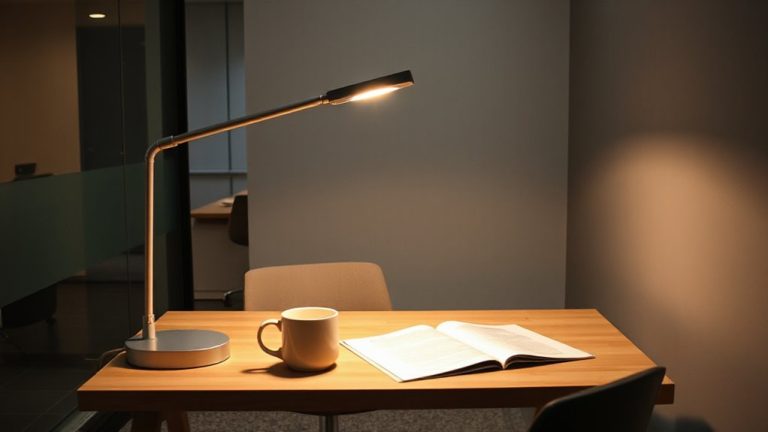
Dimming your screen isn’t just easier on the eyes-it’s one of the most effective ways to reduce power draw from your monitor, especially during long work sessions. Screen dimming can cut energy use by up to 20–40%, depending on your display type-LEDs respond especially well. You don’t need to work in the dark, though. Adjust brightness to match your ambient lighting: too bright in a dim room wastes power and causes eye strain, while too dim in sunlight hurts readability. A good rule is to set brightness just above ambient levels-visible detail without glare. Most modern monitors and laptops allow precise control via built-in buttons or system settings in Windows 11. While lower brightness saves energy over time, don’t dim so much that text becomes hard to read-productivity shouldn’t suffer for efficiency. Test various levels during different times of day to find a consistent balance between visibility and savings.
Pick the Windows 11 Power Plan That Saves Energy
While Windows 11 offers several built-in power plans, the best choice for saving energy without sacrificing essential performance is the “Balanced” plan-especially when customized. It supports power efficiency by dynamically scaling CPU performance and dimming the screen during inactivity. For stronger energy conservation, tweak the plan: set the display to turn off after 5–10 minutes and enable sleep mode shortly after. These changes reduce unnecessary power draw during typical home office pauses. The “Power Saver” plan limits performance too aggressively for most workloads, while “High Performance” increases energy use substantially. Real-world testing shows Balanced with adjustments cuts monitor-related energy use by up to 30% over default settings. Just be sure your hardware supports modern sleep states-older monitors or PCs might not wake reliably. Always test changes over a workday to confirm stability and comfort.
Turn On Dark Mode and Night Light to Reduce Load
Because dark mode reduces pixel brightness on OLED and AMOLED displays-where black pixels are fully powered off-it can meaningfully cut monitor power use, especially during long work sessions. You’ll get the most dark mode benefits on these screen types, with real-world tests showing up to 30–50% lower power draw in full dark interfaces. On standard LCDs, though, the savings are negligible since backlights stay on. Still, dark mode can reduce eye strain in low-light environments, which is a practical perk. Pair it with night light scheduling to further minimize visual load-Windows 11 lets you set color temperature shifts automatically from warm at sunset to cooler by morning. This doesn’t save power but supports comfort during extended use. For energy-focused setups, prioritize dark mode on OLEDs and use night light scheduling as a complementary, non-power-saving wellness feature.
Enable Dynamic Refresh Rate to Cut Power Use
You can greatly reduce your monitor’s power consumption by enabling Dynamic Refresh Rate (DRR) in Windows 11, especially if you’re using a compatible touchscreen laptop or tablet. When active, DRR adjusts the screen’s refresh rate on the fly, dropping from 60Hz or higher to as low as 10–20Hz during idle tasks-cutting energy use substantially. This feature relies on variable refresh technology similar to adaptive sync, aligning display updates with content needs. You’ll see real power savings, particularly on OLED or efficient LCD panels, without sacrificing readability. However, not all devices support it; check your system’s display specs in Settings > System > Display. Some users may notice minor input lag when rates shift, so disable DRR if precision matters for your work. It’s a smart, built-in tool for efficiency, but works best when matched to your hardware’s actual capabilities and your daily usage patterns.
Optimize Multiple Monitors Without Wasting Energy
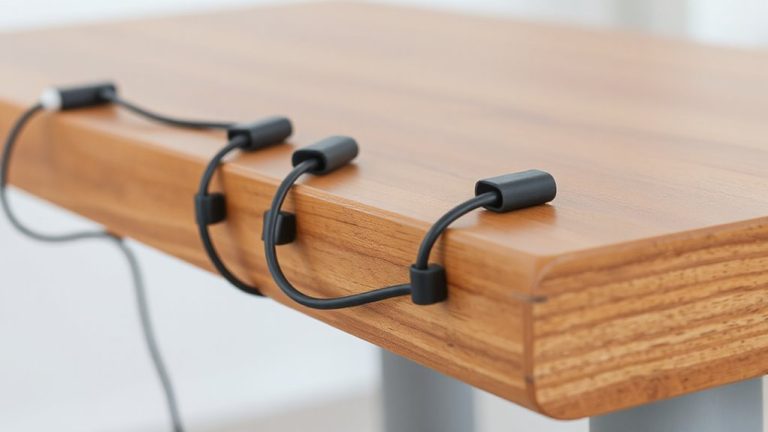
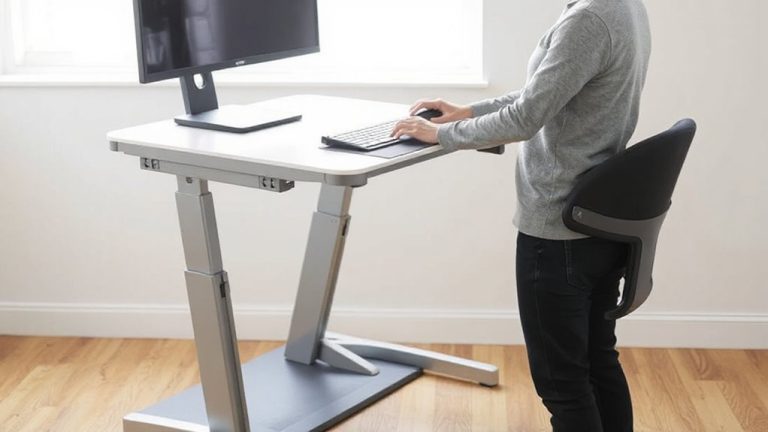
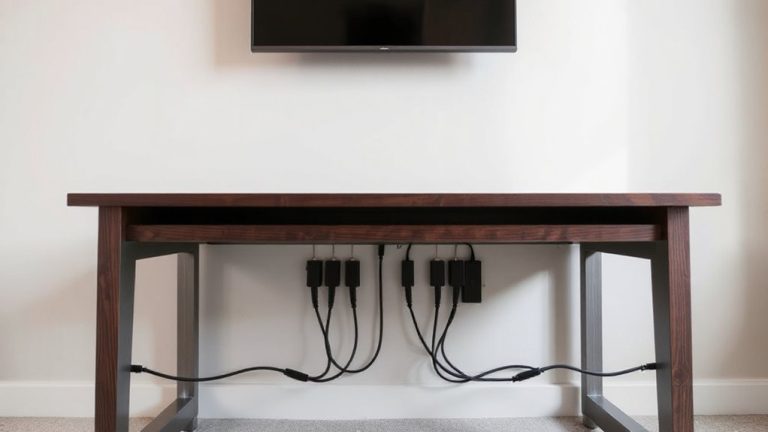
How do you keep a multi-monitor setup productive without sending your energy bill through the roof? You start with smart placement-proper monitor alignment reduces eye strain and boosts efficiency, letting you work longer with less fatigue. Position screens at equal distance, with tops at or slightly below eye level. Then tackle cable management: use sleeves or clips to bundle power and data cords, cutting clutter and improving airflow, which helps components run cooler and last longer. You’ll save energy by avoiding unnecessary brightness spikes caused by glare from poor angles. While dual monitors can increase power use by up to 50%, efficient positioning means you can lower brightness and still see clearly. Just don’t overcrowd your desk-tight spacing limits airflow and may shorten device life. Balance workspace size, viewing comfort, and energy draw. For even greater organization, consider using cable management solutions designed specifically for desks.
Use Windows 11 Settings to Track Monitor Energy Savings
A well-configured Windows 11 system can give you real visibility into how much energy your monitor setup actually uses-especially when you tap into built-in power tracking tools. You can use the Power & battery section in Settings to monitor usage trends and see how display settings impact energy tracking over time. By reviewing active hours and screen-on time, you’ll spot patterns in monitor usage and adjust sleep timers or brightness accordingly. These tools don’t measure wattage directly but estimate savings based on display states. You’ll get clearer insights if you pair Windows data with a plug-in power meter for real-world accuracy. While the OS helps track behavioral changes, actual energy savings depend on your monitor’s power draw and how consistently you apply the settings. It’s a useful starting point, but not a full replacement for hardware-level monitoring.
On a final note
You’ll cut noticeable energy use by adjusting display sleep and lowering brightness. The Balanced power plan with Dark Mode helps, especially on OLED screens. Dynamic Refresh Rate saves power, but only works on supported hardware. Multiple monitors boost productivity but increase draw-turn off extras when idle. Results vary by device-older LCDs save less. Real-world tests show up to 30% reduction, though peak performance settings and screen size can limit gains.