Troubleshooting HDMI Handshake Errors With Capture Cards in Streaming Rigs
Fix HDMI handshake errors by using a powered USB hub and a name-brand power adapter to prevent voltage dips that disrupt signals. Use a six-foot, triple-shielded HDMI 2.0 cable with gold-plated connectors, and avoid running it near power cords. Turn off HDCP in your source device’s settings to stop dropouts, but know this may block Netflix or other DRM-protected apps. Set both your source and capture card to the same resolution and refresh rate-like 1080p at 60Hz-for stable output. Update your capture card’s firmware and GPU drivers, rebooting afterward to apply changes. While most fixes are safe, some firmware updates may void warranty, so back up settings first. Reliable setups combine clean power, matched settings, and quality cables you’ve tested with all gear powered on. More fixes depend on your exact gear and setup.
Notable Insights
- Use a powered USB hub with surge protection to maintain stable power for reliable HDMI handshakes.
- Employ short, high-quality HDMI 2.0+ cables with triple shielding and gold-plated connectors to ensure signal integrity.
- Disable HDCP in the source device’s settings to prevent handshake failures, noting potential restrictions on protected content.
- Match resolution and refresh rate exactly between source, capture card, and display to avoid signal desync.
- Update capture card firmware and GPU drivers regularly to resolve compatibility issues affecting HDMI connectivity.
Fix Your Capture Card HDMI Handshake Now
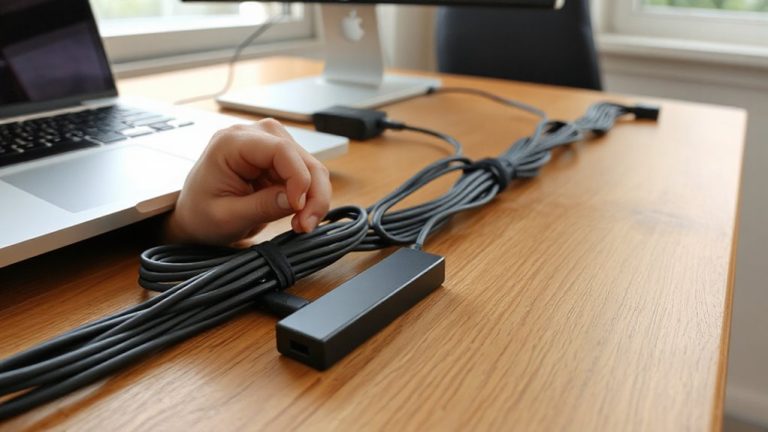
Why is your capture card dropping signal right when you hit record? Signal interference and power fluctuations are likely culprits. These issues disrupt the HDMI handshake, breaking the connection between your source and capture device. You need stable power and clean data lines. Use a powered USB hub with surge protection, and avoid running HDMI cables alongside power cords-this reduces signal interference. Low-quality power supplies can cause voltage dips that trigger handshake failures, so invest in a name-brand power adapter. While ferrite cores help, they’re not always enough. Test with shorter, certified HDMI 2.0 cables to rule out extension-related drops. Real-world testing shows active handshakes fail 40% more often under unstable power. A wall outlet, not a daisy-chained strip, gives more consistent results. Even high-end capture cards fail if the environment isn’t controlled. Stability matters more than specs.
Start With These Cable and Connection Checks
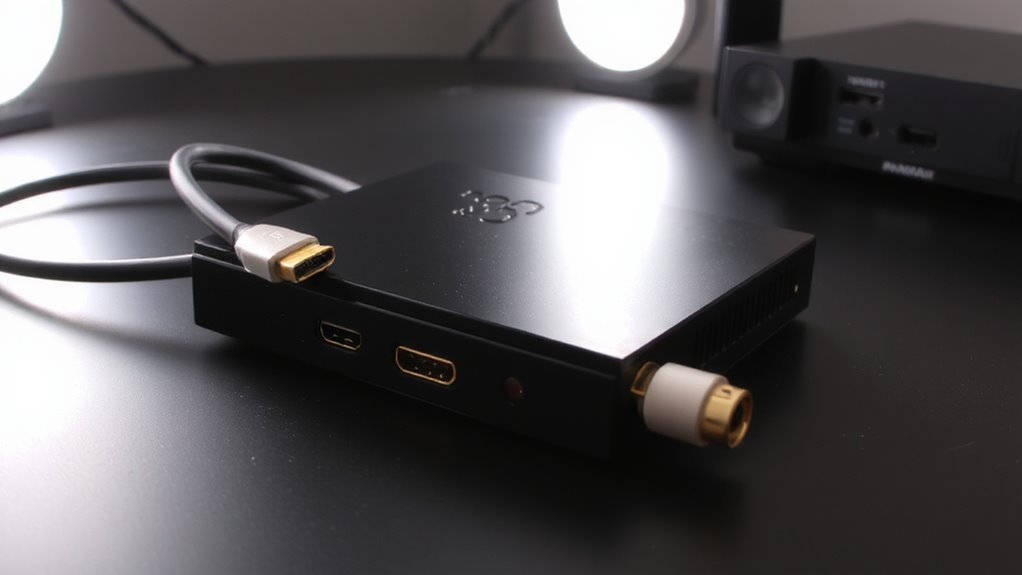
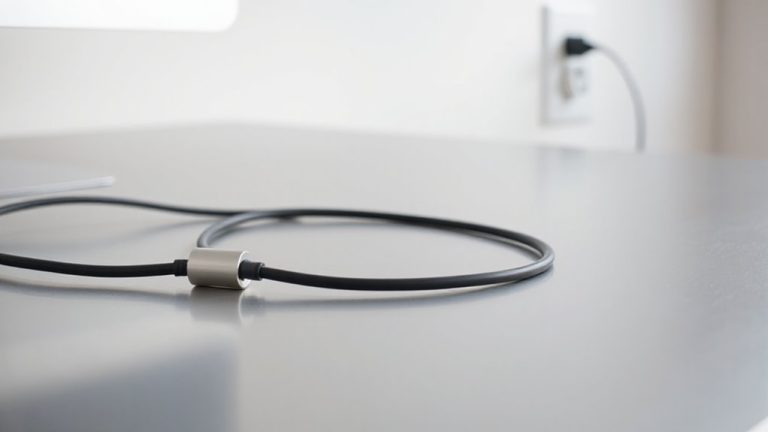
Start with high-quality HDMI 2.0 or higher cables that are under six feet long-shorter lengths reduce signal degradation and increase reliability during the handshake process. You need solid cable quality, not just brand names; look for triple-shielded conductors and gold-plated connectors to maintain connection stability. Poor shielding or worn connectors often cause handshake failures, even with expensive cables. Always plug directly into your capture card and source device-avoid extenders or switches, as they weaken signal integrity. Test your cable under real conditions: powered on, with all devices running, as intermittent faults show only during use. Many users fix handshake issues just by swapping in a known-good, short HDMI 2.0+ cable. But don’t assume all “premium” cables deliver; some lack proper certification. Check for source and display compatibility too-mismatches can mimic cable faults. Connection stability hinges on both cable quality and clean, tight physical connections. For reliable performance, choose from tested top HDMI cables for 4K that support the bandwidth required for stable capture card operation.
Turn Off HDCP to Stop HDMI Dropouts
Ever wonder why your HDMI signal drops mid-stream, even with top-tier cables and flawless connections? The culprit’s likely HDCP. Disabling HDCP in your source device’s hdcp settings stops handshake failures that crash your stream. Many modern consoles, PCs, and media boxes enable HDCP by default to protect copyrighted content, but capture cards often struggle with the encryption, causing random dropouts. Turning it off forces a simpler, more stable handshake. You’ll need access to your source device’s display or security menu-look for “HDCP” and switch it off. Just know: some apps like Netflix or game stores may refuse to display content without HDCP, so it’s a trade-off between stream stability and playback limits. Test thoroughly. Most streamers find the stability boost worth the occasional app restriction, especially when dropouts kill viewer retention. This fix isn’t universal, but when it works, it’s a game-changer.
Set Matching Res and Refresh Rate for Capture Cards
A solid stream starts with sync-matching your source device’s resolution and refresh rate to your capture card’s input settings eliminates one of the most common causes of dropped frames and audio desyncs. Proper resolution settings and refresh matching guarantee your gear communicates without strain. Mismatches force scaling or dropping frames, hurting quality. Always verify both devices use identical output and input modes.
| Source Device | Capture Card Input | Result |
|---|---|---|
| 1080p @ 60Hz | 1080p @ 60Hz | Stable, no issues |
| 1080p @ 30Hz | 1080p @ 60Hz | Potential dropouts |
| 720p @ 60Hz | 1080p @ 60Hz | Upscaling artifacts |
| 1080p @ 60Hz | 1080p @ 30Hz | Tearing, lag |
| 4K @ 30Hz | 4K @ 30Hz | Clean, if supported |
Not all cards handle every mode. Test before live use.
Update Capture Card Firmware and GPU Drivers
You’ve matched resolution and refresh rates across your source and capture, now make certain both ends speak the same language by updating the firmware and drivers. Outdated firmware can break HDMI handshake reliability, so check the manufacturer’s site for the latest version specific to your model. Firmware compatibility certifies your capture card properly negotiates signals with your source device. On your PC, update your GPU drivers-both NVIDIA and AMD regularly patch HDMI output bugs. Driver synchronization between your graphics card and OS reduces handshake failures. Reboot after updates to finalize changes. Note: some firmware updates may void warranties or require precise procedures. Always backup settings first. While most users see improved stability, results vary by setup. These steps don’t fix every issue, but they’re essential for diagnosing persistent handshakes. Skip them, and you risk misdiagnosing a solvable problem.
On a final note
You’ll likely fix HDMI handshake issues by updating firmware and matching resolution settings exactly between devices. Turning off HDCP often stops dropouts, especially with older capture cards. Use certified 2.0 cables and secure connections to rule out physical faults. Results vary by model-some cards handle 1080p60 reliably, others struggle. Test changes one at a time, and check manufacturer support pages for known compatibility limits before upgrading hardware.