Understanding Why Curved Monitors May Distort Edges for Spreadsheet Analysts
You’ll notice curved monitors distort edges in spreadsheets because the 1500R or 1800R curve bends pixel alignment, making gridlines and borders warp at the sides-especially on 34-inch ultrawides. While the center stays sharp, peripheral data skews, risking misjudged cell spacing. For precision tasks like financial modeling, a flat 27-inch 1440p IPS panel delivers truer geometry. If you need curve comfort, 3000R or higher minimizes distortion. There’s more to evaluate about balancing clarity with viewing ergonomics.
Notable Insights
- Curved monitors distort spreadsheet edges due to screen curvature warping straight gridlines at peripheral areas.
- 1500R or 1800R curves bend pixel alignment, making borders and cells appear skewed near screen edges.
- Peripheral vision detects distortion more acutely on ultrawide displays, affecting data layout perception.
- Flat 27-inch IPS panels provide truer geometry, ensuring consistent grid and text alignment for analysts.
- Viewing distance and minimal curvature (3000R or higher) can reduce, but not eliminate, edge distortion.
Why Curved Monitors Distort Spreadsheet Edges
Ever wonder why the straight lines in your spreadsheets seem to bend slightly on a curved monitor? That’s due to screen curvature and how it interacts with your peripheral vision. When you look across a wide curved display-especially 21:9 ultrawides with 1500R or 1800R curvature-the edges extend beyond your central focus, causing peripheral stretching. This distortion makes grid edges appear subtly warped, even if the center stays accurate. While this design boosts immersion and reduces glare, it affects precision tasks like aligning cells or tracking data across columns. For spreadsheet-heavy work, a flat 16:9 panel around 27 inches often delivers truer geometry. Curved screens shine in multimedia and multitasking, but if edge consistency matters, you’ll trade some visual comfort for accuracy. Test models in person, check return policies, and consider your workflow before committing.
How Curvature Skews Excel Gridlines and Borders
Most curved monitors with a 1500R or 1800R radius will distort Excel’s gridlines and borders near the screen edges, especially on ultrawide 21:9 displays larger than 34 inches. You’ll notice subtle warping in grid alignment, where straight lines appear slightly bent or uneven toward the left and right sides. This happens because the physical curve alters how pixels are projected across the panel, impacting pixel calibration at extreme angles. While central content stays sharp and accurately rendered, data near the periphery can look skewed, making precise column and row alignment harder to judge by eye. Even high-end panels from LG or Dell show this effect under close inspection. It’s not a defect-just optical physics in action. If pixel-perfect grid symmetry matters for your work, consider a flat 4K display instead, where uniformity across the screen is easier to maintain.
What Distortion Means for Data Accuracy
You might not think a bent screen affects your numbers, but curved monitors can introduce visual inaccuracies that impact how you interpret data in spreadsheets. Subtle edge distortion can warp gridlines, leading to visual misinterpretation when aligning columns or comparing values across long rows. Even slight warping near the periphery may cause you to misread cell relationships, threatening data integrity during detailed analysis. While central content usually stays accurate, your eyes might struggle to judge consistency in spacing or formatting toward the sides, especially on screens with high curvature, like 1800R or tighter. This doesn’t alter the actual numbers, but how you see them. For tasks demanding precision-financial modeling, audit checks, or trend tracking-this visual trade-off matters. Consider your workflow: if accuracy trumps immersive feel, distortion could undermine confidence. Test with real spreadsheets before committing. Curved screens have merits, but not all benefits apply here.
Flat Vs Curved: Which Wins for Spreadsheet Work?
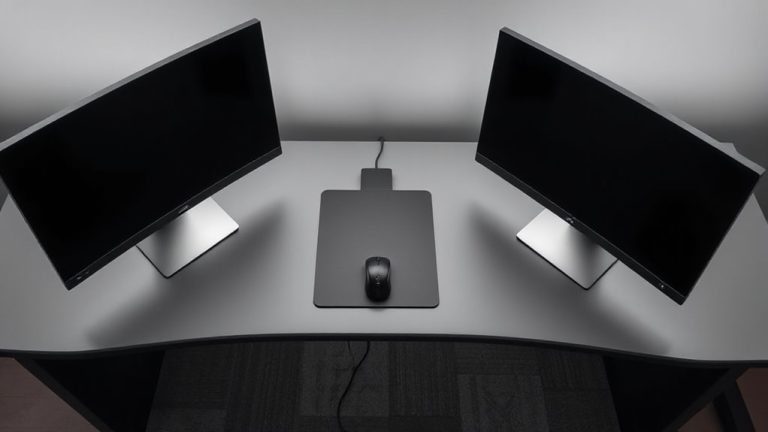
So, which screen shape actually delivers better performance when you’re working with spreadsheets-flat or curved? For precision and clarity, flat monitors generally win. You get consistent text alignment and minimal edge distortion, which matters when tracking data across columns. Curved screens offer ergonomic comfort by matching your field of view, reducing eye strain during long sessions, and provide an immersive experience that some find engaging. But that curve can warp cell borders and fonts near the edges, making flat a safer pick for accuracy. If you value a wraparound feel and work across multiple apps, curved might appeal-just know the trade-off. Most business users report higher satisfaction with flat 24- to 27-inch IPS panels, especially at 1080p or 1440p, due to sharper text and better color consistency. Warranties and build quality matter just as much as shape-don’t overlook them.
Choosing a Monitor That Keeps Excel Sharp
Flat monitors have a clear edge when it comes to Excel-heavy workflows, and if pixel-perfect clarity is your goal, that’s where you should start. You need precise pixel alignment to keep text and gridlines sharp, especially when zooming in or out. Curved screens often distort edges, making columns near the sides slightly blurred or skewed. Stick with flat IPS panels-they deliver consistent colors and strong viewing angles without warping. Opt for 1:1 pixel mapping to avoid screen scaling issues that can misalign cells or stretch fonts. Stick to native resolution; scaling above or below can hurt readability. A 27-inch 1440p monitor gives you ample screen space without sacrificing sharpness. Just make sure your GPU and OS handle scaling correctly. While high refresh rates look good, they’re unnecessary for spreadsheets-prioritize resolution and panel quality instead. Warranty and build matter too-look for at least three years of coverage.
Fixing Screen Warping Without Losing Comfort
While curved monitors can enhance immersion in media and gaming, they’re prone to edge distortion that affects spreadsheet accuracy-especially with Excel’s fine gridlines and small text. You can reduce warping by adjusting ergonomic positioning: center the monitor directly in front of you and tilt it slightly upward to minimize angular viewing. Maintain a viewing distance of 24–30 inches to lessen edge curvature effects and improve clarity. Choose a screen with a gentler curve (3000R or higher) if you must keep a curved display. Keep brightness and contrast calibrated to avoid visual strain. These tweaks help, but some distortion remains inevitable at the edges. You’ll gain comfort, yet sacrifice absolute precision in data-heavy columns. Test adjustments over a full workday to assess real-world impact. Warranties rarely cover perceptual issues, so rely on in-person trials before deciding.
Do Curved Monitors Hurt Productivity in Excel?
Why might your curved monitor be slowing you down in Excel? While the immersive feel sounds great, that curve can distort straight lines at the edges, making column alignment tricky. Even with perfect ergonomic alignment, your eyes work harder to correct the warping, leading to visual fatigue during long sessions. You might not notice it at first, but after hours of formula checks and data sorting, the strain adds up. Curved screens excel for movies or gaming, but spreadsheets demand flat precision. If you’re deep in analytics, a flat 27-inch IPS panel with accurate gamma and minimal glare will serve you better. Some pros adapt, especially on gently curved 1500R displays, but testing matters-many return them after two weeks. Don’t assume more curve means better comfort. For Excel-heavy days, prioritize clarity over trendiness. Your eyes-and your deadlines-will thank you.
On a final note
Curved monitors often warp spreadsheet edges, making gridlines and borders appear skewed-especially at the sides. For precision work in Excel, flat screens deliver truer geometry and sharper text. While curved displays offer immersion for media, that bend can hurt data accuracy during long analysis sessions. Choose a 24- to 27-inch IPS panel with 100% sRGB, minimal bezels, and a 3-year warranty for reliability. Test the display with real spreadsheets before buying.