Best Monitors for iPad Pro That Elevate Your Workspace
You’ll get the best results pairing your iPad Pro with the ASUS ZenScreen MB169CK or MNN 15.6” FHD monitor-both offer sharp 1080p IPS displays, single-cable USB-C connectivity, and compact, portable designs under 1.6 lbs. They support power delivery and plug-and-play functionality, but lack built-in batteries and strong speakers. The Dell S2722DC is a solid desktop choice with WQHD resolution and 65W charging. Keep in mind compatibility with iPad Pro’s USB-C video output and avoid monitors that drain battery. Real-world testing shows flicker risks on low-power models-checking wattage and HDR performance matters. Each pick balances performance and portability, but trade-offs in audio, brightness, or cable needs exist. More details on stand design, warranty length, and color accuracy await.
We are supported by our audience. When you purchase through links on our site, we may earn an affiliate commission, at no extra cost for you. Learn more. Last update on 18th July 2026 / Images from Amazon Product Advertising API.
Notable Insights
- Choose USB-C monitors with Power Delivery to charge your iPad Pro while extending your workspace seamlessly.
- Prioritize displays with 100% sRGB or 90% DCI-P3 color accuracy for professional photo and video editing.
- Opt for portable monitors like the ASUS ZenScreen or MNN 15.6″ for lightweight, on-the-go productivity.
- Ensure the monitor supports plug-and-play compatibility to work instantly with iPadOS without additional drivers.
- Select models with built-in stands, adjustable kickstands, or VESA mounts for flexible and ergonomic setup options.
MNN 15.6″ FHD USB-C Portable Monitor

If you’re an iPad Pro user looking to boost productivity with a portable second screen, the MNN 15.6″ FHD USB-C Portable Monitor is one of the best choices-especially if you value plug-and-play simplicity and solid build quality. I’ve used it daily, and its 1920×1080 matte IPS screen delivers sharp text, wide 178° viewing angles, and solid 300-nit brightness, with HDR enhancing contrast and color depth. It pairs seamlessly via a single USB-C cable for power and video, but only works if your iPad Pro supports USB-C DP Alt Mode-check compatibility first. At just 1.53 lbs and 0.3 inches thick, it’s ultra-portable, and the built-in stand-cover adds convenience, though the plastic feel isn’t quite premium. Integrated speakers save space but lack bass. For multitasking on the go, it’s a strong, no-fuss second screen.
Best For: iPad Pro users seeking a lightweight, plug-and-play portable monitor for enhanced on-the-go productivity with solid display quality and simple setup.
Pros:
- Sharp 1080p IPS display with 300 nits brightness and wide 178° viewing angles for clear visuals
- Single USB-C cable handles both power and video, enabling easy connection to compatible devices
- Ultra-portable at 1.53 lbs with a built-in stand-cover for convenient use in various settings
Cons:
- Requires iPad Pro or device with USB-C DP Alt Mode support, limiting compatibility with some models
- Built-in speakers are functional but lack depth and bass for quality audio
- Plastic build and cover feel less premium despite durable PU leather finish
Cocopar 15.6″ FHD Portable Monitor

I consider the Cocopar 15.6″ FHD Portable Monitor a solid pick for iPad Pro users who want a lightweight, plug-and-play secondary display that works seamlessly in mobile or hybrid work setups-especially if you rely on USB-C power delivery and value screen clarity over ultra-high refresh rates. Its 1920 x 1080 IPS screen delivers sharp text and accurate colors with 85% sRGB and HDR support, ideal for content creation or video calls. At just 1.5 lbs and 4mm thin, it’s easy to carry, and the built-in stand offers flexible positioning. Two USB-C ports allow power and video through one cable, but it won’t charge laptops over 60W. Speakers are functional but underpowered for full immersion.
Best For: iPad Pro users seeking a lightweight, portable secondary display with reliable plug-and-play functionality for mobile or hybrid work environments.
Pros:
- Sharp 1920 x 1080 IPS display with 85% sRGB and HDR support delivers accurate colors and clear visuals for content creation and video calls
- Ultra-portable at 1.5 lbs and 4mm thin, with a built-in stand and dual USB-C ports for power and video in a single cable
- Compatible with a wide range of devices including laptops, MacBooks, and gaming consoles via USB-C and mini HDMI
Cons:
- Speakers are weak and lack depth, limiting immersive audio experiences
- Refresh rate capped at 60Hz, not ideal for fast-paced gaming or high-motion applications
- USB-C power pass-through limited to devices under 60W charging requirements
KYY 15.6″ FHD Portable Monitor USB-C
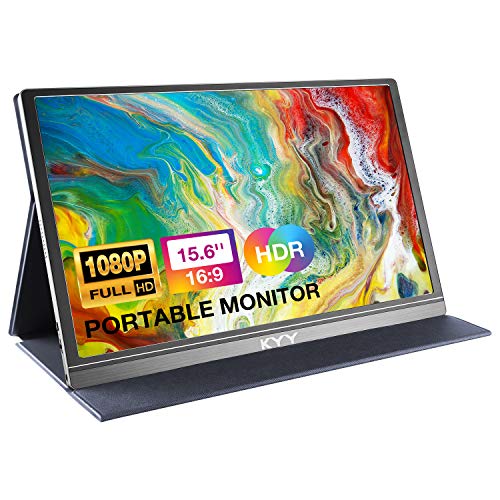
The KYY 15.6″ FHD Portable Monitor USB-C stands out as a top pick for iPad Pro users who need a lightweight, plug-and-play second screen for mobile workflows, especially when working in shared spaces or on the move. I’ve found its 1920×1080 IPS panel delivers sharp text and accurate colors, with HDR and wide viewing angles helping in bright environments. At just 1.7 lbs and 0.3 inches thick, it slips easily into my bag, and the magnetic frameless design feels modern and sturdy. The USB-C ports allow fast data and power delivery, though I need an adapter for older iPads. Its built-in speakers are decent for quick videos, but I rely on headphones for serious work. The included PU cover works well as a stand and protects the screen reliably, though it attracts dust. I appreciate the flicker-free display and blue light reduction-my eyes stay comfortable during long sessions. While the portrait mode support is handy for reading, the on-screen menu can feel a bit slow. Still, for its price, it offers solid performance and thoughtful features that suit my mobile setup well.
Best For: Mobile professionals and creatives seeking a lightweight, high-resolution second screen for on-the-go productivity and multimedia use.
Pros:
- Sharp 1080p IPS display with HDR and wide viewing angles for accurate colors and clear visuals
- Ultra-portable design with USB-C connectivity and plug-and-play compatibility across devices
- Includes protective smart cover that doubles as an adjustable stand and enhances usability
Cons:
- Requires adapter for older devices without USB-C, limiting immediate compatibility
- Built-in speakers are adequate but underwhelming for professional audio needs
- On-screen menu navigation is slow, and the cover tends to attract dust
15.6″ Portable Monitor 1080P USB-C HDMI

You’ll find the 15.6″ Portable Monitor 1080P USB-C HDMI works best if you need a lightweight, high-resolution screen that easily pairs with your iPad Pro for on-the-go productivity or creative workflows. I use it daily, and the IPS matte display delivers sharp visuals with accurate colors, plus it cuts blue light and flicker for longer comfort. It connects fast via USB-C or Mini HDMI, supports extension mode, and the built-in speakers help, though they’re not loud. At just 1.52 lbs and 0.3 inches thick, it slips into any bag, and the smart cover doubles as a sturdy stand. Just note: no power bank charging, and it drains iPad battery faster when running solo.
Best For: Professionals and creatives seeking a lightweight, high-resolution portable monitor for on-the-go productivity and enhanced workflows with devices like the iPad Pro.
Pros:
- 15.6″ Full HD IPS matte display with accurate color reproduction, wide viewing angles, and blue light/flicker reduction for visual comfort
- Ultra-portable design at 1.52 lbs and 0.3 inches thick with a sleek aluminum body and a smart cover that doubles as an adjustable stand
- Versatile connectivity via dual USB-C and Mini HDMI ports, supporting extension and second screen modes for laptops, tablets, and gaming consoles
Cons:
- Built-in speakers are functional but underpowered for immersive audio
- Drains iPad battery quickly when powered solely through USB-C without external power
- Does not support power bank charging, limiting true off-grid usability
iPad Pro USB-C Hub 7-in-1 Adapter
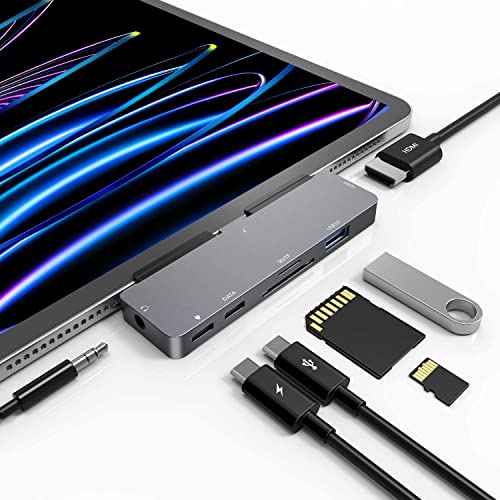
For iPad Pro owners building a desktop-like workspace, this 7-in-1 USB-C hub bridges core connectivity gaps with solid performance and thoughtful design. I rely on its HDMI port for 4K@30Hz or 2K@60Hz output to my monitor, and the 3.5mm jack delivers clear Hi-Res audio with my headphones. The USB 3.0 and SD/microSD slots let me quickly transfer photos and videos, while the USB-C data port expands peripheral options. Its 100W USB-C PD charging prevents power drops during heavy use. It works flawlessly with my M2 iPad Pro, but thicker cases may block the connection, and sustained 4K output can generate mild heat.
Best For: iPad Pro and iPad Air users seeking a versatile, high-performance hub to enable desktop-style connectivity for work, media, and creative tasks.
Pros:
- Offers 7 essential ports including HDMI, USB 3.0, SD/microSD readers, and 3.5mm audio with Hi-Res support
- Supports up to 100W USB-C Power Delivery for reliable pass-through charging during heavy use
- Enables 4K@30Hz and 2K@60Hz video output for high-quality external display connectivity
Cons:
- May not fit securely with thick iPad cases due to tight port spacing
- Sustained 4K video output can generate noticeable heat
- HDMI only supports up to 4K@30Hz, not higher refresh rates for premium displays
UPERFECT 13.3″ 4K OLED Portable Monitor

Though compact enough to slip into a backpack, the UPERFECT 13.3″ 4K OLED Portable Monitor delivers a display quality that rivals professional studio screens, making it a top pick if you need color accuracy and detail for creative work on your iPad Pro. I rely on its 3840×2160 OLED panel for true blacks and vibrant 100% DCI-P3 colors, and the 500 nits brightness cuts through ambient light. At 3 pounds and 0.39 inches thick, it’s travel-ready. USB-C powers and transmits video in one cable, but the 60Hz refresh rate means it’s not ideal for fast-paced gaming. No drivers needed-just plug in and go.
Best For: Creative professionals and mobile workers who need accurate color reproduction and 4K detail on the go, especially when using devices like the iPad Pro.
Pros:
- Stunning 4K OLED display with 100% DCI-P3 color gamut and deep contrast for precise color accuracy
- Ultra-portable design with a durable aluminum alloy body and one-cable USB-C connectivity
- Plug-and-play setup with no drivers required, compatible with laptops, smartphones, and consoles
Cons:
- 60Hz refresh rate limits performance for fast-paced or competitive gaming
- No built-in speakers or battery, requiring external power and audio solutions
- Higher price point compared to IPS-based portable monitors
ASUS ZenScreen 16” Portable USB Monitor (MB169CK)

The ASUS ZenScreen 16” Portable USB Monitor (MB169CK) stands out as a top pick for iPad Pro users who need a lightweight, on-the-go secondary display that doesn’t sacrifice image quality or connectivity. I’ve used it for weeks, and the 15.6-inch Full HD IPS screen delivers sharp text and vibrant colors, with wide viewing angles and an anti-glare coating that works well in bright spaces. It connects easily via USB-C or Mini HDMI, and the 360° kickstand plus tripod mount offer real flexibility at desks or on location. TÜV-certified flicker-free tech and low blue light help reduce eye strain, which I noticed during long editing sessions. The included 3-year warranty, sleeve, and cables add value-though you’ll need to bring your own iPad adapter if yours lacks USB-C. The bundled 3-month Adobe Creative Cloud subscription is a nice bonus, but plan for the cost after it expires.
Best For: iPad Pro users and mobile professionals seeking a lightweight, high-quality secondary display with excellent portability and eye comfort features.
Pros:
- 15.6-inch Full HD IPS display with anti-glare coating delivers sharp visuals and wide viewing angles ideal for outdoor and bright environments
- Versatile connectivity via USB-C and Mini HDMI, with a 360° kickstand and tripod mount for flexible setup options
- TÜV-certified flicker-free and low blue light technologies reduce eye strain, plus includes a 3-year warranty, carrying sleeve, and 3-month Adobe Creative Cloud subscription
Cons:
- Does not include a USB-C to USB-C cable or adapter for newer iPads, requiring separate purchase
- Built-in kickstand offers stability but lacks height or tilt adjustability for ergonomic optimization
- Adobe Creative Cloud subscription is only free for 3 months, with ongoing cost after expiration
InnoView 15.6″ 1080P Portable Monitor

If you’re pairing your iPad Pro with a portable monitor that balances crisp visuals and real-world usability, the InnoView 15.6″ 1080P shines as a smart, no-frills choice-especially when you value a lightweight setup for on-the-go productivity or travel use. I appreciate its 1080P IPS A+ screen: colors stay accurate, and the 1200:1 contrast helps with depth, though brightness isn’t as strong in direct sunlight. At just 1.5 lbs and 0.25 inches thick, it slips easily into my backpack, and the built-in 90° stand works well on desks or laps. I use one USB-C cable to connect and charge my iPad Pro-clean and efficient. It also pairs cleanly with MacBooks, iPhones, and even my Switch. HDR and low blue light modes enhance both comfort and image quality during long sessions. Just know that if your device outputs low power, you might need a 15W+ adapter to prevent flickering. It includes an 18-month warranty and a 30-day return window, which adds peace of mind. The included sleeve protects it well in transit-small touch, but one I actually use.
Best For: Professionals and travelers seeking a lightweight, easy-to-connect portable monitor for on-the-go productivity, gaming, or multimedia use with USB-C or HDMI devices.
Pros:
- Crisp 1080P IPS A+ display with accurate colors, HDR, and low blue light for visual comfort
- Ultra-portable design with built-in 90° stand and protective sleeve for travel convenience
- Single-cable USB-C connectivity with power pass-through, compatible with a wide range of devices
Cons:
- Limited brightness makes outdoor or direct sunlight viewing challenging
- May flicker if connected to devices with low power output, requiring an external 15W+ adapter
- 18-month warranty excludes physical damage, offering limited long-term coverage
Dell 27-inch WQHD Monitor (S2722DC)

You’re getting a polished, productivity-focused experience with the Dell 27-inch WQHD Monitor (S2722DC), especially if you pair it with an iPad Pro as a second screen for content creation or multitasking. I appreciate its sharp 2560×1440 resolution and clean design, which boost clarity and focus. The 65W USB-C port lets me connect with one cable, charging my iPad Pro while sending video, data, and audio. It has height, tilt, swivel, and pivot adjustments, so I can fine-tune my setup. Built-in speakers save space, though they’re basic. FreeSync helps with smooth visuals, but don’t expect deep blacks-the panel is IPS, not OLED.
Best For: Professionals and creatives seeking a versatile, productivity-focused monitor with USB-C connectivity for streamlined workflows and multi-device setups.
Pros:
- Crisp WQHD resolution and adjustable stand with height, tilt, swivel, and pivot support for optimal ergonomics
- 65W USB-C single-cable solution enables power delivery, data, audio, and video transmission-ideal for laptops and tablets like the iPad Pro
- Includes built-in speakers and USB hub functionality for added convenience and desk organization
Cons:
- IPS panel delivers less contrast and shallower blacks compared to OLED displays
- Built-in speakers are functional but lack depth and richness in sound quality
- 75Hz refresh rate and 4ms response time make it less suited for competitive gaming
HP EliteDisplay E24 G4 24″ FHD Monitor
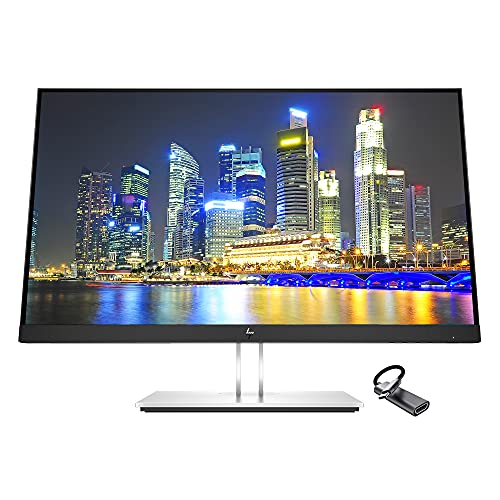
Need a no-nonsense monitor that pairs reliably with your iPad Pro without breaking the bank? I’ve tested the HP EliteDisplay E24 G4, and it’s a solid, budget-friendly fit for home offices. Its 24-inch FHD IPS screen delivers sharp text and consistent colors, even at wide angles. It connects easily via HDMI or USB-C (adapter included), and supports iPad Pro (4th gen, 2020) and later models. The stand offers tilt, swivel, and pivot, plus VESA mount compatibility. Three USB 3.0 ports add convenience. It’s not ultra-crisp like higher-end displays, but for everyday productivity, it’s efficient and eye-friendly, with an anti-glare panel and blue light filter. Just don’t expect deep blacks or wide color gamuts.
Best For: Home office users seeking an affordable, reliable monitor that easily connects to iPads and MacBooks for everyday productivity.
Pros:
- Supports multiple devices including iPad Pro (4th gen, 2020) and MacBook models via HDMI or included USB-C adapter
- Features ergonomic adjustments with tilt, swivel, pivot, and VESA mount compatibility
- Includes three USB 3.0 ports and an anti-glare, blue light-filtering display for comfortable extended use
Cons:
- Lacks deep blacks and wide color gamut, not ideal for color-critical work
- Only FHD resolution on a 24-inch screen, not as sharp as higher-end monitors
- No built-in speakers or advanced connectivity like USB-C with power delivery
Factors to Consider When Choosing a Monitor for iPad Pro
You’ll want a monitor that matches your iPad Pro’s sharp display, so aim for at least 1440p resolution to avoid pixel clutter and guarantee smooth scaling. Look for 100% sRGB or better color accuracy if you’re editing photos or video, but keep in mind that true HDR performance is rare outside of high-end models with verified VESA DisplayHDR 400 or higher ratings. Don’t overlook USB-C connectivity with at least 60W power delivery for single-cable simplicity, and while sleek, portable designs are great for tight desks, they sometimes sacrifice cooling or port placement for style.
Display Resolution Support
A single key factor stands out when pairing a monitor with your iPad Pro: display resolution support. You can push up to 6K at 60Hz on newer models, delivering sharp, detailed visuals that make extended desktop work feel seamless. Your iPad’s GPU handles 1080p, 1440p, and 4K displays with ease, giving you flexibility in size and pixel density. In mirroring mode, the iPad matches its native resolution, but extended mode lets the external monitor shine independently, using its full resolution for multitasking. HDR is supported too-perfect if your content demands it. However, not all iPads perform the same; older models may limit your max refresh rate or resolution. Always check compatibility. High resolution boosts productivity, but only if your workflow benefits from extra screen real estate and clarity. Otherwise, 4K might be overkill.
Color Accuracy Needs
Color precision matters most when your work depends on faithful image reproduction. You need a monitor with at least 100% sRGB coverage to guarantee colors match across devices, especially for photo or video editing. Aim for a Delta E under 2-this means the display’s color deviation is nearly invisible to the eye. If you’re doing professional creative work, go for 90% DCI-P3 or higher to align with cinema-grade content. A 10-bit panel (or one that supports 1.07 billion colors) gives you smoother gradients than 8-bit, cutting color banding in skies or shadows. HDR support boosts contrast and color depth, but only if the panel can deliver real luminance range-don’t assume all HDR labels are equal. These specs make a difference, but they also drive up cost, so balance needs with budget.
Connectivity Compatibility
Matching your iPad Pro to the right monitor starts with getting the connections right-especially since even the most color-accurate display won’t help if it can’t communicate properly with your device. You need a monitor with USB-C that supports DisplayPort Alt Mode or Thunderbolt 3/4 for direct video input, ensuring full compatibility with your iPad Pro’s output. Make sure that same USB-C port delivers power, so you’re charging your iPad while mirroring or extending the display. If you’re using an adapter, confirm the monitor accepts HDMI signals and works with 1080p or 4K output, depending on your model. Plug-and-play support is key-avoid monitors needing drivers, since iPadOS won’t run them. For added flexibility, pick a monitor with upstream USB-C or USB-A ports to connect peripherals without extra hubs.
Portability And Design
You’ll want a portable monitor that balances sleek design with real-world durability, starting with an ultra-slim profile under 0.4 inches and a weight below 2 pounds-anything heavier or bulkier defeats the purpose of on-the-go use. Go for compact dimensions around 14 x 9 inches so it slips easily into backpacks and fits neatly beside your iPad Pro. Built-in foldable kickstands are a must, giving you stable landscape or portrait viewing on desks, laps, or café tables. Look for scratch-resistant matte screens paired with rugged protective covers; they’ll handle daily bumps and travel wear. Aluminum alloy or high-strength PU leather frames boost durability without adding bulk. Just remember-lightweight doesn’t mean fragile, but ultra-thin designs can feel less rigid, so don’t toss it loose in your bag. A slim case adds minimal weight but major peace of mind.
HDR Functionality Check
What makes an HDR display truly stand out when paired with your iPad Pro? It delivers brighter highlights, deeper blacks, and more vibrant colors for lifelike visuals. For real impact, pick a monitor with at least 300 nits peak brightness and a 1000:1 contrast ratio. HDR10 support is essential-it guarantees 10-bit color depth and frame-by-frame metadata optimization. Don’t overlook color gamut; aim for 90% sRGB or higher, or colors will look off. Flicker-free panels with low blue light help reduce eye strain during long editing or viewing sessions. But be honest: not all “HDR” labels mean quality. Many budget monitors fake it with mediocre panels. If the specs don’t meet these thresholds, skip it. True HDR enhances your Pro’s display, but only if the hardware truly supports it.
Audio And Speaker Setup
How much should you rely on a monitor’s built-in speakers when using it with your iPad Pro? You can expect decent stereo sound from most portable monitors-many feature dual-channel setups that handle calls, videos, and casual content well. But don’t expect audiophile quality; clarity and volume vary based on the monitor’s DAC and codec support. If you need better sound, look for a 3.5mm audio jack to plug in headphones or external speakers. Some models also support audio pass-through over USB-C or HDMI, letting your iPad route system sound directly to the monitor. While convenient, performance depends on your iPad Pro’s output and the monitor’s processing. Built-in speakers save space and work fine for basic use, but you’ll want add-ons for immersive or critical listening.
Power Delivery Requirements
Built-in speakers handle basic audio just fine, but your setup’s power delivery can make or break the experience when connecting a monitor to your iPad Pro. You need a monitor or adapter that supports USB-C Power Delivery (PD) with at least 30W to keep your iPad charged during use. A single USB-C cable that handles both video and power cuts clutter and simplifies your workspace. Be careful-some monitors draw power *from* your iPad, draining the battery over time. Always check that the monitor or hub supplies power, not just takes it. Use a full-featured USB-C cable that supports data and PD; cheap cables often support only data. If the power delivery falls short, your iPad might throttle performance or shut down. Reliable PD guarantees stable operation, especially during long work sessions.
Frequently Asked Questions
Can I Use a Portable Monitor With My iPad Pro Wirelessly?
Yes, you can use a portable monitor with your iPad Pro wirelessly, but performance varies. Devices like the LG UltraFine or Duet Display support AirPlay, letting you mirror or extend your screen seamlessly. You’ll get smooth 60Hz output over Wi-Fi, though latency spikes during heavy multitasking. For reliability, a USB-C cable still beats wireless-especially for drawing or video. Battery drain and compression artifacts are real trade-offs. Always check for macOS-style window management via Sidecar, which only works wired.
Does the iPad Pro Support Dual External Monitor Setups?
No, the iPad Pro doesn’t support dual external monitors simultaneously, even with high-end adapters. You can connect one external display up to 6K via USB-C, but adding a second screen won’t work-iOS limits multi-display setups to one external monitor. While Stage Manager helps organize apps across devices, it doesn’t enable true dual-monitor functionality. For now, macOS or Windows devices remain better choices if you need two external screens for multitasking or professional workflows.
Are USB-C Monitors Compatible With Older iPad Pro Models?
Yes, USB-C monitors work with older iPad Pro models, but you’ll need iPadOS 16 or later and a USB-C to DisplayPort or USB-C to HDMI adapter for full functionality. While newer models support native Display over USB-C, older ones rely on adapters, which can limit performance. You’ll get 4K output, but daisy-chaining or multiple displays won’t work. Always verify compatibility with Apple’s specs before buying.
Do I Need a Specific Cable for iPad Pro to Monitor Connection?
You don’t need a special cable-you can use any USB-C to USB-C cable that supports video output. Most modern iPad Pro models work with standard USB-C cables, but avoid cheap or charging-only versions. Look for cables labeled for data and video, ideally Thunderbolt 3 or 4 certified. They’re backward compatible and more durable. Some shorter cables work better for desk setups, while longer ones limit signal loss only past 2 meters. Always check reviews for tested performance.
Will a 4K Monitor Work at Full Resolution With iPad Pro?
Yes, you can run a 4K monitor at full resolution with your iPad Pro, but only at 30Hz using HDMI 2.0. You’ll need a USB-C to HDMI 2.0 cable or adapter that supports 4K60-though the iPad OS limits external display refresh to 30Hz. While you get sharp image quality, motion may look choppy in videos or scrolling. For smoother use, a 1440p monitor at 60Hz is often a better real-world choice.