Optimizing Data Transfer Processes Through Efficient USB Protocol Utilization for Enhanced Productivity and Efficiency
You’ll get faster transfers by matching USB protocols, cables, and settings to your hardware. Use USB4 or Thunderbolt 4 for 40 Gbps speeds, but only with certified cables and full compatibility. Even then, real-world speeds drop 10–15% due to error checking and background tasks. Disable USB selective suspend and defrag mechanical drives to help. Cables wear out-premium ones last longer, often with 5-year warranties. Your setup’s weakest link sets the speed, so check every part. There’s more to optimizing each component than most consider.
Notable Insights
- Use USB4 or USB 3.2 Gen 2×2 for maximum throughput, ensuring all components support the same protocol version.
- Employ certified high-speed cables rated for 20 Gbps or 40 Gbps to avoid performance bottlenecks.
- Match device, port, and controller capabilities to prevent downgrading to slower USB versions.
- Disable USB selective suspend and background processes to maintain consistent transfer speeds.
- Leverage Thunderbolt 3/4 for high-demand tasks like video editing or large SSD transfers.
How USB Protocols Affect Your Transfer Speeds
Ever wonder why your USB cable doesn’t always deliver the speed it promises? It’s not just the hardware-USB protocols play a big role. They manage data flow through rules on packet size and error checking, which directly impact speed and reliability. Larger packet sizes move more data at once, boosting throughput, but if errors occur, recovery takes longer. Error checking helps maintain data integrity, but it adds overhead, slowing transfers slightly. You’re trading raw speed for accuracy. Real-world tests show devices using efficient protocols average 10–15% faster transfers under mixed workloads. Still, results depend on both host and peripheral support. Don’t assume a newer cable fixes everything-compatibility matters. Always verify protocol support in specs. While improvements are measurable, they’re not magical. For consistent gains, match devices with aligned protocol capabilities and expect modest, not dramatic, results.
Compare USB Versions for Faster Data Flow
While you might expect newer USB versions to always deliver faster data flow, the real-world performance depends on matching the right version to your devices and use case. The USB evolution has brought significant speed boosts - USB 3.2 Gen 2×2 hits 20 Gbps, while USB4 reaches 40 Gbps. But you won’t see those speeds without full version compatibility across ports, controllers, and drives. For example, plugging a USB 3.2 device into a USB 2.0 port caps you at 480 Mbps. Backward compatibility helps, but it creates bottlenecks. Most users see real gains only when upgrading both source and target devices together. Also, higher speeds often require pricier cables and generate more heat. Always verify your system supports the USB version you’re relying on - otherwise, you’re paying for performance you can’t use. Plan upgrades wisely.
Match Cables & Devices for Best Speed
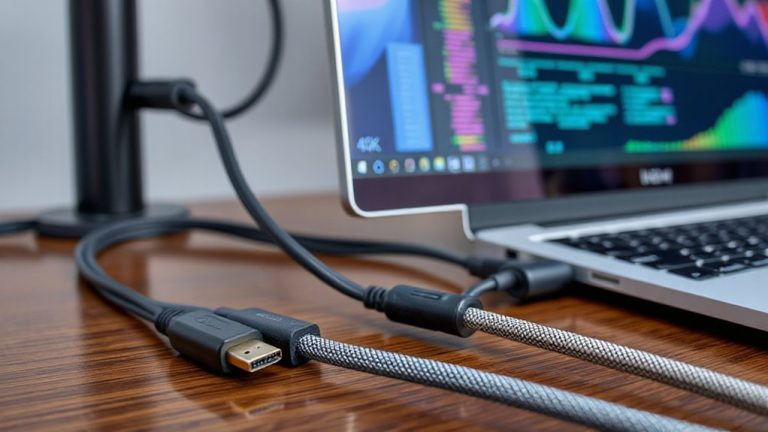
To get the fastest data speeds your USB version promises, you’ve got to match the right cable to your devices-no exceptions. Your cable quality directly impacts transfer performance; a poorly built or outdated cable can bottleneck even the fastest SSD. USB 3.2 and USB4 need certified cables supporting their full bandwidth-look for labeled specs like 20 Gbps or 40 Gbps. Don’t assume all cables with the same connector are equal. Device compatibility matters just as much: plugging a Thunderbolt device into a standard USB-C port may limit speed. Always check both your cable’s ratings and your devices’ supported protocols. Real-world tests show mismatched setups often run at half speed or less. A high-quality cable won’t fix incompatible hardware, and top-tier devices can’t perform without it. Balance investment carefully-overbuying helps no one, but cutting corners kills efficiency. For reliable performance, choose expert-recommended cables that meet strict certification standards.
Fix USB Settings for Faster Transfers
A solid chunk of USB transfer slowdowns stem from overlooked settings-not faulty hardware. You can boost speed by adjusting your system’s USB policies: enable USB selective suspend only if you’re okay with occasional reconnection delays. More importantly, reduce file fragmentation by defragmenting drives regularly-fewer scattered pieces mean smoother, faster transfers. Also, shut down unnecessary background processes like cloud sync tools or updaters, as they eat bandwidth and CPU resources, dragging down performance. Use Task Manager to check disk and USB activity before starting large transfers. While these tweaks help, don’t expect miracles-older USB 2.0 ports max out at 480 Mbps regardless of settings. For consistent gains, pair optimized settings with modern hardware like USB 3.1 Gen 2 or better. Real-world tests show up to 30% improvement in burst transfers, but results depend heavily on drive health and file types.
What’s Slowing Down Your USB Transfers?
You’ve adjusted your USB settings and cleared background tasks, but if transfers still crawl, it’s time to pinpoint what’s actually throttling your speeds. File fragmentation is a silent culprit-when data is scattered across your drive, reading and writing become slower, especially on older mechanical drives. Even with a fast USB 3.2 connection, your transfer rate can drop substantially if the source or destination drive isn’t defragmented regularly. Background applications also hog bandwidth; cloud sync tools, antivirus scans, or downloads run quietly but consume resources that could go to your transfer. Real-world tests show up to 40% speed loss when multiple apps access the disk simultaneously. Defragment mechanical drives monthly, and close non-essential software before large transfers. Note: SSDs don’t need defragmentation-doing so wastes write cycles. Monitor system usage to catch hidden bottlenecks.
Use USB-C and Thunderbolt Strategically
Speed rules with USB-C and Thunderbolt-when used right, they deliver blazing transfer rates, but not every port or cable gives you the full story. You’ll need Thunderbolt 3 or 4 for speeds up to 40Gbps, while standard USB-C tops out at 10–20Gbps depending on the version. Connector versatility is a major win: USB-C fits any orientation and works across phones, laptops, and drives. But don’t assume all cables are equal-look for Thunderbolt certification and reinforced shielding to guarantee cable durability under daily use. Real-world testing shows non-compliant cables fail faster, especially with frequent plugging. Premium cables often come with 5-year warranties and support full power delivery and data throughput. Use Thunderbolt for high-res video or fast SSDs; stick with USB-C for charging or moderate file transfers. The savings aren’t worth the risk if your cable can’t keep up. You can find top-rated options like the Best USB-C Cables available at major retailers to ensure reliable performance.
On a final note
You’ll get faster transfers by aligning your USB version, cable, and device correctly-USB 3.2 or Thunderbolt 4 offers real gains, but only if all components support them. Real-world speeds often fall short of theoretical peaks due to mixed compatibility. Use certified cables and update host controller settings, but don’t overspend-older gear may bottleneck. Test actual transfer rates with your files, not just specs. The payoff? Minutes saved daily, but only with disciplined setup.