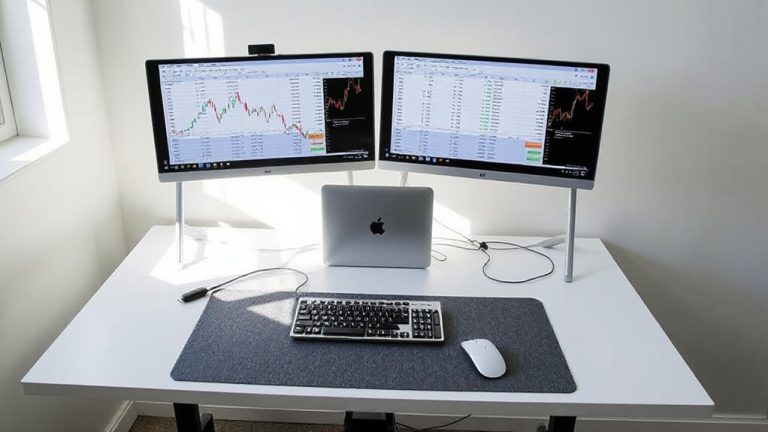
How to Set Up Dual Monitors for a Researcher Managing Databases and Articles
You can set up dual monitors for research with most modern PCs, as long as your GPU has two outputs like HDMI or DisplayPort. Use high-quality HDMI 2.0 or DisplayPort 1.2 cables to avoid flickering, especially for 1080p or higher. Position both screens at eye level, about an arm’s length away, angled slightly inward. Extend your desktop in settings, match resolutions, and keep scaling consistent (like 125%) for smooth window movement. Place databases on one screen, articles on the other. Older systems may struggle with syncing, and mismatched panels can cause visual strain. For best results, guarantee drivers are updated and calibrate colors. You’ll find setup tips that save time and reduce fatigue working across screens.
Notable Insights
- Ensure your GPU supports dual outputs with compatible ports like HDMI or DisplayPort for seamless multi-monitor use.
- Connect both monitors using certified high-speed cables to avoid signal loss during database and article research tasks.
- Position monitors at eye level and an arm’s length away to reduce neck strain during long research sessions.
- Extend your desktop and align displays correctly in OS settings for efficient multitasking between databases and articles.
- Match resolution and scaling settings across monitors to prevent window misalignment and ensure smooth visual workflow.
Check Your Computer’s Dual Monitor Support
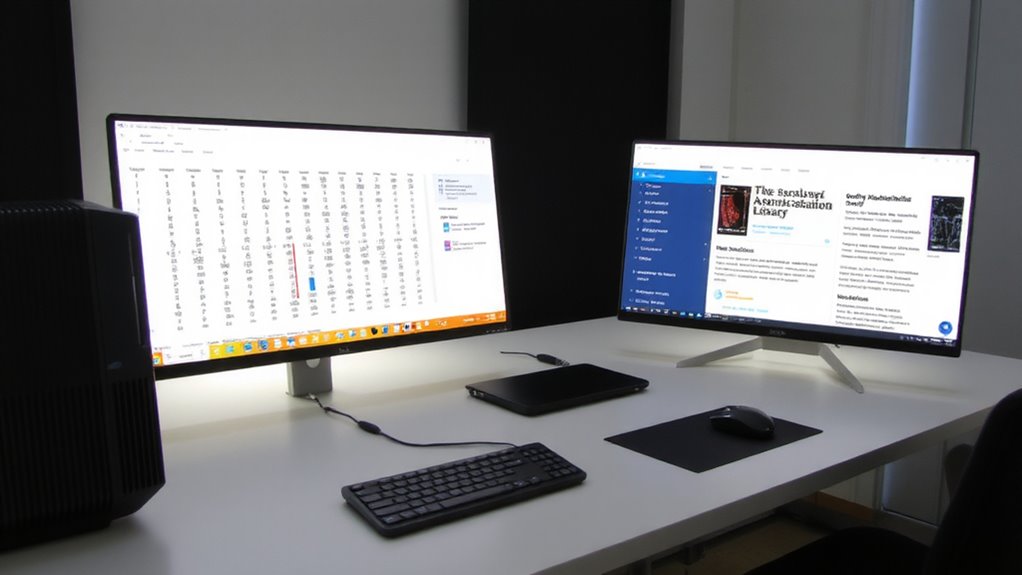
Wondering if your computer can actually handle two monitors? Most modern systems can, but success depends on graphics card compatibility and monitor resolution matching. Your GPU likely supports dual displays if it has at least two video outputs-like HDMI, DisplayPort, or DVI. Check your model’s specs: integrated cards like Intel UHD 630 work fine for basic research tasks, but dedicated GPUs offer more stability. Mismatched monitor resolutions-say, 1080p paired with 1440p-can stretch the GPU and create visual inconsistencies. Stick to matching or similar resolution panels for smoother multitasking. Older computers may struggle with syncing or offer limited refresh rates. Always verify driver support and BIOS settings that enable multi-monitor output. Don’t assume plug-and-play success-test configurations first. While dual monitors boost productivity, performance trade-offs exist, especially with aging hardware.
Pick and Plug the Right Cables for Your Monitors
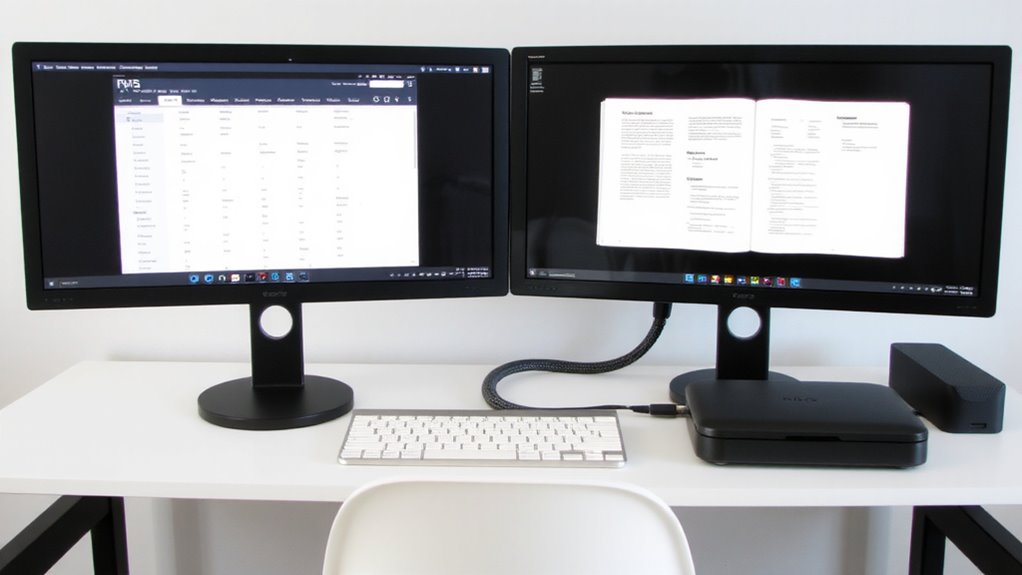
How do you guarantee your monitors work seamlessly with your computer? You start by matching your ports and choosing cables that guarantee solid cable compatibility and strong signal quality. Most modern setups use HDMI or DisplayPort-both deliver full HD or 4K at good refresh rates. If your PC has DisplayPort outputs and your monitors support it, use them; they often handle higher resolutions and refresh rates better than HDMI. Check each monitor’s input ports and compare them to your GPU or laptop. Use cables labeled 4K or certified for at least DisplayPort 1.2 or HDMI 2.0 if you’re working with high-res text or split screens. Avoid cheap cables-they might fit but can drop signal quality, causing flickering or lag. If you must adapt, like DisplayPort to HDMI, verify active conversion. Poor adapters cause delays. Always test both monitors before finalizing. A $15 cable can save hours of troubleshooting. For reliable 4K performance, consider best HDMI cables that are certified for high-bandwidth transmission.
Position Monitors for Comfort and Focus
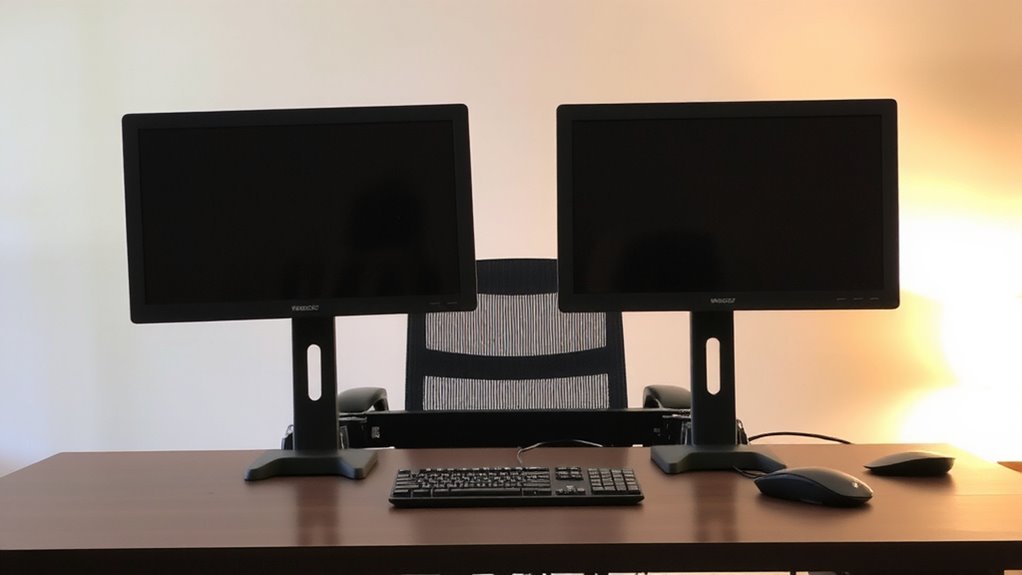
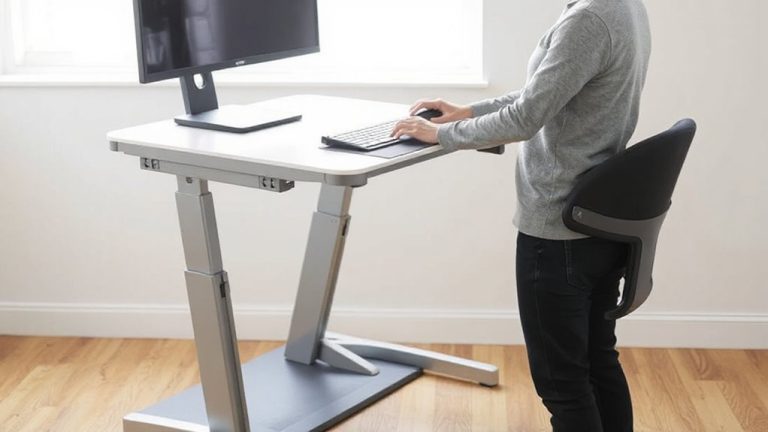
Your workday’s comfort hinges on getting monitor placement right the first time. For effective ergonomic alignment, position the top of both screens at or slightly below eye level so you’re not straining your neck. Sit about an arm’s length away, angling the monitors inward to reduce head turning. If you place them side by side, guarantee visual symmetry by aligning their inner edges to form a gentle curve toward you-this minimizes eye movement and boosts focus. Use monitor arms or risers to fine-tune height and depth. Avoid stacking one too high or placing them unevenly, as that causes long-term strain. While dual setups improve multitasking, poor positioning cancels those gains fast. Test adjustments over a full work session. Comfort isn’t fixed-it shifts with posture and task, so allow room for tweaks. A well-chosen monitor stands can make all the difference in achieving optimal screen alignment and desk ergonomics.
Extend Your Desktop Across Dual Monitors
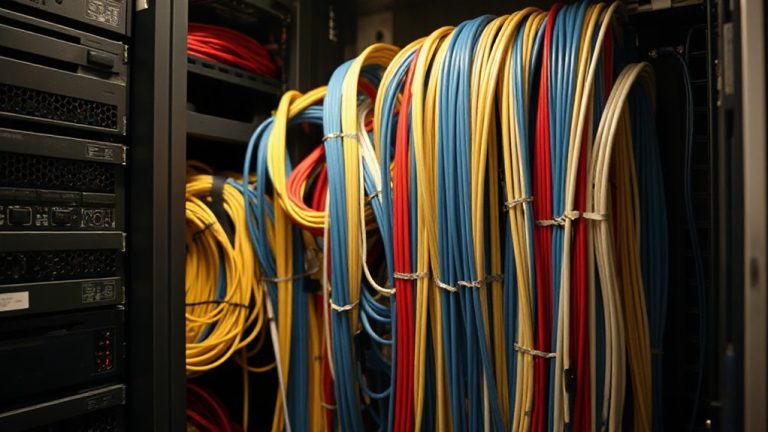
A properly extended desktop across dual monitors gives you more usable screen space, letting you keep research papers open on one display while analyzing data or writing on the other. You’ll need to confirm correct monitor alignment in your OS display settings-misaligned screens make moving windows feel jarring and slow you down. Match screen resolutions and orient both monitors horizontally for smoother visual flow. Proper cable management reduces clutter and tripping hazards; use adhesive clips or braided sleeves to route HDMI, DisplayPort, or USB-C cables neatly. While most modern GPUs support dual outputs, confirm your system has the right ports and drivers. Extending isn’t ideal for all tasks-some apps don’t scale well, and eye tracking may require adjustment. Use built-in OS tools to drag windows efficiently, but expect a short learning curve. For those considering scaling up, the best monitors for a triple monitor setup offer seamless visual integration and productivity gains across expansive workspaces.
Adjust Display Settings for Research Clarity
Once your monitors are correctly extended and physically aligned, fine-tuning display settings improves readability and reduces eye strain during long research sessions. You should adjust brightness and contrast to match ambient lighting-typically 200–250 cd/m² works well for most offices. Enable font scaling to 125% if you’re using high-DPI screens, so text in PDFs and databases remains legible without squinting. Mismatched scaling between monitors can misalign windows, so keep settings consistent. Perform basic color calibration using your OS tool or a budget hardware calibrator like the Datacolor SpyderX, which guarantees both screens show similar whites and hues-critical when comparing figures or reading color-coded data. While built-in OS calibrators aren’t lab-grade, they’re sufficient for document work. Avoid oversaturating colors; accuracy matters more than vibrancy in research. These tweaks aren’t flashy, but they pay off in clarity over hours of reading.
Move Windows Between Screens With Keyboard Shortcuts
While maneuvering through complex research workflows, mastering keyboard shortcuts to move windows between screens can save significant time and streamline multitasking. You’ll boost keyboard efficiency by using shortcuts like Windows + Shift + Left/Right Arrow (Windows) or Control + Command + Left/Right Arrow (macOS), which instantly move active windows between displays. These commands support fast window switching, letting you reposition reference materials or datasets without touching the mouse. Most modern operating systems support these functions out of the box, with no extra software needed. However, some older models or budget monitors may lag slightly during shifts, so test responsiveness before relying on them during timed tasks. While the learning curve is shallow, consistent use delivers smoother control across screens. For researchers managing multiple sources, this technique reduces physical strain and mental fatigue. Just remember: shortcut layouts vary across platforms, so verify settings to avoid misfires.
Set Up One Screen for Databases, One for Articles
Your research workflow gets a real boost when you dedicate one screen to databases and the other to articles-this split keeps your sourcing fast and your reading focused. Place your primary database tools-like PubMed or JSTOR-on your dominant-side monitor and keep PDFs or articles on the other. This setup reduces tab-switching and mental clutter. Use ergonomic lighting to minimize glare on both screens; position lamps so they don’t reflect on your displays. Tidy cable management matters too-use nylon braided wraps or adhesive clips to bundle power and data cords, reducing desk clutter and tripping hazards. Mounting monitors on arms improves alignment and frees desk space, but guarantee your desk supports the weight. Balance screen brightness to avoid eye strain, and take hourly breaks to reset focus. While dual screens increase efficiency, misalignment or poor lighting can undo those gains. Position monitors at eye level and 20–30 inches away for steady comfort.
On a final note
You’ll boost research efficiency markedly with dual monitors, especially when pairing a high-resolution panel for database work and a second for reading articles. Position them side by side at eye level to reduce strain. Use HDMI or DisplayPort cables for stable connections and enable screen extend mode. Apply keyboard shortcuts like Win+Shift+Arrow to move windows quickly. Just guarantee your GPU supports dual output, and mind cable length limits-cheap adapters can cause lag or drop resolution.