Optimizing Dual-Monitor Layout for a Home Office With Shared Device Access
Position both monitors at eye level, 20–30 inches away, angled slightly inward for comfort and minimal glare. Use a KVM switch with HDMI or DisplayPort support and hot-swapping for seamless access between PCs-labeled ports and a three-year warranty help with reliability. Set up fast-switch user profiles with Windows Hello for quick login, but disable auto-sign-in on sensitive accounts. Pair a dual-arm VESA mount for precise alignment and clean cable routing. KVM software works well over Ethernet, though performance dips on weak Wi-Fi. There’s more to get right-small tweaks make a big difference in daily use.
Notable Insights
- Position both monitors at eye level and 20–30 inches from users to ensure ergonomic comfort and reduce strain.
- Angle screens slightly inward to minimize glare and improve focus for multiple users sharing the setup.
- Use a KVM switch to seamlessly share dual monitors, keyboard, and mouse between two PCs with one toggle.
- Align monitors with the desk center and each user’s seating position to enable natural content flow and viewing.
- Enable fast-switch user profiles and biometric login on each PC for quick, secure access during shared use.
Arrange Monitors for Easy Sharing
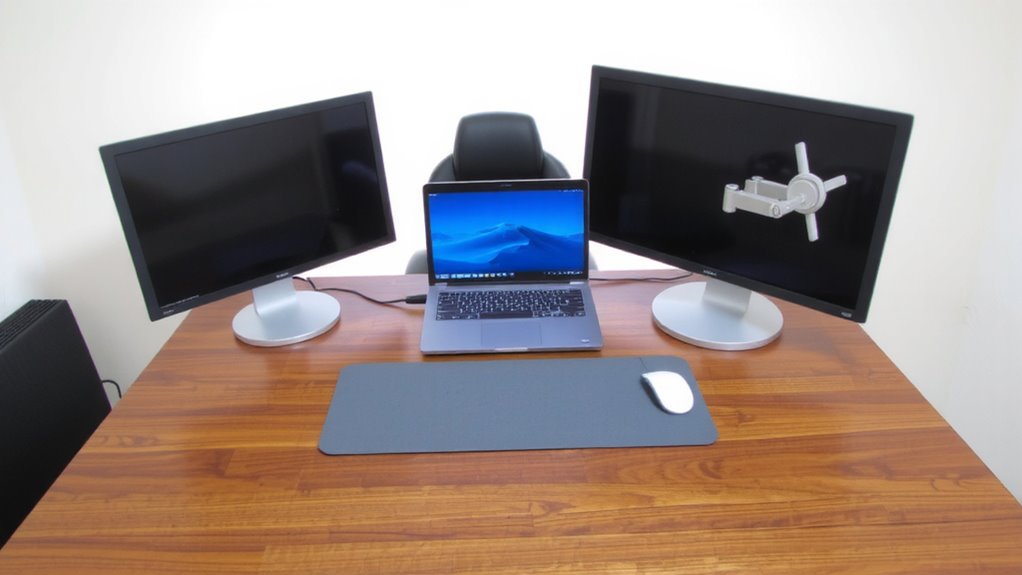
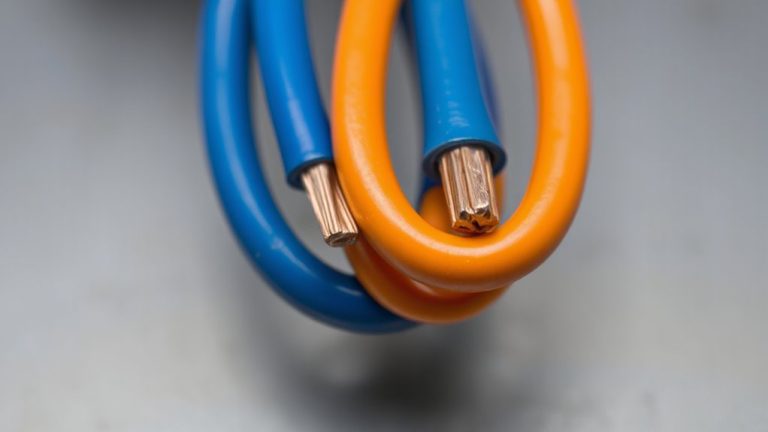
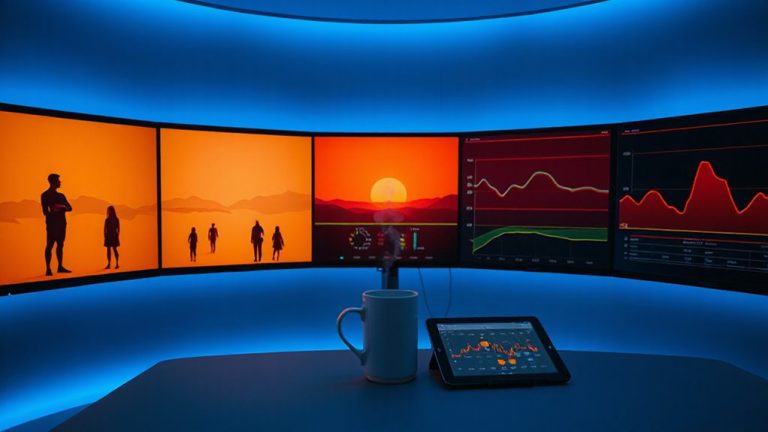
While sharing your screen with colleagues during video calls is easier with dual monitors, setting them up for seamless collaboration requires careful positioning. You should place both screens at eye level and within a 20–30 inch distance, angled slightly inward to reduce glare and improve focus. Proper screen alignment ensures content flows naturally between displays, minimizing eye strain during shifts. Cable management isn’t just about looks-tangled wires can cause signal delays or accidental disconnections. Use adhesive clips or sleeves to secure cords along the desk edge, routing them to a power strip. Avoid over-tightening cable bends to prevent internal damage. Wall mounting or adjustable arms offer clean cable paths and better alignment control. However, cheaper mounts may lack tilt precision, undermining screen alignment benefits. Test adjustments during actual use, since minor misalignments worsen over hours. Solid positioning pays off in longer meetings, but it demands setup time and occasional recalibration. A standing desk converter can enhance adjustability and ergonomics when frequently switching between sitting and standing positions.
Connect Both PCS With a KVM Switch
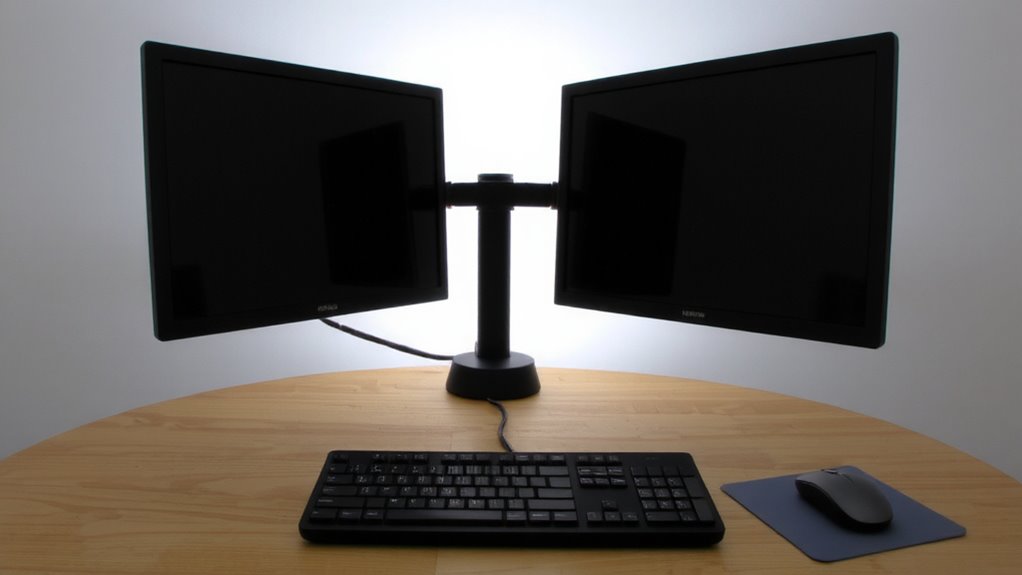
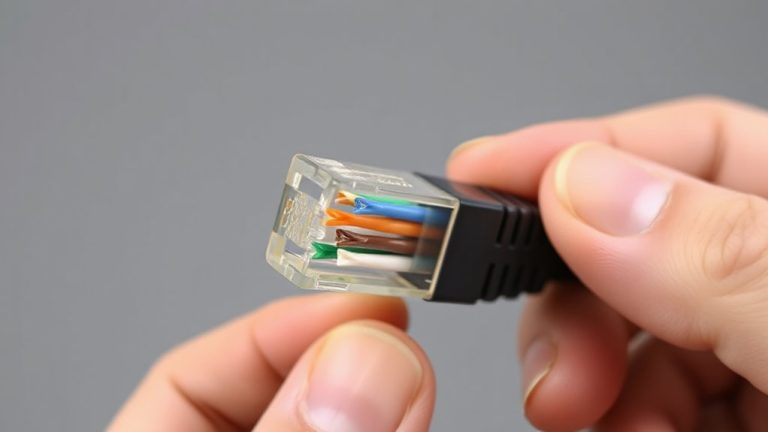
If you’re running two PCs at your desk, a KVM switch is likely the smartest way to save space and streamline control without sacrificing performance. You can share both monitors, a keyboard, and a mouse between systems with just one device. Look for solid KVM compatibility-check that your video inputs (like HDMI or DisplayPort) and USB versions match the switch’s specs. Poor matching here causes lag or no signal. Good cable management matters too; choose a switch with labeled ports and built-in strain relief to reduce clutter and accidental disconnects. Most reliable models support hot-swapping, so you can toggle between PCs instantly. Keep in mind, though, cheaper units may drop USB peripherals or struggle with 4K@60Hz. Brands with three-year warranties and firmware updates tend to offer better long-term stability. Test thoroughly before finalizing your setup.
Set Up Fast-Switch User Profiles
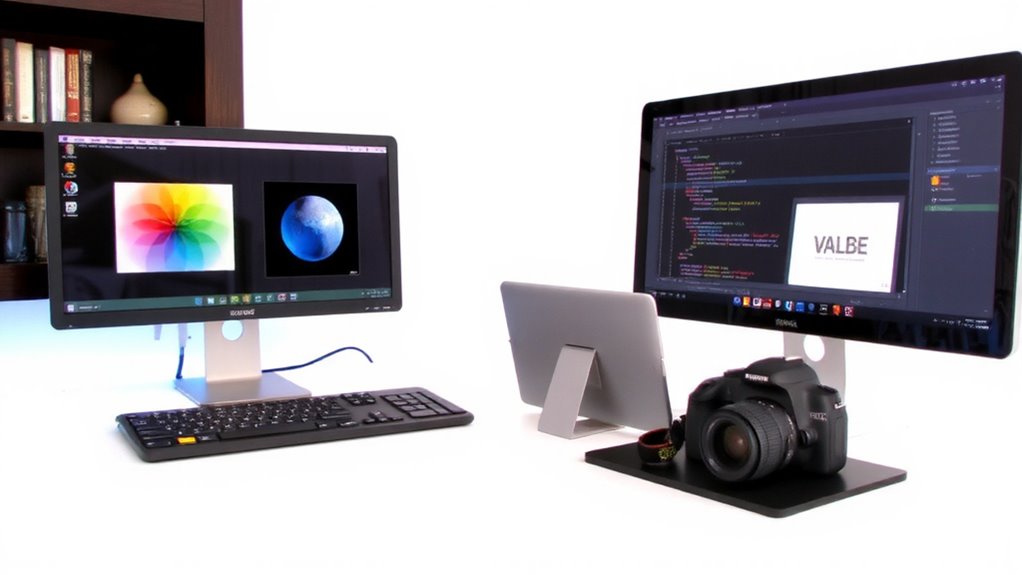
Everyone could benefit from switching between work and personal profiles quickly-especially when both systems are tied to a single desk setup. You can save time and maintain security by setting up fast-switch user profiles on each PC. Use login automation tools like Windows Hello or biometric logins so you’re not typing passwords each time. Assign distinct user permissions to keep work files private and personal apps accessible only to you. This guarantees data stays protected when others use the same hardware. You’ll need to configure each profile with auto-sign-in where appropriate, but disable it on shared or sensitive accounts. While convenient, automated logins can pose risks if devices are left unattended. Balance speed with security by combining quick access on your primary profile with stricter controls on secondary ones. It’s a simple setup that pays off in daily efficiency.
Use KVM Software to Change Inputs Quickly
Switching between work and personal computers doesn’t mean you need to grab multiple keyboards or fumble with monitor input buttons. KVM software lets you toggle between devices seamlessly using a single keyboard and mouse, with input synchronization that aligns your peripherals across machines. This software automation reduces delays and keeps your workflow smooth, especially when sharing monitors. Most tools support hotkey switching-like Ctrl+1 for work, Ctrl+2 for personal-with near-instant response in real-world tests. Reliable apps like Barrier or commercial options such as Synergy maintain stable connections over local Wi-Fi or Ethernet, though performance dips slightly over weak networks. Setup requires matching OS versions and some firewall adjustments. While convenient, software KVMs lack the hardware reliability of physical switches, so they’re best for light-to-medium use. For tight budgets and simplicity, they’re strong-but don’t expect enterprise-grade uptime.
Position Monitors Comfortably for Two People
A dual-monitor setup can work well for two people sharing a workspace, but getting the positioning right is key to comfort and productivity. For ergonomic positioning, place the monitors directly in front of each seating spot, angled slightly inward so both users have clear viewing angles. A VESA-mount dual-arm stand lets you adjust height and tilt precisely, reducing neck strain. Center the gap between screens at the midpoint of the table so neither person leans awkwardly. Keep the top of the monitors at or slightly below eye level-about 20–30 inches from the eyes. Avoid placing them too far to one side, which causes long-term discomfort. While symmetrical layouts improve fairness, they may limit desk space. Test positions with both users present, making small tweaks until both can view without twisting or squinting. Shared comfort takes compromise, but the right setup supports better focus and posture for both people. A high-quality monitor stand can enhance adjustability and save valuable desk space.
On a final note
You’ll get the most from your dual-monitor setup by using a KVM switch-it lets two people share keyboards, mice, and displays without swapping cables. Position the monitors centered or swivel them slightly for both users’ comfort. Fast-switch user profiles help maintain workflow. But know this: not all KVMs handle 4K well, and cheaper models may cause lag. Pick one with solid build quality and tested compatibility.