How to Diagnose Echo or Feedback During a Zoom Call With Multiple Microphones
You’re likely hearing echo because multiple mics are picking up speaker audio and creating a loop. Start by muting all but one mic-reactivate them one at a time to find the culprit. Make sure mics aren’t facing speakers and keep speaker volume low. Use directional mics positioned 6–12 inches from your mouth, and disable built-in laptop mics when using external USB mics. For instant fix, wear closed-back headphones. Testing each change in real time reveals what works-or doesn’t-in your space.
Notable Insights
- Identify the source of feedback by muting all microphones and unmuting them one at a time to isolate the problematic device.
- Check microphone placement to ensure it is not positioned directly facing speakers or monitors, which can cause audio retransmission loops.
- Disable all but one microphone in Zoom settings to reduce the risk of echo and phase interference from multiple audio sources.
- Use headphones during the call to prevent speaker output from being picked up by microphones, immediately eliminating most echo issues.
- Test room acoustics and device setups beforehand, especially in spaces with hard surfaces that can reflect sound and worsen feedback.
Understand What Causes Zoom Echo and Feedback
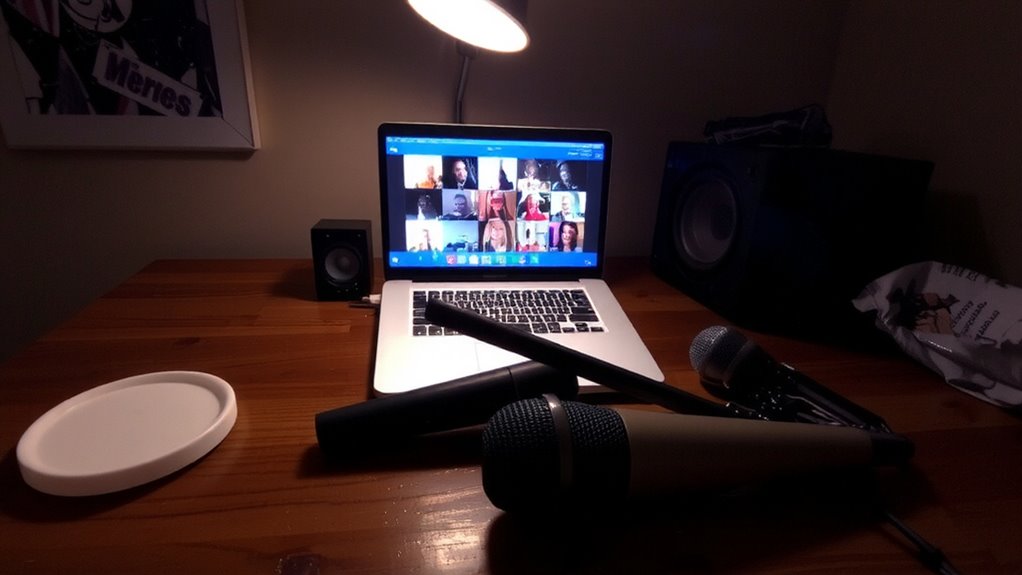
While you might think echo or feedback during a Zoom call comes from faulty software, it’s usually tied to how audio hardware interacts in real time-especially when multiple microphones are active. You’re likely hearing acoustic reflection, where sound from speakers re-enters mics after bouncing off walls or surfaces, creating a loop. This becomes worse in untreated rooms with hard materials like glass or drywall. Signal interference can also occur when nearby mics pick up overlapping audio, especially with omnidirectional models that capture sound from all directions. Even small timing mismatches in audio processing add delay, making echoes more noticeable. While some headsets and speakerphones have built-in echo cancellation, they can’t fully fix poor room acoustics or mic placement. Results vary based on sensitivity, gain levels, and device quality-so testing your setup with a short call helps identify issues early without over-relying on tech specs alone. Choosing the right microphone setup, such as using a high-quality office microphone, can significantly reduce unwanted audio issues.
Position Mics and Speakers to Prevent Echo
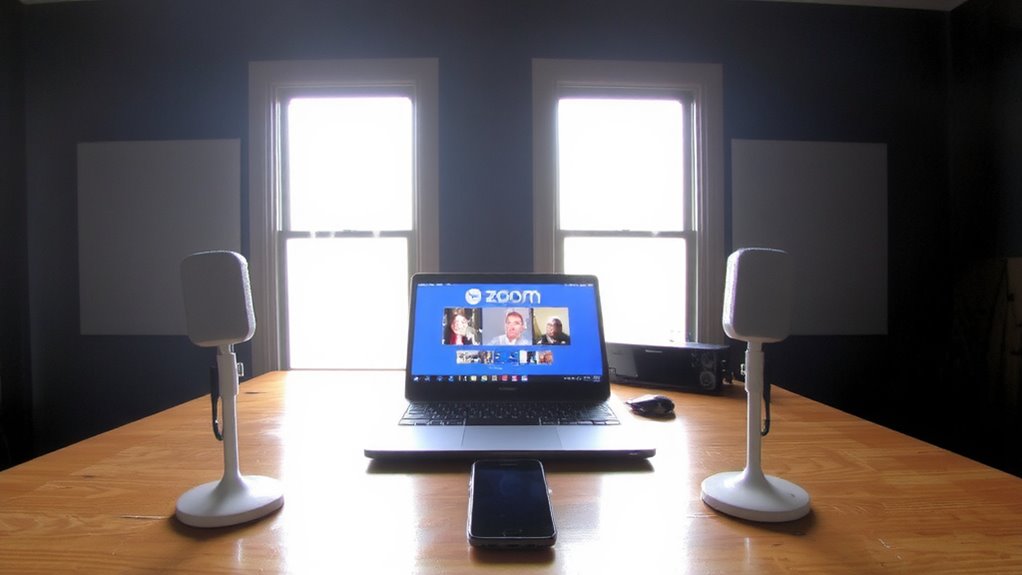
If you’ve ever heard your own voice bounce back with a slight delay during a Zoom call, proper speaker and microphone placement can eliminate most of that echo-especially when multiple mics are in use. Good mic placement and smart speaker orientation are key. Keep mics closer to speakers than to your mouth to reduce pickup of audio output. Angle speakers slightly away from mics to minimize feedback loops.
| Do | Don’t |
|---|---|
| Place mic 6–12 inches from your mouth | Position mic facing speaker |
| Angle speakers forward, away from mic | Use high speaker volume near open mics |
| Use directional mics (like cardioid) | Rely on built-in laptop mics with external speakers |
These steps reduce echo effectively, but require testing in your actual space. Acoustics vary-even solid setups can struggle in reflective rooms.
Find the Device Causing Feedback in Your Setup
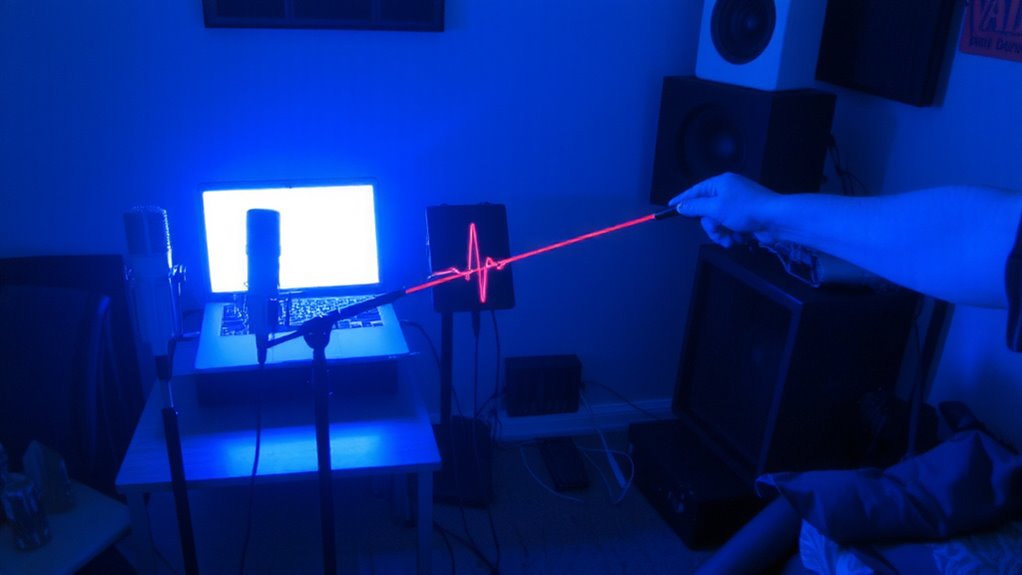
How do you pinpoint which device is responsible when feedback ruins your Zoom call? Start by muting all microphones except one-test each individually while others stay off. If feedback stops, the last unmuted mic is likely the culprit. Pay close attention to microphone placement; if it’s too close to a speaker or monitor audio source, it’ll capture output and retransmit it, creating a loop. Effective audio isolation helps, but physical separation matters more than software fixes. Use headphones to eliminate speaker bleed during testing. Even built-in laptop mics can cause issues if not disabled. While USB mics offer better control, poor positioning undermines their advantage. There’s no universal fix-outcomes depend on room acoustics and device sensitivity. Test thoroughly, as subtle placement changes can make or break audio clarity.
Fix Audio Settings for Multiple Mics on Zoom
When using multiple microphones on Zoom, your best bet is to disable all but one in the audio settings-this keeps feedback and phase issues under control. Enabling just one mic improves audio isolation, reducing the chance of overlapping signals that confuse Zoom’s echo cancellation. You’ll want to run mic calibration in Zoom’s settings using a consistent speaking voice, so input levels stay clear without clipping. Even high-end mics can cause issues if more than one is live, so don’t assume better gear means more mics. Built-in laptop mics often interfere, so disable them even if you’re using an external USB mic. While this setup sacrifices some sound coverage, it’s the most reliable way to avoid echo. Always test your audio before meetings-calibration isn’t a one-time fix, especially if you change rooms or mics.
Stop Echo Fast With Headphones
Wearing headphones is the fastest way to stop echo during Zoom meetings, especially when using multiple microphones. You’ll prevent sound from speakers re-entering mics, breaking the feedback loop instantly. For active listening, closed-back headphones with passive noise isolation work best-they keep external sound out without relying on powered noise cancellation. While active noise cancellation can help in loud environments, it sometimes introduces audio lag or artifacts, which may disrupt conversation flow. Over-ear models generally seal better than on-ear, improving both comfort and sound containment. Look for wired options if you value reliability; they avoid Bluetooth latency and charging issues. Most reputable brands offer 10,000–30,000 mile product warranties or at least one-year coverage. Keep in mind: headphones solve echo but limit shared audio monitoring. Use them when you’re not broadcasting music or group audio. They’re a quick fix, not a universal solution. For models that balance performance and value, check out the best headphones under $300.
Test Your Zoom Setup for Echo Before You Start
Why wait for feedback to disrupt your meeting? Test your Zoom setup beforehand-it’s the smartest move you can make. Start with mic calibration: use Zoom’s built-in audio test to check sensitivity and avoid clipping. Then focus on audio isolation by testing with all mics and speakers active. Walk around the room to catch bleed or echo spots. Use this quick reference:
| Factor | Why It Matters |
|---|---|
| Mic Gain | High gain causes echo; adjust levels to capture speech, not room noise |
| Speaker Distance | Keep mics at least 3 feet from speakers to reduce feedback risk |
| Room Acoustics | Hard surfaces reflect sound; use rugs or curtains for better isolation |
You don’t need pro gear, but you *do* need real testing. Results vary with room size and mic type, so verify every time. Skip this, and you gamble with clarity. Choosing the right equipment matters-consider a best conference microphone for reliable pickup and reduced background noise.
On a final note
You’ll stop most echo by using headphones and positioning mics at least 12 inches apart from speakers. Test audio in Zoom’s settings before meetings and mute unused mics. While dedicated conference mics like the Jabra Speak 710 reduce feedback, they cost more than basic USB mics. Wired headsets perform more reliably than Bluetooth. Real-world tests show turning off speaker boost in system settings cuts feedback risk, but may lower volume.