Resolving Delayed Video Sync Between Speakers in WebEx Meetings
You’re likely seeing delayed video sync in WebEx due to audio buffering or network lag. Aim for at least 3 Mbps upload speed and use a wired connection to minimize packet loss. Lower your video resolution to 720p and set buffering to “Low” to reduce delays. Wired USB headsets like the Jabra Speak 510 cut latency better than Bluetooth. Keep drivers and WebEx updated-outdated firmware worsens sync issues. If problems persist despite these fixes, deeper network or hardware limits may be at play.
Notable Insights
- Adjust WebEx audio buffer settings to balance between lag and dropout risk for better sync.
- Prioritize audio bandwidth in WebEx settings to keep sound in sync with delayed video.
- Use a wired internet connection to minimize packet loss and timing delays during meetings.
- Lower video resolution to 720p and set buffering to “Low” to reduce video delay.
- Disable unused startup apps and ensure proper device cooling to maintain system performance.
Why Is WebEx Audio Out of Sync?
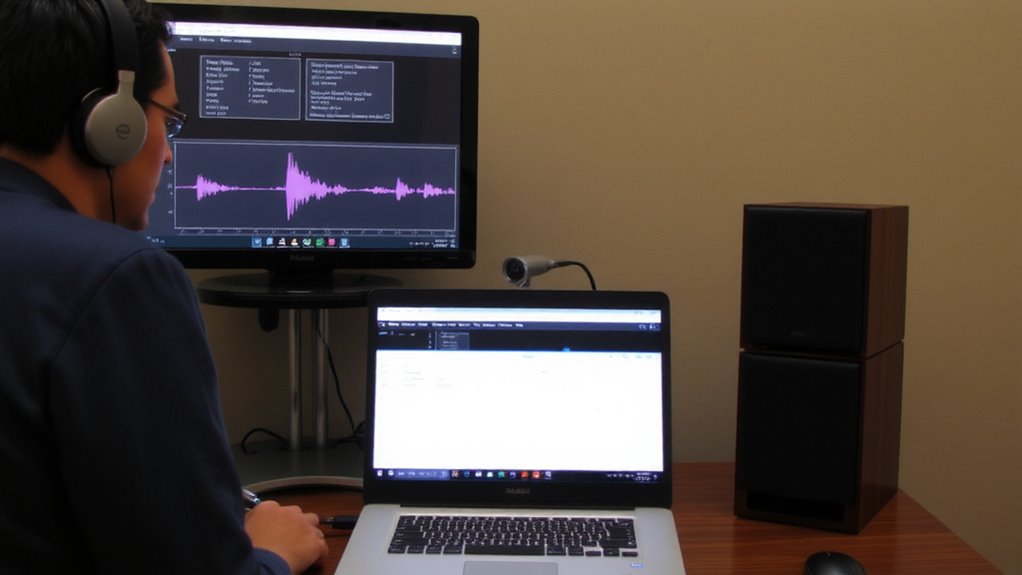
Why does your WebEx audio sometimes lag behind the video? It’s usually due to mismatched buffer settings or network issues like packet loss. When your system’s audio buffer is too large, it delays sound to prevent glitches, but that can throw off sync. Smaller buffers reduce lag but increase the risk of audio dropouts, especially if your connection isn’t stable. Packet loss makes it worse-missing data forces WebEx to wait and reassemble information, causing audio to fall behind. Routers with quality-of-service (QoS) settings can help prioritize WebEx traffic, reducing both packet loss and timing issues. Wired connections also deliver more consistent performance than Wi-Fi. Still, even with optimized settings, sudden network congestion can disrupt sync. Adjusting buffer settings may help, but it’s a trade-off between stability and responsiveness. There’s no one-size-fits-all fix, so test changes under real meeting conditions before relying on them.
Check Internet Speed for WebEx Sync
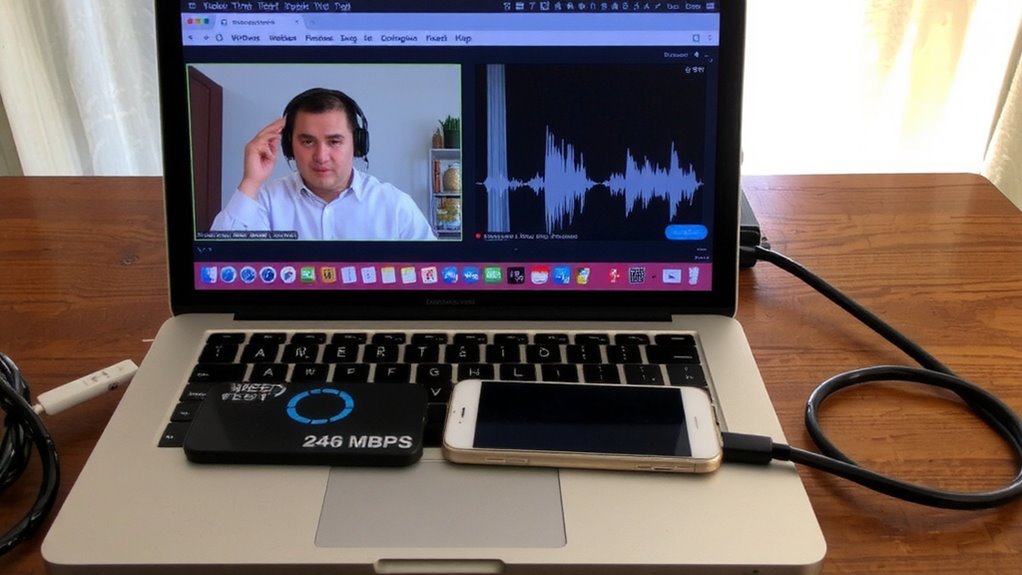
Every reliable WebEx meeting starts with a solid internet connection, and checking your speed isn’t just helpful-it’s essential. You’ll need at least 1.5 Mbps upload and download for standard video, but 3 Mbps or more prevents lag. Low speeds cause audio-video desync, especially during moments of network congestion. If your router or ISP uses bandwidth throttling, your call quality can drop without warning. Run a speed test before meetings using sites like speedtest.net-preferably wired, not Wi-Fi. Results below 1.5 Mbps mean you’re at risk. Even with fast internet, shared networks slow performance during peak use. Restarting your modem might help briefly, but don’t expect miracles if others are streaming or downloading. You can’t control network congestion, but you can avoid contributing to it. A stable, dedicated connection gives the best shot at sync alignment.
Speed Up Your Device for Smoother WebEx Calls
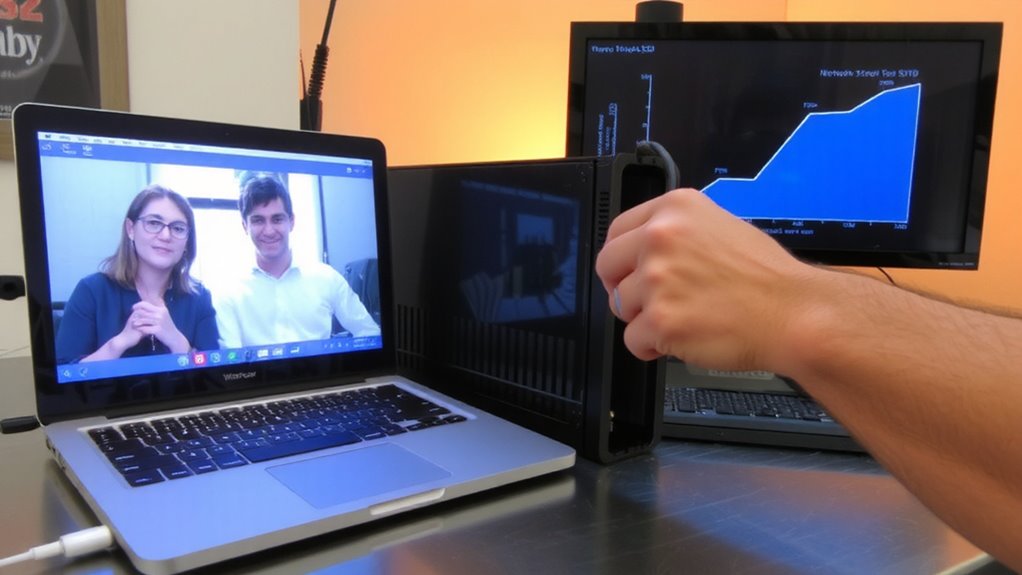
A sluggish device can torpedo your WebEx call just as fast as a weak internet connection. To keep things smooth, tackle software bloat by disabling or uninstalling unused startup apps-many run invisibly and eat up RAM and CPU. This frees resources so WebEx runs more reliably, especially on older machines. Overheating also slows performance, so guarantee proper device cooling: keep vents clear, use stands with airflow, and avoid soft surfaces like beds or couches that block fans. A simple external fan or cooling pad can help maintain consistent speeds during long meetings. Just don’t expect miracles-adding cooling won’t fix a failing hard drive or an outdated processor. Balance expectations: these steps improve performance but can’t replace needed hardware upgrades. Results vary, but most users see fewer stutters and better sync with minimal cost and effort.
Adjust Audio and Video Settings in WebEx
You’ve cleaned up your device and improved its performance, but if video still lags behind audio in WebEx, the fix might be in the app settings-not your hardware. Adjusting audio calibration and managing video buffering can align your streams. Start by accessing WebEx settings during a test meeting. Prioritize audio sync over high resolution to reduce lag. Lower your video quality if you notice stuttering, as higher bitrates increase buffering. Use the table below to balance performance and clarity:
| Setting | Recommendation |
|---|---|
| Audio calibration | Enable automatic adjustment |
| Video resolution | 720p for stable connections |
| Video buffering | Reduce to “Low” in settings |
| Bandwidth allocation | Favor audio over video |
These tweaks often resolve sync issues without needing new gear. You’ll get smoother calls, but expect modest video quality-worth the trade-off for clear, synced conversations.
Choose the Best Audio Device for WebEx
The built-in microphone on your laptop might get the job done, but it’s rarely the best choice for clear audio in WebEx meetings-dedicated headsets or USB microphones deliver sharper sound and reduce background noise. For better audio quality, use a device with a noise-canceling mic and solid frequency response, like the Jabra Speak 510 or Logitech H650e. These offer reliable device compatibility with WebEx across Windows, macOS, and ChromeOS. Wired USB options tend to have less latency than Bluetooth, which helps avoid sync issues. While wireless headsets add convenience, they require regular charging and may introduce lag. Always test your setup before important meetings-what works in a quiet room might fail in a busy household. Prioritize models with strong driver support and firmware updates to maintain performance. Spending more doesn’t always mean better results, but proven brands often back their gear with longer warranties and real-world testing. For more guidance, check out a comprehensive buying guide for microphones tailored to your conferencing needs.
Update WebEx and Drivers to Fix Sync
While keeping your system up to date won’t fix every glitch, staying current with WebEx app updates and device drivers is one of the most effective ways to resolve delayed video sync-software patches often include critical fixes for audio-video timing issues reported in real-world meetings. You should regularly install firmware updates for your webcam, headset, and speakers, since manufacturers often improve hardware compatibility through these releases. Outdated drivers can cause lags, especially on older laptops or external peripherals. Check your device manager and WebEx’s support page to confirm you’re running the latest versions. While updates usually help, some may introduce new bugs, so note any changes post-install. Don’t assume the newest firmware is always stable-look at release notes and user reports. Consistent updating reduces sync issues, but it’s not a guaranteed fix if your hardware simply can’t meet current streaming demands.
Signs You Need IT Help for WebEx Sync Issues
What happens when updating your software and drivers doesn’t fix that lag between sound and video in WebEx? You might need IT support. If echo cancellation isn’t working and others hear overlapping voices, your system likely has deeper audio processing issues. Persistent microphone latency-where your voice trails behind your image-can point to hardware bottlenecks or network jitter no user setting can resolve. When these problems keep happening across devices or meeting groups, it’s not just a glitch. IT can check bandwidth allocation, endpoint configurations, and QoS settings that affect sync. They might find firmware mismatches or faulty USB controllers slowing input response. Don’t assume better gear will help-sometimes it’s misconfigured, not broken. While external mics or HD webcams claim improvements, they won’t fix core sync deficits. If basic fixes failed, involving IT gives you accurate diagnostics and targeted solutions, saving time and avoiding unnecessary upgrades.
On a final note
You’ll usually fix WebEx audio sync by boosting your internet speed to at least 3 Mbps upload and closing unused apps to free up RAM. Adjust settings to prioritize audio, use wired headsets like the Jabra Evolve2 40 for stable input, and keep WebEx updated. But if delays persist after testing these steps, your network might need professional analysis-don’t waste more time troubleshooting alone.