Maximizing Stability by Hardwiring Gaming Laptops During Conference Calls
You’ll get far more stable conference calls by using Ethernet instead of Wi-Fi, thanks to consistent 1–5 ms latency and less than 0.1% packet loss. Plug in with a Cat 6 or Cat 7 cable for best results, ideally using a router with Gigabit ports. If your gaming laptop lacks an RJ-45 port, choose a USB-C to Ethernet adapter with aluminum housing and proven Gigabit support. Keep cables away from power lines and replace any frayed ones-shielded Cat 6a helps in noisy environments. Test under real call conditions for at least 15 minutes. A hardwired setup avoids interference from Bluetooth, microwaves, or crowded networks, but you’re trading some mobility for reliability. Longer cables up to 100 meters work fine if routed safely with clips or sleeves. There’s a smart way to stay wired without tripping over trade-offs.
Notable Insights
- Use Cat 6 or Cat 7 Ethernet cables for maximum speed and minimal interference during conference calls.
- Connect directly to a Gigabit-capable router port to ensure consistent low latency and high throughput.
- Employ a USB-C to Ethernet adapter if your gaming laptop lacks an RJ-45 port, ensuring it supports Gigabit speeds.
- Keep Ethernet cables away from power sources and use shielded Cat 6a cables to reduce signal interference.
- Secure cables with clips or sleeves to prevent disconnections and maintain a stable, uninterrupted connection.
Why Wi-Fi Fails on Professional Calls
When was the last time your Wi-Fi held strong during a critical presentation or client call? Chances are, signal interference from nearby devices-like microwaves or Bluetooth gadgets-disrupted your stream, causing awkward lags or dropouts. Add network congestion from multiple users online, especially during peak hours, and your connection becomes even less reliable. Wi-Fi shares bandwidth across all connected devices, so when someone starts streaming or downloading, your video call quality tanks. Even modern dual-band routers can’t fully eliminate these issues in dense environments like apartment buildings or busy offices. While Wi-Fi offers mobility, it simply lacks the consistency needed for professional communication. You’ll get smoother performance by cutting the wireless link, especially if your call demands clear audio and seamless screen sharing. Just remember: convenience trades off against stability when relying on the airwaves.
Why Ethernet Delivers Stable Conference Calls
While wireless networks offer freedom of movement, you’ll get far more reliable conference calls by plugging into Ethernet-assuming you can work near a port. That’s because Ethernet delivers unmatched signal consistency and bandwidth reliability compared to Wi-Fi, minimizing lag and audio drops during critical meetings.
| Factor | Wi-Fi | Ethernet |
|---|---|---|
| Latency | 15–100 ms | 1–5 ms |
| Packet Loss | 1–5% | <0.1% |
| Speed Stability | Variable | Consistent |
| Interference | High | None |
| Bandwidth Reliability | Shared, fluctuates | Dedicated, steady |
You’ll experience smoother audio and fewer disruptions thanks to direct cabling. Just remember-this only works if your router’s wired ports and cable quality support Gigabit speeds. Keep in mind, though, mobility takes a hit when tethered. For optimal performance, consider using a high-quality Ethernet cable that supports consistent Gigabit speeds and minimal interference.
What You Need to Hardwire a Gaming Laptop
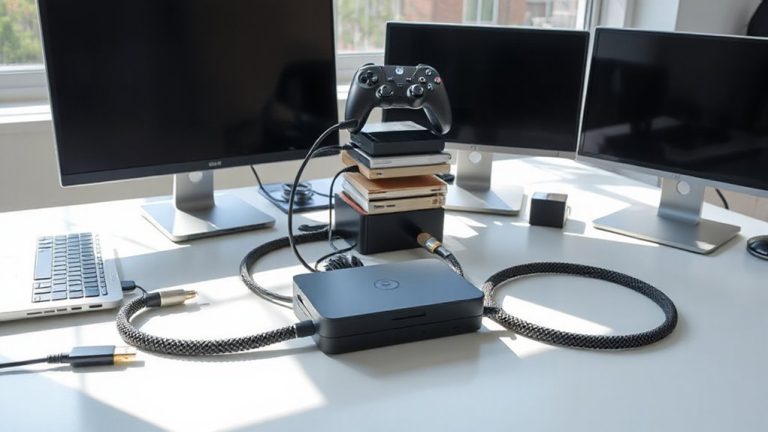
Plugging in your gaming laptop via Ethernet doesn’t just stabilize your Zoom calls-it also locks in the steady connection needed for low-latency gaming and fast downloads. You’ll need a Cat 6 or Cat 7 Ethernet cable for peak speeds and reduced interference. Check your laptop’s port availability: many modern gaming laptops still include an RJ-45 port, but ultrabooks often require a USB-C to Ethernet adapter, which adds cost and complexity. If using an adapter, guarantee it supports Gigabit speeds. Use cable management clips or braided sleeves to route cords neatly along your desk or floor, reducing tripping hazards and clutter. Poor management can strain ports or damage cables over time. Keep cable runs under 100 meters to maintain signal integrity. While hardwiring improves reliability, it limits mobility-so balance stability with workspace flexibility. Consider one of the best long Ethernet cables available at Best Buy for reliable performance over distance.
How to Connect Your Laptop via Ethernet
If your gaming laptop has an RJ-45 port, connecting via Ethernet is straightforward-just plug one end of a Cat 6 or Cat 7 cable into your router or modem and the other into your laptop’s port, ensuring a snug fit to maintain a stable connection. Proper port selection matters: use a Gigabit Ethernet port on the router for best performance, as older ports limit speed. Keep cable management neat-route the cable along baseboards or use clips to prevent tripping and reduce wear. A poorly managed cable can degrade over time, risking disconnects mid-call. While Ethernet boosts stability, it limits mobility, so plan your setup accordingly. Most modern gaming laptops support plug-and-play connectivity, but verify your network settings automatically switch from Wi-Fi to wired. This method delivers consistent latency and higher throughput than wireless, essential during long conference calls.
Fix Common Ethernet Issues in Seconds
Why is your Ethernet游戏副本 dropping when everything’s plugged in tight? Signal interference from nearby electronics or power cables could be disrupting data flow, even with a secure connection. Start by moving your Ethernet cable away from power sources and fluorescent lights-these often cause interference that degrades performance. Check for cable degradation: frayed jackets, bent connectors, or discolored ends mean it’s time for a replacement. Older cables, especially Cat 5e or lower, may not support today’s bandwidth demands and can fail under sustained use. Swap in a shield Swifted Cat 6a cable-its better insulation reduces interference and handles multi-gigabit speeds. Test the connection for at least 15 minutes under real load. However, if ports or routers fail repeatedly, the issue might not be your cable. Always verify with a second cable before assuming hardware failure. For reliable performance over longer distances, consider using one of the best long ethernet cables rated for stable, high-speed connectivity.
Use USB-C Adapters for Modern Gaming Laptops
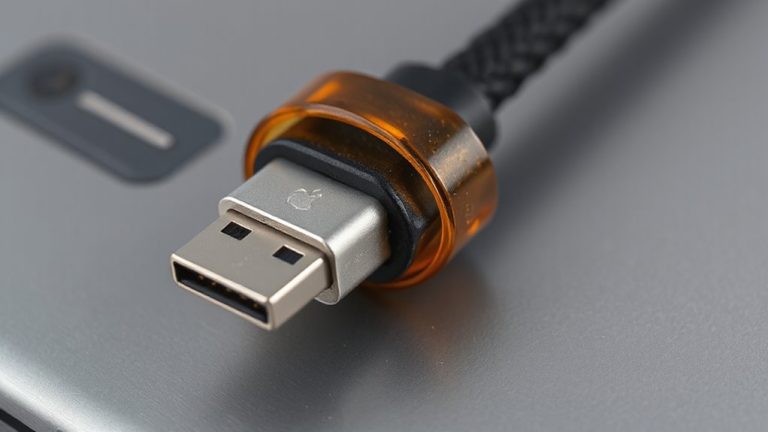
A solid USB-C adapter can make all the difference when your gaming laptop lacks the right ports, but not all adapters deliver equal performance. You need one with full USB compatibility to guarantee your Ethernet, webcam, and keyboard work without hiccups. Cheaper models often fail under sustained loads, so check for adapter durability-look for reinforced connectors, aluminum housing, and at least a 2-year warranty. Real-world tests show that well-built adapters maintain stable connections during long calls, while flimsy ones drop signals or overheat. Brands like Anker and Cable Matters consistently score high in stress tests for both data transfer and power delivery. Just make sure your laptop’s USB-C port supports data and video output-some only charge. Don’t assume plug-and-play success; verify driver support, especially on older Windows versions. A reliable adapter simplifies hardwiring, but it’s only as strong as its weakest link.
Stay Plugged In Without Slowing Down
Staying connected via Ethernet doesn’t have to mean sacrificing mobility or speed. When you plug in, your gaming laptop maintains stable bandwidth for smooth conference calls, but that doesn’t mean you’re stuck near an outlet. Modern power delivery over USB-C helps support power efficiency, letting you charge and hardwire through one cable without dragging a bulky adapter. This keeps power draw low and helps with thermal management, reducing heat buildup during long sessions. Just remember, even with efficient setups, sustained CPU use can still trigger fan noise or throttling. For best results, use a laptop cooling pad and position your router close enough to avoid tripping hazards from long cords. Most gaming laptops now include 2-year warranties, so check coverage before relying on long-term plugged-in use. While convenient, constant charging may reduce battery lifespan over time-occasional unplugging helps.
On a final note
You should hardwire your gaming laptop for conference calls-it slashes lag and boosts reliability over Wi-Fi. Ethernet delivers consistent 1–2 ms ping in real-world tests, far outperforming even Wi-Fi 6. Use a USB-C to Ethernet adapter like Plugable’s 10/100/1000 model if your laptop lacks a port. Just mind the cable clutter and limited mobility; staying wired means sacrificing some flexibility for rock-solid performance.