How to Monitor Data Caps on Your Home Office Internet Plan Using Router Logs
You can track your home office data cap right from your router’s admin page-most models log daily and monthly usage under “Traffic” or “Statistics.” Check built-in reports to spot heavy devices, but verify accuracy against your ISP’s totals since reboots or outdated firmware may reset or skew logs. Set alerts on compatible routers like ASUS or Netgear for threshold warnings. For reliable forecasting, review trends over 48+ hours. Adjusting call settings could save up to 40%-and small changes add up faster than you think.
Notable Insights
- Access your router’s admin page to view built-in data usage reports under Traffic or Statistics tabs.
- Check daily and monthly bandwidth totals to track progress toward your home office data cap.
- Verify router log accuracy by comparing with ISP-provided usage data to detect discrepancies.
- Enable usage alerts on supported routers to get notified when approaching preset data thresholds.
- Analyze trends in data logs to identify high-usage devices or activities and adjust usage habits accordingly.
Check Your Router’s Admin Page for Data Logs
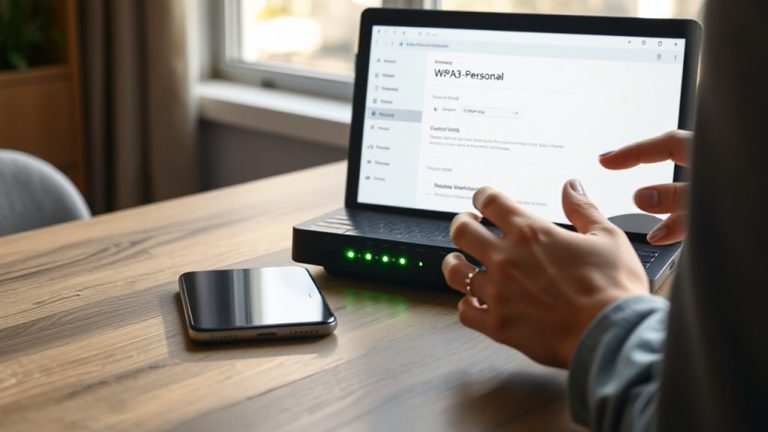
Your router’s admin page is your first and most reliable tool for tracking data usage if you’re hitting monthly caps. Most modern routers log daily or monthly bandwidth totals, letting you spot spikes tied to Wi Fi congestion or unexpected device activity. If you work from home, knowing who’s streaming or downloading helps prevent slowdowns. Many admin interfaces also show connected devices, so you can identify what’s taxing your network. Some routers even allow you to set alerts or enable device throttling when usage climbs. But don’t assume the data is perfect-firmware bugs or lagging updates can skew reports. Performance varies widely between models; budget routers often lack granular logs. Always cross-check with your ISP’s data meter. While useful, router logs work best as one piece of a broader monitoring strategy.
Find Data Usage Reports in Your Router Settings
A solid way to track household data use starts with the built-in reporting tools in your router’s settings. You’ll find data tracking features under tabs like “Traffic,” “Statistics,” or “Usage”-these show daily, weekly, or monthly totals for upload and download. Most modern routers support bandwidth logging, letting you see which devices consume the most data. This is especially helpful if you run a home office and need to separate work traffic from household use. Access the admin page, navigate to the reports section, and review the logs over time. Keep in mind, not all routers store long-term data or update metrics in real time. Some reset stats after reboots, so frequent checks are wise. While useful, these reports vary by model and firmware, so verify accuracy with your ISP if near a cap.
Troubleshoot Missing or Inaccurate Usage Data
If router logs aren’t showing expected data usage or seem off by hundreds of megabytes, start by verifying the firmware is up to date-older versions often have bugs that skew reporting or disable logging after a reboot. Firmware bugs and device malfunctions can both cause gaps or inaccuracies. Reset the router and check if logs reappear; if not, access the admin panel to confirm logging is enabled under traffic statistics. Some routers only track data since the last reboot, so unexpected resets erase history.
| Issue | Likely Cause |
|---|---|
| Missing logs | Logging disabled or firmware bug |
| Inaccurate totals | Device malfunctions or outdated firmware |
Don’t assume your router’s reporting is flawless-test it over 48 hours using a consistent device. Results vary by model, especially on budget units.
Understand Daily and Monthly Data Trends
Why do your data spikes happen Tuesday nights or vanish by the 25th each month? Tracking daily and monthly data trends helps you spot consistent data patterns, so you’re not caught off guard. By reviewing your router logs weekly, you’ll see when uploads, downloads, or streaming eat up bandwidth-like video calls spiking usage each morning. These insights support accurate usage forecasting, letting you adjust habits before hitting your cap. Most routers store 7–30 days of logs, enough to compare weeks and identify outliers. You’ll notice trends, like backups running every Sunday or large file transfers mid-month. While this won’t prevent overages alone, it gives you control. Just keep in mind: logs only reflect what your router records. If devices connect through Wi-Fi extenders or secondary routers, data there might not show up. Manual checks are necessary until network-wide monitoring improves.
Enable Built-in Router Alerts for Overages
How often do you exceed your ISP’s data cap before realizing it? Enabling built-in router alerts for overages helps you stay in control by delivering timely usage warnings. Most modern routers let you set custom data thresholds, so you’ll get notified when daily or monthly limits are near. This feature is available on many mid-range and premium models like the ASUS RT-AX86U or Netgear Nighthawk AX12. You’ll typically access it through the admin panel under bandwidth monitoring or traffic control. While alerts are useful, they depend on accurate ISP data-some providers don’t report real-time usage, causing delays. Also, not all routers support granular notifications. For best results, pair router alerts with monthly ISP reports. It’s a smart layer of oversight, but don’t rely on it alone. Test the alert system once set up to confirm it triggers as expected.
Slash Bandwidth Use on Calls and Uploads
Cutting back on bandwidth during calls and uploads doesn’t mean sacrificing quality-you just need smarter settings. Lowering video quality slightly, like switching from 1080p to 720p in Zoom or Teams, reduces data use by up to 40% with minimal visual loss. Most apps support call compression, which shrinks audio data without noticeable distortion-especially useful if you’re on a tight data cap. You’ll save even more if you disable HD video by default or limit screen sharing resolution. Just remember, aggressive compression can make voices sound muffled on low-end headsets, so test settings with your actual gear. These tweaks work best when combined with wired connections, which maintain stability versus spottier Wi-Fi. Real-world tests show these changes can cut call data from 1.5 GB/hour to under 900 MB, giving you more breathing room before hitting your cap.
Monitor Home Office Data Like a Pro
You’ve already trimmed the fat from video calls and uploads by adjusting quality and compression, but that’s only half the battle when managing a capped connection. To monitor home office data like a pro, you need clarity on your actual usage-and router logs deliver that. Check logs weekly to spot data patterns, like spikes during cloud backups or software updates. Use this insight for accurate usage forecasting so you’re never blindsided by overage fees. Most modern routers (like the TP-Link Archer AX73 or ASUS RT-AX86U) let you export daily logs with exact upload/download totals.
| Day | Data Used (GB) |
|---|---|
| Monday | 18.2 |
| Tuesday | 21.5 |
| Wednesday | 33.1 |
| Thursday | 25.4 |
| Friday | 19.8 |
Trend analysis helps adjust habits early. Just remember: logs only track volume, not content-so pair this with device-level checks for best results.
On a final note
You can reliably track data caps using your router’s built-in usage logs, especially if you check monthly reports and enable overage alerts. Most modern routers show accurate daily trends, helping you spot spikes from video calls or backups. Just remember: router data isn’t always 100% precise-your ISP’s numbers still override what you see. Pair regular checks with bandwidth-saving settings to stay safe without sacrificing performance.