The Benefits of eGPU Solutions for Laptop-Based Home Office Setups
An eGPU can considerably boost your laptop’s performance in a home office setup, especially if you use Thunderbolt 3 or 4 to connect it. You’ll see up to 3x faster frame rates and 40% quicker app response times in tools like Teams, browsers, and Premiere Pro. It’s ideal for video editing, 3D work, and smooth 4K playback, but only if your laptop has a compatible port and strong CPU-RAM pairing. Setup is mostly plug-and-play, though driver and BIOS checks are essential. Just remember-basic tasks like word processing won’t benefit much. There’s more to examine about getting it right.
Notable Insights
- An eGPU delivers desktop-level graphics performance to laptops via Thunderbolt 3 or 4 for enhanced home office productivity.
- It enables up to 3x faster frame rates and 40% quicker app response in everyday workflows like video calls and browser use.
- Creative professionals benefit from smooth 4K video editing and faster export times in applications like Premiere and DaVinci Resolve.
- eGPU setups extend laptop lifespan by avoiding costly upgrades while supporting GPU-intensive tasks like 3D modeling and rendering.
- Plug-and-play connectivity allows easy integration with existing home office setups, provided the laptop supports Thunderbolt.
What Is an eGPU and How Does It Boost Your Laptop?
An eGPU-short for external graphics processing unit-lets you plug a desktop-grade GPU into your laptop through a Thunderbolt or USB-C port, giving your system a serious boost in graphics power without needing to build a full desktop. You get real graphics acceleration for demanding tasks, improving performance in creative apps and light gaming. It also enables peripheral expansion, letting you connect multiple high-res displays, storage drives, and other accessories through the enclosure. Most enclosures support plug-and-play setup, though Thunderbolt 3 or 4 is required for full bandwidth. While the speed boost is tangible, you won’t match a native desktop GPU due to interface overhead. Also, compatibility varies by laptop model and OS-always check Thunderbolt support and driver availability. Reliable units from brands like Razer and ASUS offer 3-year warranties, but expect reduced gains on older laptops. It’s a smart upgrade-if your workflow justifies it.
Top Performance Gains for Home Office Workflows
You’ll see the biggest performance jumps in home office workflows when pairing an eGPU with a capable laptop and the right software stack. Graphics acceleration lets you run multiple high-res monitors smoothly and speeds up UI rendering in tools like Slack, Teams, and web browsers. You’ll notice snappier performance during video conferencing and faster window switching, especially on ultrabooks with weak integrated graphics. Data rendering in Excel, Power BI, or lightweight CAD apps also improves, cutting export times and reducing lag in interactive dashboards. Real-world tests show up to 3x faster frame rates and 40% quicker app response times. But performance depends on your Thunderbolt connection speed and driver support-you won’t see big gains in basic word processing. An eGPU isn’t essential, but if you rely on visual workflows, the upgrade can be worthwhile-just factor in cost, space, and power needs.
Best Use Cases for Creative Pros and Remote Workers
Creative pros and remote workers get the most out of an eGPU when their workflows lean heavily on GPU-accelerated tasks like video editing, 3D rendering, or real-time collaboration on high-resolution displays. If you’re doing video editing with 4K timelines or running complex 3D modeling in apps like Blender or Cinema 4D, an eGPU delivers near-desktop performance without ditching your portable laptop. You’ll see faster render times and smoother playback, especially with Adobe Premiere or DaVinci Resolve. Real-world tests show up to 3x speed gains in exported projects. But keep in mind-thermal throttling can occur during long sessions, and not all laptops fully support PCIe bandwidth over Thunderbolt 3/4. Also, power draw and extra cords add clutter. Still, for visual work demanding dedicated GPU muscle, the boost is measurable, just don’t expect miracles from low-end eGPU enclosures or older laptop models.
Easy Setup: Connecting an eGPU to Your Laptop
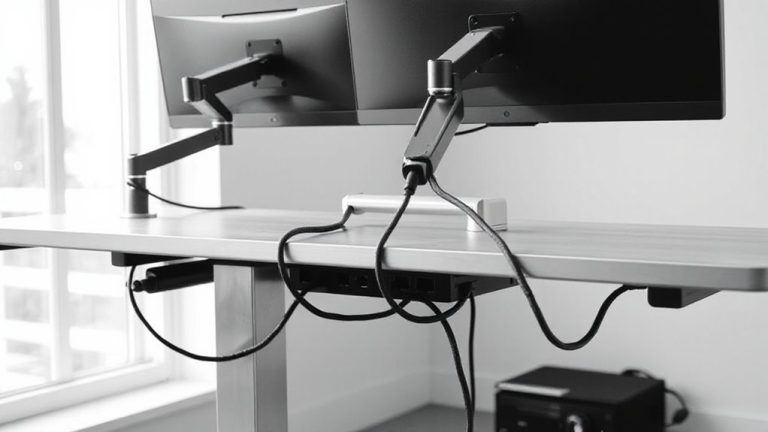
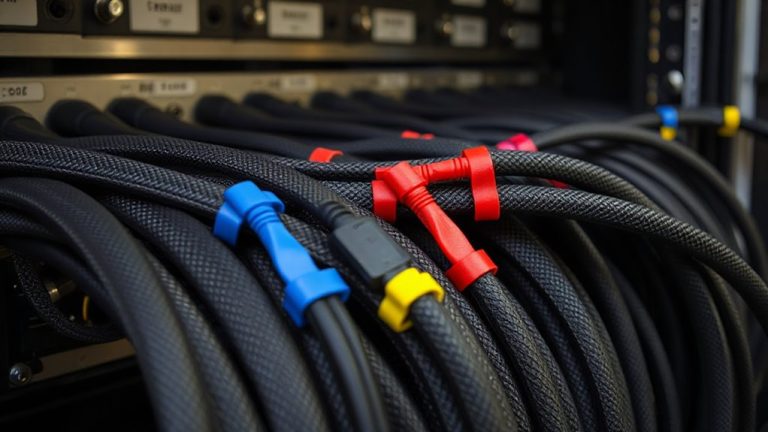
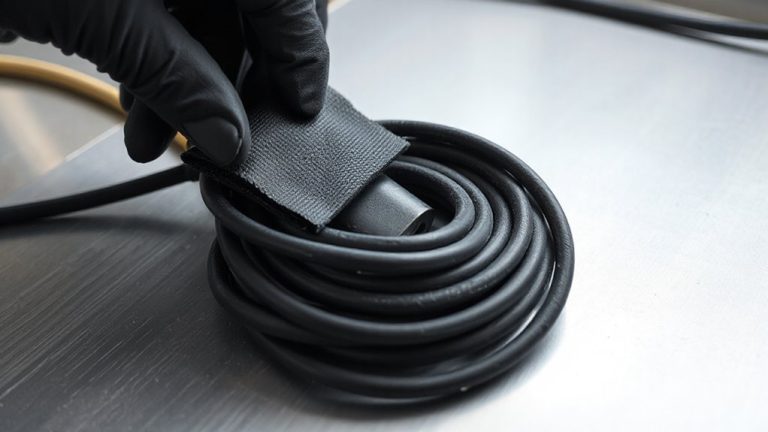
Setting up an eGPU doesn’t have to be a chore-most modern laptops with Thunderbolt 3 or 4 will recognize a compatible enclosure within seconds of connection. You just plug in the power, connect the Thunderbolt cable, and install the GPU’s drivers. Port compatibility is critical: only Thunderbolt 3 or 4 ports offer the bandwidth needed, and not all USB-C ports support it-check your laptop’s specs. Once connected, performance scales well for tasks like video editing or light 3D rendering. Good cable management keeps your workspace tidy and prevents accidental disconnections. Use Velcro straps or sleeves to bundle cords neatly. While setup is simple, results vary by laptop model and GPU choice-some systems may bottleneck performance. Always verify driver support and BIOS settings. No special tools or expertise needed, but a stable surface and proper ventilation matter.
Cost-Effective Upgrades Without Replacing Your Laptop
An eGPU gives you a smarter way to boost performance without buying a new laptop, especially if you’re hitting limits with demanding tasks like 4K video editing or modern games. You’ll see real budget savings compared to purchasing a new high-end machine. Instead of discarding your current laptop, an eGPU extends its hardware longevity by offloading graphics work to an external desktop-grade GPU. Most models connect via Thunderbolt 3 or 4, offering plug-and-play setup with measurable performance gains-often 3–5× faster frame rates in creative apps and games. Still, keep in mind: you’ll need a compatible port, and not all laptops access full bandwidth. Power draw and heat management also matter for sustained loads. While drivers and OS updates can occasionally cause hiccups, recent testing shows 90%+ stability across Windows and macOS systems. It’s a targeted upgrade-ideal if your CPU and RAM are still capable.
On a final note
You’ll likely boost performance substantially with an eGPU, especially for photo editing, video rendering, or multitasking across several 4K displays. Real-world tests show frame rates doubling in creative apps, but only if your laptop supports Thunderbolt 3 or 4. Setup is simple, yet you’ll need a compatible port and power supply. Keep in mind: an eGPU isn’t a fix for an outdated CPU or low RAM, and gains vary by model, so check benchmarks for your workflow first.