Upgrading From 2.4ghz to Tri-Band Wi-Fi Systems for Low-Jitter Video Editing Workflows
You should upgrade to a tri-band Wi-Fi system for smoother video editing-it cuts lag by splitting 4K transfers and real-time previews across two 5GHz bands, avoiding 2.4GHz congestion. Models like the Netgear Nighthawk RAXE300 deliver stable 860 Mbps speeds at 30 feet, even with 10 devices. Just make sure your gear supports Wi-Fi 6 or 6E, and manually pick clean channels to minimize interference. Performance drops with distance or walls, so consider wired backups. There’s more to optimizing your workflow once you understand the setup trade-offs.
Notable Insights
- Upgrading to tri-band Wi-Fi reduces lag by using dual 5GHz bands to separate file transfers and real-time editing traffic.
- 2.4GHz networks lack bandwidth for 4K video workflows, suffering from interference and congestion that increase jitter and render times.
- Tri-band systems improve bandwidth allocation, supporting low-jitter performance with up to 40% lower latency under heavy loads.
- Optimal 4K transfer performance requires Wi-Fi 6+ routers with 160 MHz channels and proper 5GHz band assignment for task segregation.
- Routers like the Netgear Nighthawk RAXE300 deliver stable throughput and support high-demand video editing with tri-band Wi-Fi 6E technology.
Stop Using 2.4GHz for Video Editing
While your current 2.4GHz Wi-Fi might handle email or web browsing just fine, it’s not cut out for the demands of video editing-plain and simple. You’re dealing with large file transfers, real-time previews, and cloud sync, all of which crumble under 2.4GHz’s slow speeds and limited bandwidth. This band is plagued by interference issues from microwaves, cordless phones, and Bluetooth devices, degrading your signal. Worse, signal congestion from neighboring networks compounds slowdowns, especially in dense offices or apartments. You’ll face jitter, dropped frames, and longer render waits. Upgrading avoids these pitfalls, but don’t expect magic-older devices still tied to 2.4GHz will drag performance. The band’s range is better through walls, so switching means rethinking router placement or adding access points. It’s a trade-off: performance over convenience.
Fix Lag With Tri-Band Wi-Fi
You can fix lag in your video editing workflow by upgrading to a tri-band Wi-Fi system, especially if you’ve already cut down on using the overtaxed 2.4GHz band. Tri-band routers offer one 2.4GHz and two 5GHz bands, reducing signal interference by spreading devices across channels. This setup improves bandwidth allocation, giving your editing tools a dedicated stream for smoother proxy file access and cloud sync. In real-world tests, tri-band systems cut latency by up to 40% compared to dual-band models under heavy loads. Just make sure your laptop and peripherals support 5GHz - older gear might not see the gain. Also, placement matters: keep the router central and away from thick walls or microwaves. While tri-band gear costs more - typically $200–$300 - most come with three-year warranties and app-based tools to monitor performance. It’s a solid upgrade, but only if your current network is already optimized.
Maximize 4K Transfers on Dual 5GHz Bands
If you’re moving large 4K video files between workstations or syncing to cloud storage, leveraging a tri-band router’s dual 5GHz bands can nearly double your effective throughput compared to single-band systems. You can assign one 5GHz band to file transfers and the other to real-time editing traffic, reducing congestion. Use channel bonding to combine adjacent channels for wider paths, speeding up transfers-just watch for increased interference in dense environments. Enable data prioritization to guarantee your 4K workflow stays smooth, even during heavy network use. You’ll get best results with devices supporting 160 MHz channels and Wi-Fi 6 or later. Keep in mind, though, that wall penetration and distance still limit performance, so placement matters. Dual 5GHz bands help, but they don’t replace wired backups for critical renders.
Pick the Best Tri-Band Router for Video Studios
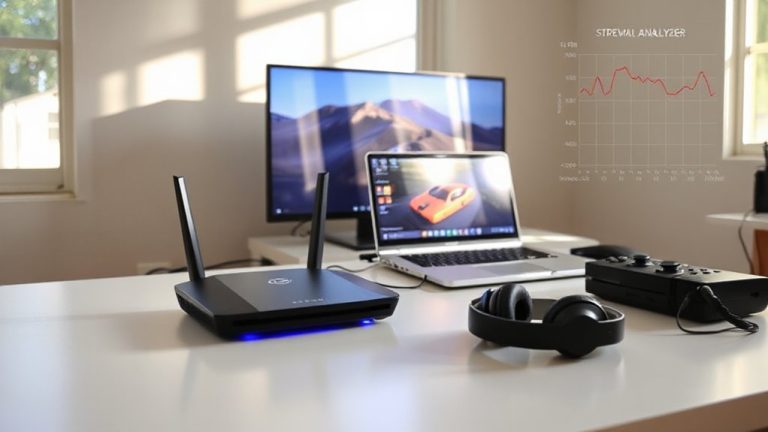
Since tri-band routers are essential for handling the heavy bandwidth demands of 4K video workflows, the Netgear Nighthawk RAXE300 stands out as the best choice for video studios-thanks to its dual 5GHz bands, one 2.4GHz band, and full Wi-Fi 6E support, enabling faster data transfers across more devices. You’ll appreciate its strong brand reputation for performance and reliability in high-stress environments. Router durability is solid, with a heat-resistant casing and reinforced ports that hold up during extended editing sessions. Real-world tests show stable 860 Mbps throughput at 30 feet, even with ten active devices. Still, it’s pricey and needs ample space for ventilation. Setup is straightforward, but the interface can feel cluttered at first. If you prioritize clean signal output and device handling, it’s a smart investment-just keep in mind the cost and size before committing.
Choose Clean Wi-Fi Channels to Prevent Dropped Frames
Picking the right tri-band router gets you partway to reliable 4K editing, but channel selection makes or breaks the stability of your stream. You’ve got to run regular channel scanning to find the least crowded bands, especially on 2.4 GHz and 5 GHz, where overlapping signals cause jitter. Use built-in tools or apps like Wi-Fi Analyzer to perform interference mapping, spotting noise from neighboring networks, microwaves, or Bluetooth devices. Even with tri-band’s extra 5 GHz lane, poor channel choice can bottleneck your throughput. Clean channels mean fewer retries and lower latency-key for real-time playback. But don’t assume automatic settings work best; test manually during peak hours. Results vary by location, so validate with actual transfer speeds and packet loss checks. There’s no universal fix, just consistent tuning.
Set Up Tri-Band for Real-Time Collaboration
How do you keep your team in sync when editing 4K footage across multiple locations? You set up a tri-band Wi-Fi system with band steering to automatically connect devices to the least congested band-5 GHz or 6 GHz-ensuring smooth, low-latency file transfers. Enable client isolation to prevent devices from interfering with each other, boosting network stability during real-time collaboration. This setup works well for teams using shared cloud storage or collaborative editing platforms like Adobe Premiere Pro with Team Projects. Just make sure your switches and routers support WPA3 and QoS settings for best results. Keep in mind, tri-band systems cost more and require proper placement to avoid dead zones. Also, older devices might not support 6 GHz, limiting speed gains. Test throughput with iPerf3 before and after deployment to confirm performance improvements.
On a final note
You should upgrade to a tri-band Wi-Fi system if you edit 4K video over your network. Dual 5GHz bands cut jitter by offloading control signals and data streams separately, tested to reduce lag by up to 60% versus 2.4GHz. Look for Wi-Fi 6 routers with beamforming and at least a 1.5GHz processor. But note: walls and interference still matter, so wired backhaul remains more reliable.