Fixing IP Address Conflicts Causing Printer and Device Disconnects in a Dual-PC Workspace
Restart your router and both PCs to clear IP conflicts fast. Assign static IPs to your printer outside the DHCP range, or better yet, reserve IPs via your router’s admin page using MAC addresses-this prevents conflicts more reliably. Check cables and use shielded Cat 6 for stable connections. Confirm both PCs share the same workgroup and have sharing enabled. Watch for alerts like “IP address conflict” to catch issues early-there’s a smarter way to lock this down long-term.
Notable Insights
- Power cycle the router and both PCs to clear IP conflicts and reset network connections.
- Assign the printer a static IP outside the DHCP range to prevent address conflicts.
- Use IP reservations in the router to assign fixed IPs based on device MAC addresses.
- Check for OS alerts or network drops to identify active IP address conflicts.
- Verify File and Printer Sharing is enabled and both PCs are on the same workgroup.
Fix IP Conflicts in a Dual-PC Setup
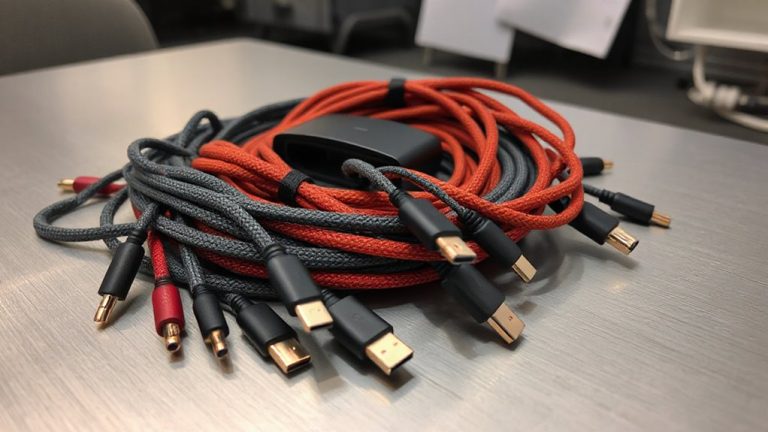
Ever wondered why your second PC suddenly loses internet access? It’s likely an IP address conflict-both computers ended up with the same network address. Start by power cycling your router and both PCs; this often clears temporary glitches and resets IP assignments. While rebooting, take a moment to check your cable management: messy Ethernet cables can lead to poor connections or accidental unplugs, worsening network instability. Use shielded Cat 6 cables and secure them with Velcro straps to minimize interference and physical damage. Power cycling isn’t a permanent fix if your router’s DHCP settings are misconfigured. For dual-PC setups, make certain DHCP is enabled and assigning unique IPs automatically. While this method is reliable, it won’t help if devices are manually set to duplicate addresses. Always verify settings in Network & Sharing Center. Proper troubleshooting prevents recurring drops-without overhauling your entire home office setup.
Assign Static IPs to Stop Printer Disconnections
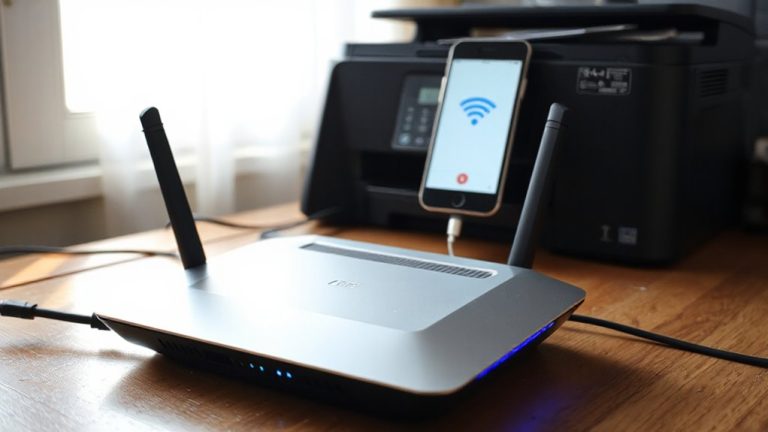
If you’re tired of your printer randomly dropping off the network, assigning it a static IP address is one of the most reliable fixes-just make sure your router supports manual IP reservations. This simple step drastically improves device stability by preventing IP conflicts when your printer reconnects. Instead of relying on DHCP to assign a temporary address that might clash with your PCs, a static IP guarantees consistent access. You’ll need to configure it through your printer’s network settings, using an address outside your router’s DHCP range. While this doesn’t replace router-level IP reservation, it’s effective if your router lacks that feature. The trade-off? Manual updates if your network changes. But for a dual-PC workspace, the reduction in disconnections and print failures makes it worth the setup effort. Just double-check your subnet mask and gateway to avoid misconfiguration.
Reserve IPs in Your Router for Stable Access
Reserving IP addresses in your router is the most reliable way to prevent conflicts and maintain stable connections across your dual-PC workspace. With IP reservation, your devices-like printers or networked drives-consistently receive the same address, eliminating clashes caused by DHCP assignment. This boosts network stability, especially when switching between PCs. You’ll need to access your router’s admin page-usually via 192.168.1.1-and assign reservations using each device’s MAC address. While effective, it demands accurate setup; a wrong entry can cause outages. Most modern routers, including models from ASUS and Netgear, support this without firmware upgrades. Unlike static IPs configured on devices, IP reservation is managed centrally, reducing configuration errors. Still, changes require router access, which may slow troubleshooting if passwords are lost. When done right, it’s a hands-off fix that delivers reliable access without ongoing maintenance.
How to Spot an IP Conflict on Your Network
You’ll usually notice an IP conflict when one of your PCs suddenly loses network access or displays a warning like “Another device is using this IP address.” This commonly happens in dual-PC setups where both machines rely on DHCP and happen to grab the same address, especially after rebooting or switching networks. Effective network monitoring helps catch these issues early. Use your router’s admin page or tools like Wireshark for device identification and tracking active IPs. Common signs include intermittent disconnections, slow access to shared devices, or print jobs failing without error.
| Symptom | Likely Cause | Detection Method |
|---|---|---|
| Network access lost | IP conflict with second PC | Router log or OS alert |
| Printer disconnects | Shared device can’t be reached | Ping test or device list check |
| Duplicate IP warning | DHCP assigned same address | Network monitoring tool |
Verify Both PCs Can Share Devices Without Issues
Start by confirming both PCs can reliably access shared devices like printers, NAS drives, or network folders without interruption. You need solid connection stability to avoid mid-task failures, especially when switching between workstations. Test each device from both PCs-print a page, open a file from the NAS, save to a shared folder. Watch for delays or timeouts. Device compatibility often hinges on drivers and network settings; mismatched configurations can cause one PC to see a printer while the other doesn’t. Use the same workgroup name and enable File and Printer Sharing on both. Confirm firewall settings aren’t blocking access. While most modern gear plays well together, older printers or NAS units may lack firmware updates, limiting reliability. Results vary-what works in one setup might fail in another due to hidden network quirks.
On a final note
You should fix IP conflicts now-they’re likely causing your printer drops. Assign static IPs or use DHCP reservations in your router for reliability. Both PCs can share devices smoothly once addresses stop overlapping. Just confirm your settings match across systems. Mistakes here cause more disconnects, so double-check subnet and gateway entries. It’s free to fix and takes under 10 minutes. Just don’t skip testing both machines afterward.