How to Test and Improve Wi-Fi Speeds for Video Conferencing on Dual Monitors
Place your router centrally and elevate it, avoiding obstructions like desks or microwaves that weaken 5 GHz signals. Use a wired Ethernet connection when possible for stable speeds, or switch to Wi-Fi 6 to handle dual-monitor streaming. Set your router’s QoS to prioritize Zoom or Teams, ensuring 10 Mbps upload per HD stream. Test speeds near your workspace-wired tests show real performance. If you’re below 20 Mbps download, consider upgrading your plan or router with beamforming and MU-MIMO; models like ASUS offer reliable QoS controls. You’ll get smoother calls, but expect minor slowdowns in background tasks when prioritizing video. Further improvements depend on your internet plan’s consistency and device placement.
Notable Insights
- Test your internet speed with both monitors active, aiming for at least 20 Mbps download and 10 Mbps upload.
- Use a wired Ethernet connection to eliminate Wi-Fi interference and ensure stable video call performance.
- Position your router centrally and elevated, away from obstructions and interference sources like microwaves or metal desks.
- Enable QoS settings on your router to prioritize video conferencing apps like Zoom or Teams during calls.
- Upgrade to a Wi-Fi 6 router with MU-MIMO and beamforming to support high-bandwidth dual-monitor setups reliably.
Fix Wi-Fi Lag on Dual Monitor Video Calls
Why does your video call stutter just as you’re sharing a slide across two monitors? Because signal interference and poor bandwidth allocation often overwhelm your connection. When you’re streaming high-resolution content to dual screens while transmitting video, your Wi-Fi can’t always keep up-especially if other devices are pulling data. The fix? Prioritize your conferencing device using Quality of Service (QoS) settings in your router to guarantee consistent bandwidth allocation. Hardwiring via Ethernet reduces signal interference and delivers stable speeds, far better than most Wi-Fi 5 connections. But if you must use Wi-Fi, avoid overcrowded 2.4 GHz bands; opt for 5 GHz or Wi-Fi 6 for improved handling of multiple streams. Keep in mind, even top-tier routers can’t overcome poor internet plans-check your upload speed. A 10 Mbps minimum is essential for HD calls. Results improve markedly, but only with matching infrastructure.
Put Your Router in the Right Spot
Placing your router in the best location can make or break your dual-monitor video calls. Good router placement maximizes coverage and minimizes signal interference from walls, appliances, or neighboring networks. For steady performance, center the router in your workspace-ideally elevated and unobstructed. Avoid stuffing it behind desks or near microwaves and cordless phones, which emit interference on the 2.4 GHz band. If you’re far from the router, even 5 GHz signals degrade quickly through drywall or metal. While mesh systems help, repositioning your existing router is a zero-cost fix that often delivers noticeable gains. Keep in mind, though, that apartment layouts or thick walls may limit results. Real-world tests show speed drops of up to 50% when routers are tucked in corners. You’ll likely see smoother screen sharing and fewer audio hiccups-just don’t expect miracles in interference-heavy environments. For broader coverage, consider upgrading to a Top Mesh Wi-Fi Systems designed for seamless roaming and extended range.
Make Zoom or Teams the Network Priority
Prioritizing your video conferencing app gives you control over how your network handles competing traffic, and it’s one of the most effective ways to smooth out call quality on a dual-monitor setup. By adjusting your router’s QoS settings, you guarantee Zoom or Teams gets first dibs on bandwidth when multiple devices are active. This means fewer freezes and better audio, especially when someone’s streaming or downloading nearby.
| Feature | Impact |
|---|---|
| Bandwidth allocation | Keeps video calls stable during congestion |
| QoS settings | Lets you pick which device or app wins |
| Real-time apps | Benefit most from priority access |
| Background tasks | May slow slightly when call is active |
Just remember: too much priority on one app can affect other tasks. Check your router’s manual-most modern models support this through a simple dashboard. Top ASUS routers offer advanced QoS controls, making it easier to manage performance during peak usage times with ASUS router deals.
Test If Your Internet Is Fast Enough for Dual Screens
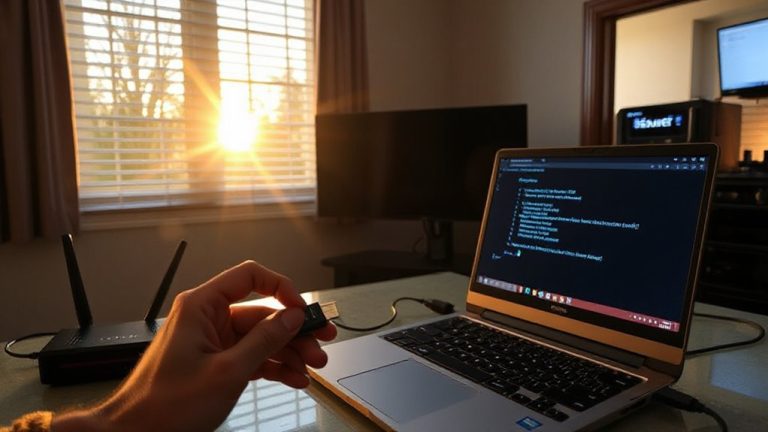
How fast does your internet really need to be for smooth video calls across two monitors? You’ll want at least 10 Mbps download and 5 Mbps upload per stream, so 20/10 Mbps total is a solid baseline. Run a speed test on your primary device while both monitors are active and running video-this reveals how well your connection handles real-time bandwidth allocation. If speeds drop below 15 Mbps combined, you’re cutting it close and may see lag. Signal interference from nearby electronics or walls can skew results, so test near your router first, then again from your usual workspace. Repeat tests at different times to account for network congestion. While higher speeds help, stability often matters more. Don’t assume your plan delivers advertised rates-actual throughput varies. A wired connection gives the most accurate test, reducing wireless variables. Know your limits before blaming hardware.
Upgrade to a Better Router for Smooth Streaming
You’ve tested your speeds and confirmed your internet plan meets the 20/10 Mbps baseline, but if video still stutters across dual monitors, your current router might be the bottleneck-not the service itself. Upgrading your router hardware can greatly boost signal strength and streaming stability. Modern Wi-Fi 6 routers handle multiple high-demand devices better, reducing lag during video calls.
| Feature | Benefit |
|---|---|
| Wi-Fi 6 support | Faster data flow |
| Dual-band or tri-band | Less network congestion |
| Beamforming | Stronger signal strength |
| MU-MIMO | Smooth multitasking |
| Gigabit ports | Stable wired connections |
Look for models with 128-bit encryption and a 3-year warranty for reliability. While pricier, these routers improve real-world performance-especially for dual-screen setups. Just note: placement still matters. Keep it central and elevated for best results.
On a final note
You’ll cut lag on dual monitor calls by optimizing your setup and network. Prioritize video apps on your router, test speeds (aim for 10 Mbps upload minimum), and reposition your router for clear line-of-sight. A Wi-Fi 6 router like the TP-Link Archer AX50 can help, especially near thick walls-but it’s not a fix for poor ISP service. Results vary by home layout, so test changes one at a time and use wired Ethernet if Wi-Fi stays unreliable.