How to Set Up a Static IP for Your Primary Work Computer to Improve Stability
Set a static IP on your work computer to lock in a stable network connection-like giving it a permanent desk on your network. First, find your router’s IP using `ipconfig` (Windows) or `netstat` (macOS). Pick an address just outside the DHCP range, like 192.168.1.200 if your router assigns up to .199. Then manually enter the IP, subnet mask, gateway, and DNS in your network settings. Test with `ping` and `arp -a` to confirm no conflicts and solid response times below 20ms. This setup boosts reliability for file sharing and remote access but risks misconfiguration if your network changes-knowing your router’s layout and testing connectivity guarantees it’s worth the trade-off. You’ll also learn how to spot subtle issues that could undermine your setup even when everything seems to work.
Notable Insights
- Find your router’s IP address using ipconfig (Windows) or netstat (macOS) to access network settings.
- Choose a static IP outside the DHCP range to prevent address conflicts with other devices.
- Assign the static IP manually in Windows via Settings > Network & Internet > Edit IP settings.
- On macOS, set the static IP through System Settings > Network > Details > Manual configuration.
- Test connectivity by pinging the router and external sites to confirm stability and correct configuration.
Find Your Router’s IP and Network Settings
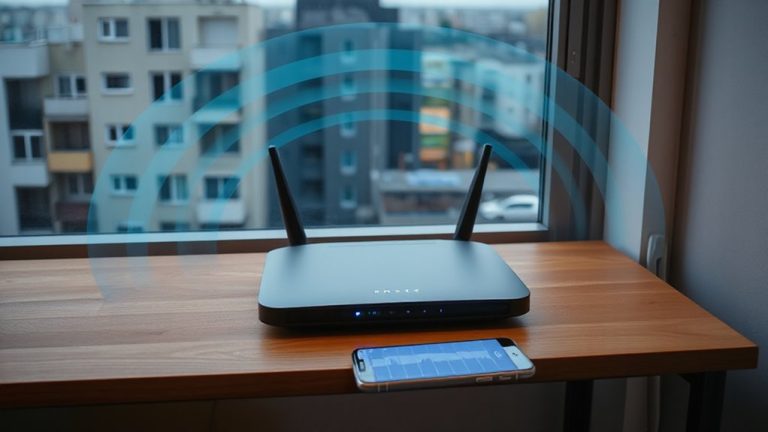
Where is your router’s IP address, and why does it matter for setting up a static IP? It’s usually something like 192.168.1.1 or 192.168.0.1, and you’ll need it to access your router’s admin page-this is non-negotiable. You can find it quickly: on Windows, type `ipconfig` in Command Prompt; on macOS, use `netstat -nr | grep default`. Knowing your router’s IP lets you view current DHCP settings, which is essential before assigning a static address. Your router location affects signal strength and connection stability, so place it centrally and off the floor. If you’re managing multiple devices, create a simple network diagram to track IPs and avoid conflicts. This isn’t just busywork-misconfiguration can cause drops or login issues. Always double-check settings before saving. Accessing the router incorrectly won’t break anything, but it wastes time. Be precise.
Pick a Safe Static IP Outside the DHCP Range
You’ll want to pick a static IP address just outside your router’s DHCP range to prevent conflicts-most home networks use something like 192.168.1.100 to 192.168.1.199 for dynamic assignment, so choosing an IP like 192.168.1.200 or higher gives you breathing room. This helps avoid IP conflicts, especially when other devices request addresses near the upper limit. While some routers allow address reservation as a workaround, it’s not always reliable across firmware versions or budget models. Picking a static IP outside the pool is a more predictable fix. Make sure the address is within your subnet but not in use-test it first by pinging 192.168.1.200 (or your pick) to confirm it’s free. You don’t want intermittent drops or login issues down the line. It’s a small step that pays off in stability, but only if done carefully.
Set a Static IP on Windows 10 and 11
One solid way to guarantee your work computer maintains a consistent connection on your network is setting a static IP address in Windows 10 or 11-especially useful if you’re accessing shared files, running remote desktop sessions, or using networked printers. This ip configuration boosts network stability by eliminating address conflicts and making certain your machine is always reachable at the same address. To set it, go to Settings > Network & Internet > Ethernet or Wi-Fi, select your connection, and switch to “Edit” under IP assignment. Choose “Manual,” toggle IPv4 on, and enter the IP, subnet mask, gateway, and DNS you noted earlier. Make sure the IP falls outside your router’s DHCP range to avoid conflicts. While a static IP improves reliability, it does require careful setup-misconfiguration can lead to connectivity issues. Double-check each value to make certain accuracy.
Set a Static IP on macOS
A fixed IP address gives your Mac a permanent spot on the network, making it reliably accessible for file sharing, remote access, or printing-just like a work computer with a consistent digital address. To manage this, you’ll adjust your network configuration through System Settings > Network. Select your active connection, click Details, then switch from DHCP to manual IP assignment. Enter an IP within your router’s range but outside its DHCP pool to avoid conflicts. You’ll also need the correct subnet mask, router address, and DNS servers-usually found in your router settings. While this setup boosts stability, incorrect entries can cause connectivity issues. Double-check all values and confirm your router allows static IPs. This method works best when your network doesn’t frequently change. For long-term use, document your settings in case you need to restore them.
Test Your Static IP Connection
How do you know your static IP is working correctly? You’ll need to test the connection right after setup. First, open your terminal and use *ping* to check for consistent responses from your router and a known site like google.com. If replies come back fast-under 20ms-your connection latency is solid. Then, run the command *arp -a* to scan your network. If another device has the same IP, you’ll see an IP conflict, which disrupts your stability and must be fixed immediately. Confirm your DNS settings still resolve sites normally. You should also try transferring a work file to a shared drive to verify real-world performance. While static IPs reduce DHCP delays, they don’t boost speed. Misconfiguration risks network issues, so double-check accuracy. Testing now prevents outages later-especially important if your work relies on uninterrupted access.
Fix Common Static IP Issues
If you’re seeing connection drops or slow response times after setting up your static IP, the issue likely stems from an incorrect subnet mask, gateway, or DNS configuration-double-check each setting against your router’s specs before assuming hardware failure. Misconfigured settings can cause IP conflicts or failed DNS resolution, disrupting network stability. You should verify that your chosen IP isn’t already in use by another device.
| Issue | Solution |
|---|---|
| IP conflicts | Assign unique IP outside DHCP range |
| Slow DNS resolution | Use reliable DNS servers like 8.8.8.8 |
| No internet access | Confirm correct gateway entry |
| Intermittent connectivity | Recheck subnet mask accuracy |
| Limited network access | Make certain proper router authorization |
Update DNS settings to improve response speed, but remember that static IPs require manual updates if network hardware changes-convenient for stability, but less flexible than DHCP. Test thoroughly.
On a final note
You should set a static IP only if it solves a real stability issue, as it adds complexity. It improves network consistency for critical tasks like video conferencing or file sharing. But misconfiguration causes connectivity drops. Always pick an IP outside the router’s DHCP range and confirm settings with a backup. Test thoroughly and document everything-wrong subnet masks or gateways will block internet access. Weigh reliability gains against maintenance trade-offs.