Minimizing Lag During Online Meetings With Cat 6 Cables Over Wi-Fi
You’ll cut lag in meetings by swapping Wi-Fi for a Cat 6 cable-it’s faster and way more stable. Wired beats wireless because it avoids interference from walls, devices, and network congestion. Cat 6 handles up to 10 Gbps over short runs and slashes jitter, but only if your router supports it. Keep cables under 55 meters for top speeds, avoid power lines, and use proper clips. If your setup’s right, calls stay smooth. There’s more to get right for flawless performance.
Notable Insights
- Use Cat 6 cables instead of Wi-Fi to eliminate signal interference and ensure stable, high-speed connections during online meetings.
- Connect your computer directly to the router via Cat 6 to reduce latency, jitter, and audio-video dropouts.
- Ensure cable runs are under 55 meters for 10 Gbps speeds and avoid sharp bends to maintain signal integrity.
- Keep Cat 6 cables away from power lines and fluorescent lights to prevent electromagnetic interference in busy environments.
- Properly label and manage cable routes to simplify setup and ensure reliable, consistent performance for daily video calls.
Fix Wi-Fi Lag in Video Calls
Why does your voice keep cutting out mid-sentence during video calls? Because Wi-Fi introduces both signal interference and buffer degradation, especially in busy households. Your router’s signal weakens through walls, and nearby devices like microwaves or Bluetooth speakers disrupt data flow, causing lag. Even with a strong signal, network congestion forces your device to stall and rebuffer, breaking audio sync. You might notice this during peak hours when others stream or download. While Wi-Fi 6 helps, it doesn’t eliminate physics-radio waves are inherently less reliable than wired connections. Buffer degradation gets worse the farther you are from the router, lowering call quality. For critical meetings, a temporary fix is moving closer to the router or disconnecting other devices. But if stability matters, expect trade-offs: convenience versus consistency. Wi-Fi works well under ideal conditions, but it’s not foolproof when performance matters most. Enhancing your workspace aesthetics can also contribute to a more focused and professional environment, making best office wall decor a subtle yet impactful upgrade.
Switch to Cat 6 for Smoother Meetings
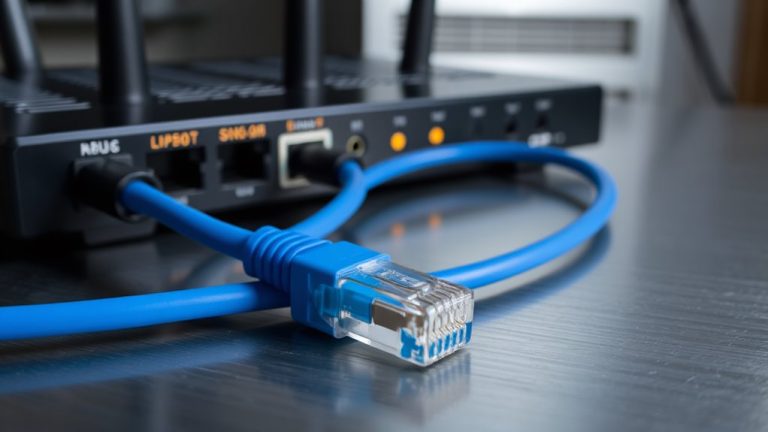
While Wi-Fi might get the job done when you’re browsing, switching to a Cat 6 Ethernet cable gives your video calls a noticeable stability boost you can actually hear. You’ll benefit from superior bandwidth stability, handling up to 10 Gbps over short distances, so your screen shares and uploads stay smooth even during peak use. Cat 6 also delivers consistent interference reduction, especially in busy office environments where microwaves, walls, or neighboring networks degrade Wi-Fi signals. Unlike wireless, your connection won’t fluctuate mid-meeting, reducing audio dropouts and frozen video. Just keep in mind the cable’s 55-meter limit for 10 Gbps speeds, and plan your setup accordingly. Running a wire may limit your seating flexibility, but the trade-off is reliable performance you can count on. No extra hardware is needed-just plug into your router and PC. For remote work where quality matters, it’s a simple upgrade with real results. For the best performance, consider choosing one of the best Cat 6 cables based on verified speed and durability standards.
Ditch Old Cables: Why Cat 6 Wins
If you’re still relying on older Ethernet cables like Cat 5e, upgrading to Cat 6 isn’t just a minor improvement-it’s a necessary step for handling today’s high-demand video conferencing and file transfers. Cat 6 supports speeds up to 10 Gbps over short distances and operates at 250 MHz, far outpacing Cat 5e’s 100 MHz limit. This boost guarantees better signal integrity, reducing latency and jitter during critical meetings. You’ll also notice improved cable durability, thanks to stricter manufacturing standards and better insulation, which cuts down on crosstalk and interference. Real-world tests show fewer dropped packets, especially in busy networks. But don’t expect miracles-performance drops if cables exceed 55 meters for 10 Gbps or are bent sharply. Also, verify your router and NIC support Cat 6 speeds. While pricier than older cables, the reliability makes the upgrade worthwhile-for now. For reliable performance, consider one of the top picks for Ethernet cables based on expert testing and user feedback.
Connect Your Computer in 4 Easy Steps
Though setting up a Cat 6 connection might seem straightforward, doing it right guarantees you get the speed and stability your home office demands. First, plug one end of the Cat 6 cable into your router’s LAN port and the other into your computer’s Ethernet port-this direct link boosts connection stability over Wi-Fi. Second, test the link by checking your network status to confirm you’re running at 1 Gbps. Third, route the cable neatly along baseboards or under carpets, using clips to maintain clean cable management and prevent tripping. Fourth, label both ends for easy identification if you switch devices later. While wired setups limit mobility, the lag reduction during video calls is measurable. Poor cable placement can damage wires or create clutter, so plan the path carefully. Cat 6 performs best under 328 feet, and shielding helps in high-interference areas.
Optimize Your Setup to Prevent Lag
Since you’re already using a Cat 6 cable to lock in faster speeds, taking a few extra steps to optimize your setup can make a real difference in reducing lag during critical tasks like video conferencing or file transfers. Good cable management isn’t just about looks-it prevents physical damage and reduces signal interference from tangled or bent cables. Keep your Cat 6 cable away from power lines and fluorescent lights, which can introduce noise and degrade performance. Route it along clear paths, using clips or sleeves to avoid sharp bends. While Cat 6 handles bandwidth up to 1 Gbps at 100 meters, actual performance drops if poorly installed. You’ll likely see the best results under 55 meters. Don’t expect miracles in electrically noisy environments, even with shielding. A clean layout helps, but test your connection under real loads to confirm stability.
On a final note
You’ll get sharper video calls using Cat 6 over Wi-Fi, thanks to lower latency and consistent 1 Gbps speeds. It’s ideal for home offices where Wi-Fi interference from walls or devices causes lag. Just connect the cable from your router to your computer’s Ethernet port and switch network settings. But run cables neatly-exposed wires pose tripping hazards and damage risk. For most, the stable connection beats the minor setup effort.