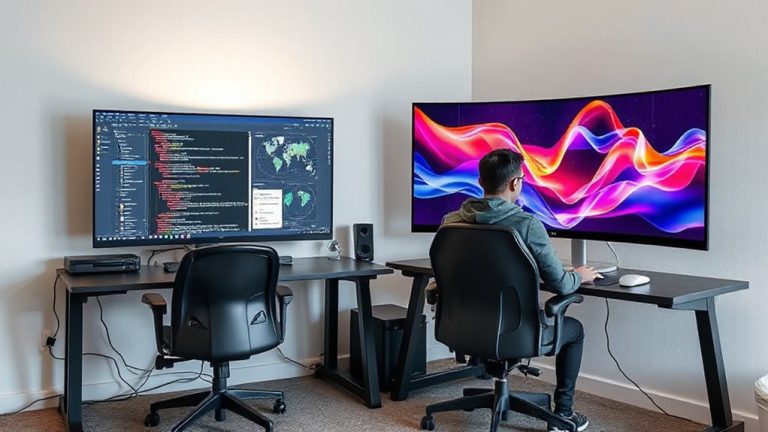
Configuring Ultrawide Monitors So Peripheral Content Doesn’t Require Excessive Eye Movement
Position your ultrawide so the top is at eye level and sit 24–30 inches back to minimize eye movement. Tilt the screen forward 10–20 degrees if glare is an issue. Use virtual bezels to split the display into left, center, and right zones-keep core apps in the central 40% where your eyes naturally land. Tools like Snap Layouts or DisplayFusion help align windows cleanly. Center your taskbar to reduce neck strain, avoiding left or right edges. Adjust brightness to match ambient light, and use low-blue-light presets during long sessions. For best results, test layouts over a full workday to catch subtle fatigue points-you’ll uncover smarter tweaks as you go.
Notable Insights
- Position primary apps in the center 40% of the screen to align with natural eye movement and reduce strain.
- Use virtual bezels to divide the screen into left, center, and right zones for focused task placement.
- Place frequent-use communication tools like email and Slack in the central zone for easy visual access.
- Avoid placing critical content in far-side regions of the ultrawide display to minimize lateral eye movement.
- Enable window snapping tools to align apps precisely within ergonomic focus zones and maintain consistent layouts.
Fix Your Ultrawide Monitor to Reduce Eye Strain
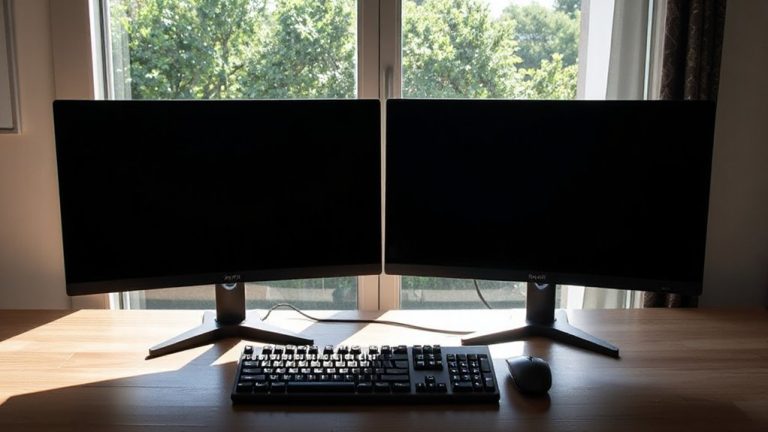
How much time are you spending in front of your ultrawide monitor-eight, ten hours a day-only to end with sore eyes and a nagging headache? You’re not alone, but small tweaks in ergonomic positioning and screen brightness can make a real difference. Position the top of your screen at or slightly below eye level, about 24–30 inches from your face, to reduce neck strain and encourage natural eye movement. Tilt the monitor forward 10–20 degrees if needed. Adjust screen brightness to match your ambient light-too bright causes glare, too dim strains focus. Use built-in presets like “Reading” or “Low Blue Light,” but test them in your actual workspace. These changes help, but results vary based on room lighting and visual acuity. No setup eliminates fatigue completely, but smart adjustments reduce it substantially-just don’t expect magic from hardware alone. For optimal visual comfort, consider selecting one of the best ultrawide monitors that balance screen size with ergonomic features.
Create Virtual Bezels for Better Focus Zones
Why settle for a single, sprawling display when you can divide your ultrawide screen into distinct work zones that actually boost focus? Virtual boundaries mimic physical bezels, guiding your eyes and enabling effective focus segmentation. This subtle visual separation helps you concentrate on one task without distraction from peripheral content. Many users report reduced fatigue during long work sessions, though results vary based on screen size and viewing distance.
| Zone Position | Recommended Width | Use Case |
|---|---|---|
| Left | 30% of screen | Communication apps |
| Center | 40% of screen | Primary work focus |
| Right | 30% of screen | References, notes |
You can create these divisions using software overlays or darkened borders. While not a replacement for ergonomic setup, virtual bezels improve spatial awareness. Just don’t rely on them alone-pair with proper lighting and posture for best results.
Use Zoning Tools to Control App Placement
You’ve already set up virtual bezels to define where your focus should go-now it’s time to make certain your apps actually stay in those zones. Use zoning tools to enable precise window snapping, so apps align cleanly within each section without drifting into peripheral areas. Most modern systems-Windows Snap Layouts, third-party tools like Magnet or DisplayFusion-support customizable grid zones that enforce consistent app grouping. This reduces eye travel and keeps related programs close. But be cautious: over-snapping can make resizing frustrating, especially with uneven window ratios. Test your layout with daily workflows to guarantee it doesn’t hinder multitasking. Some tools require a paid license for full features, so verify compatibility and stability before committing. Window snapping works best when combined with predefined focus zones, but it’s not foolproof-occasional manual adjustments may still be needed.
Keep Your Taskbar in Your Natural View
Your taskbar’s position can make or break your ultrawide workflow-place it where your eyes naturally rest, usually the center third of the screen, to reduce neck strain and improve navigation speed. Centering your taskbar improves visual centering, aligning key interface elements with your primary gaze zone so you’re not scanning to screen edges. This minimizes eye travel and keeps frequent interactions within your natural field of view. Adjusting taskbar alignment to the center (rather than defaulting to left or right) supports this, especially on 21:9 or 32:9 displays. While Windows doesn’t natively support centered taskbar buttons, tools like ExplorerPatcher or StartAllBack let you fine-tune alignment without lag. Keep in mind, some updates may temporarily break third-party tools, so verify compatibility. Avoid extreme placements-far left or right-since they demand wider eye sweeps. Test positioning over a full workday to assess comfort, not just novelty.
Place Critical Apps Where You Can See Them Easily
Centering your taskbar helps keep your focus where it belongs, and the same logic applies to where you position your most-used apps-put them in the sweet spot of your ultrawide screen, roughly the center 40% where your eyes land naturally. App positioning matters because even slight head turns add up over hours, increasing fatigue. Prioritize visual hierarchy by placing communication tools like Slack or email dead center, with reference apps like browsers or docs just outside. You’ll cut eye travel without losing peripheral access. Most productivity gains come from reducing constant glances, not eliminating side content. But don’t overcrowd the center-clutter kills efficiency. Leave breathing room between windows. Test placements over a full workday; what feels right at 9 a.m. might strain by 3 p.m. Some users prefer slight left-center offset for dual-app balance. Adjust based on real use, not theory.
On a final note
You should set up your ultrawide monitor with virtual bezels and zoning tools like DisplayFusion or FancyZones to reduce eye strain and boost focus. Keep your taskbar centered and place critical apps within your natural viewing range-roughly 30 degrees from center-to avoid constant head movement. While productivity gains are real, expect a short adjustment period. These fixes work best on monitors 34 inches or wider with 16:9 or 21:9 aspect ratios.