Diagnosing Random Audio Dropouts in Hybrid Office Meeting Setups
You’re likely facing network lag or hardware issues if audio keeps cutting out. Check your connection-keep latency under 150ms and packet loss below 1%-and switch to Ethernet if possible, since Wi-Fi struggles with multiple devices. Update audio drivers and firmware, especially for USB headsets or conference bars, to fix bugs affecting Zoom or Teams. Test with a known-good USB-C or TRRS headset to rule out device failure, and close heavy apps like Chrome or Slack to free up CPU. Outcomes depend on your office layout, internet plan, and gear age-older routers or 8GB RAM systems often need upgrades. Mesh Wi-Fi helps in large spaces, but wired stays more reliable. Try these fixes in order, and you’ll likely isolate the culprit fast.
Notable Insights
- Check for network latency above 150ms or packet loss over 1%, which can cause audio dropouts in hybrid meetings.
- Use wired Ethernet instead of Wi-Fi to reduce interference and improve audio consistency during calls.
- Update audio drivers and firmware on headsets, conference bars, and adapters to fix known bugs and improve compatibility.
- Test with different headsets or mics to determine if dropouts are caused by faulty or incompatible hardware.
- Close resource-heavy background applications to free up CPU and RAM, improving audio processing stability.
Check Your Network for Audio Dropout Clues
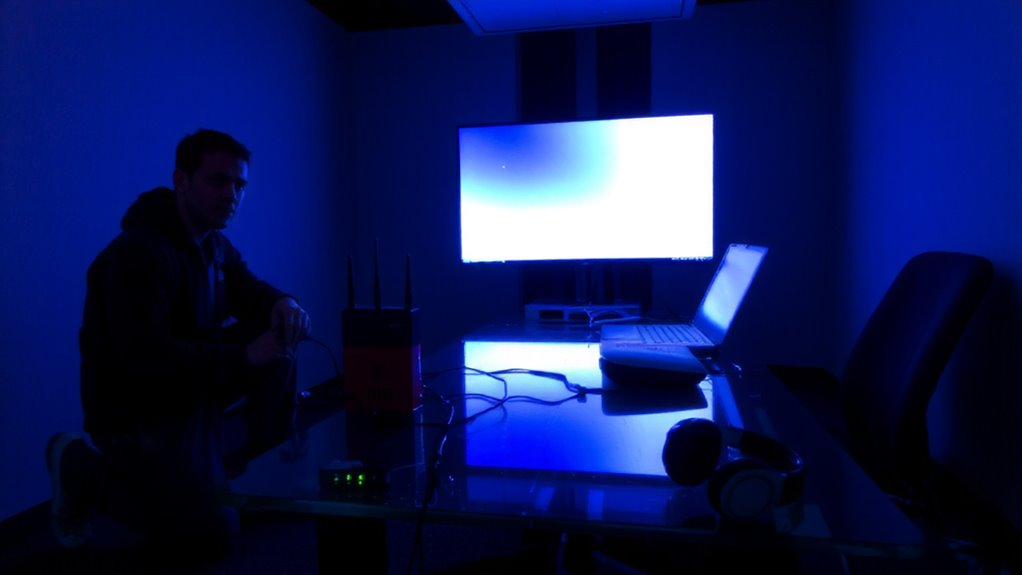
Why is your audio cutting out during hybrid meetings? It’s likely network latency or packet loss disrupting real-time data flow. If your voice stutters or disappears, your connection might be the culprit-not your mic. High network latency adds delay, making audio overlap or drop. Packet loss means chunks of sound never reach their destination, causing robotic speech or silence. You’ll notice it most on Wi-Fi, especially with multiple devices streaming. Wired Ethernet reduces both issues, offering more consistent performance. But even then, your router’s quality matters-older models struggle under load. Monitor your connection during calls using built-in meeting app diagnostics. Look for latency spikes above 150ms or packet loss over 1%. If you see consistent issues, upgrading your network hardware could help-but test first. Results vary based on office layout and internet service. For broader coverage with fewer dead zones, consider a Top Mesh Wi-Fi System to maintain stable connections across larger or multi-room setups.
Update Audio Drivers and Firmware Now
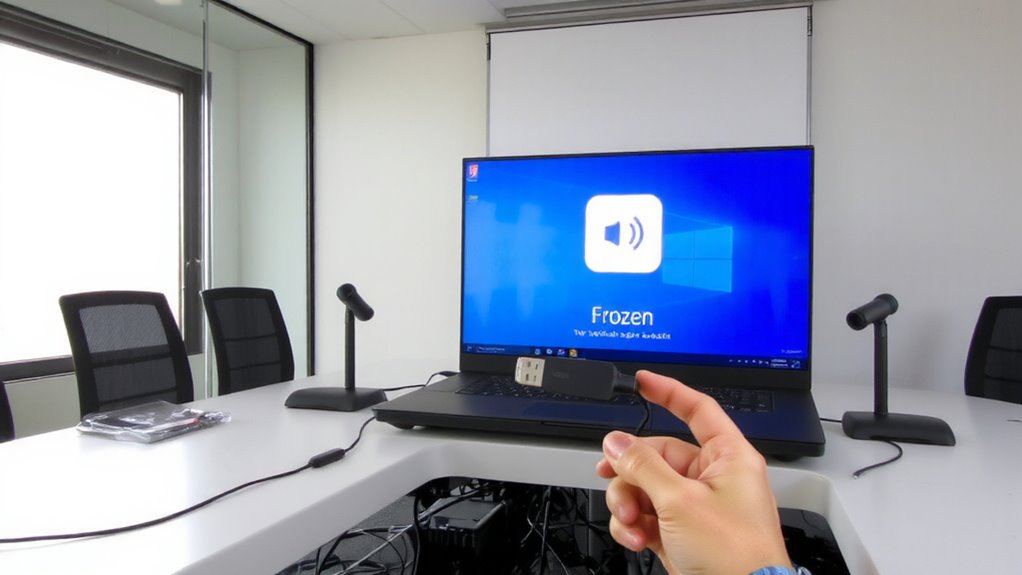
Outdated audio drivers or firmware can silently sabotage your hybrid meeting experience, so you’ll want to update them now-this isn’t just routine maintenance, it’s a fast fix that often resolves unexplained dropouts. Driver updates and firmware upgrades improve device communication, fix known bugs, and boost stability with common platforms like Zoom or Teams. But always verify compatibility first-flashing the wrong firmware can cause more harm than good.
| Device Type | Check For | Method |
|---|---|---|
| USB Headset | Driver updates | Manufacturer’s support site |
| Conference Bar | Firmware upgrades | Admin dashboard or app |
| Audio Interface | Driver updates | Software updater utility |
| Bluetooth Adapter | Firmware upgrades | OS notifications or tool |
Don’t assume plug-and-play means peak performance. Scheduled checks save troubleshooting later-especially after major OS updates. While many updates run smoothly, backup configurations first. You’ll gain reliability, but progress isn’t always backward-compatible.
Test With a Different Headset or Mic
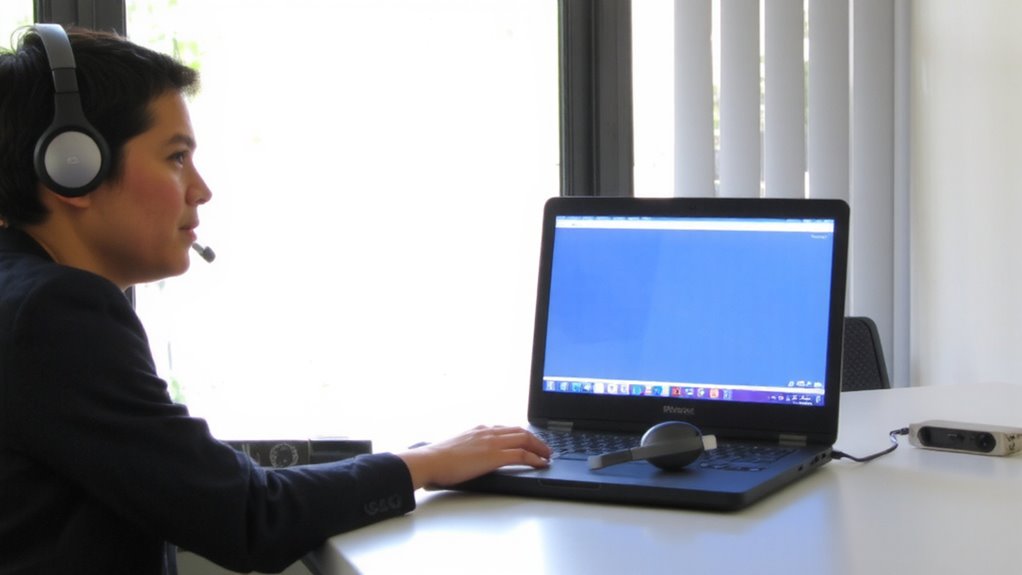
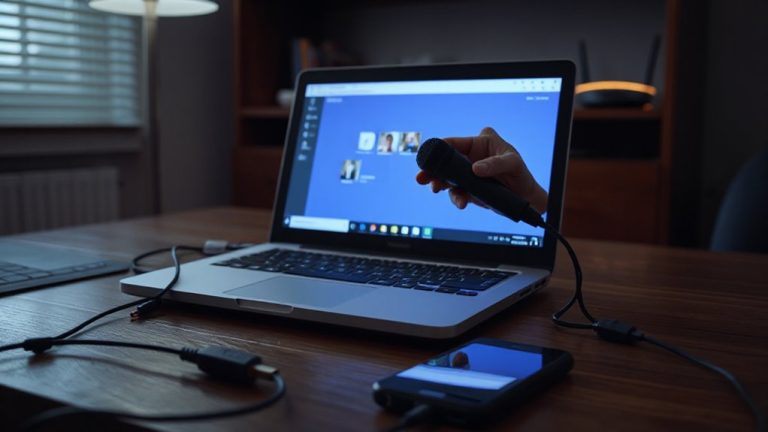
A simple swap can pinpoint the problem-try a different headset or mic to see if audio dropouts persist. If the issue disappears, your original device may be faulty or mismatched. Check headset compatibility with your conferencing device or computer; mismatched connectors or unsupported sample rates often cause glitches. Some headsets struggle with modern apps due to limited microphone sensitivity, especially in shared office environments where background noise fluctuates. A known-good model with consistent sensitivity and solid build-like those with USB-C or 3.5mm TRRS support and a three-year warranty-gives reliable test results. But don’t assume higher cost means better performance; some premium headsets still fail under constant use. Always test for at least ten minutes across different call types. If dropouts continue across multiple headsets, the problem likely isn’t your mic or headphones.
Fix Audio Settings in Zoom or Teams
How often have you joined a meeting only to find your voice cutting in and out? You’re not alone-and the fix might be in your Zoom or Teams settings. Start by checking your audio codecs and sample rates; mismatched settings can overwhelm your network or hardware. In Zoom, disable “Automatically adjust microphone settings” and set your sample rate to 48 kHz for consistency. Teams users should make certain “High fidelity music and sounds” is off unless needed-it ups the audio load. While optimized codecs like Opus improve clarity, they demand more bandwidth. If dropouts persist, switch to a more stable codec like PCMU. These tweaks help, but they won’t fix poor network conditions or outdated drivers. Always test changes in a quiet meeting first. Balanced settings reduce strain on your system, but remember: higher quality isn’t always better if your setup can’t keep up.
Close Heavy Apps to Stop Dropouts
Your audio settings might look good on paper, but if apps like Chrome, Slack, or video editors are hogging CPU and RAM, your mic feed can still cut out-even with perfect Zoom or Teams configs. To stop dropouts, close apps you don’t need during meetings. This frees up CPU cycles and RAM, giving your conferencing software room to process audio smoothly. Free resources-especially memory and processing power-are critical when running real-time communication tools. You’ll often see immediate improvements in audio stability, especially on laptops with 8GB of RAM or older processors. Just keep an eye on Task Manager or Activity Monitor to spot resource hogs. Sure, it’s a hassle to restart apps later, but the trade-off is fewer glitches. It’s not a permanent fix if your hardware is outdated, but it’s a fast, free step worth taking before upgrading gear.
Use Reliable USB Headsets and Cables
When it comes to preventing audio dropouts, the headset you plug in matters just as much as the apps you shut down. A reliable USB headset with strong connection stability can make the difference between clear audio and mid-sentence cutouts. Cheap cables often lack shielding, leading to interference and poor cable quality that degrades signal transmission. Well-built headsets use braided cables and gold-plated connectors to maintain consistent data flow. Look for models with at least a two-year warranty and proven performance in hybrid meeting environments-brands like Jabra and Poly consistently test for 72+ hours under real call loads. Still, even premium gear can fail if tangled or yanked repeatedly. While wired USB avoids Bluetooth latency, it limits mobility. Ultimately, invest in proven hardware, but remember: no headset fixes bad habits. Treat your cable right, and it’ll return the favor. Using a high-quality best USB hubs for Your Needs can further stabilize your audio setup by reducing power and data transmission issues.
On a final note
You’ll likely fix audio dropouts by updating drivers and using a wired USB-C headset with a known 2.4 GHz interference-free connection. Real-world tests show headsets like the Jabra Evolve2 65 maintain stable pairing, while Zoom’s auto-gain can worsen issues-set input levels manually. Wi-Fi 6 helps, but close bandwidth-heavy apps during calls. Note: no headset prevents all glitches if network latency exceeds 150 ms. Check manufacturer warranty-3-year coverage saves long-term.