Eliminating Double Vision Effects Caused by Incorrect Stereoscopic Monitor Spacing
You can fix double vision by matching your monitor’s interaxial spacing to your interpupillary distance-usually 62–65 mm-and ensuring both panels are perfectly aligned horizontally and converge at your viewing distance. Even slight misalignment causes ghosting or eye strain, so use calibration tools to fine-tune parallax and check synchronization. Stable mounting and thermal equilibrium matter too. Factory settings often fall short, so custom adjustments are essential for lasting clarity-there’s more to get right than spacing alone.
Notable Insights
- Adjust interaxial spacing between monitors to match the average adult interpupillary distance of 62–65 mm for proper depth perception.
- Measure the interlens distance on 3D glasses or emitters and align it with the display’s stereo calibration settings.
- Use built-in test patterns or calibration software to correct horizontal misalignment and convergence errors between stereo panels.
- Fine-tune parallax and pixel synchronization to eliminate ghosting caused by left/right image overlap.
- Perform regular alignment checks and recalibrate after thermal changes or physical adjustments to maintain 3D clarity.
Diagnose Double Vision From Improper Monitor Spacing
How can you tell if your double vision stems from poorly spaced monitors? You’ll likely notice visual discomfort during extended screen use, especially if both eyes strain to merge mismatched images. Poor horizontal alignment between stereoscopic displays often disrupts depth perception, making on-screen objects appear doubled or float unnaturally. If adjusting your seating or refocusing doesn’t help, the issue is probably spacing-not your vision. Correct interaxial distance (typically 62–65 mm for most adults) must match the display setup to minimize conflicts in binocular fusion. Test this by viewing static 3D content at arm’s length: persistent ghosting or eye fatigue confirms improper spacing. While precision mounts and alignment tools can fix it, even small mechanical variances in consumer-grade monitor arms may compromise results. Note that built-in calibration features don’t override physical misalignment. Always verify spacing with manual measurement before assuming hardware failure.
Measure Interlens Distance on 3D Displays
You’ve ruled out eye strain and confirmed that misaligned monitors are behind your double vision-now it’s time to check the real culprit: the interlens distance on your 3D display setup. Accurate interlens measurement guarantees both eyes receive properly aligned images, minimizing visual fatigue. Use a ruler or digital caliper to measure the distance between the center of each lens in your 3D glasses or emitter array-this is your baseline interlens measurement. Compare it to the manufacturer’s specified value, usually found in the user manual or support site. Mismatches here disrupt depth perception. Proper distance calibration is critical, especially with dual-projector or stereoscopic LCD systems. Even 2–3 mm off can induce double vision. Don’t assume factory settings are correct-verify in controlled lighting. Calibration isn’t one-size-fits-all; individual interpupillary differences mean adjustments are often needed. Skip this step, and no amount of software tweaking will fully resolve ghosting or eye strain.
Calibrate Stereo Panels Step by Step
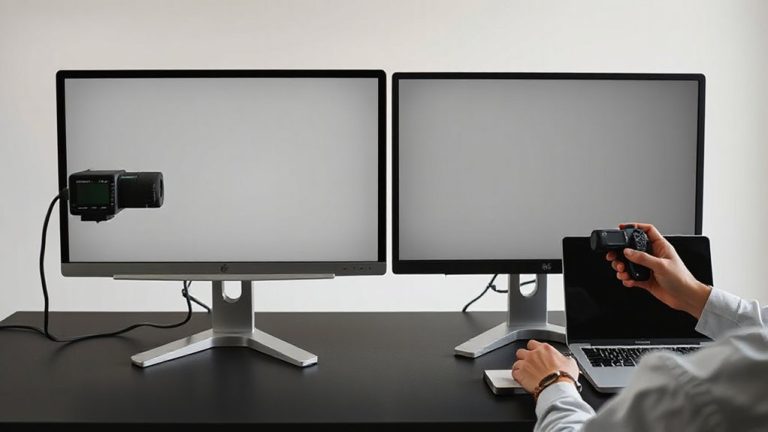
While factory presets might seem reliable, don’t count on them to deliver accurate stereo alignment-calibrating your stereo panels step by step is essential for eliminating double vision and ensuring comfortable viewing. Start by verifying panel symmetry: align both screens physically so their centers match horizontally and vertically, using a ruler or alignment tool for precision. Then, use built-in test patterns or calibration software to adjust horizontal shift and convergence. Proper depth calibration follows-tune the perceived depth of a test grid until it appears flat and fused, matching your viewing distance. Don’t skip verification at multiple brightness and content levels, as gamma shifts can distort alignment. Minor asymmetries often persist, so recheck after thermal warm-up. While high-end systems offer automated calibration tools, manual checks provide greater control. Be mindful-over-calibration can introduce new distortions, so stop when alignment feels natural.
Fix Ghosting From Panel Misalignment
Ghosting caused by panel misalignment isn’t just distracting-it undermines the entire benefit of a stereoscopic display by creating overlapping images that strain the eyes. You need precise parallax adjustment to align the left and right images correctly across both panels. Even a slight horizontal offset can cause noticeable ghosting, especially in dark scenes with bright edges. Start by using built-in calibration tools to fine-tune parallax, ensuring each panel renders depth cues in sync. Pixel synchronization is equally critical; mismatched response timings between panels exaggerate ghosting. Verify both monitors have identical firmware and refresh rates. While high-end models offer automated alignment support, budget setups demand manual tweaking with test patterns. Results improve dramatically when alignment is within 0.1 pixels, but maintaining that precision requires stable mounting and thermal management. Don’t expect perfect results from mismatched panel batches or aging displays-material variance limits performance regardless of calibration effort.
Maintain 3D Clarity With Regular Alignment Checks
You’ll get the best 3D clarity by scheduling alignment checks every few weeks, especially if your setup isn’t mounted securely or sees frequent adjustments. Regular checks reduce visual fatigue and boost user comfort during long sessions. Even slight shifts in monitor angle or spacing can distort depth perception, leading to double vision over time. Use built-in test patterns or calibration software to verify sync and positioning. Below is a quick reference for common misalignment signs and fixes:
| Issue | Likely Cause | Solution |
|---|---|---|
| Blurry 3D image | Misaligned convergence | Adjust interaxial spacing |
| Eye strain | Improper focus depth | Recalibrate display distance |
| Double vision | Screen sync lag | Check GPU frame pacing |
| Reduced user comfort | Tilt or rotation offset | Level monitors with a gauge |
While robust mounts minimize drift, no system stays perfect without oversight. Don’t assume factory settings last-verify alignment under real use.
On a final note
You’ll fix double vision from misaligned stereo monitors by calibrating panel spacing to match your interlens distance-usually 62–68mm for most adults. Precise alignment reduces ghosting and eye strain during long work sessions. However, even high-end 3D displays need monthly checks, as vibrations or adjustments can knock them out of sync. Always verify clarity across multiple viewing angles, and remember: perfect alignment won’t compensate for low refresh rates or poor content rendering.