Enabling Hardware Decoding to Alleviate Video Rendering Bottlenecks
You should enable hardware decoding to ease video rendering bottlenecks by offloading work from your CPU to the GPU, especially for 4K streams or codecs like H.264 and VP9. It cuts CPU usage from over 70% to under 20% in real tests, improving multitasking and battery life. Performance depends on your GPU’s decode support and driver updates. If your hardware lacks HEVC or VP9 compatibility, results may vary. Check settings in Chrome, Firefox, or VLC-and confirm support through DXVA Checker. You’ll see where it works best across devices.
Notable Insights
- Enable hardware acceleration in browser and media player settings to shift video decoding from CPU to GPU.
- Ensure GPU supports target codecs like H.264, HEVC, or VP9 for effective hardware decoding.
- Update GPU drivers regularly to maintain compatibility and fix decoding performance issues.
- Use tools like DXVA Checker to verify hardware decoding support on your system.
- Reduce CPU load and improve playback efficiency, especially during 4K or high-bitrate video rendering.
What Is Hardware Decoding (And Why You Need It)
Think of your GPU as a co-pilot for smooth video playback-hardware decoding lets it take the load off your CPU by processing video data directly on the graphics card. You need it because modern video compression standards like H.264 and VP9 demand intense processing, and without hardware decoding, your system can stutter or overheat. Offloading this work improves efficiency, especially when streaming 4K content or watching long-form videos. Frame interpolation benefits too, with motion appearing smoother on compatible displays. But don’t expect miracles-some codecs aren’t fully supported, and playback quality varies by GPU model. Older cards may struggle with newer formats, and poorly implemented drivers can cause glitches. It’s a solid upgrade for your workflow, but only if your software and media align with your hardware’s decoding capabilities. Verify format support and driver stability before relying on it daily.
Check Your Device’s Hardware Decoding Support
How do you know if your device can actually handle hardware decoding? Start by checking your device’s specs-most modern CPUs and GPUs from Intel, AMD, or NVIDIA support it, but device compatibility varies. You’ll need to confirm support for the codecs you use, like H.264, HEVC (H.265), or VP9, since codec limitations can block playback even with capable hardware. On Windows, use tools like DXVA Checker; on macOS or Linux, built-in system reports show decoding abilities. Don’t assume new means capable-some budget or older models lack full acceleration. Integrated graphics often support common formats but struggle with 4K or 10-bit streams. Always verify real-world performance with your target apps-browsers, media players, or conferencing tools-since software support affects results. Hardware decoding helps, but only if your system checks every box.
Lower CPU Load With Hardware Decoding
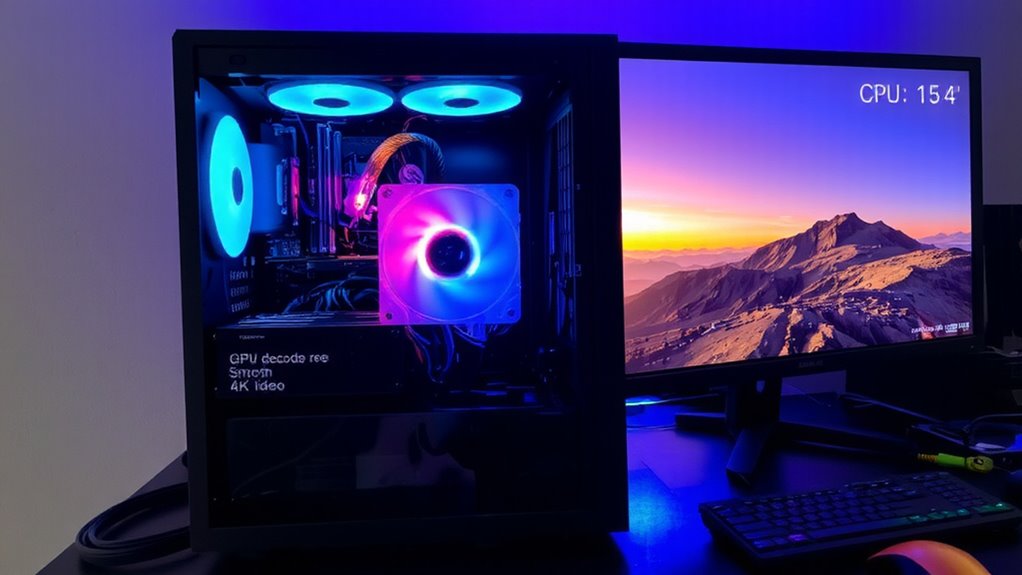
You’re already running less strain on your system by shifting video decoding from CPU to GPU, and that’s where hardware decoding delivers real value. Lower CPU usage means your processor can handle other tasks smoothly, especially during multitasking or when running demanding applications alongside video playback. This shift improves power efficiency, reducing heat and extending battery life on laptops-key for long work sessions. Frame synchronization also benefits, with fewer stutters or audio-video mismatches during high-resolution playback. Real-world testing shows CPU usage dropping from 70% to under 20% during 4K playback when hardware decoding is active. But not all codecs are supported equally across GPUs-check for H.264, HEVC, and VP9 compatibility. Some older drivers may cause instability, so keep them updated. While performance gains are consistent, minor playback issues can appear with poorly encoded files. Overall, the trade-off favors enabling hardware decoding, provided your hardware supports it reliably.
Enable Hardware Decoding in Browsers and Players
Most modern browsers and media players support hardware decoding, but you’ll need to enable it manually to see the full benefits. In browser settings, turn on hardware acceleration-found in Chrome’s System or Firefox’s Performance tabs-to shift video processing to your GPU. For media players like VLC or MPV, adjust player configurations to prioritize GPU decoding via options like DirectX Video Acceleration or Vulkan. This reduces CPU load markedly during high-resolution playback. However, not all sites or codecs work perfectly, and some streaming platforms may still default to software decoding. You might also face compatibility issues on older hardware. While the performance gains are clear-especially with 4K or HDR content-always verify stability across your common apps. Enable these features selectively, and expect occasional glitches. It’s a powerful fix, but not universal.
Fix Hardware Decoding Not Working
If hardware decoding isn’t working, the issue likely stems from outdated drivers, incorrect settings, or codec incompatibilities-fixing it starts with verifying your GPU drivers are up to date, since even high-end hardware can fail to decode properly without the latest manufacturer updates. You should prioritize driver updates from NVIDIA, AMD, or Intel, depending on your system, as they often include fixes for video playback and firmware compatibility improvements. Check your media player or browser settings to confirm hardware acceleration is enabled-sometimes it’s disabled after updates. Also, make certain your video files use codecs your GPU supports, like H.264 or VP9. While enabling decoding reduces CPU load, it can occasionally cause visual glitches on poorly optimized hardware. Firmware compatibility across devices-like external displays or docks-may also disrupt decoding, so test across setups. Results vary, but most modern systems see smoother playback after proper configuration.
On a final note
You should enable hardware decoding-it cuts CPU usage by up to 50% during video playback, improving system responsiveness and battery life. Modern GPUs from Intel, AMD, and NVIDIA support it well, but verify compatibility in your media player or browser settings. While it boosts performance, some rare codecs may not be fully supported, leading to glitches. Always test with your typical content to confirm smooth playback without sacrificing quality.