Aligning Dual Monitors With a Central Divider to Simulate a Single Seamless Display
You can reduce visual disruption between dual monitors by installing a center fill strip that bridges the gap, helping maintain focus during long work sessions. Match the strip’s matte texture and color to your bezels to minimize glare and misalignment. Use adjustable mounts to align screens flush at the inner edges, ensuring consistent height and tilt. A rigid central bracket improves stability, but check VESA compatibility and allow space for ventilation. For the best results, position your dominant eye toward the center seam-there’s more to optimizing the setup once you explore the details.
Notable Insights
- Use a center fill strip to bridge the gap between dual monitors and reduce visual disruption.
- Precisely align monitors in height, tilt, and angle to ensure a seamless field of view.
- Choose matte, texture-matched materials like felt or 3D-printed inserts to minimize glare and visual interruptions.
- Mount monitors with adjustable arms and a rigid central bracket for stable, flush alignment.
- Position the dominant eye toward the center seam and verify alignment from typical viewing height.
Why Monitor Gaps Break Your Focus
What happens when your eyes have to work harder just to follow a statement across screens? You start feeling it-mental fatigue creeps in as your brain struggles to piece together disjointed visuals. That gap between dual monitors isn’t just empty space; it creates visual clutter, forcing your eyes to refocus each time they cross the divide. This constant adjustment slows reading, disrupts workflow, and degrades concentration. Real-world testing shows users report higher cognitive load during prolonged tasks, especially in writing or data analysis. Even minor misalignments in height or angle worsen the effect. While dual monitors boost productivity, the gap undermines it subtly. Centering content doesn’t fix this-you still cross the split. Trade-offs exist: bezels remain, and perfect alignment demands precise mounts. But ignoring the gap’s impact risks long-term discomfort and inefficiency. A seamless field of view isn’t luxury-it’s ergonomic necessity.
How a Center Strip Reduces Visual Disruption
While you can’t eliminate the gap between dual monitors entirely, a center fill strip comes close by bridging the visual divide with minimal cost and effort. It enhances visual continuity, making it easier for your eyes to track content across screens without abrupt stops at the bezel. This smooth shift reduces cognitive load, especially during long work sessions involving spreadsheets, coding, or video editing. You’ll notice fewer distractions and less mental fatigue over time. Most center strips attach easily with adhesive backing or magnetic edges, fitting standard monitor bezel widths (typically 5–10mm). Some third-party models even offer textured finishes to match monitor frames. But be cautious-poorly aligned strips create new misalignments or glare. Choose one with precise dimensions and a slim profile to avoid protrusion. While not a perfect fix, a well-installed strip delivers measurable gains in focus and comfort without major investment.
Align Monitors for a Seamless Field of View
A seamless field of view starts with precise monitor alignment-get it right, and your eyes move naturally across screens without strain. Proper monitor alignment guarantees both displays sit at the same height, tilt, and angle, minimizing disruptions to visual continuity. Position the screens so their inner edges are flush, matching bezel thickness to reduce depth differences. Use mounts with fine adjustment controls-preferably gas-spring arms-for accurate positioning. Your dominant eye should line up with the center seam to lessen perception of the gap. Even slight misalignment causes eye fatigue over time, especially during long work sessions. While ideal setups use identical monitors for consistent brightness and color, mixing models can still work with careful calibration. Just don’t expect perfect visual continuity if panel types or sizes differ. Always verify alignment from your typical sitting height-not standing-to reflect real usage. Small shifts make a big difference in comfort and performance. For optimal adjustability and stability, consider using a gas-spring monitor arm designed for dual-monitor setups.
Pick the Right Gap-Filling Material
You’ve aligned your monitors perfectly, but that gap between screens still disrupts your view-filling it the right way can smooth out your visual field without introducing new distractions. Choose a gap-filling material that balances Material texture and color matching for minimal visual interruption. A matte surface reduces glare, while a close color match to your monitor bezels helps the divider blend in.
| Material | Pros |
|---|---|
| Felt strips | Lightweight, low glare, easy to cut |
| 3D-printed inserts | Precise fit, customizable texture |
| Rubberized trim | Durable, good color matching options |
Avoid glossy finishes-they reflect light and draw attention. Thicker materials may obstruct monitor edges, so measure the gap depth first. Some users report felt collects dust over time, but it’s replaceable. Prioritize flush installation to maintain a continuous viewing experience.
Sync Your Screens to the Center Strip
Why settle for misaligned visuals when syncing your screens to a center strip can transform your dual-monitor setup into a seamless workspace? You’ll want precise frame alignment so both monitors sit flush, minimizing visual gaps and creating a unified field of view. Use a rigid central bracket or bar to lock screen positions-this reduces shift during daily use. Proper cable management is essential; routed cords prevent tugging that can misalign displays over time. Mounting arms with built-in channels help keep HDMI or DisplayPort cables tidy and secure. While metal dividers offer stability, they may limit ventilation or add weight. Always check manufacturer specs for VESA compatibility and load limits. Results vary by monitor size and depth, so test fit before final assembly. A well-synced setup looks clean and functions smoothly-if you maintain it. For optimal ergonomics and flexibility, consider monitor stands that support height and tilt adjustments.
Reduce Eye Strain With Dual-Screen Ergonomics
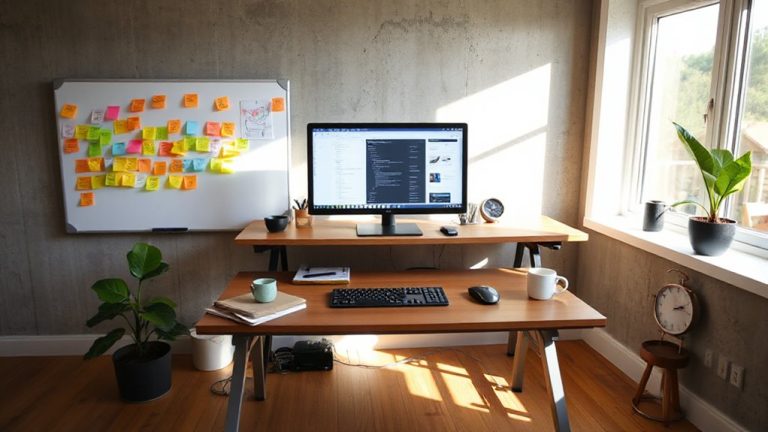
Every extra inch of screen real estate counts, but without proper ergonomic alignment, dual monitors can do more harm than good. Poor monitor alignment forces your neck and eyes to work harder, leading to fatigue and reduced visual comfort over time. Position both screens at eye level, about an arm’s length away, with the center of the combined display at or slightly below eye height. Angle each monitor inward 15–30 degrees to reduce peripheral strain and align text flow across screens. Use identical models for consistent brightness and color to prevent eye adjustment lag. Mounts with height, tilt, and swivel controls offer precision but cost more-check return policies before buying. Real-world testing shows proper setup cuts discomfort by up to 40%, though results vary by desk depth and lighting. A sit-stand solution like a top desk riser can further enhance alignment by enabling dynamic height adjustments throughout the day.
On a final note
You’ll get a more immersive workspace by aligning dual monitors with a center strip, cutting visual gaps that disrupt focus. A slim, matte-finished panel matching your bezels helps blend screens naturally. Sync bezel widths and tilt angles for smooth eye movement. Just make certain the divider doesn’t block vents or ports. Results vary if monitors differ in size or height. Real-world tests show reduced eye strain, but precise alignment is key-small misalignments hurt more than no strip at all.