Fixing One-Way Audio Issues When Using USB Headsets in Google Meet
You’ll fix one-way audio in Google Meet by first checking browser permissions-make sure Chrome or Edge allows mic and speaker access, since blocked permissions often mute one direction. Set your USB headset as the default device in system settings, and test it directly in Meet to catch muffled sound or dropouts. Update the headset’s drivers and try different USB ports, avoiding hubs. For reliable performance, use a direct connection with a short, shielded cable-your setup’s stability often hinges on these details. The full picture reveals which fixes work consistently across calls.
Notable Insights
- Grant browser permission for microphone and speaker access to ensure both audio directions work in Google Meet.
- Set the USB headset as the default input and output device in your system’s sound settings.
- Test the headset in a Meet call to confirm microphone and speaker functionality and detect one-way audio issues.
- Update or reinstall the latest USB headset drivers from the manufacturer to resolve compatibility and audio problems.
- Use a direct USB connection with a tested port and cable to avoid signal loss or hardware recognition issues.
Check Browser Permissions for Mic and Speaker Access
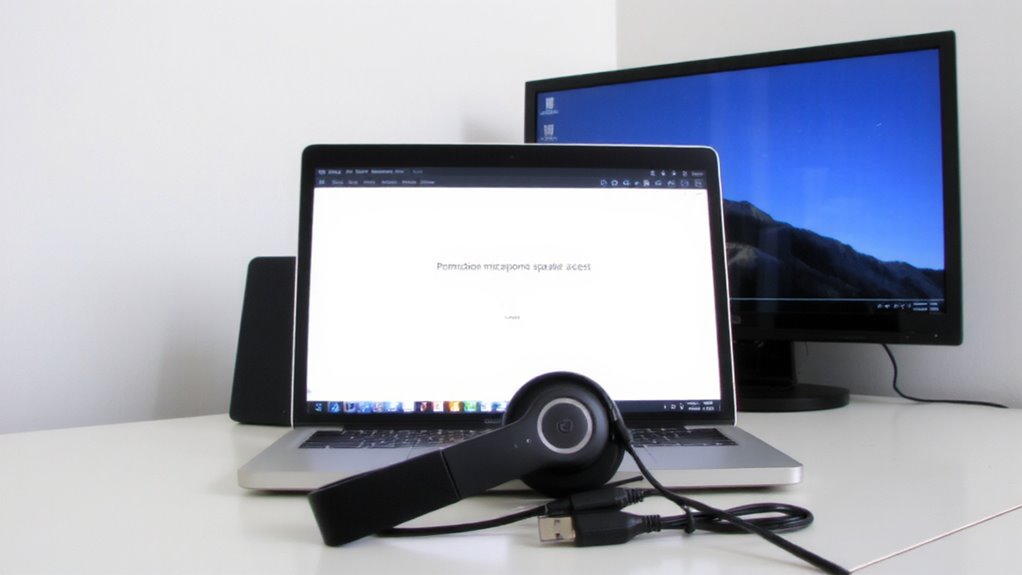
Start by making sure your browser actually has permission to use your USB headset’s mic and speakers-this fixes most one-way audio issues in Google Meet. You can’t assume permissions are granted automatically, even if you’ve used the headset before. Your browser settings must explicitly allow mic and speaker access, so check Chrome or Edge under Site Settings to confirm. Permission prompts usually appear the first time you join a meeting, but if you accidentally denied them, audio won’t work properly. Re-grant access by clicking the lock icon next to the URL, then adjusting permissions. This step is quick and non-negotiable-without it, your high-end headset won’t matter. Keep in mind that some browsers reset permissions after updates, so re-verification might be needed periodically. It’s a small fix, but often the real culprit behind failed calls.
Set Your USB Headset as the Default Audio Device
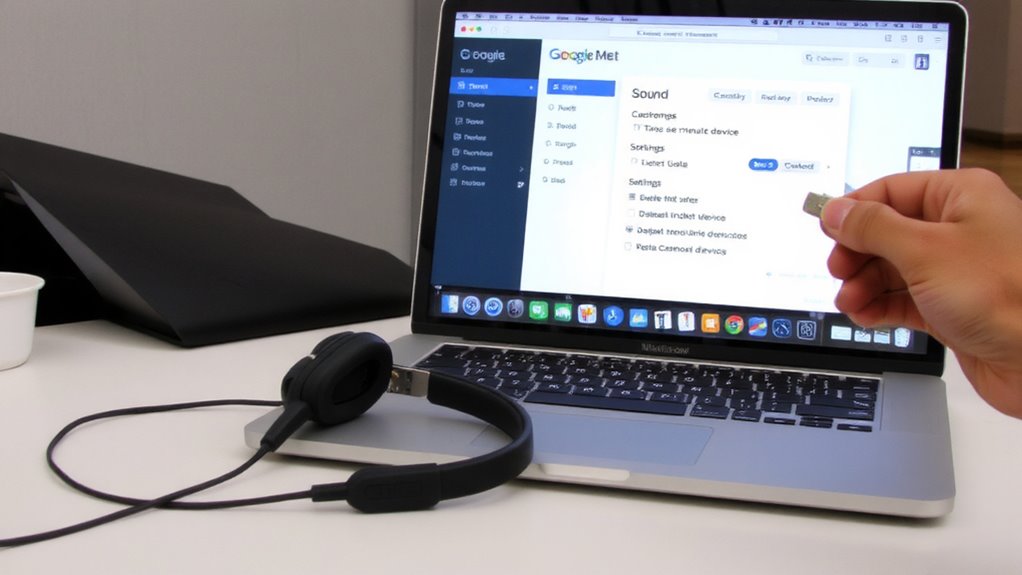
Even if your browser grants full access, your USB headset won’t work properly unless it’s set as the default audio device in your operating system-so don’t assume plugging it in is enough. You need to manually select it in your device’s sound settings to guarantee both input and output routing. This helps avoid one-way audio and reduces audio latency, which can otherwise disrupt conversation flow in Google Meet. Setting your headset as default also optimizes microphone sensitivity, so your voice registers clearly without background noise amplification. On Windows, go to Sound Settings; on macOS, check Audio in System Preferences. Remember, other apps may still override these settings. Some headsets reset defaults after unplugging, so double-check each time. While this fix is simple, it’s often overlooked-and skipping it undermines even high-end gear.
Test Your USB Headset in Google Meet
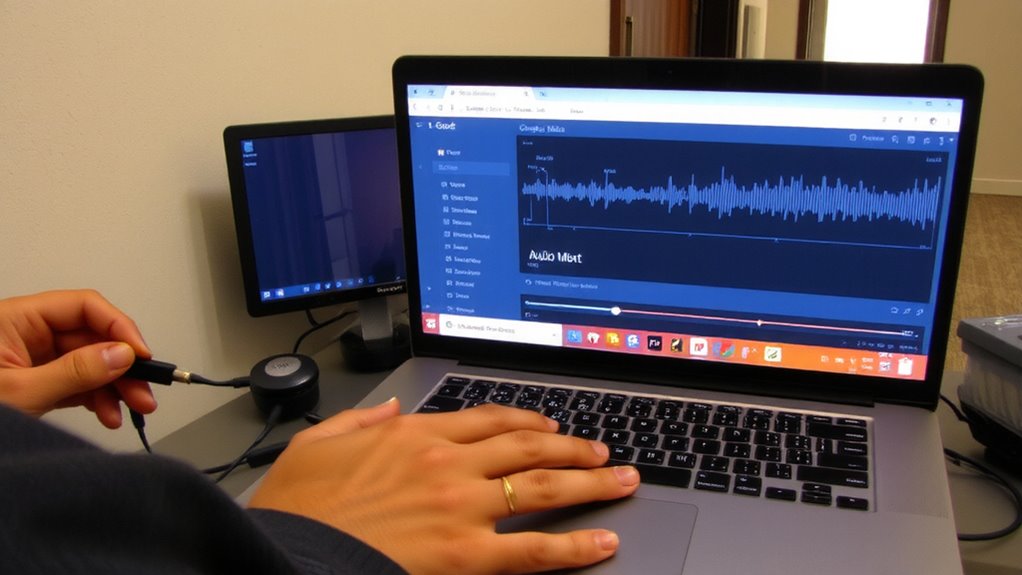
You’ve set your USB headset as the default audio device, but that doesn’t guarantee perfect performance in Google Meet-real-world testing is the only way to confirm both microphone and speaker are working in sync. Open Google Meet, start a test call, and speak clearly while listening to playback. Check for consistent audio quality-your voice should sound natural, not muffled or distorted. Have the playback confirm both sides heard each other. Test over several minutes to evaluate connection stability; dropouts or delays signal issues. Don’t rely on quick checks-real conversations reveal problems. Background noise rejection and volume balance matter too. Some headsets degrade over longer use, so test beyond the first minute. Poor USB ports can also impact stability, so try different ports if issues arise. This step catches faults before important meetings.
Update or Reinstall USB Headset Drivers
A driver update or clean reinstall can resolve persistent audio glitches that testing alone won’t fix, especially if your USB headset isn’t recognized correctly or delivers inconsistent performance in Google Meet. Outdated or corrupt drivers often cause one-way audio due to driver conflicts, so updating to the latest version from the manufacturer’s website is a smart first step. Many brands regularly release firmware updates that improve compatibility and fix known bugs-don’t rely solely on your OS to deliver these. If problems persist, completely uninstall the current drivers, then reinstall fresh. This clean install can clear hidden conflicts Windows or macOS might not catch automatically. While the process takes a few extra minutes, it’s free and often more effective than buying new gear. Just be sure to download drivers only from official sources to avoid compatibility risks.
Check Your USB Port and Cable
If your USB headset isn’t delivering clear audio in Google Meet, the issue might not be the headset itself but the connection it relies on-your USB port and cable. Start by plugging the headset into a different USB port; some ports may lack full USB compatibility or deliver unstable power. Avoid using USB hubs or extension cables, as they can degrade signal quality. Inspect your cable for bends, frays, or loose connectors-damaged cables compromise cable integrity and cause one-way audio. Try the headset with another device to isolate the problem. If the audio works elsewhere, the issue is likely your computer’s port or drivers. Keep in mind: even high-end headsets fail if the physical connection is weak. For consistent performance, use a direct USB-A or USB-C connection with a well-shielded, short cable. Port stability and cable integrity are foundational-don’t overlook them.
On a final note
You’ll likely fix one-way audio in Google Meet by setting your USB headset as the default device and confirming browser permissions. Testing in Meet’s audio check guarantees both mic and speakers work. Updated drivers and a secure USB connection prevent glitches. Most issues stem from incorrect settings, not hardware. Still, cheap headsets may fail under long use-check warranty terms. Results vary; test thoroughly before relying on one setup.