How to Arrange Monitors for a Social Media Manager Monitoring Engagement
Set up three 24-inch 1080p IPS monitors: one for analytics, one for scheduling, and one for real-time engagement alerts. Position them at eye level, 20–30 inches away, using adjustable arms to save space and reduce strain. Use Hootsuite or Sprout Social for live dashboards and dark mode to ease eye fatigue. Avoid clutter-extra screens can hurt focus. Pick models with 3-year warranties like Dell’s Premium Panel Exchange for reliability. You’ll want to know how each screen’s role ties into daily workflow next.
Notable Insights
- Position one 24-inch 1080p IPS monitor at eye level to display real-time engagement dashboards with minimal eye strain.
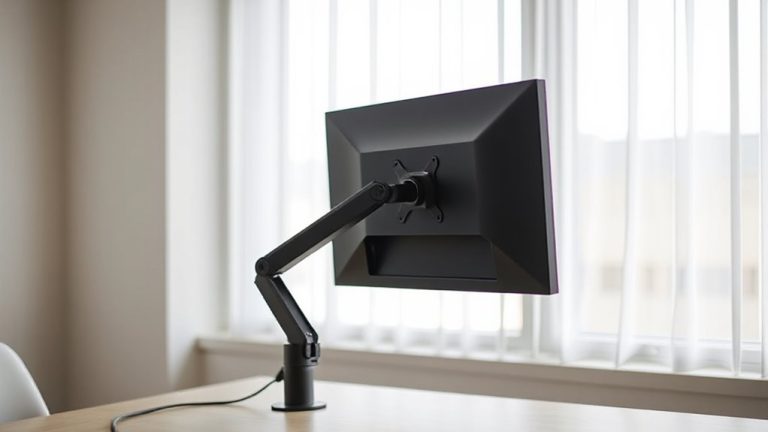
- Mount the engagement monitor vertically or on an adjustable arm for optimal viewing angles and ergonomic comfort.
- Use dark mode on the monitoring screen to reduce glare and eye fatigue during extended social media tracking.
- Dedicate a second 27-inch IPS monitor for scheduling content, placed 20–30 inches away at eye level.
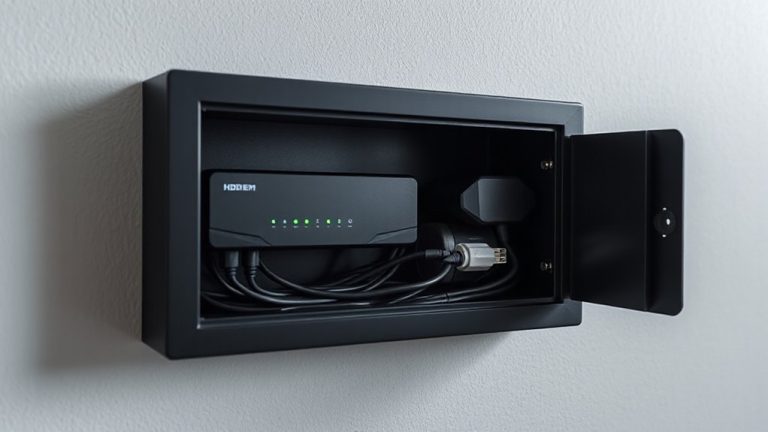
- Apply cable management and desk organization to maintain focus, using monitor arms with built-in cable routing.
Assign One Monitor to Track Social Media Analytics
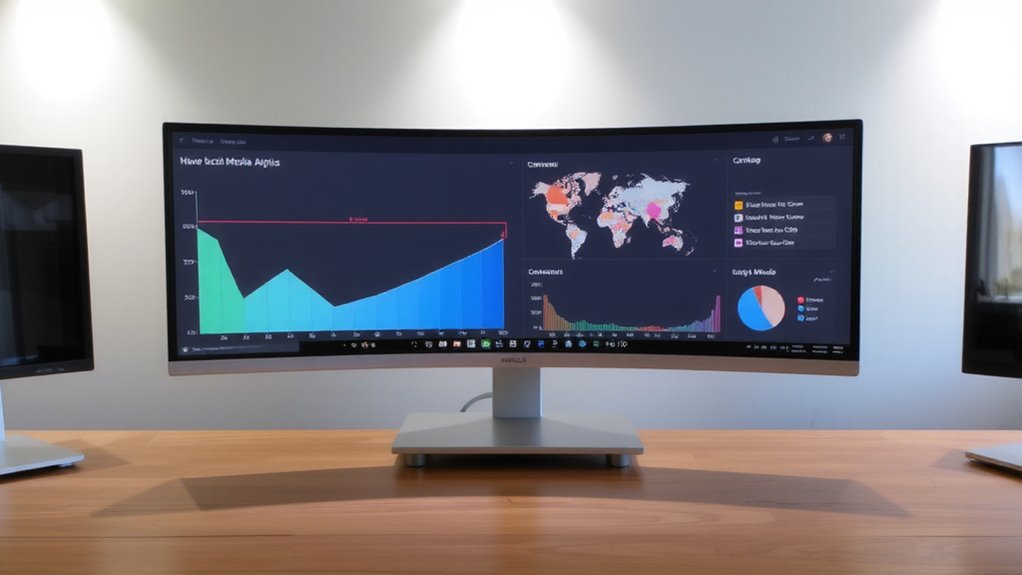
A dedicated monitor for social media analytics isn’t a luxury-it’s a productivity multiplier, *if* you use it right. You’re tracking performance metrics in real time, so a 24-inch 1080p IPS panel gives you enough screen space and color accuracy for clear data visualization. Mount it vertically or at eye level to reduce neck strain during long sessions. Use software like Hootsuite or Sprout Social to stream live dashboards showing engagement rates, reach, and click-throughs. But don’t assume more screens equal better results-clutter hurts focus. Calibrate brightness to match ambient light, reducing eye fatigue. Note: Built-in speakers aren’t worth relying on; disable them. A 3-year warranty with panel replacement, like Dell’s Premium Panel Exchange, protects your setup. This isn’t about gear bragging-it’s about designing a system where insights stay visible, decisions stay fast, and distractions stay low. For seamless multitasking, consider a split-screen monitor that allows independent window management across virtual displays.
Schedule Content Seamlessly on a Dedicated Screen
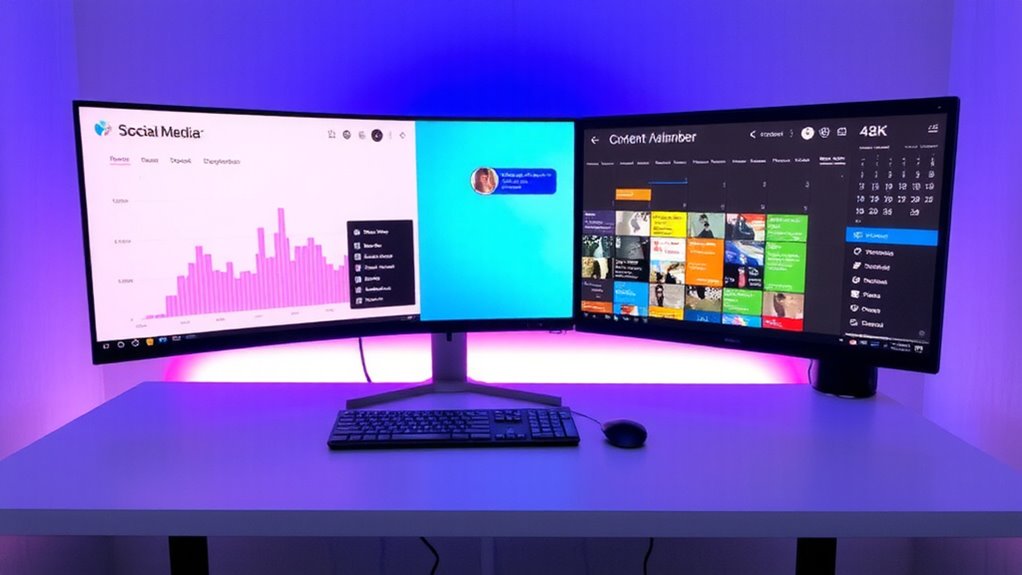
You’re already watching performance on a dedicated analytics screen-now put another monitor to work where you plan the next move. Assign a second display solely to content scheduling, so you can draft, queue, and preview posts without switching windows. Position it at eye level, 20–30 inches away, for comfort during long planning sessions. Use tools like Buffer or Hootsuite to enable seamless posting across platforms, reducing manual errors. A 27-inch IPS panel with 100% sRGB coverage guarantees accurate preview colors, matching how content appears live. Mount the monitor on an adjustable arm to save desk space and fine-tune angles. Just remember: dual-tasking across screens demands solid GPU handling and at least 16GB RAM to avoid lag. Overloading older systems can disrupt timing, hurting posting reliability. A dedicated screen improves workflow, but only if your machine can sustain the load.
Monitor Engagement in Real Time
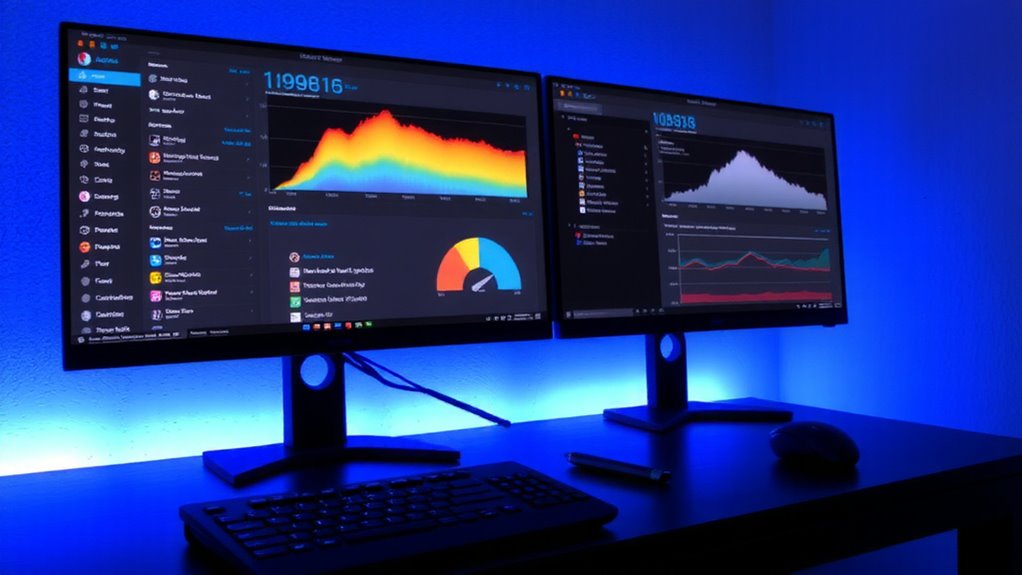
While keeping tabs on engagement might seem like a passive task, it demands a dedicated setup if you’re serious about responding quickly and accurately. You’ll want one monitor focused entirely on real time alerts from platforms like Twitter and Instagram, so you catch comments or messages the moment they drop. Use tools like Hootsuite or Sprout Social to track engagement spikes across campaigns-sudden jumps could mean a post went viral or a customer issue is escalating. Position this screen directly in front of you, set to a dark mode dashboard to reduce eye strain during long sessions. Just remember, constant notifications can distract from deep work, so customize alert settings to filter noise. A 24-inch 1080p monitor with IPS panel offers clear viewing angles and color accuracy without overspending. Real time monitoring pays off, but only if you keep the setup clean and intentional. A comfortable seating solution, such as a folding meditation chair, can enhance focus during extended monitoring sessions.
Streamline Workflow With Social Media Shortcuts
Keeping one screen locked on live engagement means you’re already halfway to a smarter social media workflow-now it’s time to cut down the clicking. Use keyboard shortcuts in apps like Hootsuite or Buffer to reply, schedule, or flag content without lifting your hands from the keyboard. They save seconds that add up fast, especially during peak hours. Keep essential browser tabs pinned and grouped by platform-fewer tabs mean less clutter and faster navigation. Swap between tools like Canva, analytics dashboards, and comments using Alt+Tab or Command+Option+Arrow. Just don’t over-rely on shortcuts if your team uses varied devices-what works on Chrome may lag on mobile. Test combinations during low-traffic windows to avoid accidental posts. Clean tab management and consistent shortcut use boost precision, but only if they fit your real-time rhythm.
Organize Your Desk for Efficiency
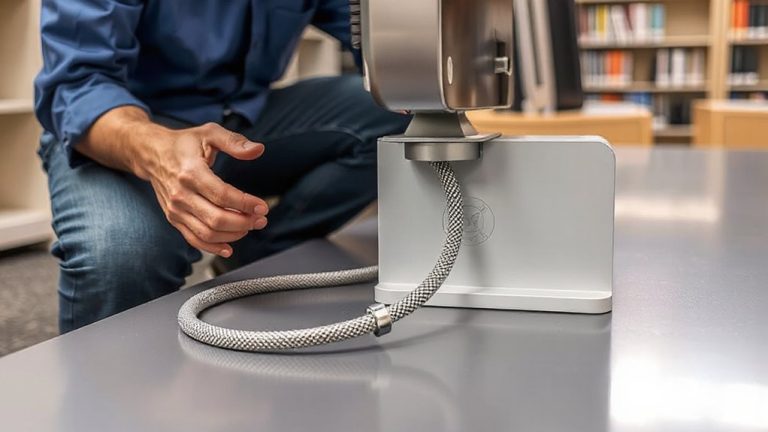
A well-organized desk can make a measurable difference in your daily efficiency, especially when managing multiple social media accounts. Proper cable management reduces clutter and distractions, while ergonomic positioning helps prevent strain during long monitoring sessions. Keep frequently used tools within reach and secure loose wires with sleeves or clips. For a clean and professional look, consider using braided cable sleeves to bundle cords neatly. Below is a concise comparison of essential desk organization tools:
| Product | Key Feature | Trade-off |
|---|---|---|
| Cable Ties | Reusable, adjustable | Less tidy than braided sleeves |
| Braided Sleeves | Sleek finish, durable | Harder to reconfigure |
| Under-Desk Tray | Holds peripherals | Reduces legroom |
| Monitor Arm | Easy height/tilt adjustment | Requires sturdy mount |
| Wrist Rest | Supports ergonomic positioning | May compress nerves if too thick |
Choose based on your space and workflow-not all solutions suit every setup.
Optimize Your Monitor Setup for Social Media Management
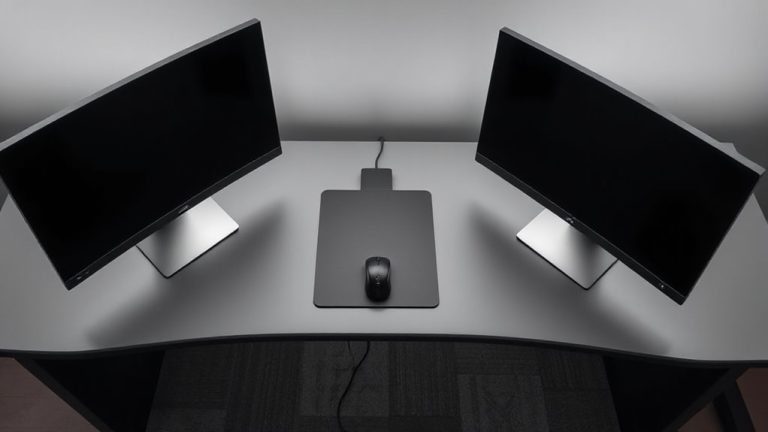
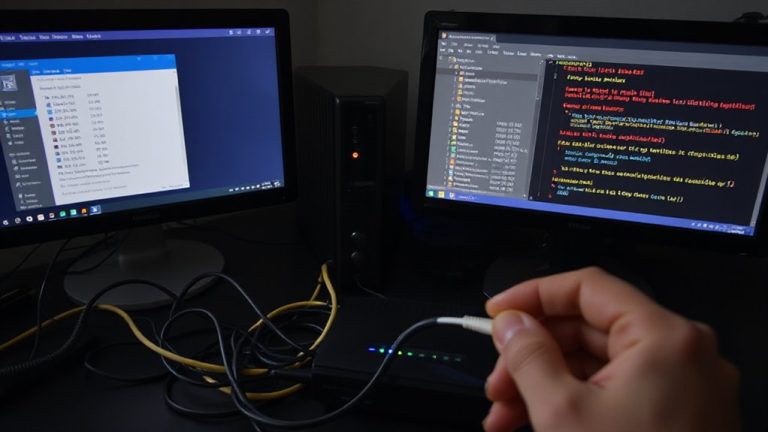
You’ll get the most out of your social media management with a dual-monitor setup that puts scheduling tools, analytics dashboards, and engagement feeds within easy view. Proper monitor placement reduces neck strain-position the primary screen directly in front, centered with your keyboard, and the secondary slightly angled inward. Keep both at eye level, about 20–30 inches away, to maintain posture during long sessions. Good cable management keeps power and HDMI or DisplayPort lines secured and untangled, using clips or sleeves to minimize clutter. This not only improves workstation safety but also makes repositioning easier. While dual monitors boost workflow efficiency, make certain your GPU supports the resolution and refresh rate of both displays. Mounting arms simplify adjustments and save desk space but require sturdy desk grommets or clamps. Built-in cable routing in arms helps, but third-party solutions work if budget’s tight.
On a final note
You’ll boost productivity with a dual-monitor setup: use one for analytics, the other for scheduling. Real-time engagement tracking works best on high-resolution IPS panels, like Dell UltraSharp or LG 27UL500-W, which offer wide viewing angles and consistent colors. Mounts save space and reduce glare. Just remember, more screens mean cable clutter and eyestrain-adjust brightness to match ambient light and take frequent breaks to stay sharp.