How to Calibrate Dual Monitor Displays for Seamless Screen Sharing
Match both monitors’ brightness to 100–120 cd/m² and use a colorimeter to calibrate color at 6500K with a 2.2 gamma curve for consistent visuals. Set identical resolution, scaling, and refresh rates to avoid sharpness mismatches and cursor stutter. Arrange screens in your OS to mirror physical layout, then test with real content like images and scrolling text. Keep in mind panel types and age may limit perfect alignment-differences often persist even after careful tuning. Small gaps matter less once you see how the full setup performs together.
Notable Insights
- Match brightness settings to 100–120 cd/m² and minimize glare with proper positioning and matte screens.
- Use a colorimeter to calibrate both monitors, targeting 6500K color temperature and 2.2 gamma for consistent colors.
- Set identical resolutions, scaling, and refresh rates to ensure uniform image quality and motion clarity.
- Align screen arrangement in OS display settings to reflect physical monitor placement for smooth cursor movement.
- Test with real content like images and documents to detect mismatches and verify calibration under normal lighting.
Match Brightness on Dual Monitors
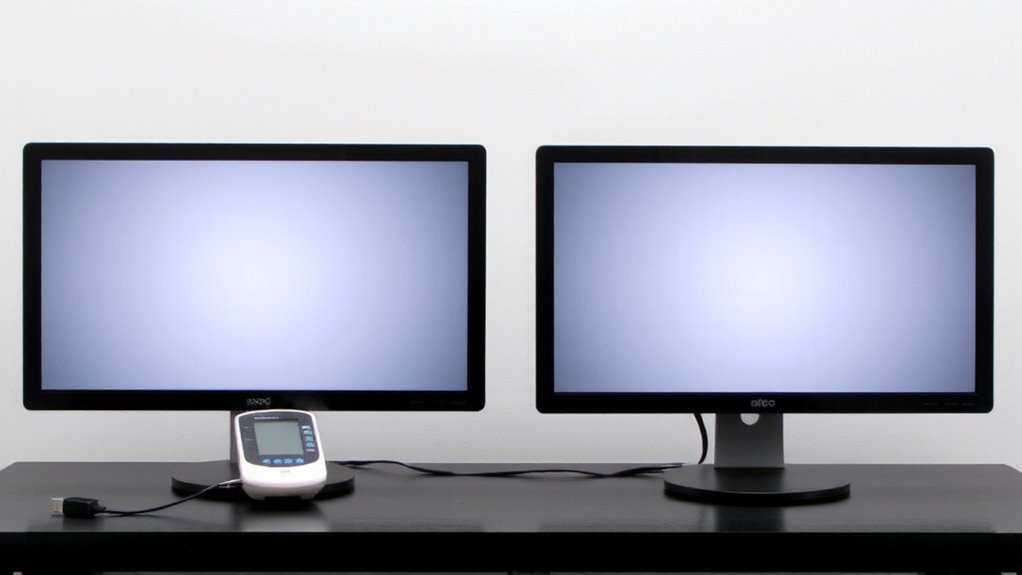
Why does one screen seem glaring while the other feels dim, even when both are turned up? It’s likely due to inconsistent brightness settings and how ambient lighting interacts with each panel. You need to manually adjust brightness and contrast so both displays emit similar light output-aim for 100–120 cd/m² for most office environments. Ambient lighting plays a big role; uneven room light can exaggerate mismatches, especially if one monitor faces a window. Display positioning matters too-if one screen is angled directly under a ceiling light, it’ll reflect more glare, skewing your perception. Use matte screens to reduce hotspots, and avoid placing monitors at different distances from light sources. Calibration isn’t one-time; recheck brightness monthly. Built-in presets drift over time, and LED backlights degrade unevenly. Don’t rely on eye judgment-use a colorimeter for accuracy, even if it costs $100.
Match Color on Dual Monitors
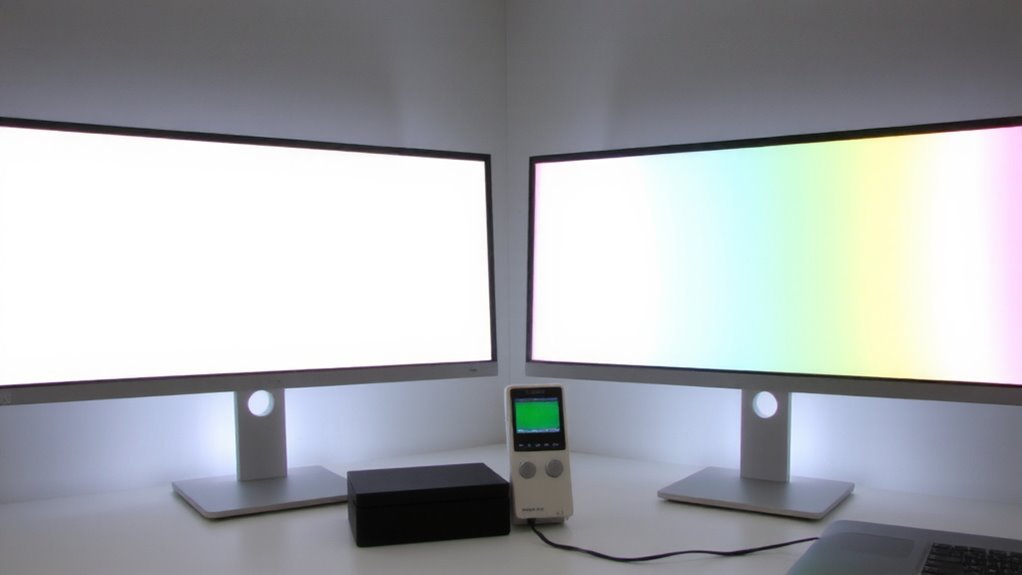
Getting matching colors across two monitors isn’t just about looks-it affects how reliably you can edit photos, design layouts, or even read text. For best color accuracy, use hardware calibration with a colorimeter; it’s the most reliable way to align both screens. Start by setting both monitors to the same color temperature-usually 6500K-and let them warm up 30 minutes. Then apply gamma correction to match luminance curves, typically targeting 2.2 for most work. Software tools like DisplayCAL are free and effective, but don’t expect perfect uniformity on older or mixed-panel types. Even monitors of the same model can vary slightly due to panel aging or manufacturing tolerances. Calibration files must be loaded per display, and you’ll likely need to recheck every few weeks. Without calibration, what looks natural on one screen might appear too warm or cool on the other-hurting consistency.
Set Identical Resolutions and Scale
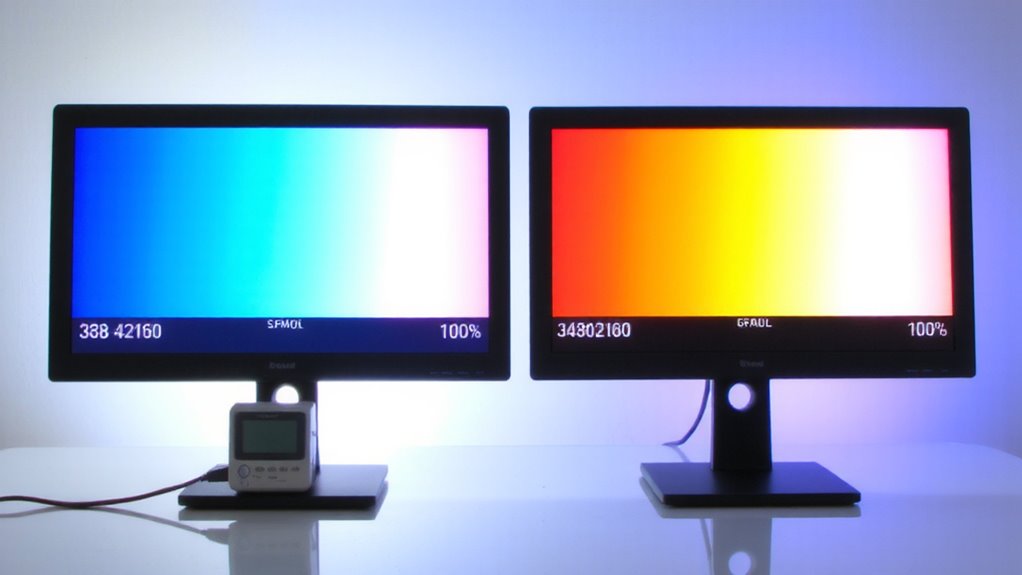
Most dual-monitor setups work best when both displays run at identical resolutions and scaling settings, so your eyes and workflow move smoothly from screen to screen. Matching resolution guarantees sharp, consistent text and image sizing, while equal scaling prevents apps from appearing too large or small across monitors. Screen alignment feels more natural when both panels show content at the same size and clarity. You’ll also minimize cursor speed jumps when moving between screens. Don’t overlook refresh rate-set both monitors to the same value, like 60Hz or 144Hz, to avoid mismatched motion clarity. While some systems allow mixed settings, identical configurations reduce visual fatigue and improve responsiveness. Just note: if one monitor has lower native resolution, running both at the lower spec may reduce overall sharpness. Always check display specs and firmware limits-forcing uniform settings beyond hardware capability can cause lag or instability.
Arrange Screens in Your OS
How your monitors appear in your operating system’s display settings directly affects how smoothly you move between them. You’ll want to drag the screen icons to match your physical setup-this guarantees accurate screen alignment so your mouse moves naturally across displays. If one monitor is turned vertically, adjust its display orientation in settings to portrait mode; otherwise, content will look sideways. Mismatched orientation or placement can make scrolling between screens feel jumpy or disoriented. While most modern OS interfaces make this easy, double-check that the active areas align where your monitors actually sit. A small gap in settings can cause cursor issues at edges. It’s a quick step, but skipping it leads to frustration. Don’t assume default positioning reflects your desk-verify it. This won’t fix hardware flaws, but proper digital arrangement prevents avoidable hassles.
Test Both Monitors With Real Content
Why settle for guessing whether your dual monitors are properly calibrated when you can see the results in real time? Open the same image or video across both screens and check for contrast consistency-if one display looks duller or oversaturated, revisit your brightness and gamma settings. Drag windows between screens to spot visible mismatches in color temperature or sharpness. Test with real work: edit a document across displays or browse a long webpage. Watch for input lag when scrolling or dragging; even a slight delay disrupts workflow. While most modern IPS panels handle this well, cheaper TN panels often struggle. Remember, perfect alignment isn’t always possible-differences in panel age or tech type can limit results. Calibrate under your usual lighting, and recheck monthly for drift. A well-matched setup boosts efficiency, but don’t expect miracles from mismatched hardware.
On a final note
You’ll get a seamless dual-monitor setup by matching brightness, color, resolution, and scaling, then aligning screens correctly in your OS. Real-world testing shows this reduces eye strain and improves multitasking. But differences in panel types or ages can limit accuracy, even after calibration. High-end models with factory color calibration help, but aren’t essential. Results vary-manage expectations, especially with mixed monitors.