How to Secure a Laptop With a Kensington Cable Lock (5-6mm)
Use a steel-braided cable lock with 5–6mm thickness and a Kensington-compatible T-bar anchor that clicks securely into your laptop’s K-Slot. Loop it tightly around a solid desk frame or metal support-never wood or plastic. Pull firmly from all angles to test stability, and check for gaps or cable wear. Pair the lock with strong passwords and full-disk encryption. Keep in mind: no lock deters every thief, but the right setup makes theft far harder. There’s more to optimizing your setup effectively.
Notable Insights
- Choose a steel braided cable lock with 5–6mm thickness and a secure T-Bar or pin-style anchor for durability.
- Confirm your laptop has a standard Kensington Security Slot (K-Slot) before attaching the cable lock.
- Anchor the cable to a sturdy, immovable object like a metal desk frame to prevent theft.
- Fully engage the lock into the K-Slot and eliminate slack to ensure a tight, tamper-resistant fit.
- Combine the cable lock with software protections like encryption and strong passwords for complete security.
Choose the Right Cable Lock
A solid cable lock isn’t a cure-all, but it’s one of the most practical ways to deter opportunistic theft of your laptop-especially in shared workspaces or public areas. You’ll want to prioritize cable durability and lock compatibility when choosing one. Look for steel braided cables with nylon sheathing-they resist cutting better than thinner or bare metal cables and hold up under daily stress. Make sure the lock head fits your laptop’s security slot; most use a standard Kensington (Kensington Security Slot) design, but double-check before buying. T-Bar or pin-style anchors must click securely into place without wiggling. Test the lock mechanism frequently-it should engage smoothly but resist jiggling. While heavier-duty locks offer better protection, they’re less portable. A three-year warranty typically signals manufacturer confidence. Keep in mind: no cable is tamper-proof, but a well-built one raises the effort enough to send thieves elsewhere.
Find Your Laptop’s Security Slot
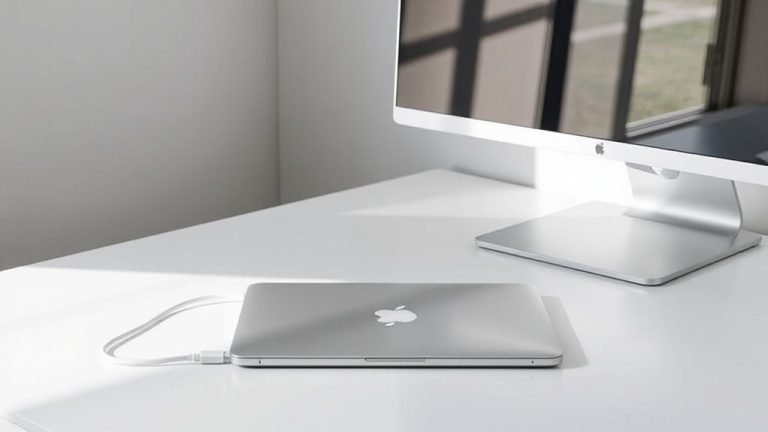
That small metal slot on the side of your laptop? That’s the security slot, and it’s designed to accept a cable lock. Finding the security slot location is usually straightforward-check the left or right edge of your device, near USB or charging ports. Most business-class laptops, like ThinkPads or Dell Latitudes, include one, but many consumer models don’t. Perform a slot compatibility check before buying a lock: it should match the Kensington Standard (K-Slot), a 3.5mm-wide notched opening. Some ultrabooks use a shallower or narrower slot, which might not hold a lock securely. Even if present, the plastic housing around the slot can crack under stress. Use it as a deterrent, not absolute theft prevention. Always combine physical locks with strong passwords and remote tracking software for real protection.
Secure the Cable Lock to a Fixed Object
Once you’ve confirmed your laptop has a compatible security slot, go ahead and loop the cable through a sturdy, immovable object-like a desk frame, metal bookshelf support, or anchor bolt-since securing it to something flimsy defeats the whole purpose. Choose a lock with sufficient cable thickness-ideally 5–6mm steel-to resist cutting with basic tools. Use a locking technique that fully engages the mechanism: insert the cable into the slot, then secure the lock firmly so there’s no slack. Avoid anchoring to wood shelves or plastic-coated furniture supports; they’re easily hacked or snapped. Thicker cables add weight and reduce portability, but they deter casual theft more effectively. Remember, no cable lock is burglar-proof-determined thieves have ways around them-but it discourages opportunistic grabs. Position your laptop so the lock isn’t easily accessible to tampering. In tests, locks with hardened steel and overlapping clamps perform best. It’s a practical trade-off between convenience and basic protection.
Check That the Lock Is Secure
While it might seem like just a quick tug is enough, you’ll want to test the lock thoroughly-give the cable a firm pull at multiple angles to confirm it’s truly fastened, since even a small gap can signal a weak connection. Perform a tension check by tugging steadily, not sharply, to avoid misleading feedback. Pair this with a visual inspection: look for gaps between the lock head and laptop slot, any fraying in the cable, and alignment of the locking mechanism. Even high-quality locks can fail if improperly seated.
| Lock Position | Pull Test Result | Cable Integrity |
|---|---|---|
| Front | Secure | No fraying |
| Side | Minor shift | Slight wear |
| Top | Secure | Intact |
| Bottom | Secure | No damage |
| Diagonal | Firm | No kinks |
Don’t assume locking equals safety-verify every time.
Add Extra Security Layers
Though a cable lock is a solid first step, you’ll get far better protection by combining it with other security measures that target different vulnerabilities. Enable biometric authentication, like fingerprint or facial recognition, so only you can log in, even if someone steals your laptop. Pair that with full-disk encryption protocols-such as BitLocker on Windows or FileVault on macOS-to keep data secure if the drive is removed. These software layers defend against unauthorized access, but they’re not foolproof; guarantee your password is strong and recovery options are secure. Also, remember that biometric systems can occasionally fail-dirty sensors or software glitches might lock you out. Always have a backup login method. While encryption slows access slightly, the trade-off in data safety is worth it for most users. Together, these steps create layered, realistic protection beyond just physical locking.
On a final note
You should definitely use a cable lock if you’ll leave your laptop unattended in a home office. A high-tensile steel cable and sturdy locking mechanism deter smash-and-grab thefts. Just anchor it to a desk frame bolted into the wall or floor. Keep in mind, though-cable locks slow thieves but won’t stop determined ones with tools. Pair it with full-disk encryption and remote tracking for real security.