Why USB-C Powered Monitors Simplify Cable Management for MacBook Owners
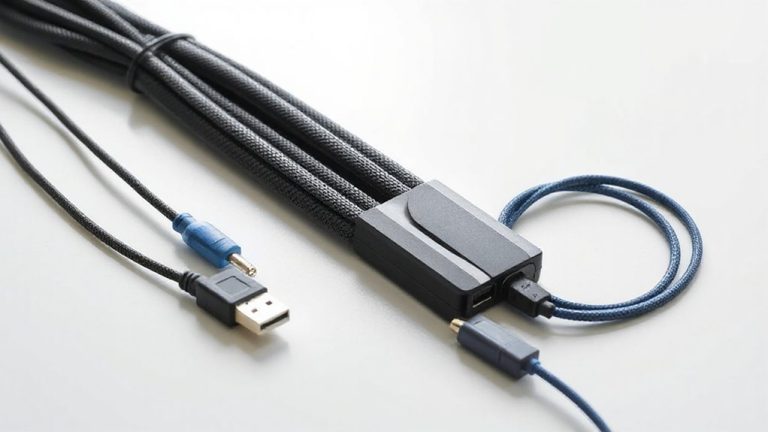
You’ll cut clutter and power your MacBook with just one cable using a USB-C monitor-it delivers charging up to 90W, 4K video, and data all through a single connection. Most modern MacBooks support this out of the box, offering instant display wake and accurate color. Just verify the monitor has full-featured USB-C with Power Delivery and DisplayPort Alt Mode. Some models save you from needing hubs or extra adapters-check specs closely to match your Mac’s capabilities.
Notable Insights
- A single USB-C cable delivers power, video, and data, replacing multiple cords.
- MacBook charging occurs directly through the monitor, eliminating the need for a separate power adapter.
- Built-in USB ports on monitors allow peripheral connectivity without an external hub.
- No need for HDMI, VGA, or DisplayPort cables-video transmits over the same USB-C connection.
- Reduces desktop clutter and simplifies setup with truly plug-and-play compatibility on macOS.
Why MacBook Users Love USB-C Monitors
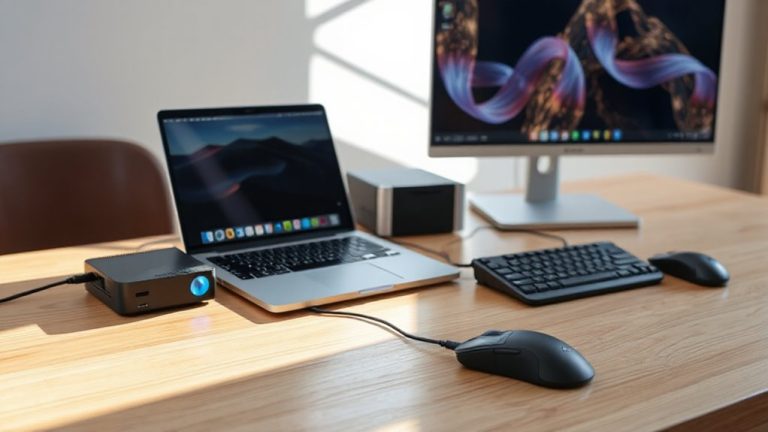
While you might think any monitor works fine with a MacBook, USB-C monitors stand out because they simplify your setup in ways that just make sense. You get seamless integration-the display wakes instantly, colors appear accurate out of the box, and macOS treats it like a natural extension of your laptop screen. Clutter reduction is another real benefit; one cable replaces the mess of power, HDMI, and USB hubs. That’s a cleaner desk and fewer points of failure. Most models support at least 99% sRGB and hit 300 nits brightness, which is solid for indoor work. Just know: not all USB-C monitors support Thunderbolt, so check specs if you need higher bandwidth. Also, built-in speakers are usually weak-plan for external audio. If you value efficiency and a tidy workspace, the upgrade makes sense, but weigh your need for extra ports or higher resolution before buying.
How One Cable Handles Power, Video, and Data
Since USB-C combines power, video, and data into a single connection, you can power your MacBook, extend your screen, and connect peripherals like keyboards and external drives-all through one cable. This works because USB-C supports simultaneous signal transmission for video and data alongside robust power delivery-up to 100W in many cases-so your MacBook charges fully while running an external display. The signal transmission handles DisplayPort or HDMI protocols via Alt Mode, ensuring crisp 4K output at 60Hz on most monitors. Data transfer works in the background, letting you plug in USB-C or USB-A accessories through the monitor’s passthrough ports. Just keep in mind that not all USB-C monitors deliver full power or support all features, especially older or budget models. Real-world performance depends on your MacBook’s port capabilities and the monitor’s specifications, so verify compatibility before relying on single-cable simplicity.
What to Check Before Buying a USB-C Monitor for Mac
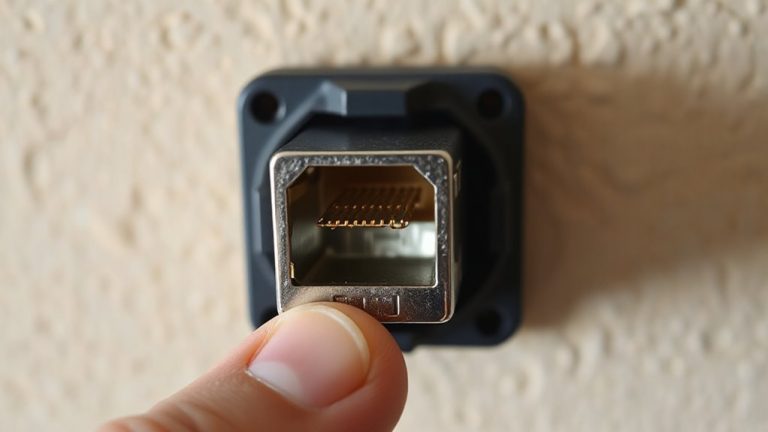
You’ll want to confirm a few key specs before buying a USB-C monitor for your Mac, even if the idea of one-cable convenience sounds great. First, check display compatibility-your Mac must support video input over USB-C, which most modern MacBook Pro and Air models do, but older versions may not. You’ll also need to verify if your Mac requires an adapter for full functionality, as some models lack USB-C power delivery support, meaning you’ll have separate power and display cables. Monitor ports matter, too: look for at least one full-featured USB-C input that carries power, video, and data. Test real-world performance if possible-some monitors draw power slowly, draining your Mac when under load. Finally, review warranty terms and user reports on image retention or backlight consistency. A good match simplifies setup, but overlooking adapter requirements or compatibility can turn convenience into frustration.
Set Up Your USB-C Monitor in Seconds
How does it feel to get your Mac up and running with a single cable? With a USB-C monitor, you gain plug and play convenience that works right out of the box. Just connect the USB-C cable from your MacBook to the monitor, and thanks to instant recognition, your display automatically configures brightness, resolution, and orientation. No extra drivers or software setups are needed-macOS handles everything seamlessly. Most models support at least 1080p at 60Hz, with many offering 4K for sharper visuals. Power delivery up to 90W keeps your MacBook charged, reducing clutter. However, performance depends on your Mac’s GPU and macOS version, so older models may see limited refresh rates. Always verify compatibility with your specific MacBook. While setup is simple, don’t assume all features will work identically across devices-some color calibration or scaling may still be needed.
Cables You Won’T Need With a USB-C Monitor
One less cable on your desk means one less thing to manage, and with a USB-C monitor, you’re cutting the cord on multiple connections at once. You won’t need a separate power cable for your MacBook-your monitor charges it over USB-C up to 90W, which covers most daily use. That also means reduced clutter and fewer adapters gathering dust in your drawer. Forget HDMI, VGA, or DisplayPort cables; one USB-C carries video, data, and power. You can skip the USB hub, too, since most models include built-in ports for peripherals. However, check your MacBook model-older versions may still need adapters until you fully shift. Monitors like the LG 27UL850 or Dell U2723QE support full charging and 4K, but their stands vary, so consider ergonomics. Real-world testing shows reliable performance, but always verify USB-C Alt Mode and power delivery specs. For expanding connectivity further, consider a best USB-C hub that complements your monitor’s built-in ports.
On a final note
You’ll get a cleaner desk and faster setup with a USB-C monitor, since one cable powers your MacBook, transfers video, and handles data. Models like the Dell UltraSharp or LG UltraFine work instantly with macOS and support 60W–90W charging. Just confirm your Mac’s USB-C port supports DisplayPort Alt Mode and check warranty terms-some brands offer three-year coverage. Keep in mind: high brightness may increase glare in sunny rooms.